Knowledge base
1000 FAQs, 500 tutorials and instructional videos. Here, there are only solutions!
Sync Contacts & Calendar (iOS apps) by CardDAV/CalDAV profile
This guide explains how to connect the Contacts and Calendar mobile apps to the contacts & calendars hosted by Infomaniak.
Introduction
- Your iOS device will be automatically configured using .mobileconfig configuration profiles compatible with Apple, unlike a manual configuration.
- It is possible to delete a configuration profile once it has been installed (scroll to the bottom of this page for instructions).
- Infomaniak contacts & calendars are linked to your Infomaniak account; when you log in to ksuite.infomaniak.com/contacts or /calendar, you will likely need to perform two-factor authentication (2FA) during login.
- In this case, an application password is required to establish synchronization between your device and Infomaniak tools.
- But don't worry, creating such a password is offered as part of the configuration wizard.
Install a configuration profile
To do this:
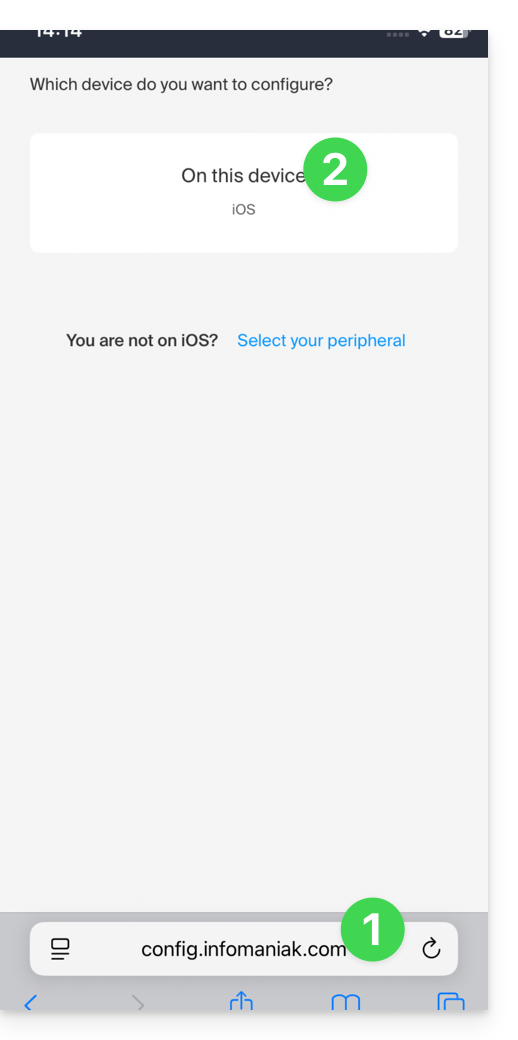
- Click here to access the Infomaniak configuration tool (online service https://config.infomaniak.com) — log in if necessary to your Infomaniak account for the Organization where your services are managed.
- Choose to install the profile on this iOS device:
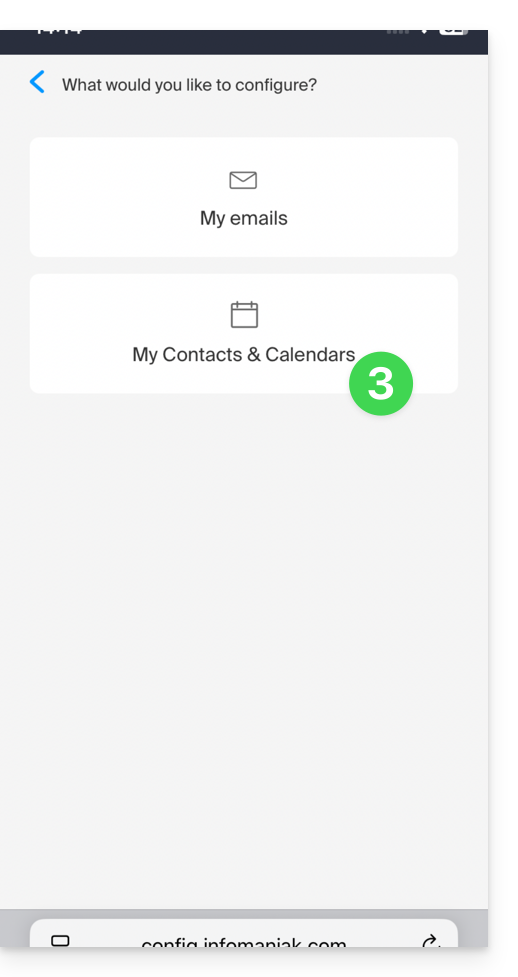
- Choose to synchronize contacts & calendars:
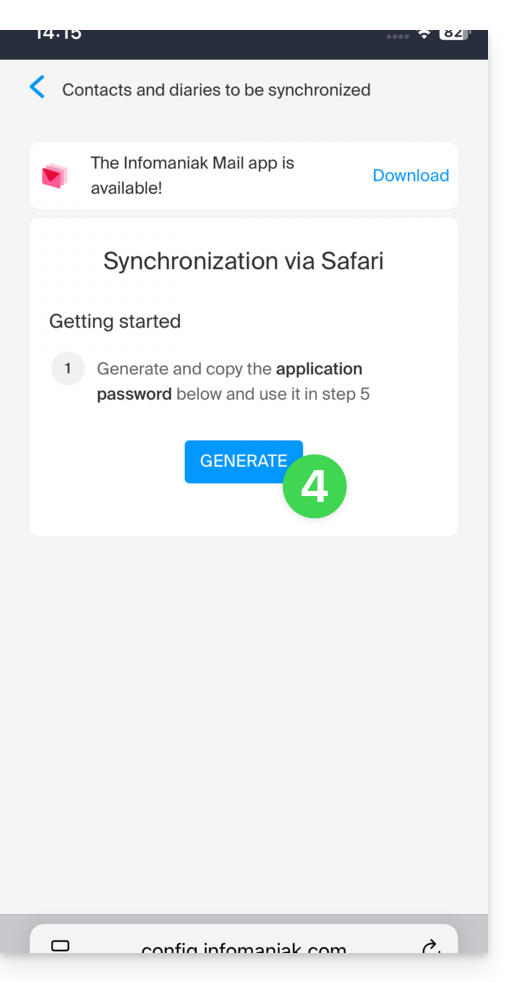
- Generate an application password dedicated to synchronization (in order to keep the usual 2FA login for your user account):
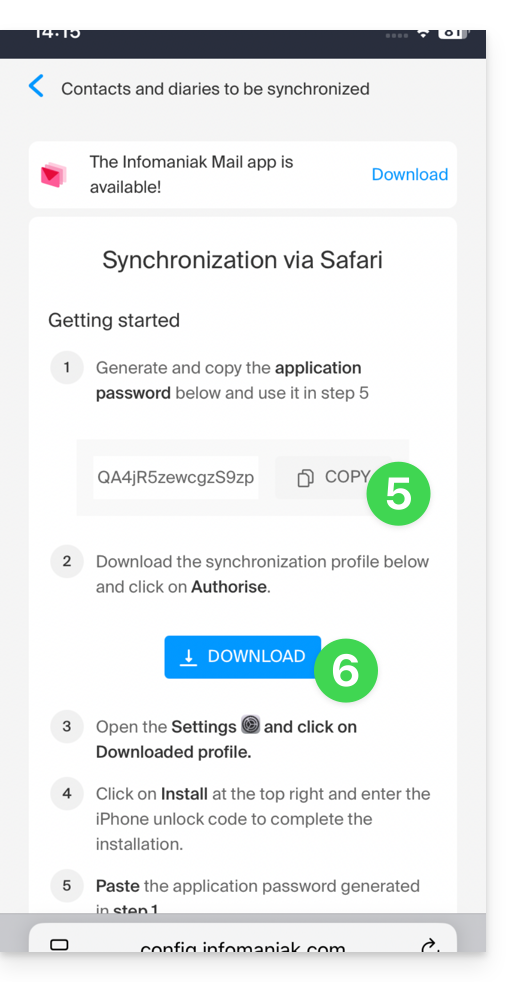
- Copy the generated application password (you will be asked for it when installing the Apple profile).
- Download the Apple profile:
- Allow the download on the device:
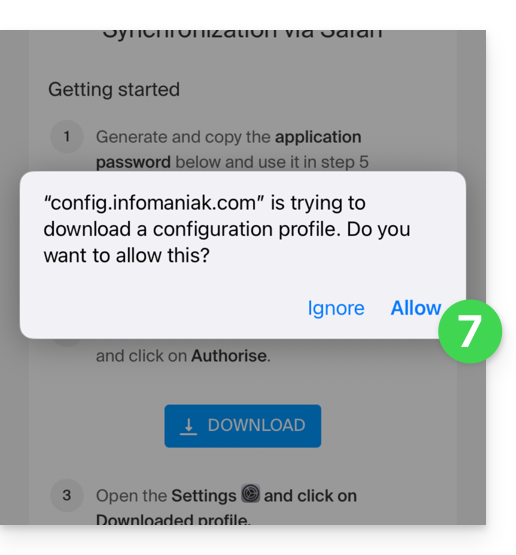
- Tap to close the message:
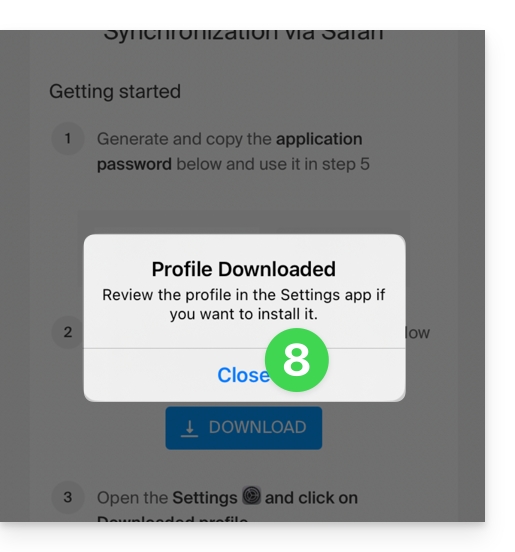
- Open the settings of the iOS device and tap on the banner at the top that informs you that a new profile has been downloaded:
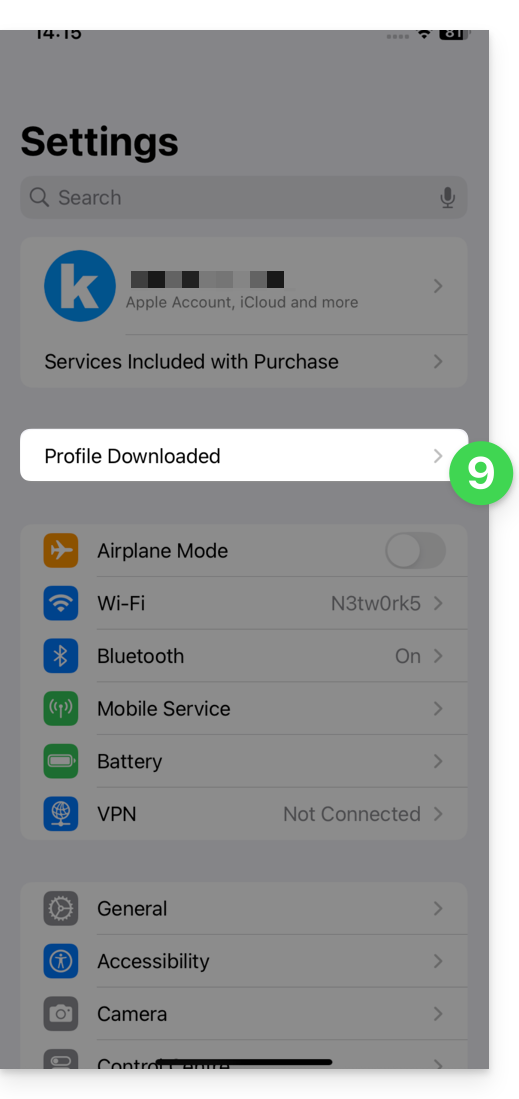
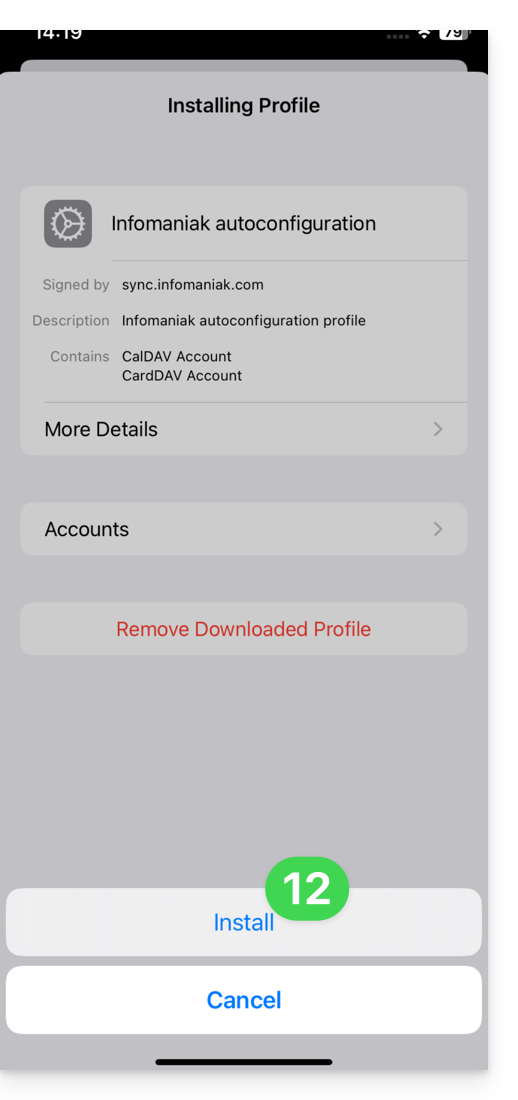
- Tap Install:
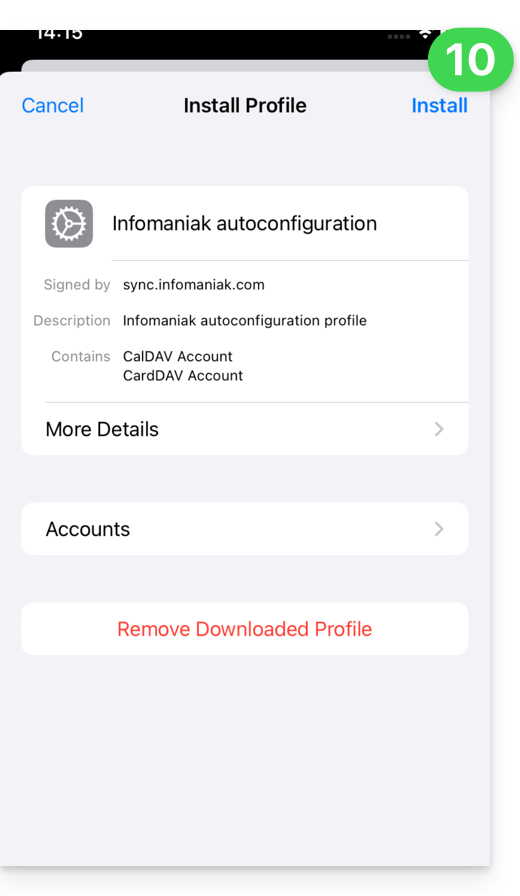
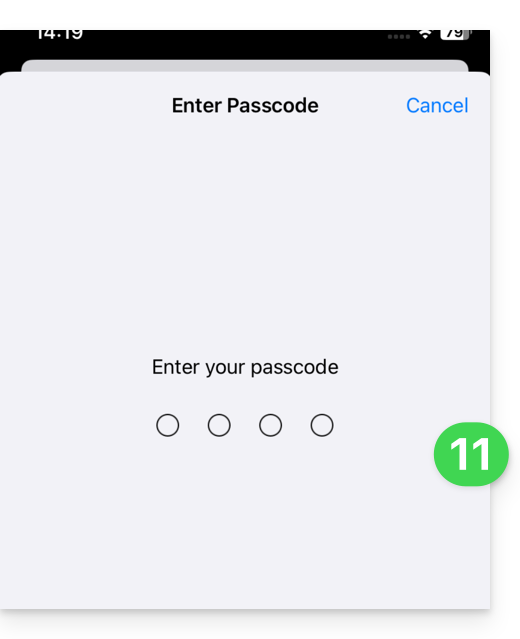
- Enter your iOS device code as if you were unlocking it:
- Tap Install:
- Enter (or paste) the application password copied in step 5 above:
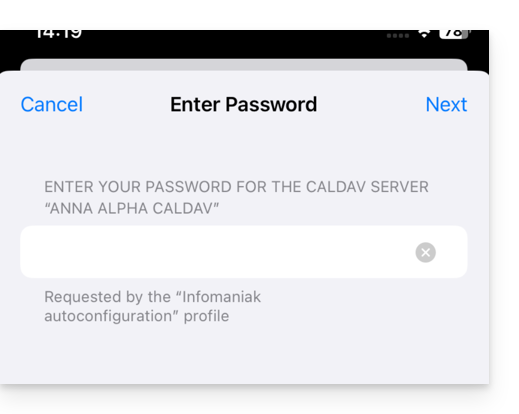
and do this twice in a row (contacts + calendars):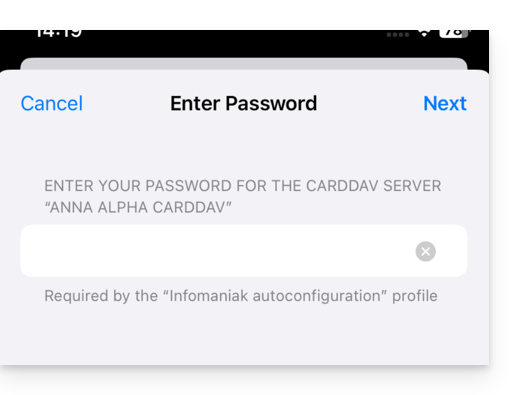
- When the notification appears at the top, it's done:
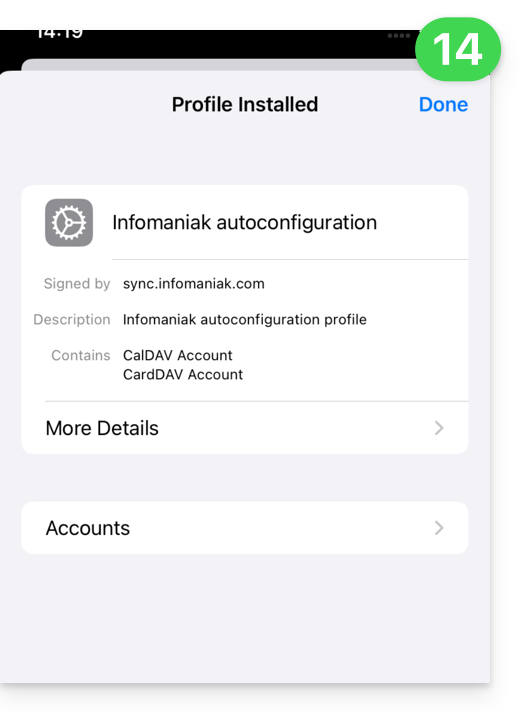
If your iOS Contacts and Calendar applications were already open, you need to restart them. You will then see the information added by the synchronization: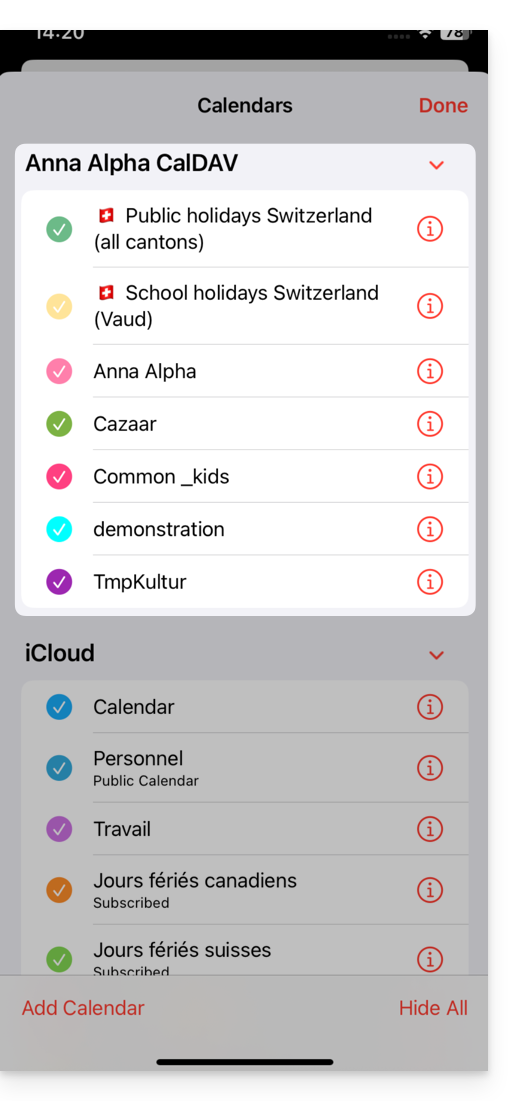
Synchronization Specifics
Please refer to this other guide.
Delete an Apple Profile
Please refer to the official documentation, changing the version of your system at the top of the page * if necessary.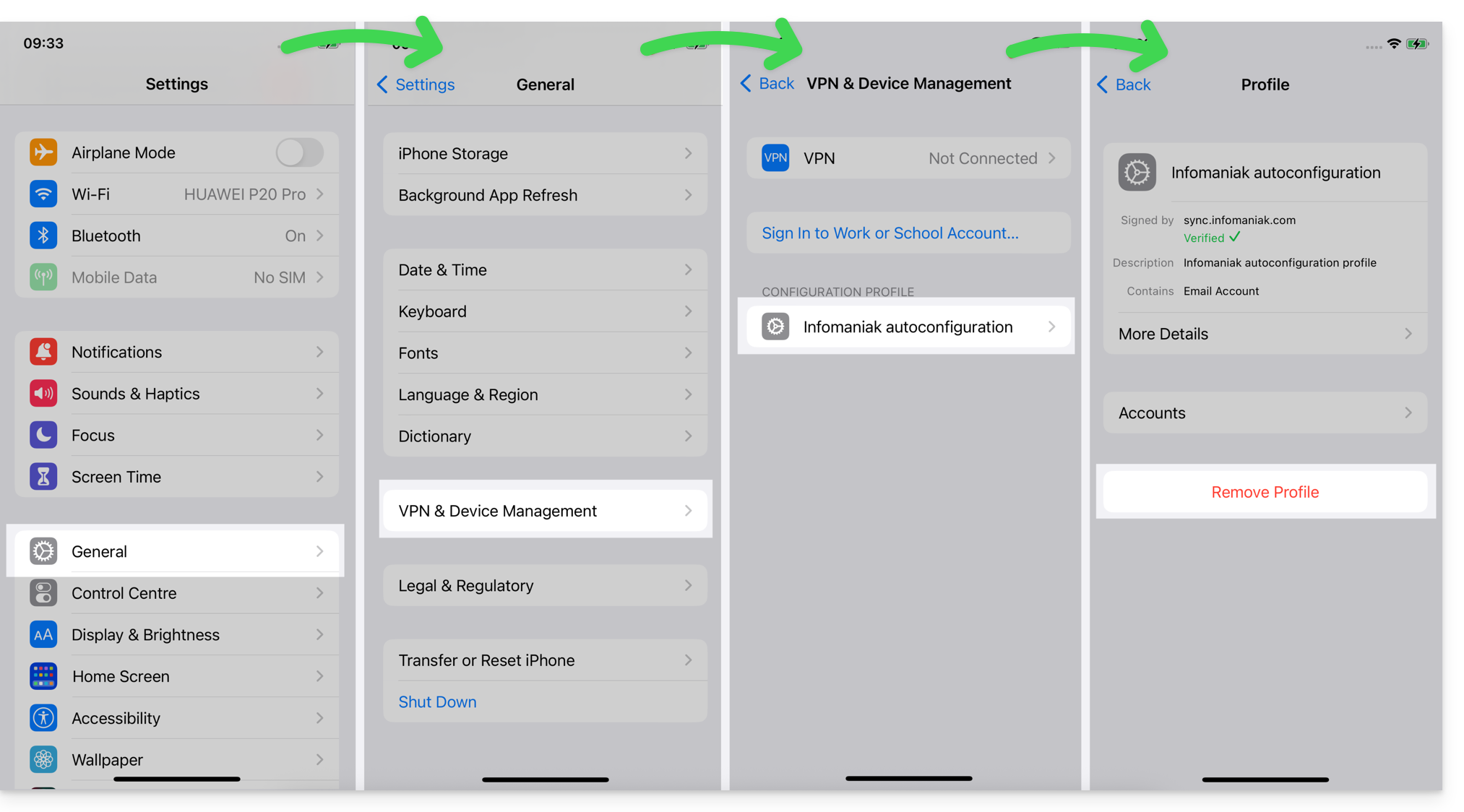
*Why is it necessary to choose the guide version that exactly matches your macOS/iOS system version? Apple introduces sometimes subtle changes with each new version of its system. For example, a path on iOS 15…
… becomes this on iOS 18…
Link to this FAQ: https://faq.infomaniak.com/2370
Has this FAQ been helpful?