Knowledge base
1000 FAQs, 500 tutorials and instructional videos. Here, there are only solutions!
Configure DynDNS with a Synology NAS
This guide explains how to access a Synology NAS connected to the Internet with a dynamic IP address from Infomaniak via a domain name.
Prerequisites
- Have a Synology NAS connected to the Internet with a dynamic IP address.
- A dynamic DNS must have been created on the domain in question.
Link a Synology NAS to a domain name
1. Add Infomaniak as a service provider
- Open the Synology NAS management interface (DSM).
- Go to the Control Panel.
- Click on External Access (under the Connectivity section).
- Click the Customize button (under the DDNS tab):
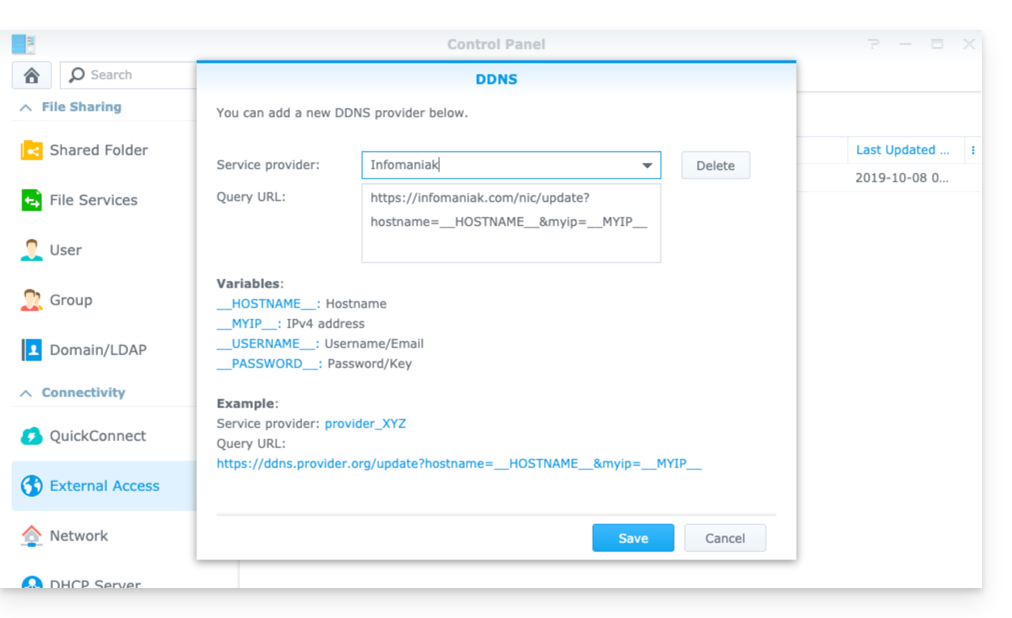
- Service provider:
Infomaniak - Query URL:
https://infomaniak.com/nic/update?hostname=__HOSTNAME__&myip=__MYIP__ - Click on Save.
2. Add the dynamic DNS to Synology
Now that Infomaniak has been added as a service provider:
- Open the Synology NAS management interface (DSM).
- Go to the Control Panel.
- Click on External Access (under the Connectivity section).
- Click the Add button:
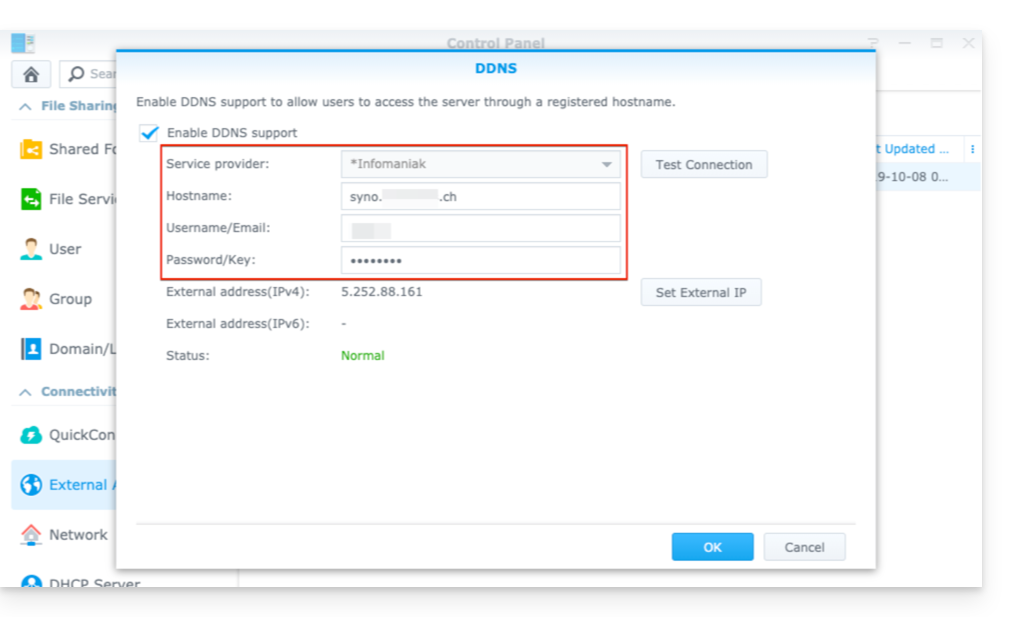
- Service provider:
Infomaniak(the profile created in the previous step) - Hostname:
the URLconfigured in the Manager when adding the Dynamic DNS - Username:
the identifierdefined in the Manager when adding the Dynamic DNS - Password:
the passworddefined in the Manager when adding the Dynamic DNS
From this stage onwards, the dynamic IP address of your Synology NAS will be automatically synchronized with your domain name.
3. NAT configuration for Synology DDNS
To make your NAS accessible from the outside, you need to configure its NAT. By default, Synology NAS uses ports 5000 and 5001.
You can access your NAS using the following syntax: http://your-domain:5000 or https://your-domain:5001.
Refer to the official Synology documentation for more information.
4. Configuration of a “Reverse Proxy”
If you do not want to specify ports :5000 or :5001 in your URLs, you can configure a Reverse Proxy from your Synology NAS, and thus redirect the URLs to port 443 for port 5001 and port 80 for port 5000 (official Synology documentation for this configuration).
Link to this FAQ:
Has this FAQ been helpful?