Knowledge base
1000 FAQs, 500 tutorials and instructional videos. Here, there are only solutions!
Use the kAuth mobile app as your Infomaniak two-factor authentication (2FA) solution
Infomaniak kAuth is a free mobile application that enhances and simplifies the security of Infomaniak accounts protected by two-factor authentication (or double authentication / 2FA). It is one of the methods that allows you to secure access to your Infomaniak user account.
Introduction
- Two-step verification protects your account and personal data when logging in to Infomaniak tools (manager.infomaniak.com and ksuite.infomaniak.com) by requiring:
- your password…
- then a second security method:
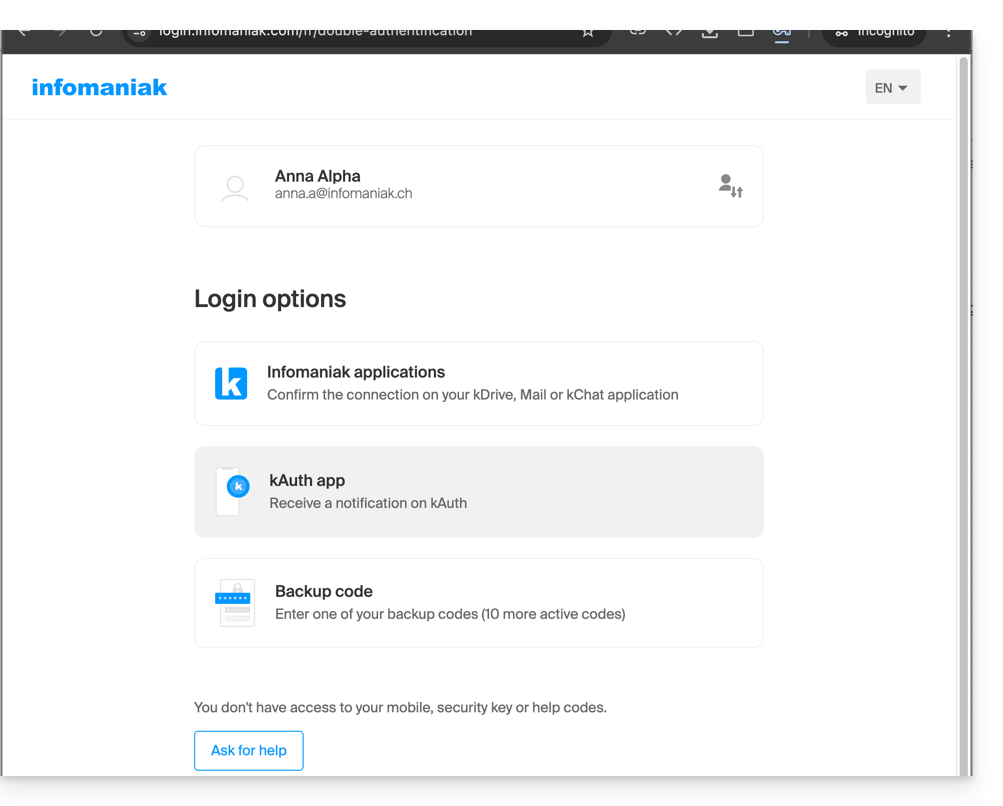
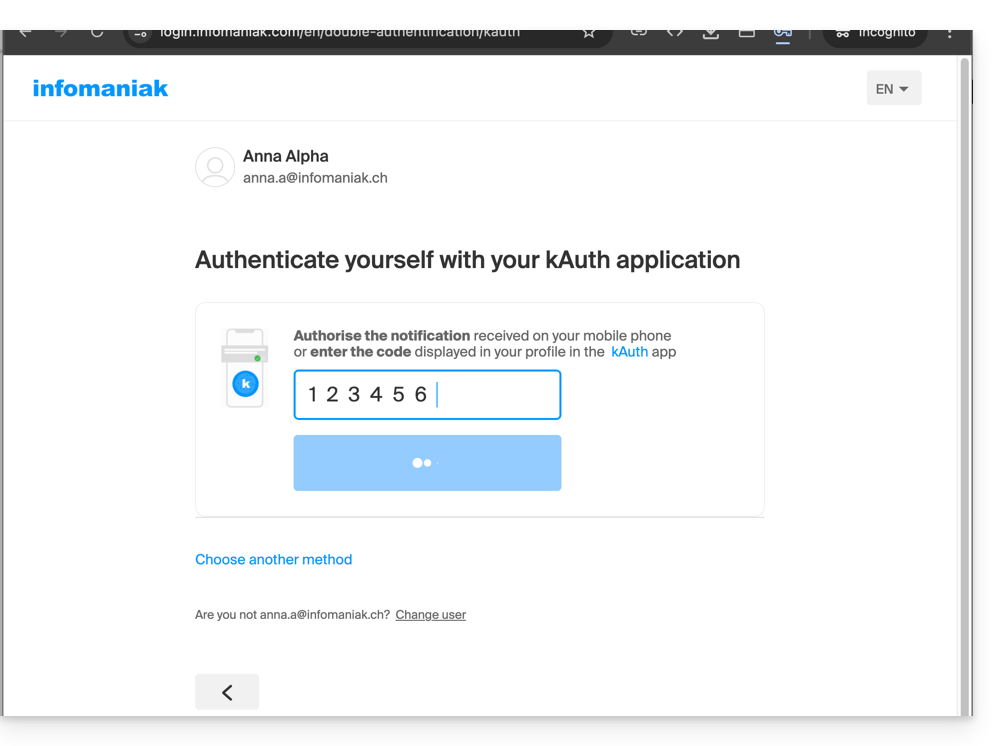
- The mobile app kAuth is one of these methods (learn more about 2FA):
Install the kAuth app
Prerequisites
- Have an Infomaniak account (know your login ID and password).
- Have an iOS or Android mobile device.
- From your iOS or Android mobile device, download the Infomaniak kAuth app here:


- Install and open the application.
You then have two options for linking your Infomaniak accounts to kAuth:
- Log in from this mobile device (recommended):
- Open the kAuth app on your mobile device.
- Click on Log in from this mobile device.
- Enter the credentials for the Infomaniak account you want to link and authenticate your connection if necessary (need help?).
- Click the Authorize button.
- Log in from a computer (if you choose this method, you will need a computer connected to the Internet):
- Open the kAuth app on a mobile device.
- Click on Log in from a computer.
- On your computer, open the page manager.infomaniak.com/2fa
- if two-factor authentication is not yet enabled: click on Enable and choose kAuth app.
- if two-factor authentication is already enabled: click on Add an option and then choose kAuth app.
- On your mobile, click on Continue.
- If necessary, allow kAuth to access your camera (only required to scan the identification QR code).
- On your computer, click on Next to display the QR code to scan.
- Scan the QR code displayed on the computer.
Save the backup codes
If you have just enabled two-factor authentication, the app will automatically display your 10 personal backup codes.
In all cases, carefully note the backup codes offered for download after each configuration: download and keep a copy of these codes in a safe place, as they will be the only way to access your account if you lose your credentials or to access your account without access to your phone.
How the mobile app works
When you try to log in to your account and successfully enter your usual password, you receive a push notification on your mobile device asking you to authorize the login ("YES / NO") via a notification from the kAuth app: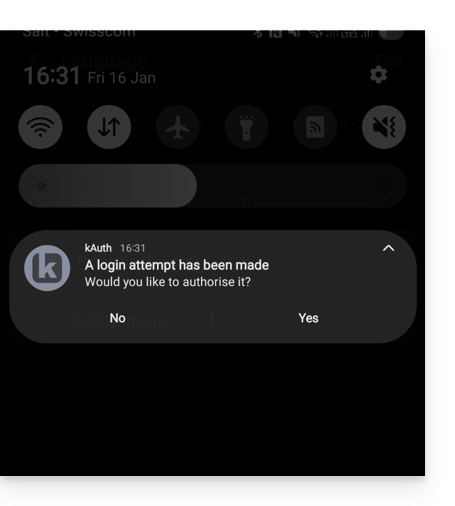
or directly in the kAuth app: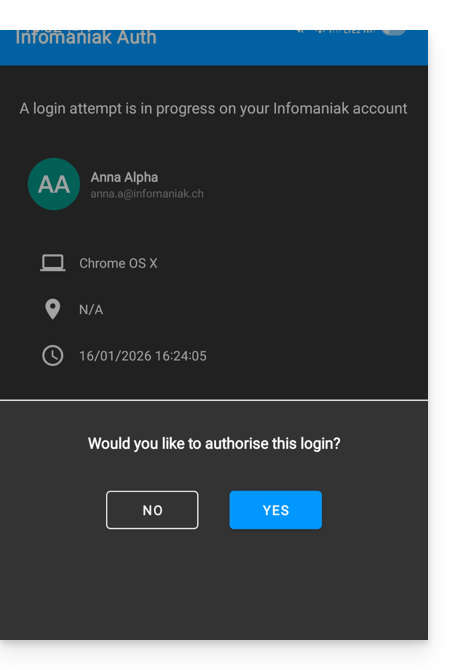
If the login is authorized, the initial page is automatically redirected to your Infomaniak account. You do not need to manually enter a one-time code as with a traditional OTP app or a code sent via SMS.
What if there is no internet connection?
Push notifications do not work without an internet connection, but kAuth also works without an internet connection and still allows you to display a one-time code in the same way as a traditional OTP app:
- Open kAuth from your mobile device.
- Click on the Infomaniak account in question.
- Copy the one-time code (each code is valid for 30 seconds) to the login page:
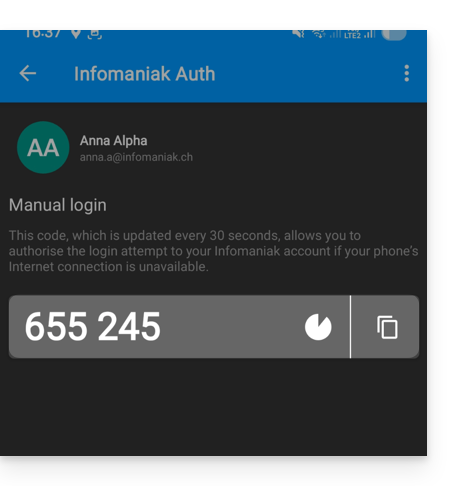
This way, you can always access your account while traveling or on vacation.
Add additional accounts
kAuth allows you to manage multiple Infomaniak accounts:
- Open kAuth from your mobile device.
- Click on the blue button :
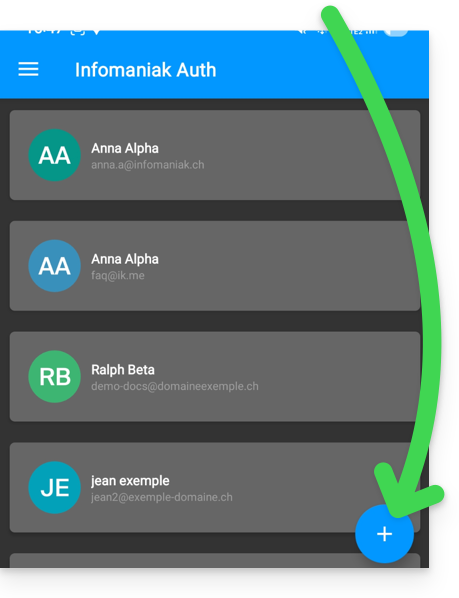
- Repeat the steps described above to link the account.
Delete a kAuth account
To delete your Infomaniak identity from the kAuth app, you must disable the kAuth security method from the 2FA section of the Infomaniak account manager.
Link to this FAQ: https://faq.infomaniak.com/2358
Has this FAQ been helpful?