Knowledge base
1000 FAQs, 500 tutorials and instructional videos. Here, there are only solutions!
Backup QNAP with rClone or HBS on Swiss Backup (Swift)
This guide details how to back up a QNAP-type NAS using rClone or HBS via the OpenStack Swift protocol on Swiss Backup, the backup solution in an independent Swiss cloud.
Preamble
- The various services offered by Infomaniak are all compatible with the corresponding standard protocols (S3/Swift for storage, for example), therefore if you encounter a problem with third-party software, contact its publisher or a Partner and consult the support policy as well as section 11.9 of the Infomaniak Terms of Service.
Connection via rClone
Prerequisites
- Have a Swiss Backup space from Infomaniak with an available device quota (minimum 1) for a Cloud Backup.
- Add 1 device of type Cloud to obtain the OpenStack Swift parameters.
- Install the rClone application (https://www.qnapclub.eu/en/qpkg/330) or HBS (https://www.qnap.com/en/software/hybrid-backup-sync) on the QNAP.
To configure a new backup:
- Copy the content below into the
rclone.conffile in the.config/rclonedirectory of the user (e.g./share/homes/backupuser/.config/rclone/rclone.conf) - Check the configuration with "
rclone config". - Start the copy with the command "
rclone sync /share/to/sync Infomaniak:default".
Replace SBI-XXXXXXXX and "passwd" according to the information specific to your device (refer to this other guide):
[sb_project_SBI-XXXXXXXX]
type = swift
user = SBI-XXXXXXXX
key = passwd
auth (1) = https://swiss-backup.infomaniak.com/identity/v3
domain = default
tenant = sb_project_SBI-XXXXXXXX
tenant_domain = default
region = RegionOne
storage_url =
auth_version =
Connection via HBS (Hybrid Backup Sync)
To configure a new backup:
- Open HBS and go to Backup & Restore then click on Create new Backup job.
- Select the NAS folder to back up then click on Next.
- Choose OpenStack Swift then enter the information according to the instructions below:
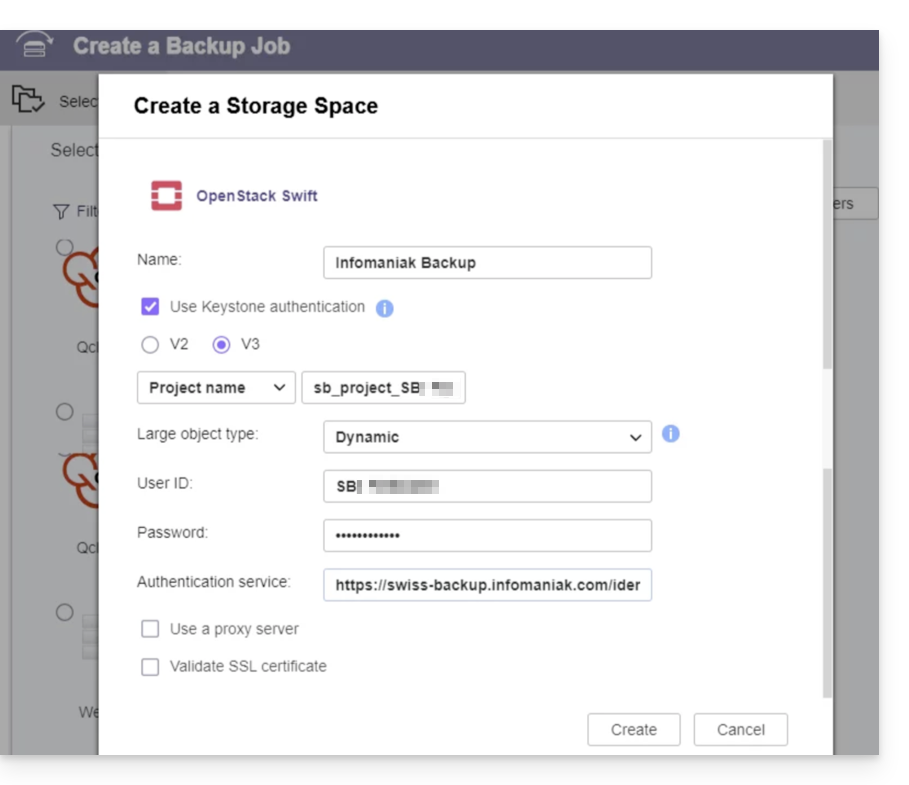
- Name: give a name to the backup
- Select "
Use Keystone Infrastructure" - Select "
V3" - Project name:
sb_project_SBI-XXXXXXXX(replaceSBI-XXXXXXXXwith your own identifier, same below) - User ID:
SBI-XXXXXXXX - Password: the one generated on Swiss Backup
- Authentication service (1):
https://swiss-backup.infomaniak.com/identity/v3
- Click on Create.
- Region name:
RegionOne - Bucket name:
default - Multipart Size: leave
128MB - Click on Select.
- Click on default at the destination level, then on OK.
- Name the task.
- Then configure the desired parameters such as the backup frequency and bandwidth limitation.
- Click on Create.
(1) The indication "//swiss-backup02", "//swiss-backup03" etc. changes according to the cluster number indicated in the Manager in the Cloud storage information under "Location"; and if your Swiss Backup device was created before October 2020, you will need to use https://swiss-backup.infomaniak.com/identity/v3
Link to this FAQ:
Has this FAQ been helpful?