Knowledge base
1000 FAQs, 500 tutorials and instructional videos. Here, there are only solutions!
Add a new device to Swiss Backup (Acronis backup)
Update 06/09/2026
This guide explains how to create a new device on Swiss Backup, the backup solution in a Swiss independent cloud.
Prerequisites
- Order an Infomaniak Swiss Backup space (Acronis backup).
- When ordering, define the available device quota(s) (minimum 1) according to your needs:
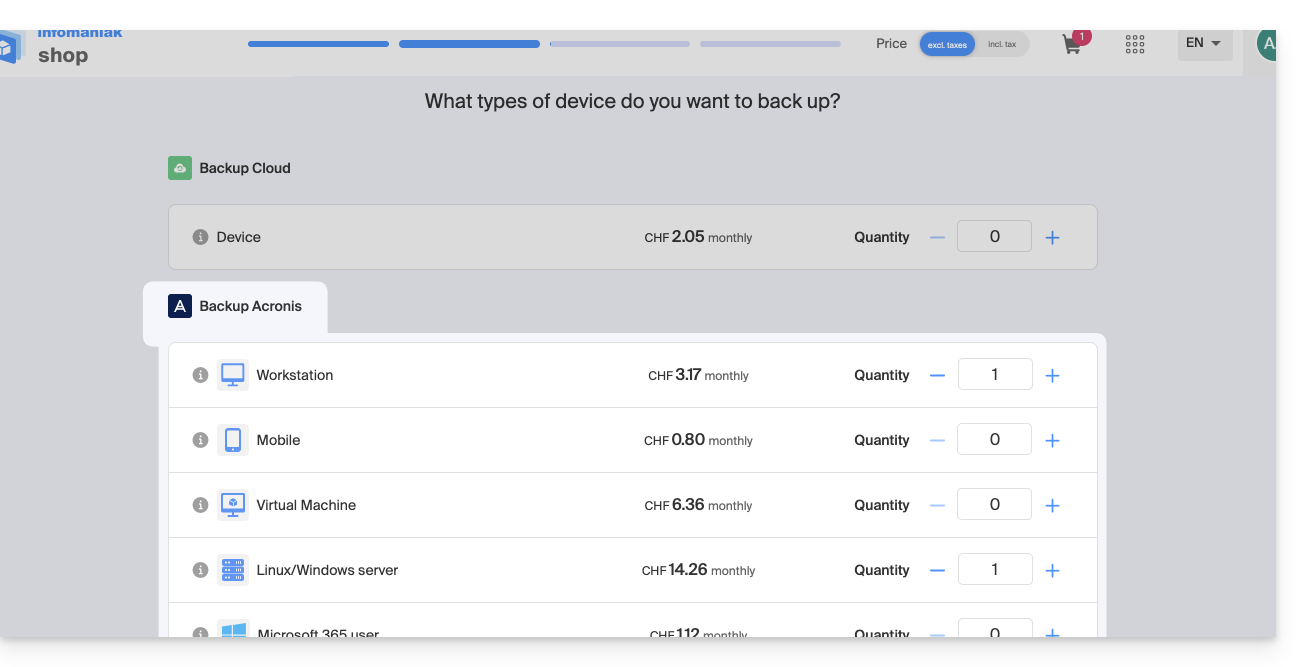
- If necessary, increase the device quota according to your needs.
Add a device (Acronis backup)
To access Swiss Backup and configure a new Acronis backup:
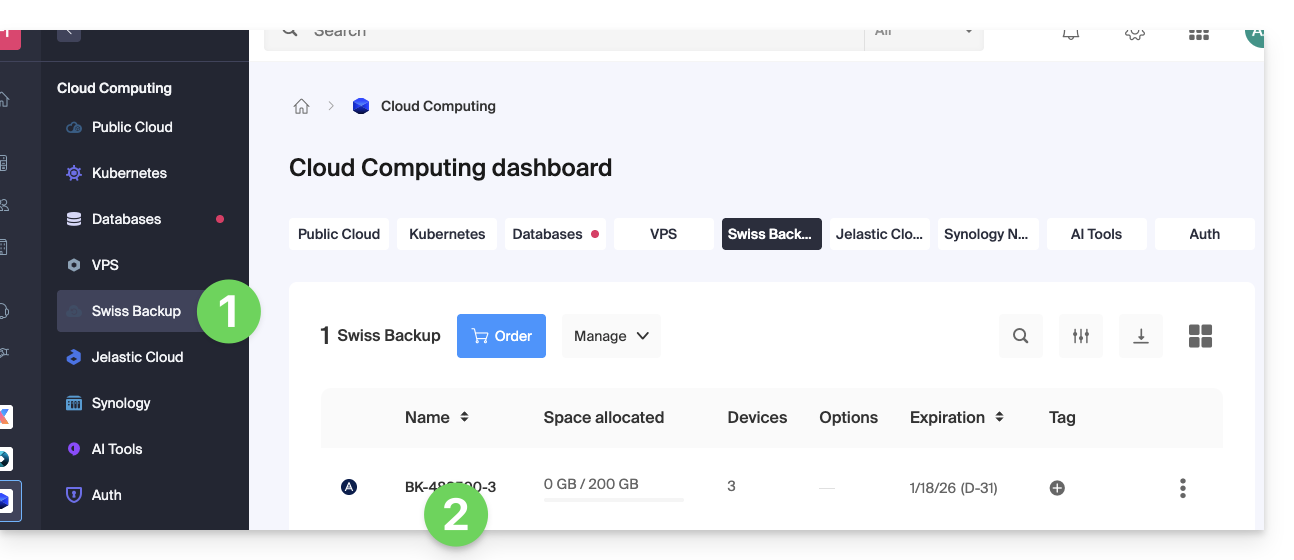
- Click here to access the management of your product on the Infomaniak Manager (need help?).
- Click directly on the name assigned to the product in question:
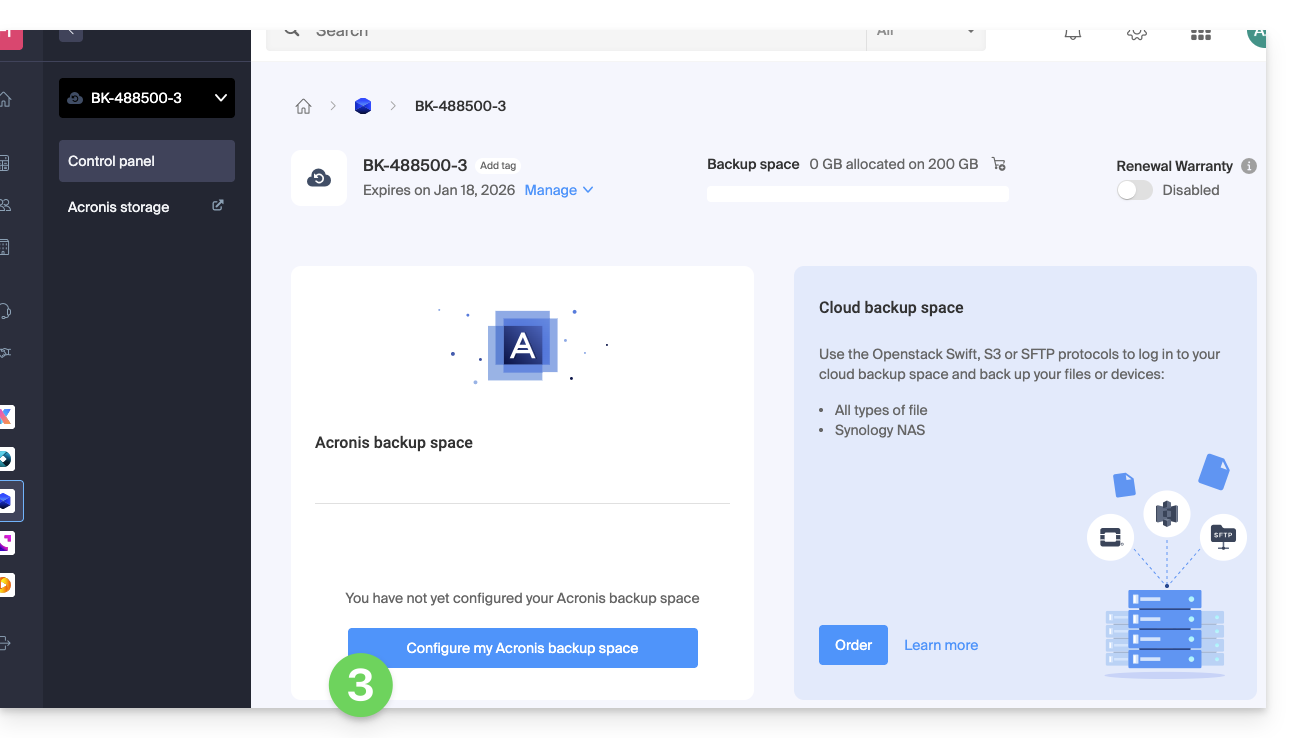
- Click on the blue button Configure my Acronis backup space (in the Acronis backup space section):
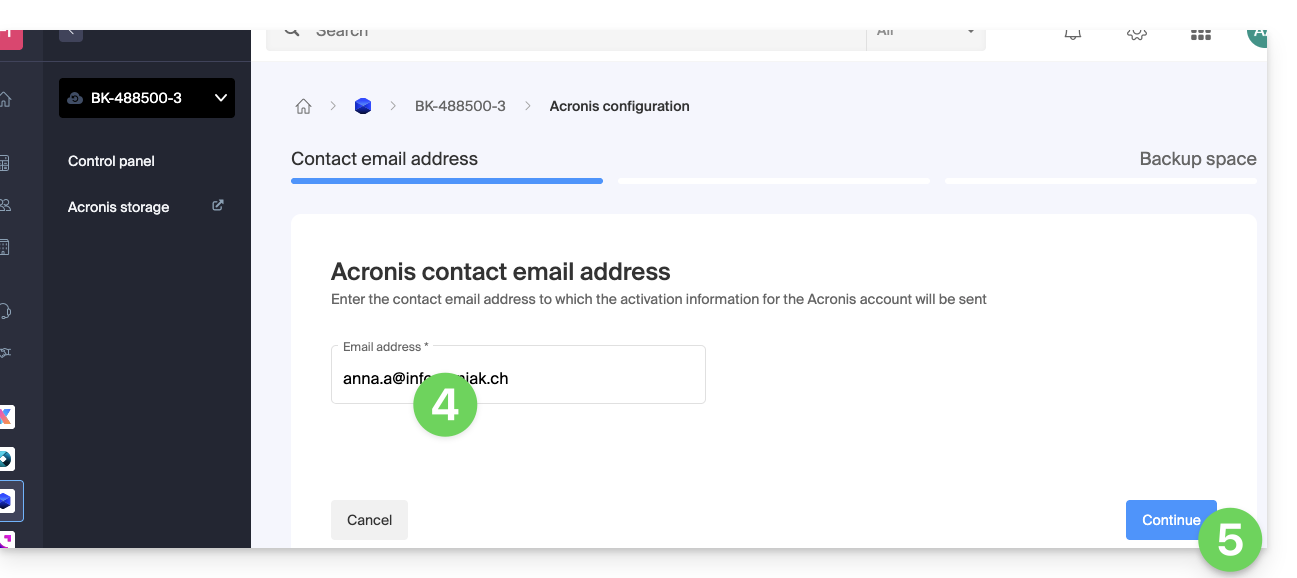
- Enter a valid contact email address.
- Click on the blue button Continue:
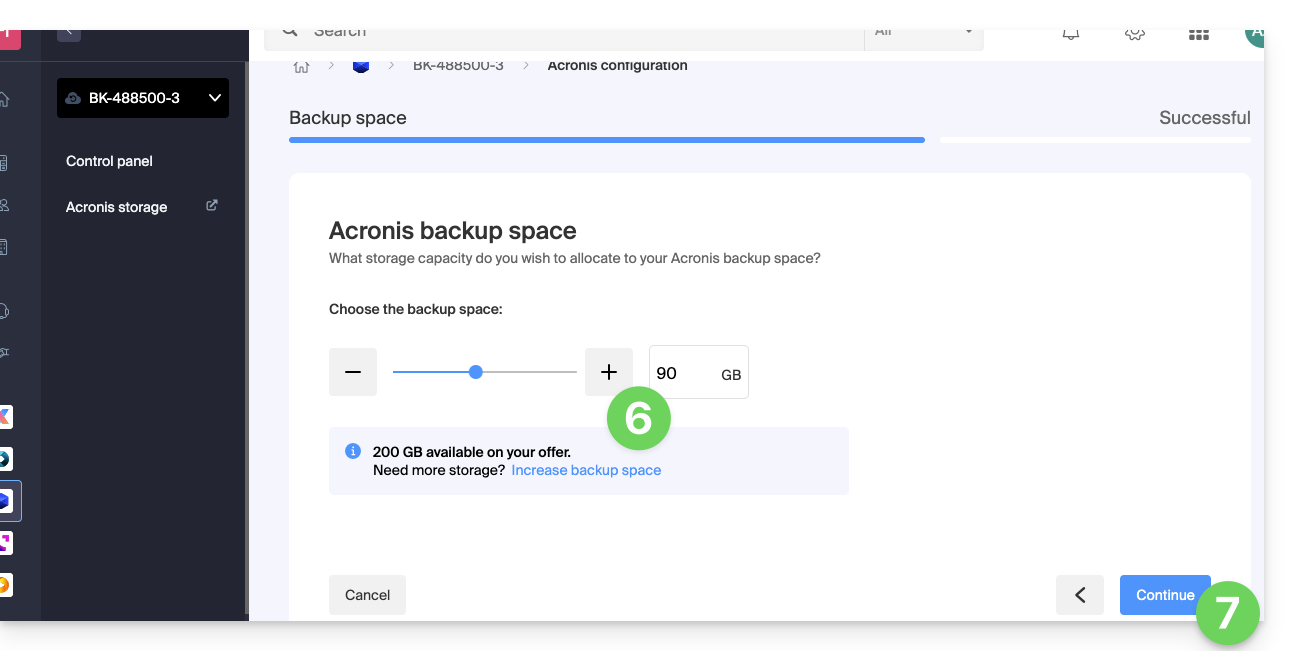
- Define the maximum disk space that this backup space should represent, based on the total volume of the Swiss Backup plan you have subscribed to. If necessary, increase the total size using the blue link.
- Click the blue Continue button:
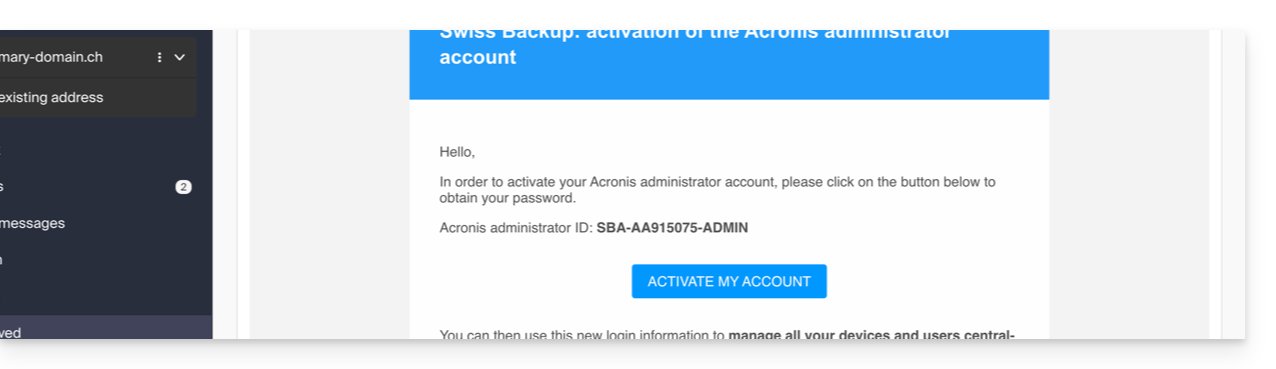
- Check the email you received to activate the account and generate a login password:
- Click the button in the email you received:
- Carefully note the password that will appear on your screen (example below):
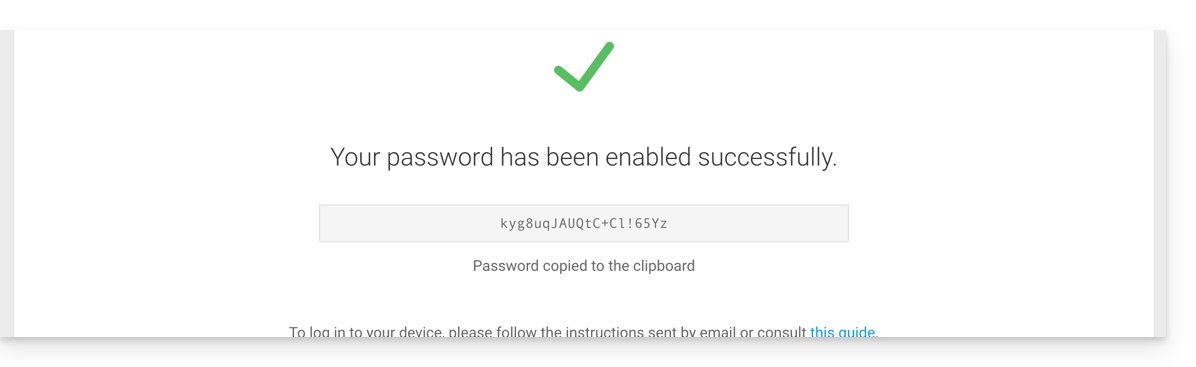
- If needed, you can regenerate a new Acronis account password.
- Click the button in the email you received:
- The login information is now displayed on the Swiss Backup management page in the Infomaniak Manager:
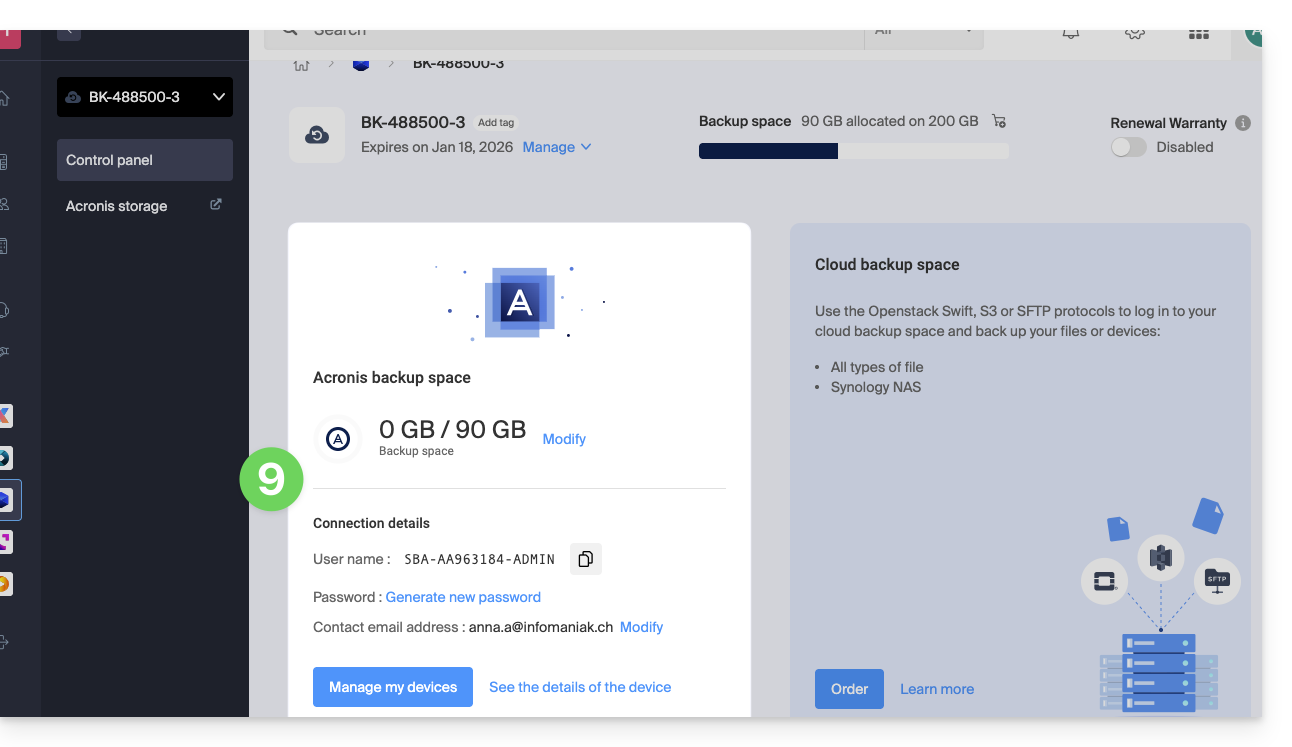
- The blue button below this information allows you to log in to Acronis.
What's next?
Once the device has been added to the Swiss Backup interface within the Infomaniak Manager, you can configure the Acronis application to start your backup plans.
Link to this FAQ: https://faq.infomaniak.com/2279
Has this FAQ been helpful?