Knowledge base
1000 FAQs, 500 tutorials and instructional videos. Here, there are only solutions!
Create an event reminder with the Infomaniak Web Calendar app
This guide explains how event reminders and alerts work on the Infomaniak Web app Calendar (online service ksuite.infomaniak.com/calendar).
Add a reminder or alert to an event
To add a reminder to an event (e.g., an appointment):
- Click here to access the Infomaniak Web app Calendar (online service ksuite.infomaniak.com/calendar).
- Click the Create button at the top left.
- Click on Event:
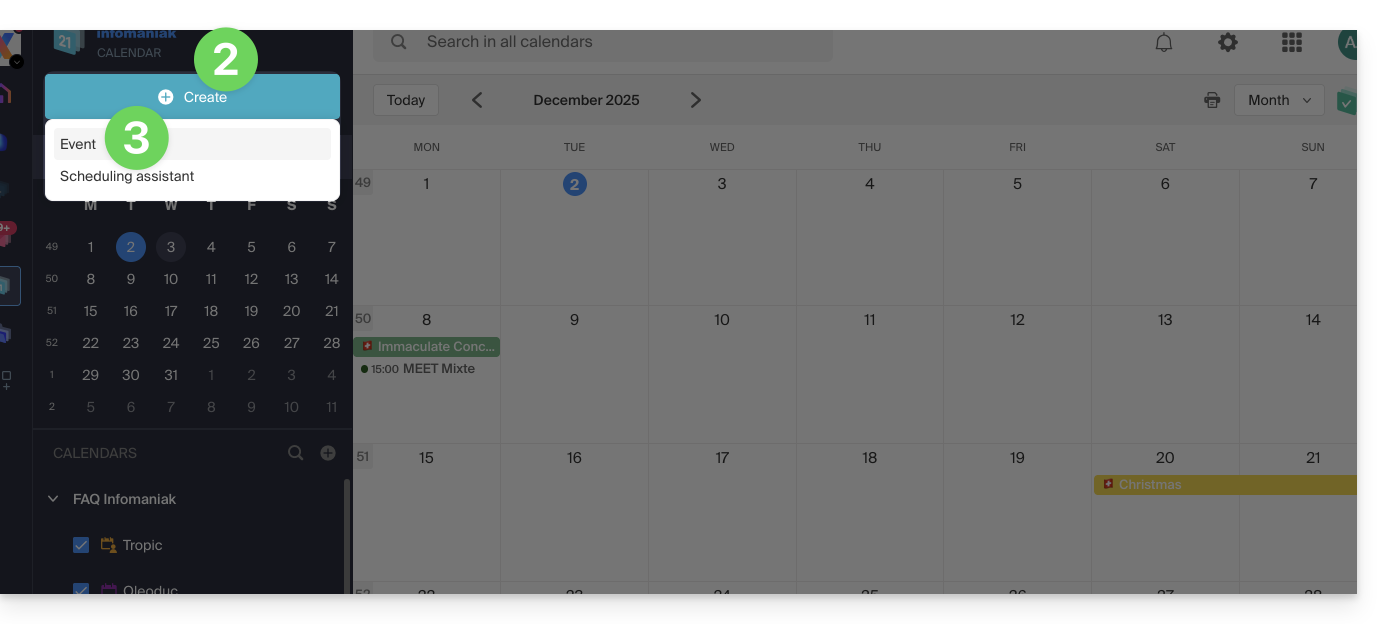
- You could also click on an existing event on the calendar to modify it.
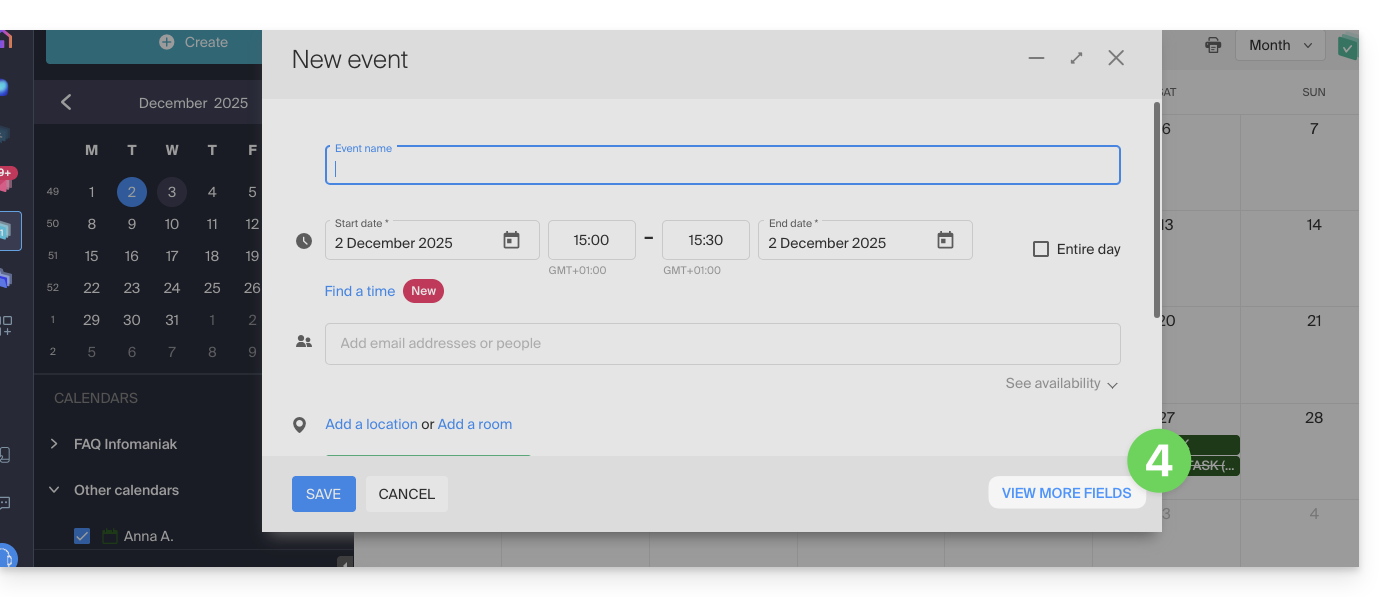
- Display the additional fields:
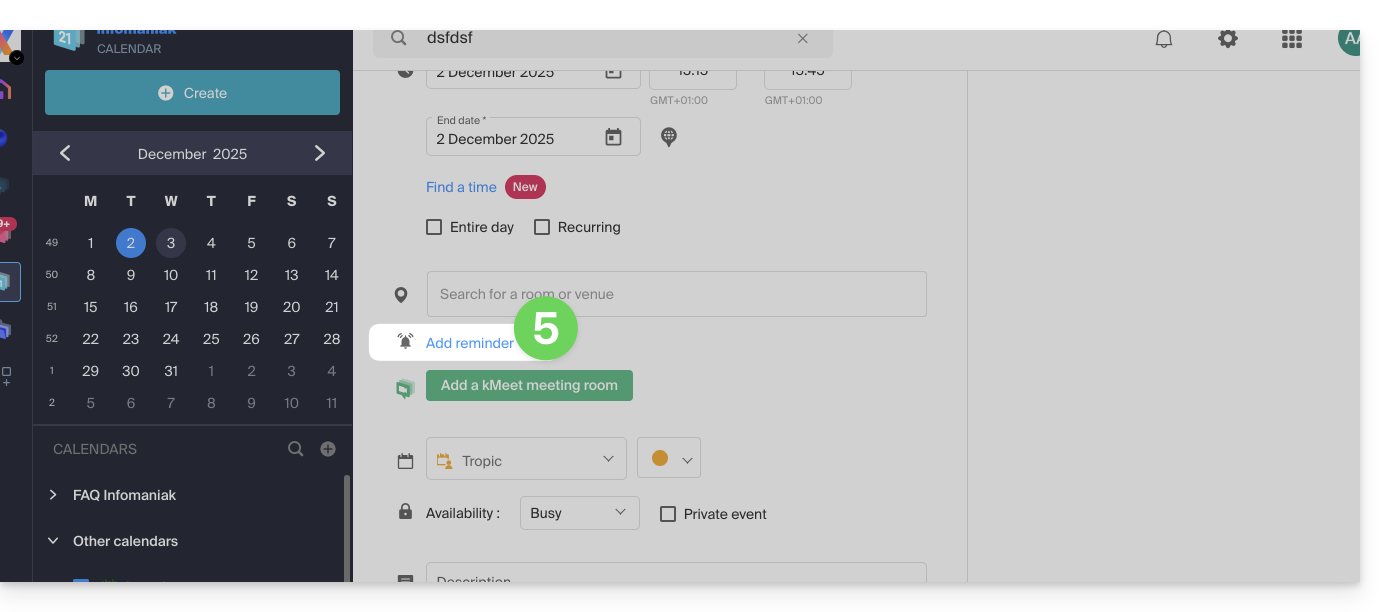
- Click on Add a reminder to configure it:
- Save the event at the bottom of the page.
Types of reminders
You can be notified through 3 different channels:
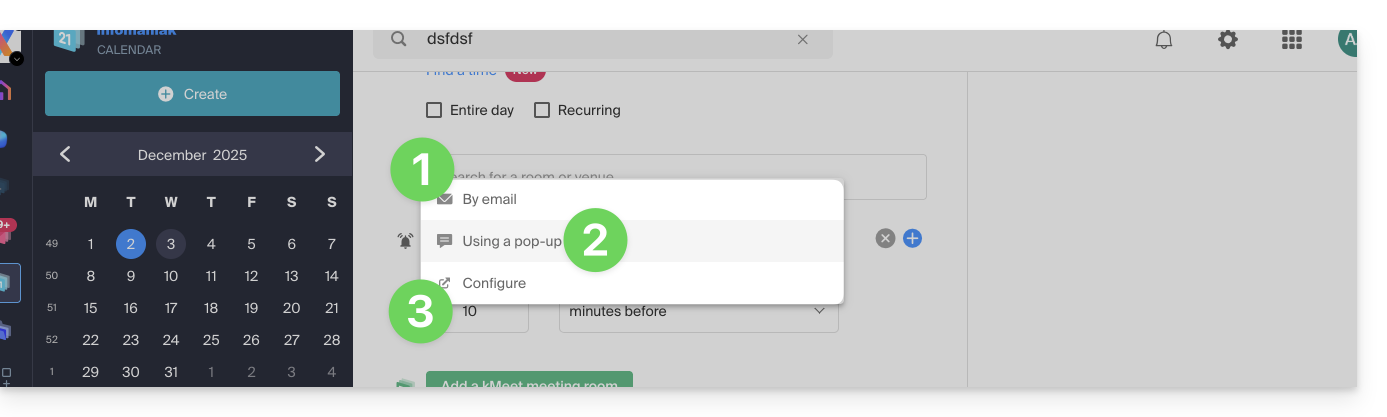
- By email: the reminder will be sent by email at the chosen time.
- By a browser notification: the reminder will be displayed by a notification managed by your web browser, provided that my kSuite is connected; this is also the option to choose if you synchronize your calendar with your phone to receive an alert on your device.
- By a chat system like kChat: the reminder will be sent in the chosen chat thread.
Any guests invited to an event will not be notified by the reminders/reminders.
To receive multiple notifications, you need to add multiple reminders (click on on the right) however, with an email reminder, it is possible to configure automatic regular follow-ups (read below).
Add a follow-up to an email reminder
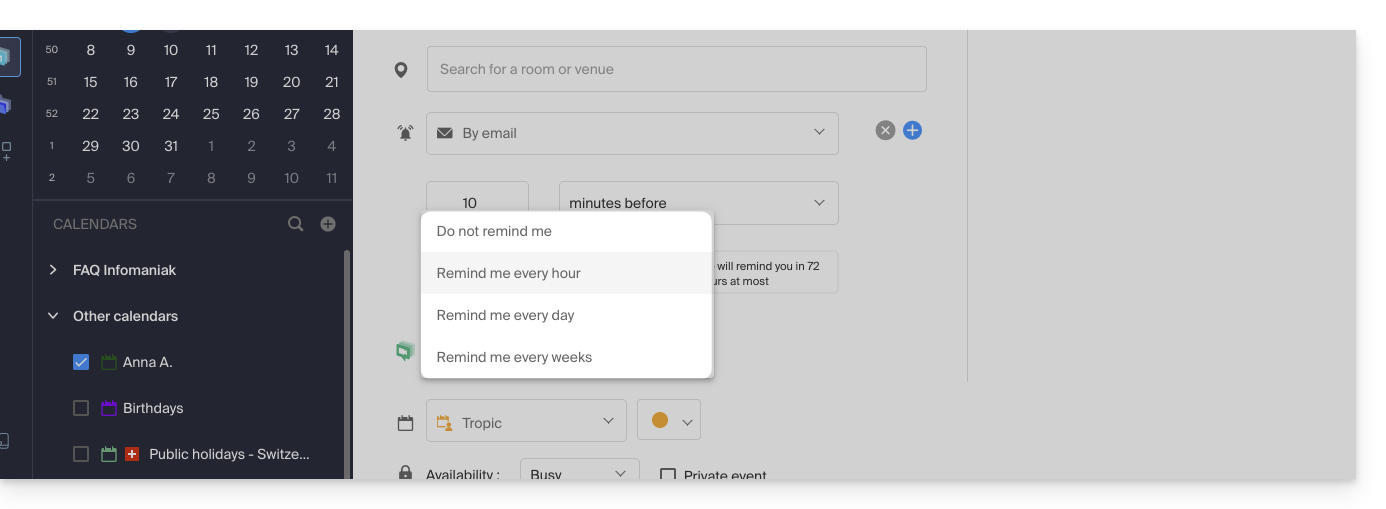
The calendar allows you to receive follow-ups for a reminder that you may not have seen or taken into account. As long as you do not click on "Stop follow-ups", you will continue to receive reminders at the chosen frequency. Practical for never forgetting important tasks again.
To add a follow-up to an email reminder:
- Click here to access the Infomaniak Web app Calendar (online service ksuite.infomaniak.com/calendar).
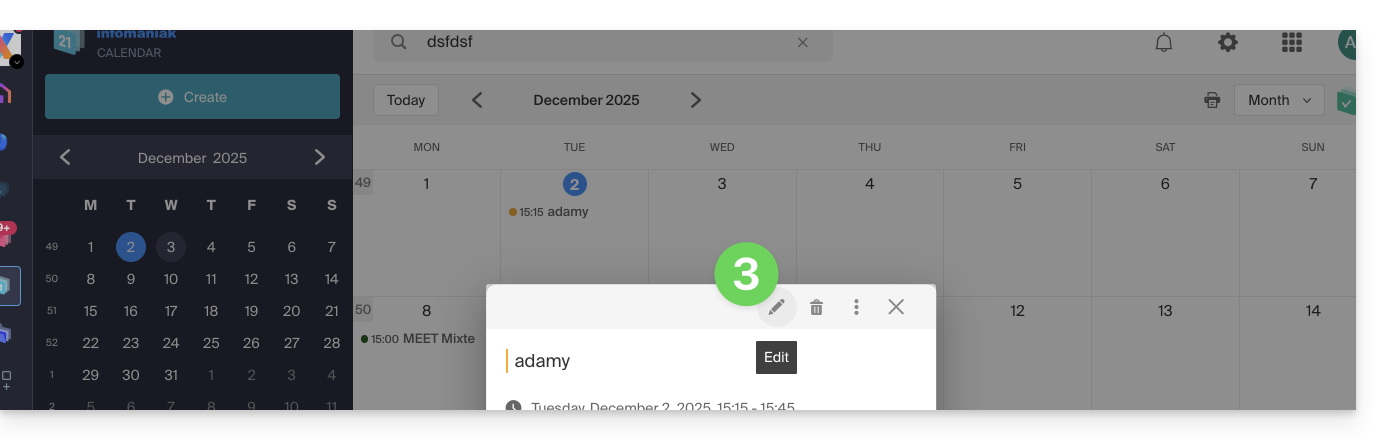
- Click on an existing event to modify it.
- Click on the pencil icon ✎ to edit the event and its email reminder:
- Choose the frequency of reminders (every hour, every week, etc.)…
- Save the event at the bottom of the page.
Link to this FAQ:
Has this FAQ been helpful?