Knowledge base
1000 FAQs, 500 tutorials and instructional videos. Here, there are only solutions!
Import emails in MBOX format
This guide explains how to import your email archives in .mbox format to an Infomaniak mail address, an ideal procedure when changing hosts or to restore old messages.
Prerequisites
- Have a valid and functional email address with Infomaniak.
- Have an archive of your previous email in
.mboxformat. - Have installed the software and configured your address on it in IMAP.
Using Thunderbird (macOS, Windows, Linux)
Thunderbird is the most reliable tool for converting and transferring local data to an IMAP server thanks to the extension ImportExportTools NG.
- Open Thunderbird.
- Go to the Tools menu > Extensions and Themes:
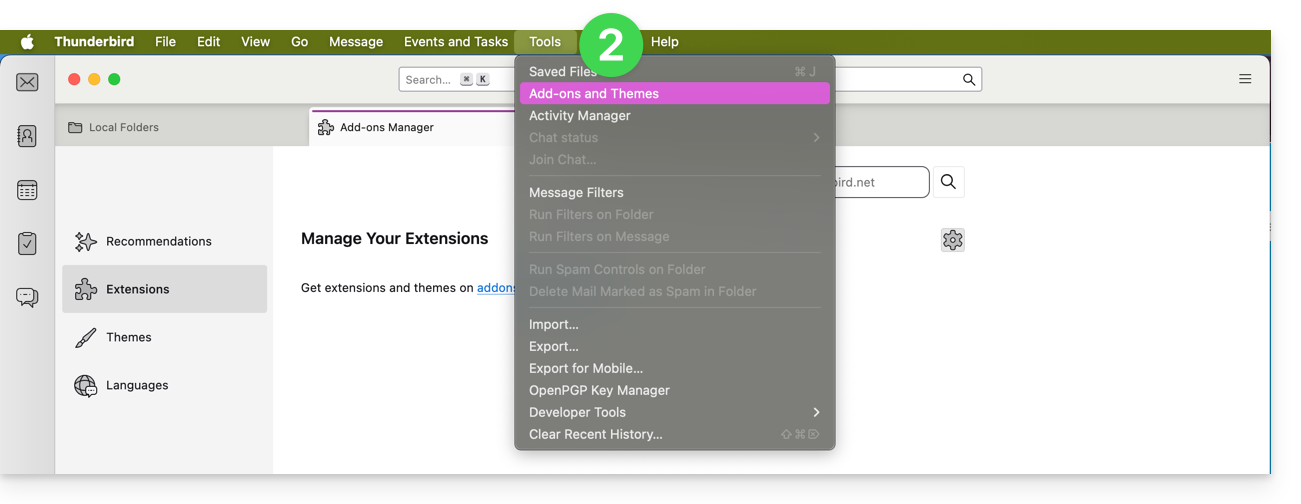
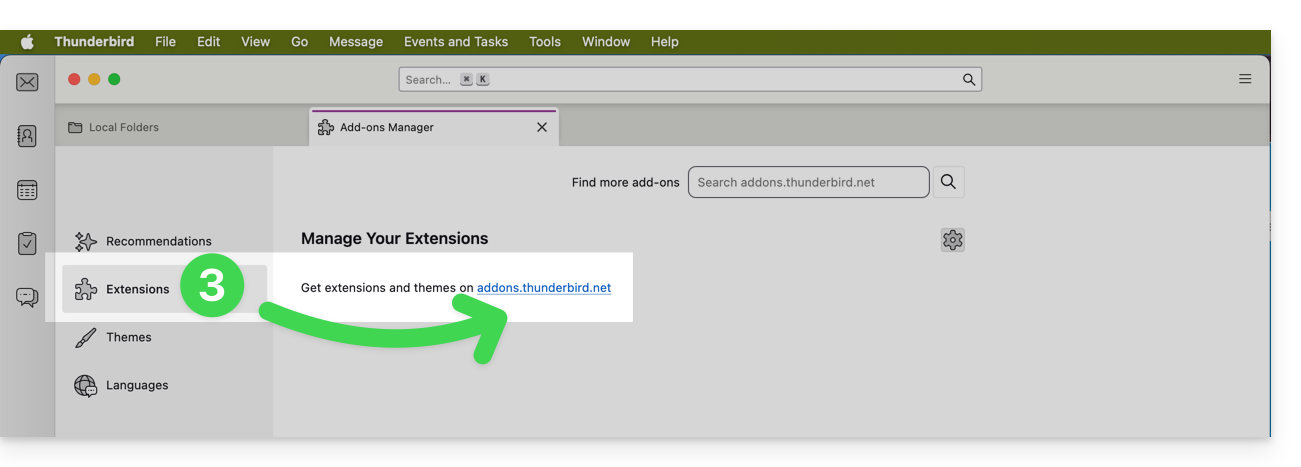
- Click to go to Thunderbird extensions:
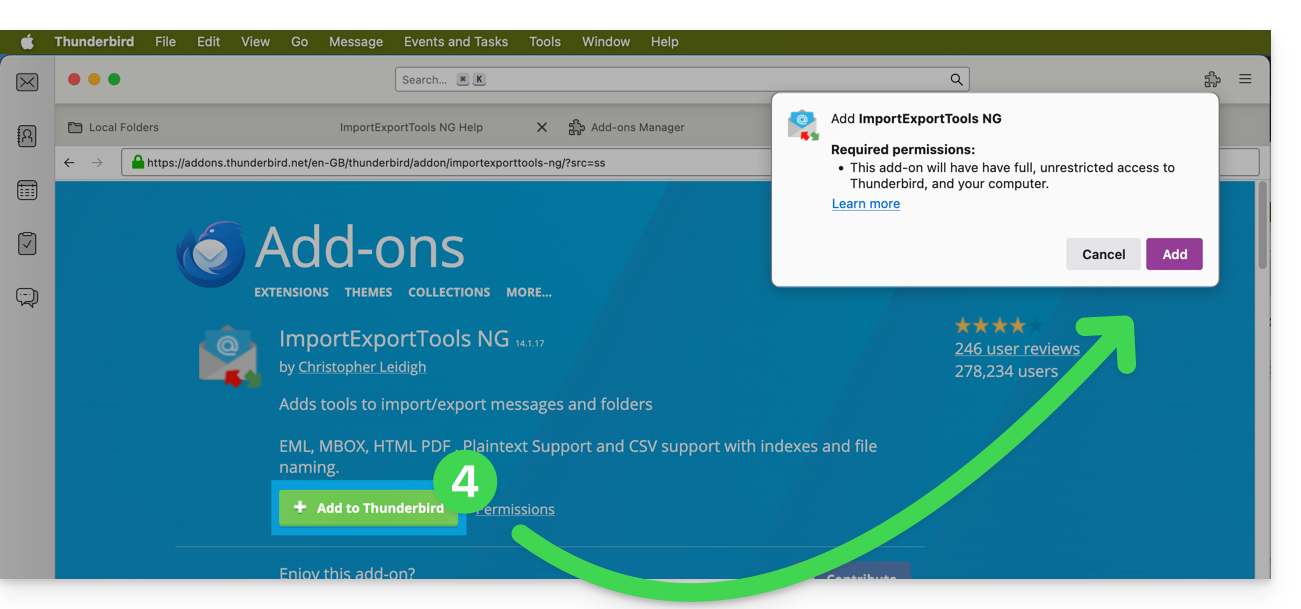
- Search for and install the ImportExportTools NG extension:
- Once installed, right-click on Local Folders in the left column.
- Select ImportExportTools NG > Import a mbox file:
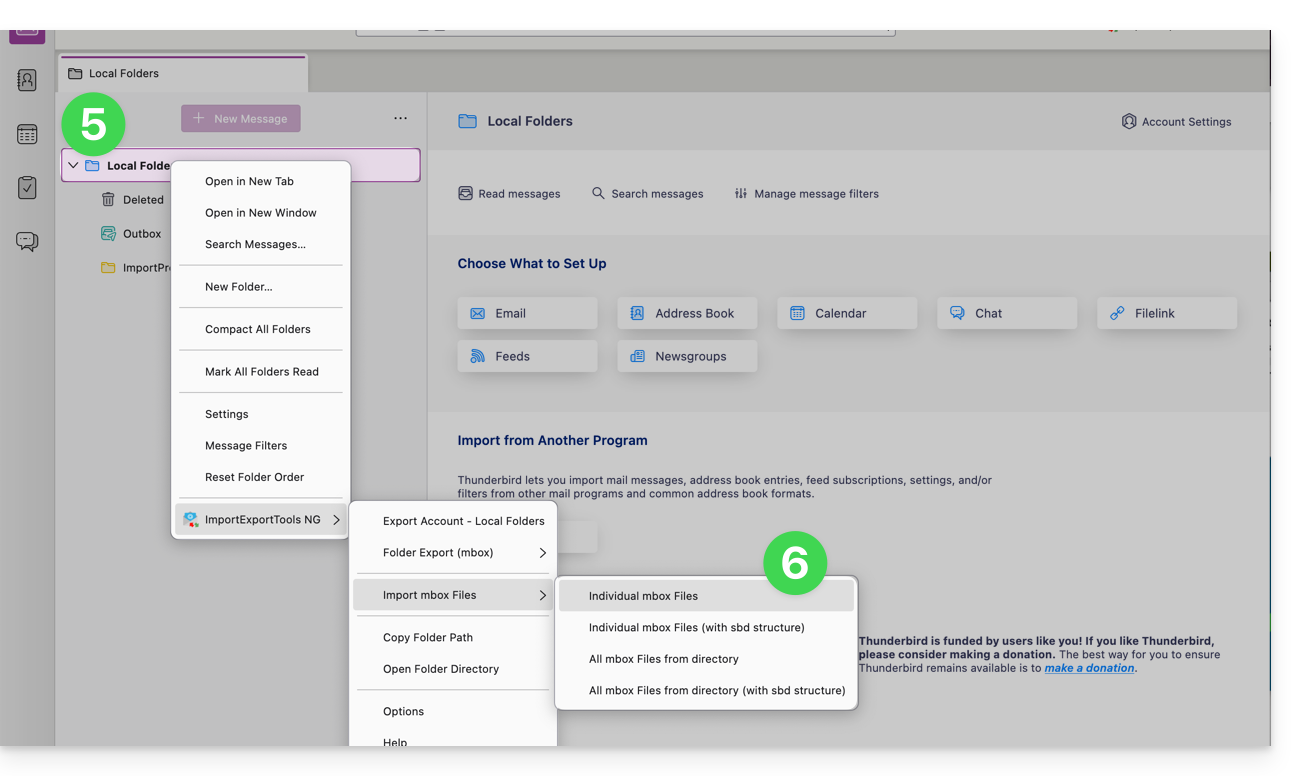
- Select your
.mboxfile: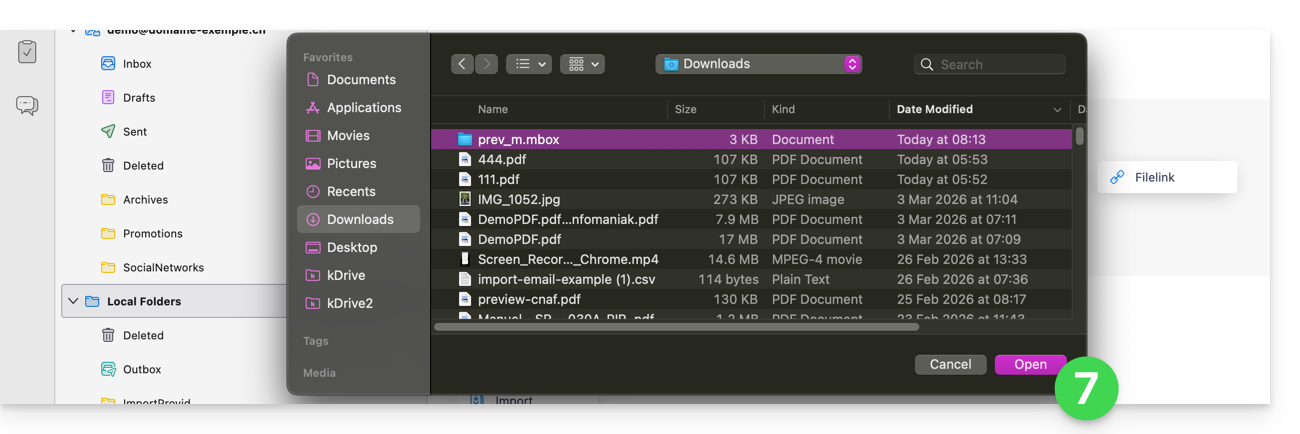
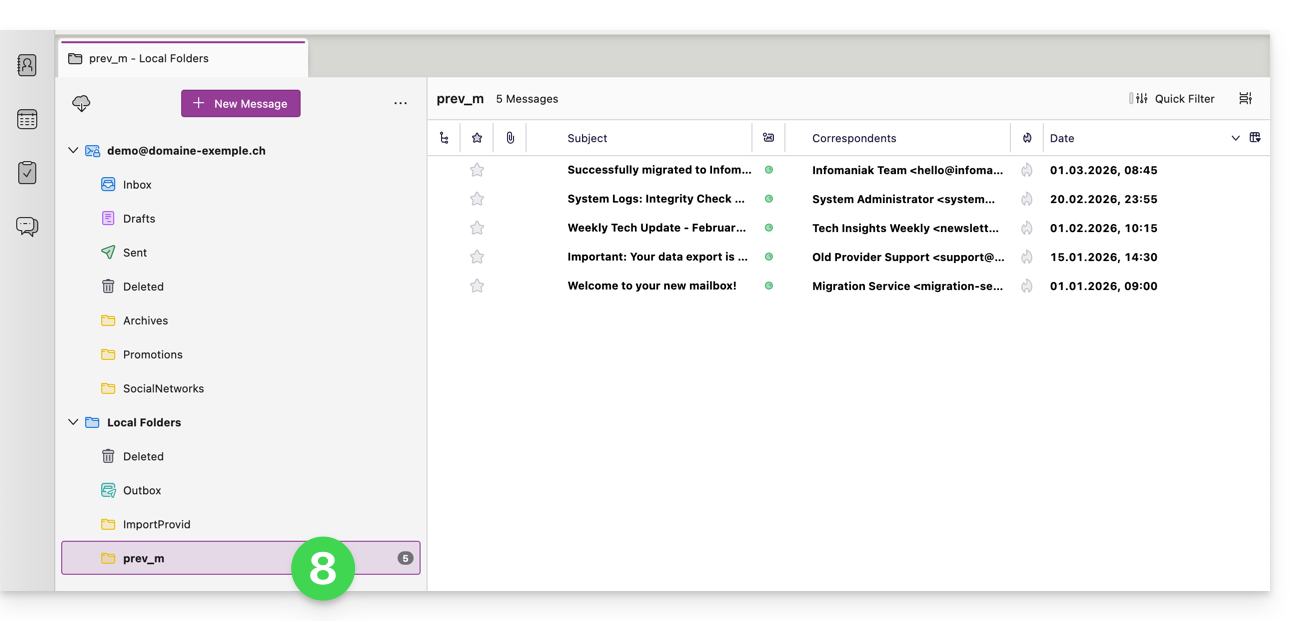
- The messages then appear in your local folders:
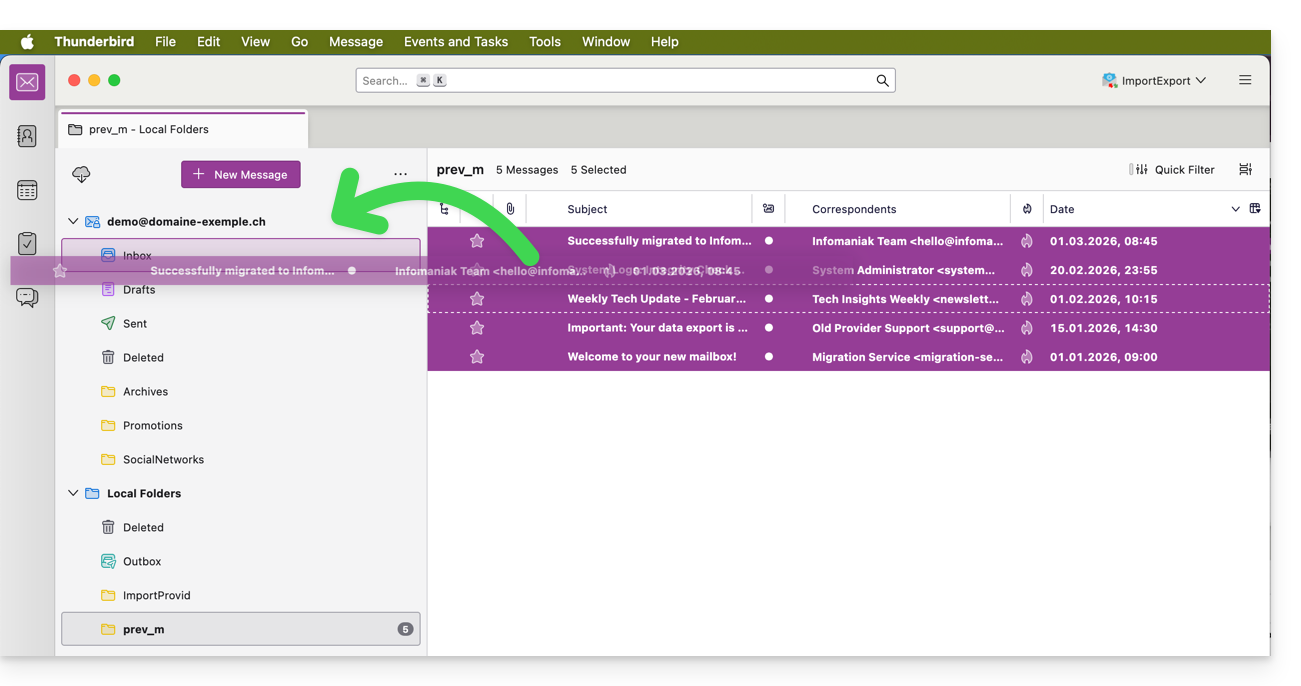
- Select the imported messages (or folder) and drag and drop them to a folder in your Infomaniak address to synchronize them with the server:
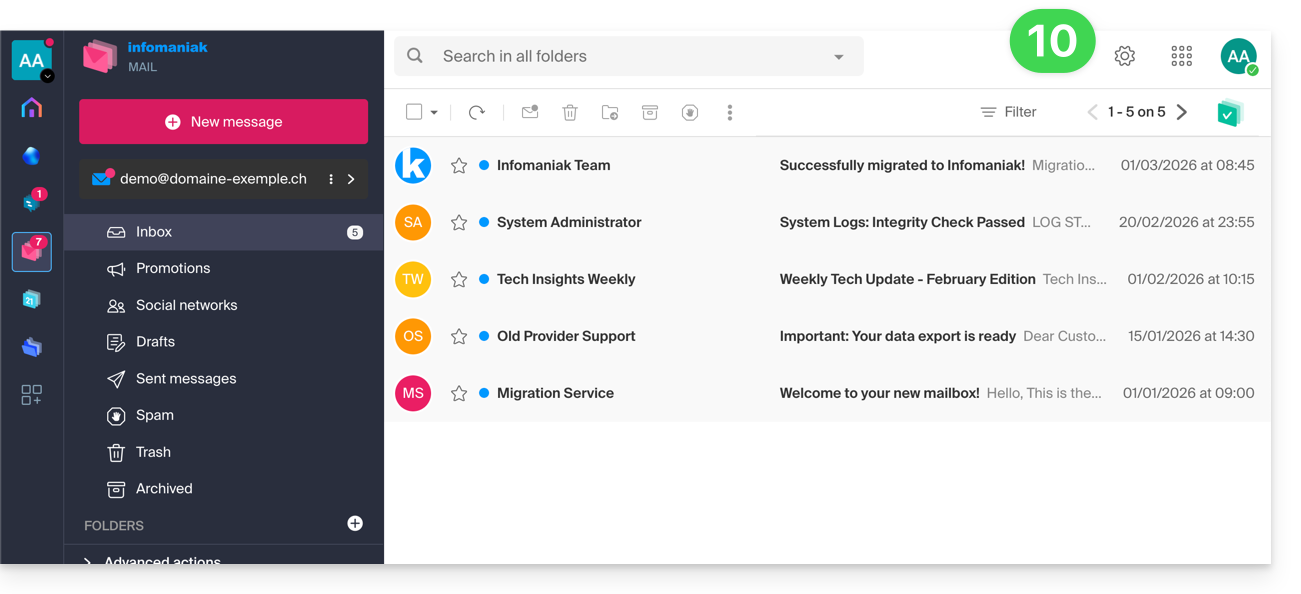
- They then appear on your other devices, on the Web Mail app for example:
Using Apple Mail (macOS only)
If you are on Mac, the import is native and does not require any extension: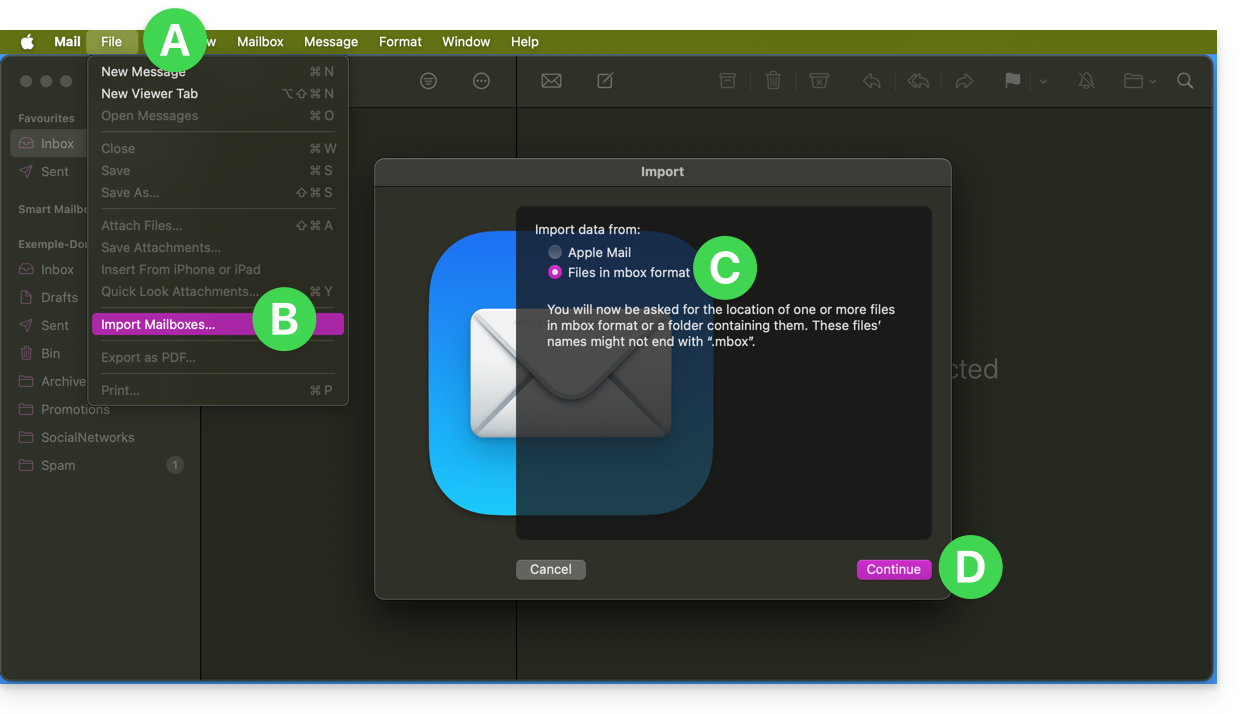
- Open Mail, go to File > Import mailboxes...
- Select Files in mbox format.
- Once the import is complete, simply move the emails from the "Import" folder to your Infomaniak inbox.
Using Outlook or other software after import
Microsoft Outlook does not natively handle the .mbox format (it uses the .pst format). However, once you have performed the import via Thunderbird or Apple Mail, your emails are permanently stored on Infomaniak's secure servers.
You can therefore:
- Close (or uninstall) Thunderbird without worry.
- Open Microsoft Outlook, Apple Mail, or any other software of your choice.
- Configure your address in IMAP: the entire imported archive will be displayed automatically.
- Find your emails on the Infomaniak Web app my kSuite (ksuite.infomaniak.com/mail).
Link to this FAQ:
Has this FAQ been helpful?