Knowledge base
1000 FAQs, 500 tutorials and instructional videos. Here, there are only solutions!
Manage the login ID for the Manager / Mail Infomaniak
Update 02/24/2026
This guide explains how to view and modify the login ID for your user account on the Manager, the management interface and dashboard for your Infomaniak products. This same ID also allows you to log in to Mail Infomaniak and various iOS/Android applications such as kDrive, Infomaniak Mail, etc.
View the currently connected ID
The email address used for the current connection is displayed on your user menu + on the profile page:
- Click on the badge with your initials/avatar in the top right corner of the Manager Infomaniak to note the current login ID in use:
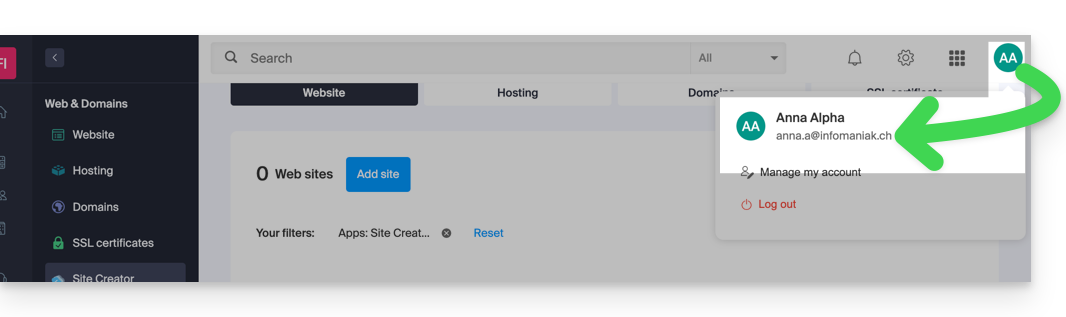
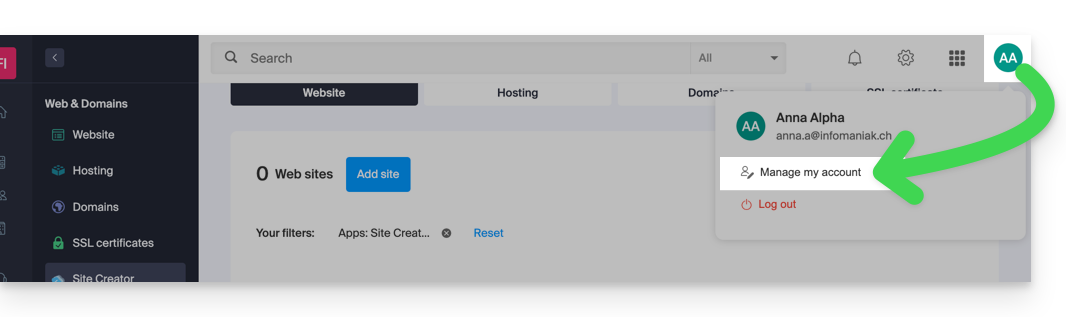
- Click on Manage my account just below to access the management of your profile on the Infomaniak Manager.
- Your current login ID is also displayed on the page reached:
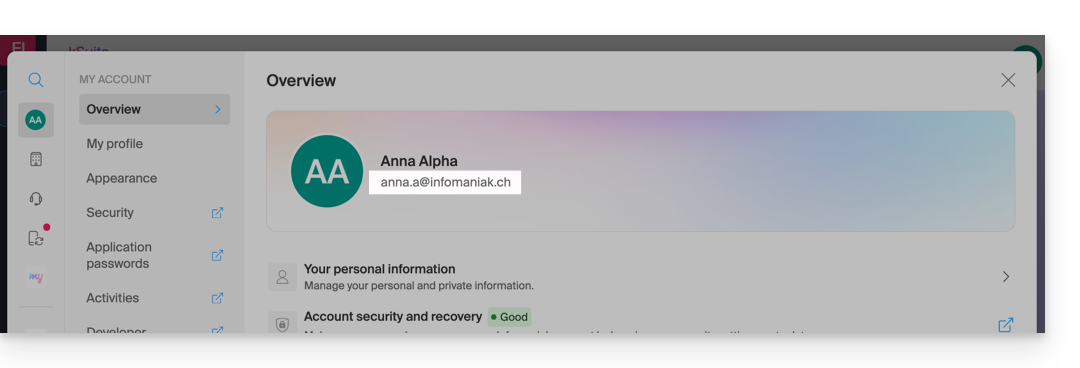
Modify the ID (login email)
Prerequisites
- The access ID is an email address that must exist and that you must be able to access.
- The new email address must be different from the recovery email address.
- The new email address must not already be used as a login ID on another user account (otherwise, you need to consider inviting it to the Organization first to grant all rights and then remove the old account with the old ID).
To modify the ID of your Infomaniak account:
- Click here (or on the badge with your initials/avatar in the top right corner of the Infomaniak Manager) to "Manage my account":
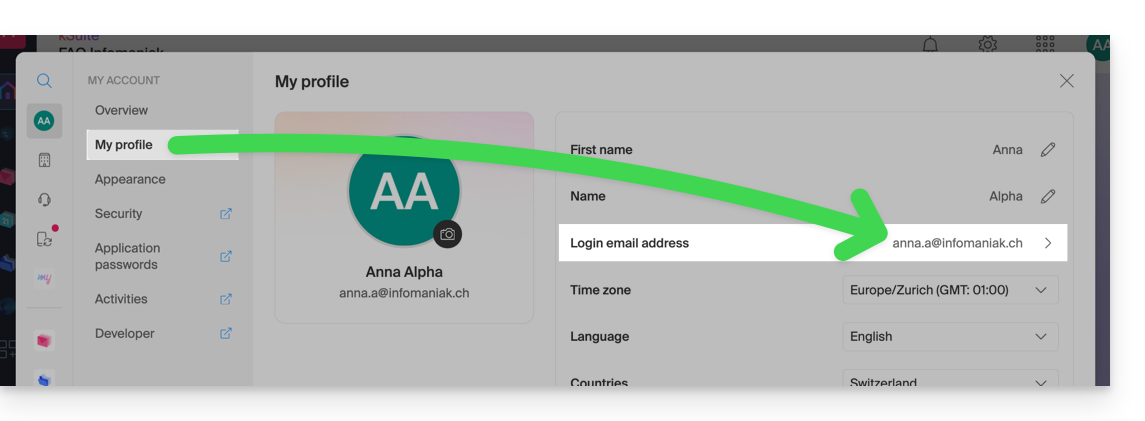
- From the My Profile menu, click on your login email address:
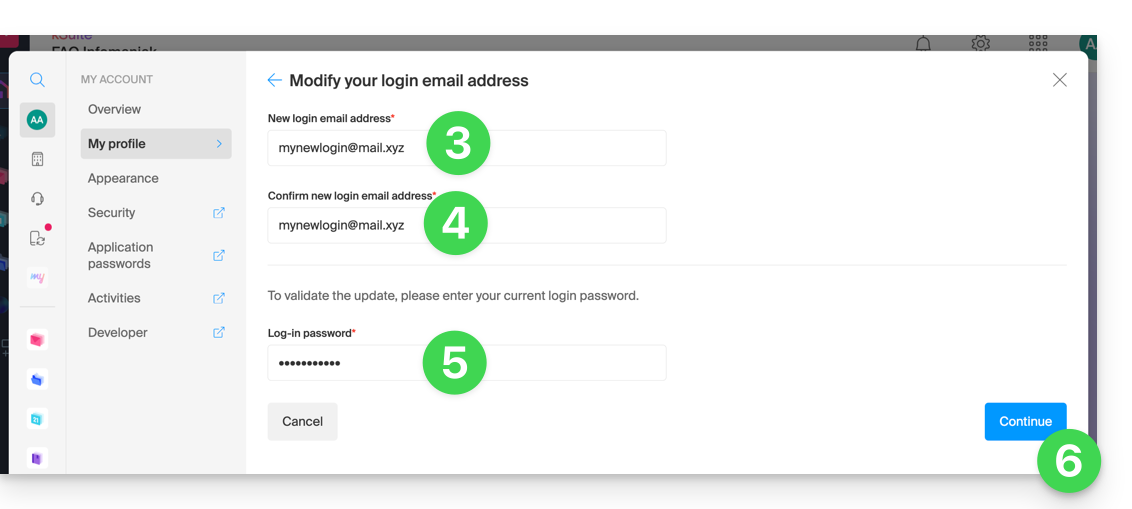
- Enter a new login email address.
- Confirm your new address by specifying it a second time.
- Enter the password to log in to your Infomaniak account.
- Click on Continue:
Link to this FAQ:
Has this FAQ been helpful?