Knowledge base
1000 FAQs, 500 tutorials and instructional videos. Here, there are only solutions!
Understanding the synchronization limits of Contacts & Calendar (macOS / iOS)
This guide details the specifics and limitations of synchronizing contacts & calendars with Infomaniak using native Apple applications (macOS and iOS), particularly for managing shared data.
Preamble
- Contacts & calendars hosted by Infomaniak can be synchronized with native Apple applications:
Contacts: Synchronizing address books
The CardDAV protocol does not allow individual elements to be selected for synchronization; all account data is retrieved by default.
- Before adding a synchronization:
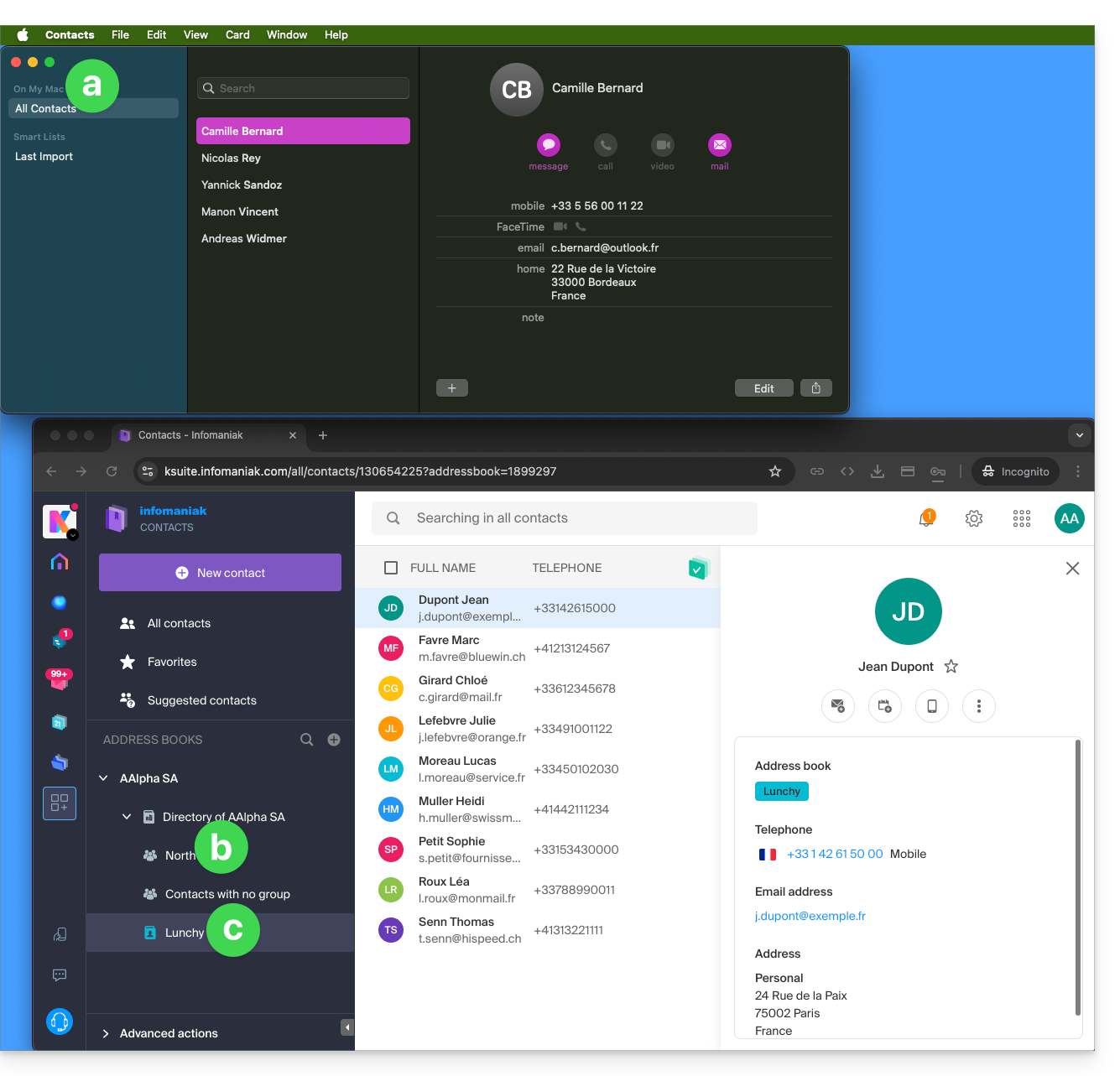
- All existing contacts on the macOS device
- Existing contacts in the Infomaniak user Anna Alpha's Organization (named AAlpha SA here), including the Organization directory, which contains a group called North here (in this case, it is a group automatically formed after setting up a work team).
- The user's address book is named Lunchy here.
- After adding a macOS profile synchronization:
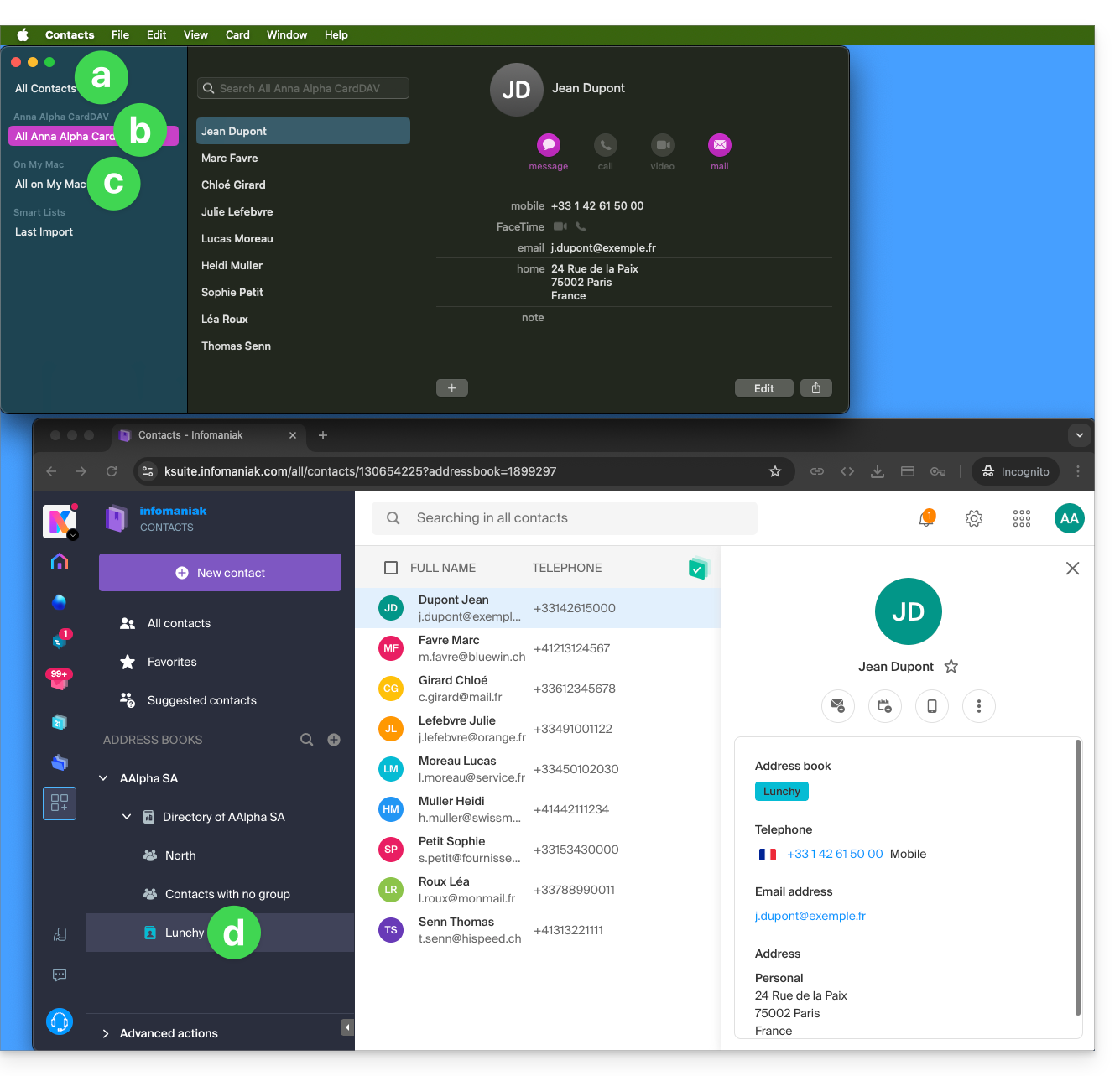
- All existing contacts on the macOS device (they display the contacts that were already present, as well as new contacts from the synchronization).
- Contacts from the synchronization (see point 2.d below).
- A downloaded profile contains the Infomaniak account username; this name will be given to the synchronized address book that appears on the Apple side.
- Example below, the username is Anna Alpha and the address book name is Lunchy; it is the username that will appear to describe the contacts on the Apple side.
- You can modify the synchronization name in the Account Information:
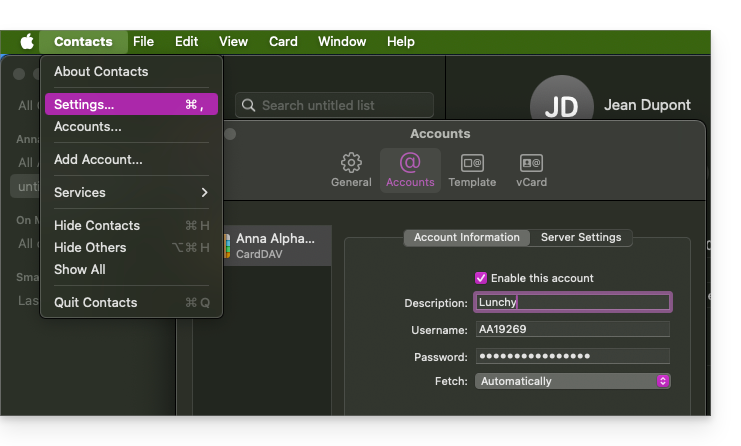
- Existing contacts on the macOS device (those from point 1.a above — they remain local on macOS and are not synchronized — they need to be moved if necessary).
- You can modify the default address book used for future contacts created on your device:
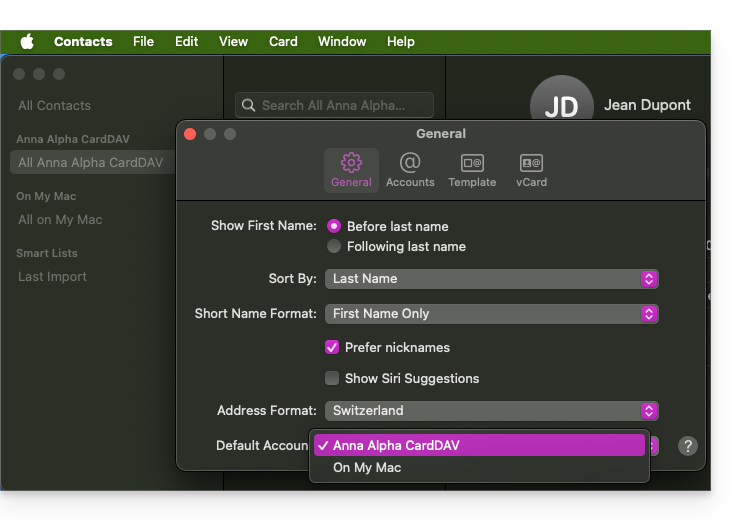
- You can modify the default address book used for future contacts created on your device:
- The user's address book is named Lunchy here — equivalent to point 2.b above).
On iOS
New contacts created on iPhone are often saved locally (On my iPhone"):
- It is necessary to modify the default address book in the device settings so that they are synchronized on the Infomaniak server.
Groups and lists
Grouping contacts into folders or lists does not synchronize bidirectionally. The list system does not use real folders but category tags, making it impossible to retrieve contact groups.
- Lists created on Apple do not appear on the Infomaniak server (but the contacts contained within them do):
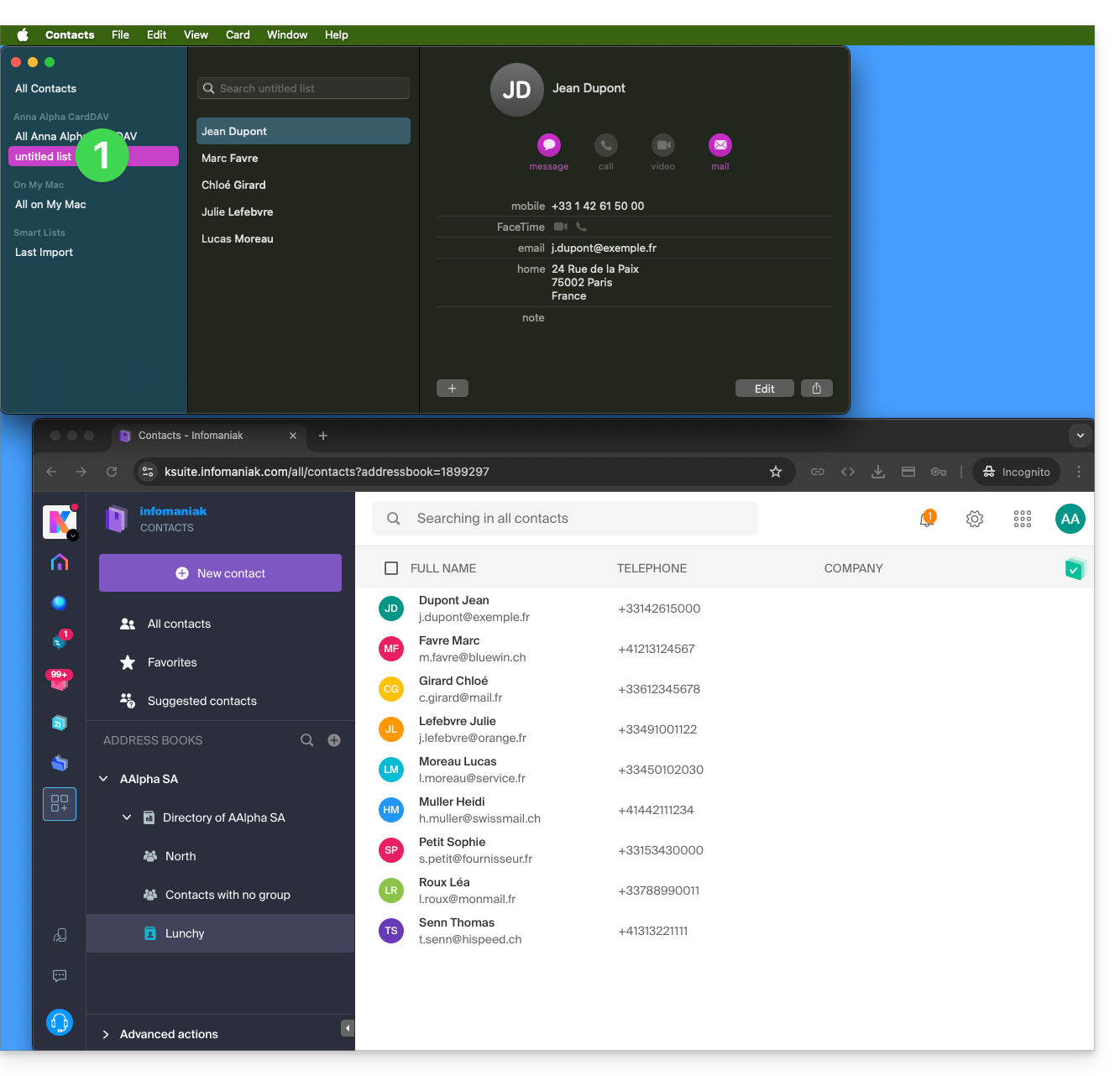
- Groups configured on the web interface do not appear in the Apple Contacts application (but the contacts contained within them do):
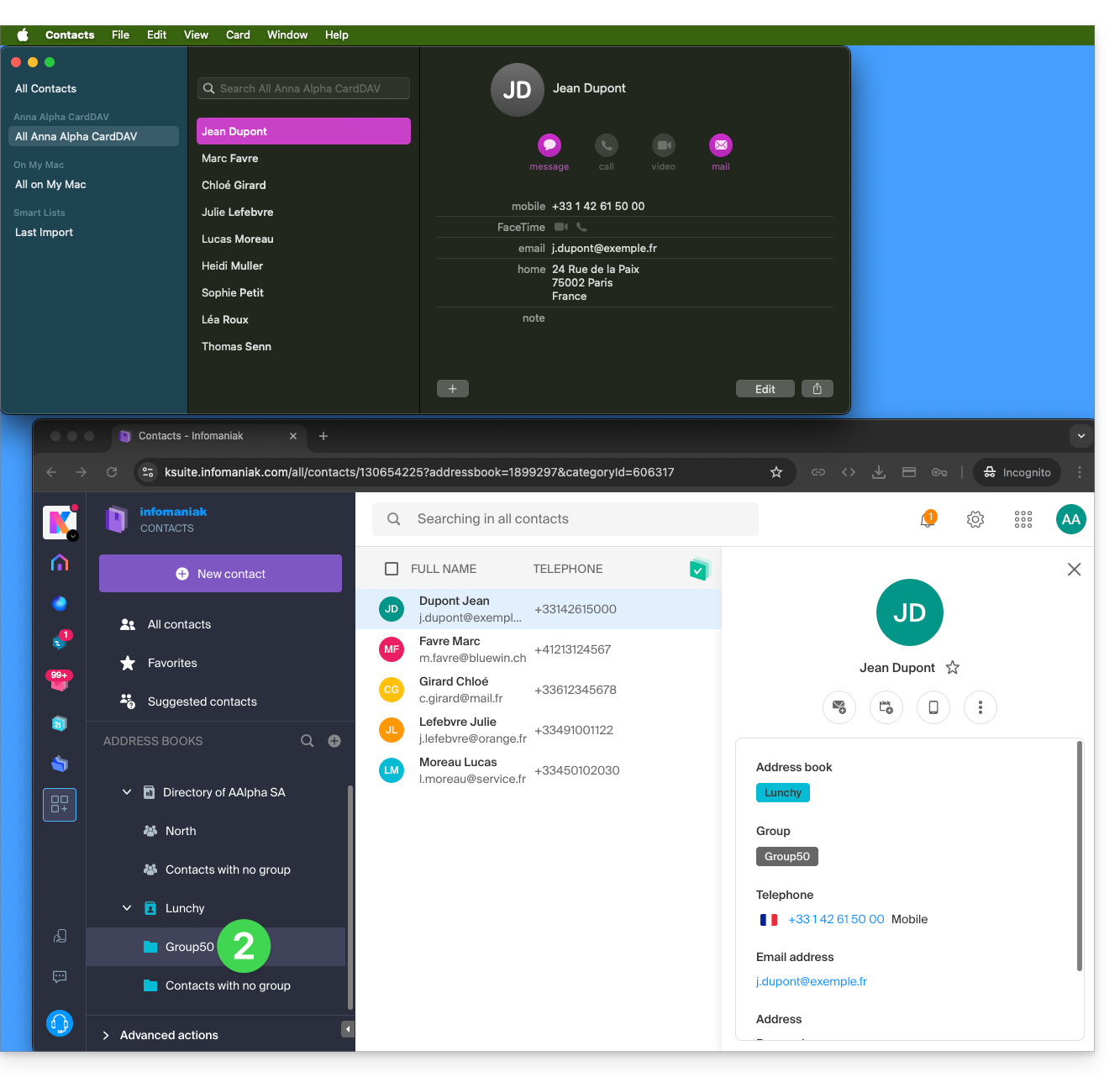
- Tip: to delete a list created on the Apple side, select it and press the DEL./SUPPR. key on your keyboard.
Additional address books
The Contacts application does not support multi-address books for the same account:
- Only the default address book is synchronized.
- To access all your address books, a third-party software (type Thunderbird) is required.
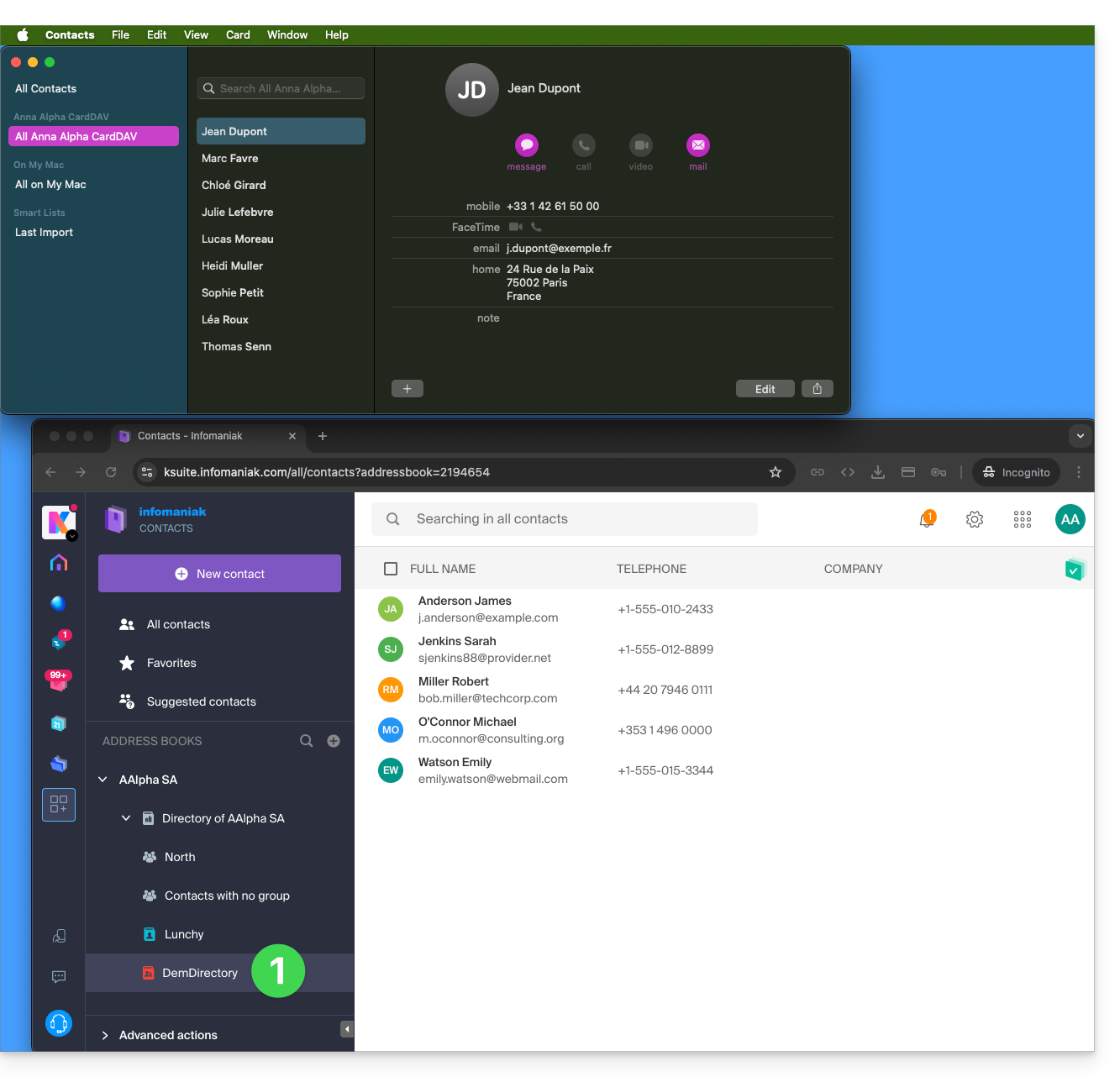
Example of a new address book on the Infomaniak side:
- The content of this second address book is not synchronized:
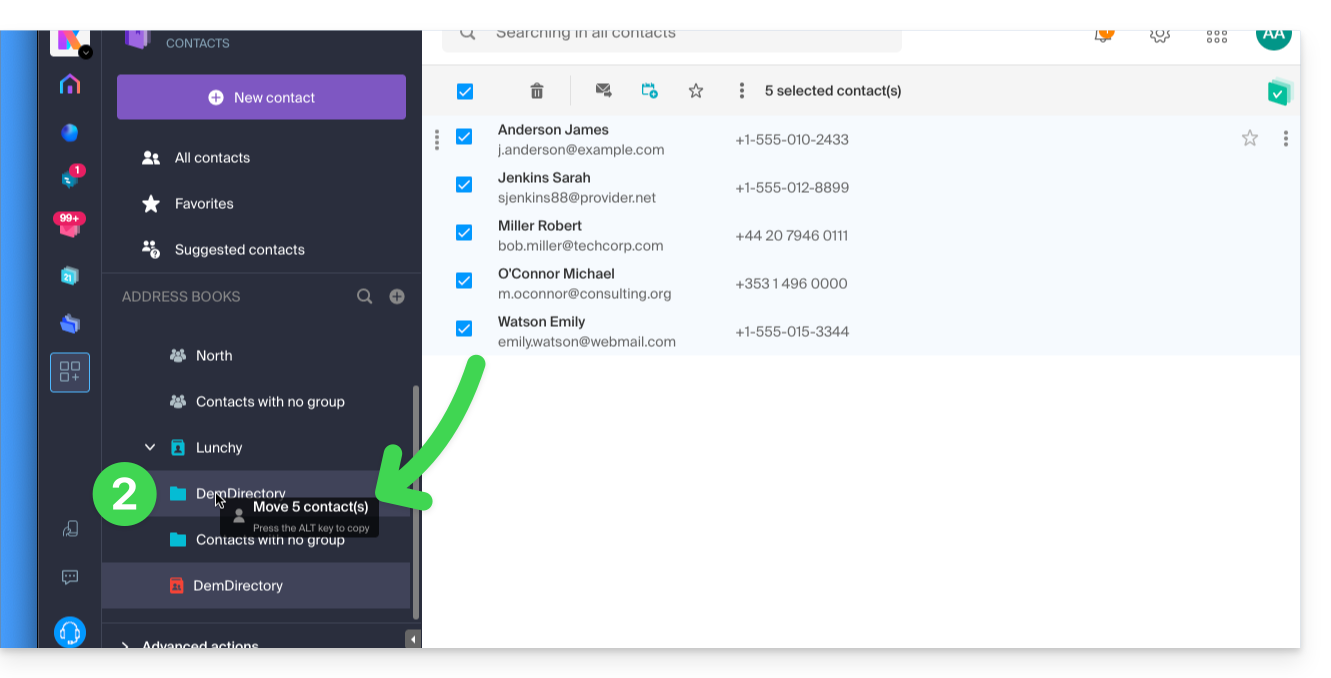
- A solution to organize yourself similarly could be to create a group under Lunchy and add the 5 contacts there:
Shared address books
An address book shared with another Infomaniak user will continue to be synchronized, including if contacts are added/edited via sharing, as in this example of sharing with maximum permissions: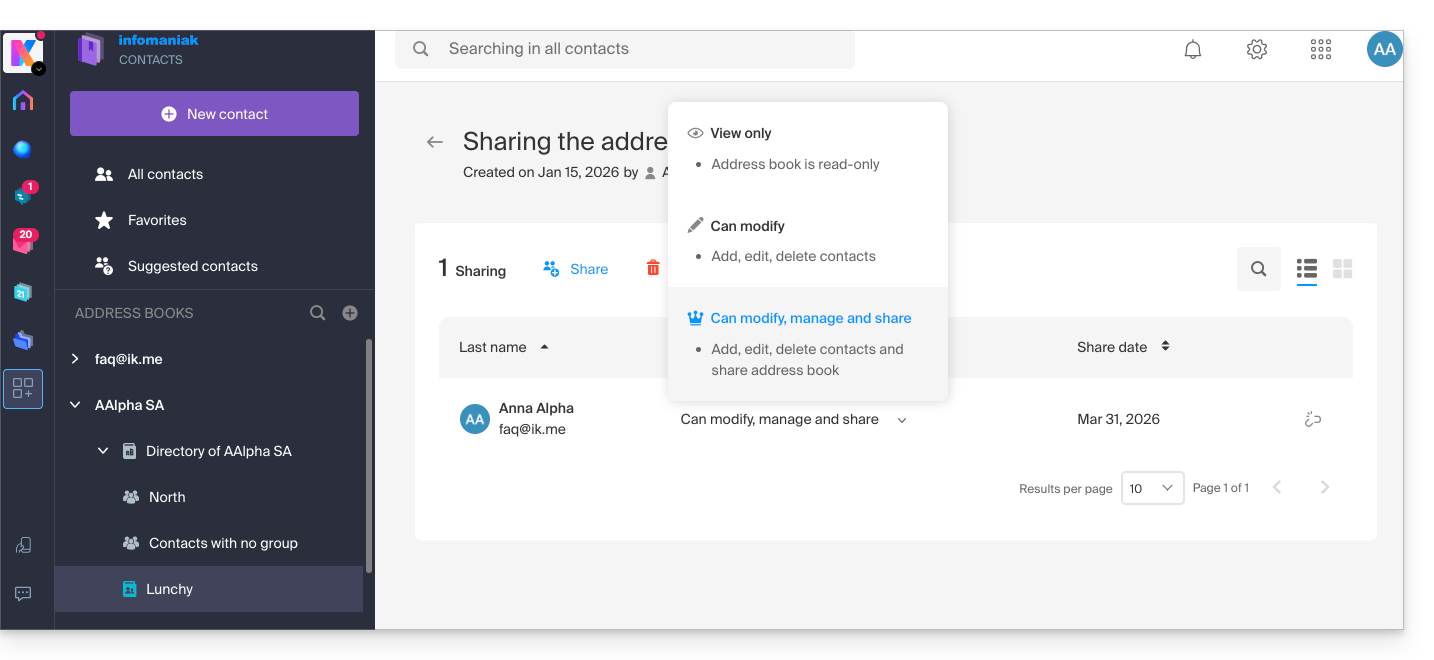
The reverse (receiving contact sharing from another Infomaniak user) adds an additional address book. Synchronization of these additional contacts is therefore not possible (same rule as the one presented in the chapter “Additional address books” above).
Calendar: Displaying shared calendars
The CalDAV protocol does not allow you to choose which items to synchronize; all account data is retrieved, including the calendars you share and those for which you have been granted access/modification rights: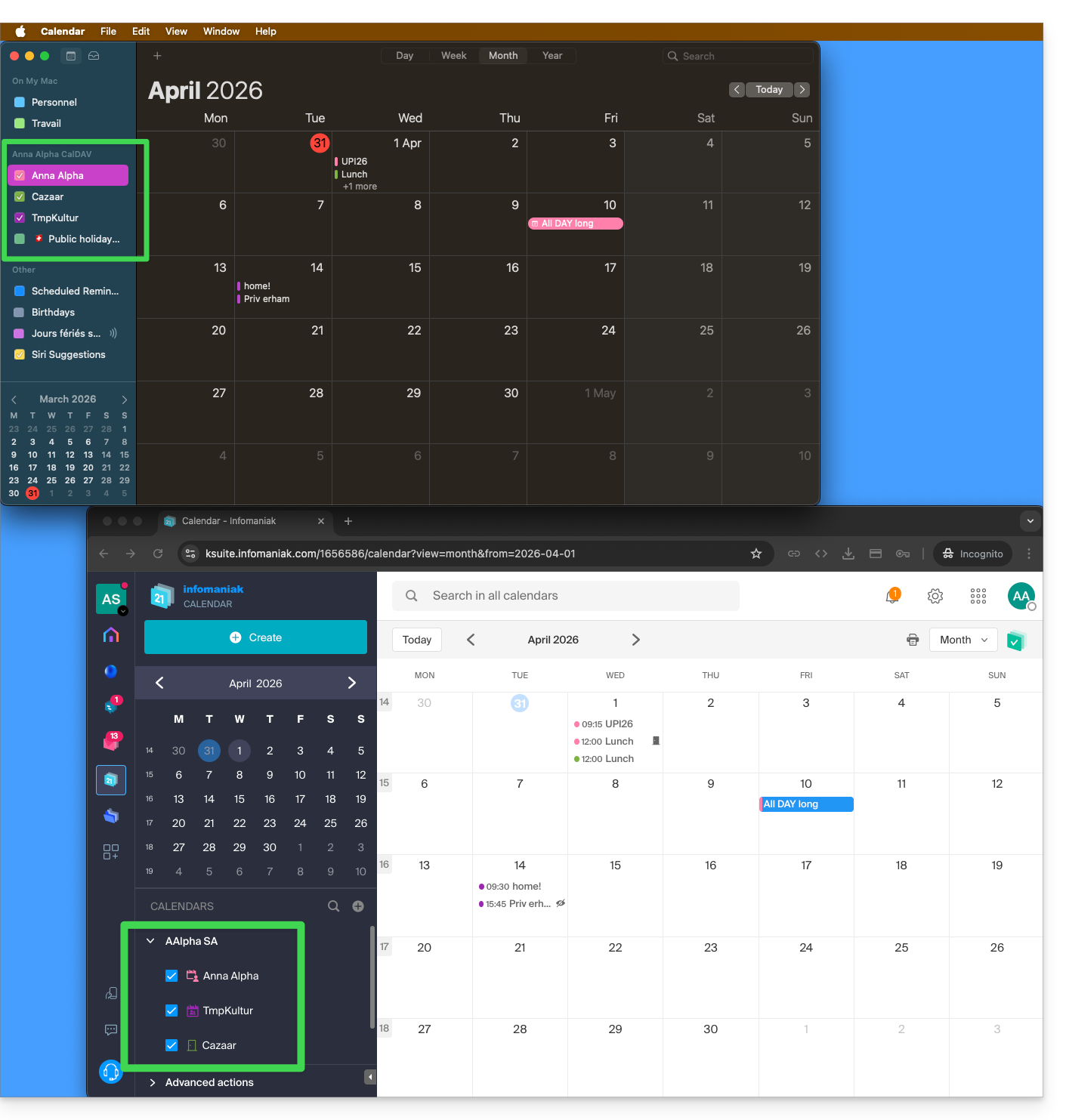
If only your personal calendar is displayed, then try this manipulation to activate additional calendars:
On macOS
- Open iCal / Calendar.
- Go to the Calendar > Settings (or Preferences).
- Go to the Accounts tab.
- Select the Infomaniak account and click on the Delegation tab.
- Check the shared calendars to display.
On iOS
- Open iCal / Calendar.
- Tap the Calendars button at the bottom of the screen.
- Check the shared calendars in the list.
Notifications (iOS)
You can enable or disable alerts for each specific calendar by tapping the ⓘ icon located to the right of its name: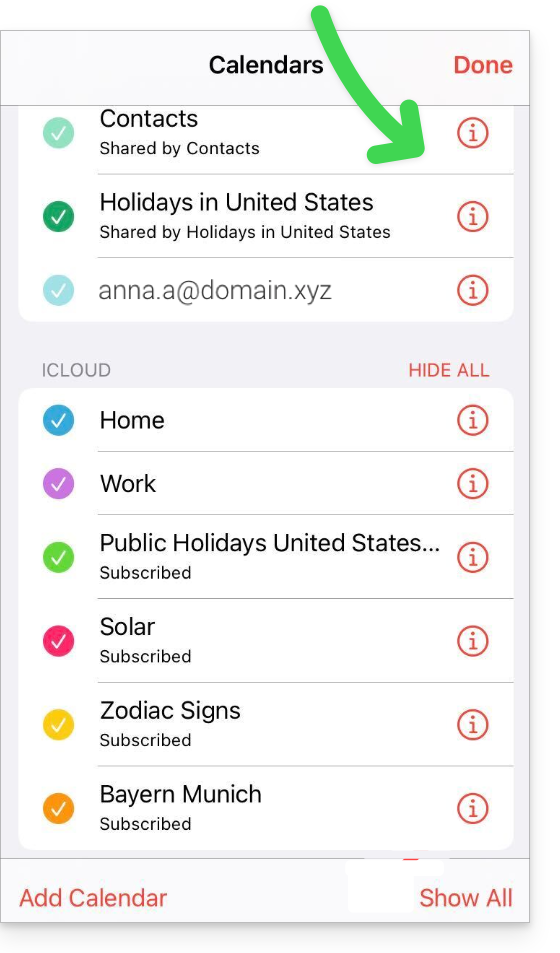
Link to this FAQ: https://faq.infomaniak.com/2181
Has this FAQ been helpful?