Knowledge base
1000 FAQs, 500 tutorials and instructional videos. Here, there are only solutions!
Leaving an Organization you belong to
Update 03/23/2026
This guide explains how to leave an Organization to which you belong.
Preamble
- Since you opened your account with Infomaniak, you are part of at least one Organization.
- If you were alone and it was not an invitation, an Organization was created in your name and you automatically become the legal manager.
- Otherwise, you belong to the Organization that invited you (to join its kSuite, to manage a product, etc.).
- A user can leave any Organization as long as…
- … this user does not belong to the Organization's kSuite
- … the login address of this user is not in an Organization Mail Service
- … this user is not the last owner of the Organization
Manage Organizations / Leave an Organization
To view all the Organizations to which you belong (because you created them with your Infomaniak account or because you were invited to them) and possibly remove your membership (if you are not the last user or the sole legal manager):
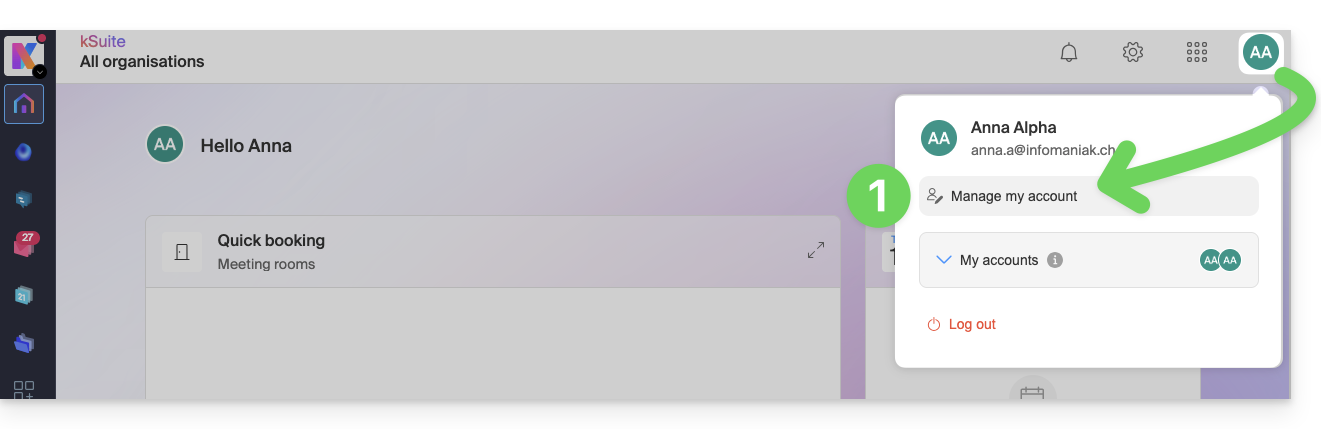
- Click here (or on the pill with your initials / avatar in the top right of the Infomaniak Manager) to "Manage my account":
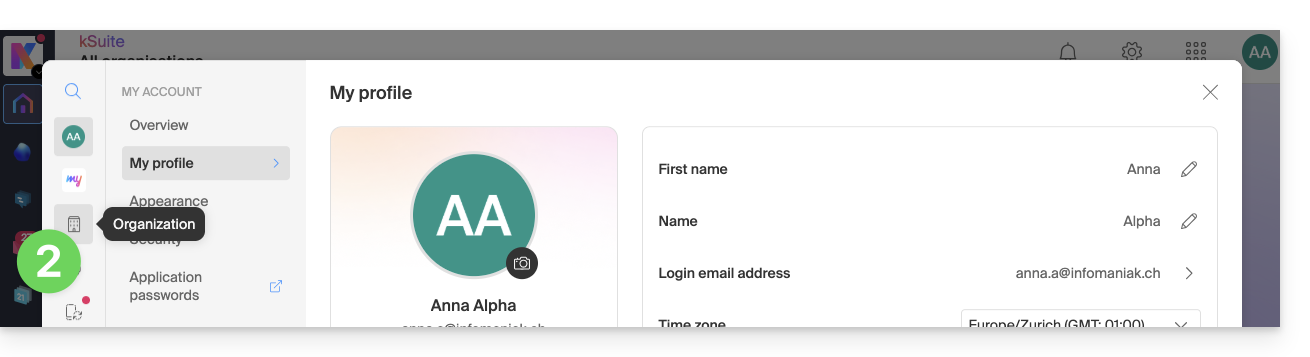
- Click on Organizations in the left sidebar:
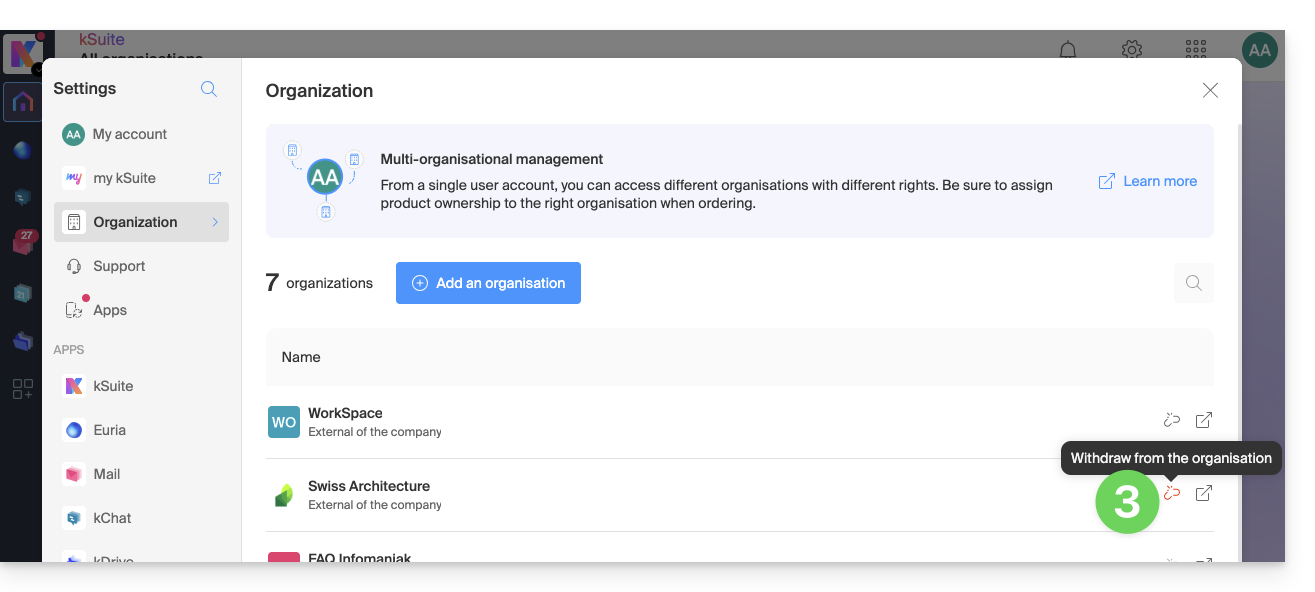
- Click on the icon located to the right of the Organization's name to leave it:
Link to this FAQ:
Has this FAQ been helpful?