Knowledge base
1000 FAQs, 500 tutorials and instructional videos. Here, there are only solutions!
Synchronize Contacts & Calendar (macOS) by CardDAV/CalDAV profiles
This guide explains how to connect the desktop apps Contacts and Calendar (desktop applications on macOS) with the contacts & calendars hosted by Infomaniak.
Preamble
- Your macOS computer will be automatically configured via configuration profiles .mobileconfig compatible with Apple, unlike a manual configuration.
- Infomaniak contacts & calendars are linked to your Infomaniak account; when you log in to ksuite.infomaniak.com/contacts or /calendar you probably have to perform double validation (2FA) when logging in.
- In this case, an application password is required to establish synchronization between your device and Infomaniak tools.
- But don't worry, creating such a password is offered by following the configuration assistant.
- The various services offered by Infomaniak are all compatible with the corresponding standard protocols (CalDAV/CardDAV for contacts & calendars for example), consequently if you encounter a problem with third-party software, contact its publisher or a Partner and consult the support policy as well as article 11.9 of the Infomaniak Terms of Service.
Install a configuration profile
To do this:
- Click here to access the Infomaniak configuration tool (online service https://config.infomaniak.com) — log in if necessary to your Infomaniak account on the Organization on which your services to be synchronized are managed.
- Choose to install the profile on this device.
- Choose to synchronize contacts & calendars.
- Generate an application password dedicated to synchronization (to keep the usual 2FA connection of your user account):
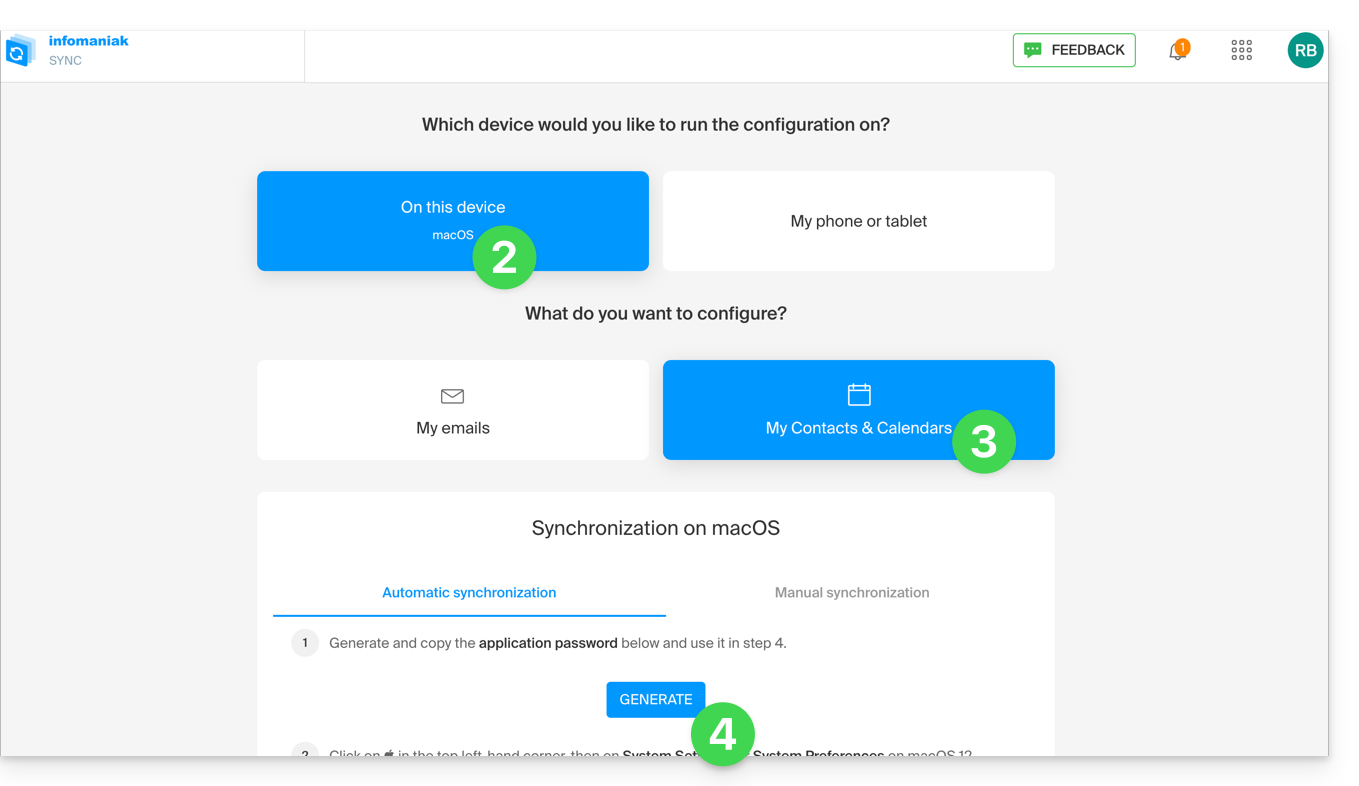
- Copy the generated application password (it will be requested during the installation of the Apple profile).
- Download the Apple profile:
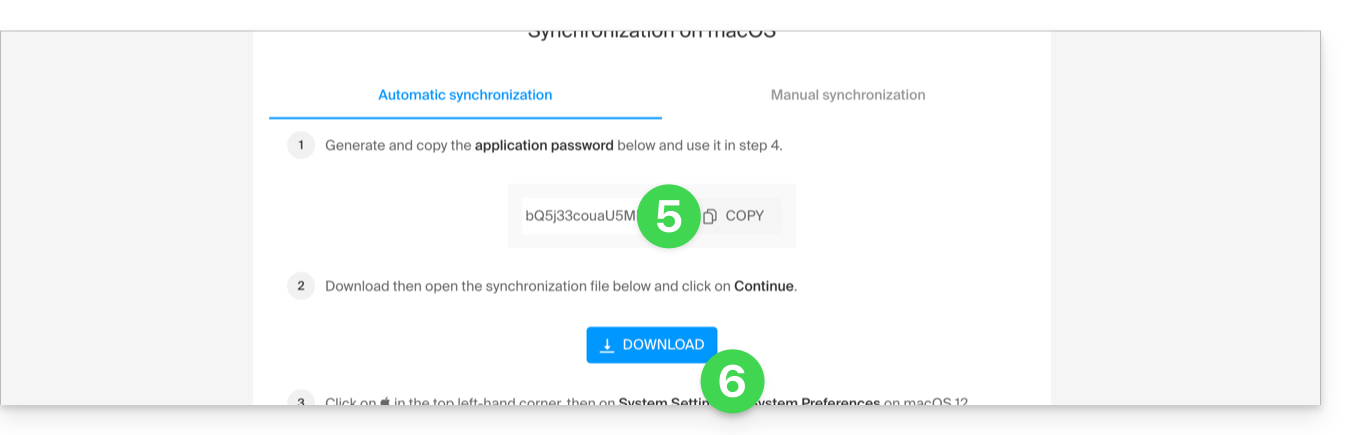
- Open this file newly downloaded to your hard drive.
- Click on OK in the confirmation window:
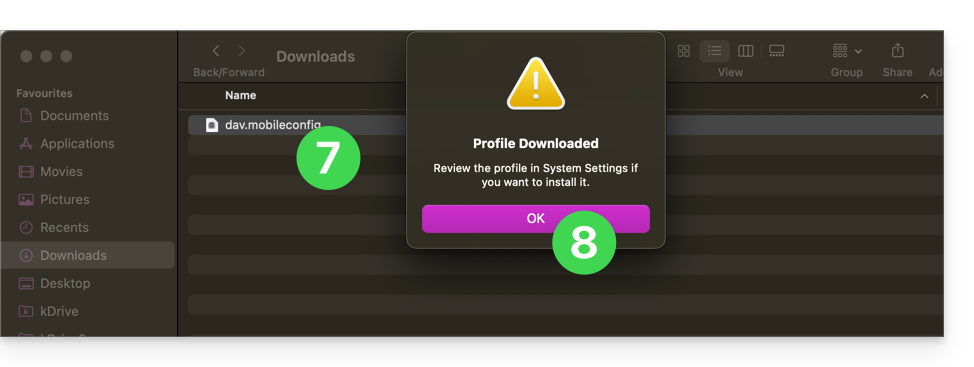
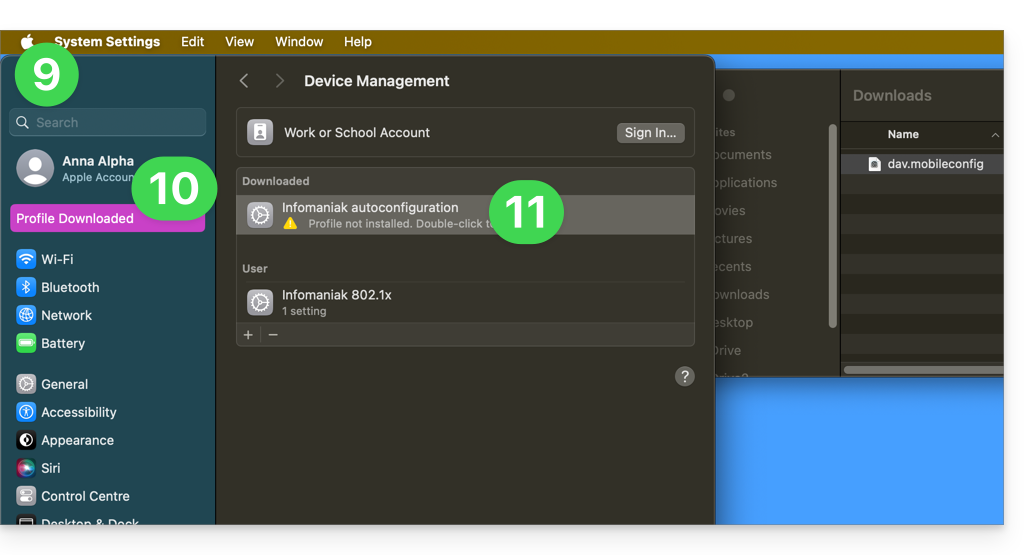
- Open the System Settings of the computer.
- In principle, the new profile is indicated as such and you need to click on this menu item…
- otherwise, click on General in the sidebar
- then click on Device Management (for macOS Sequoia 15 version)
- if you have a lower version or cannot find the profile, refer to the official documentation by changing the version of your system at the top of the page if necessary…
- Double-click on the proposed profile:
- Click on Install:
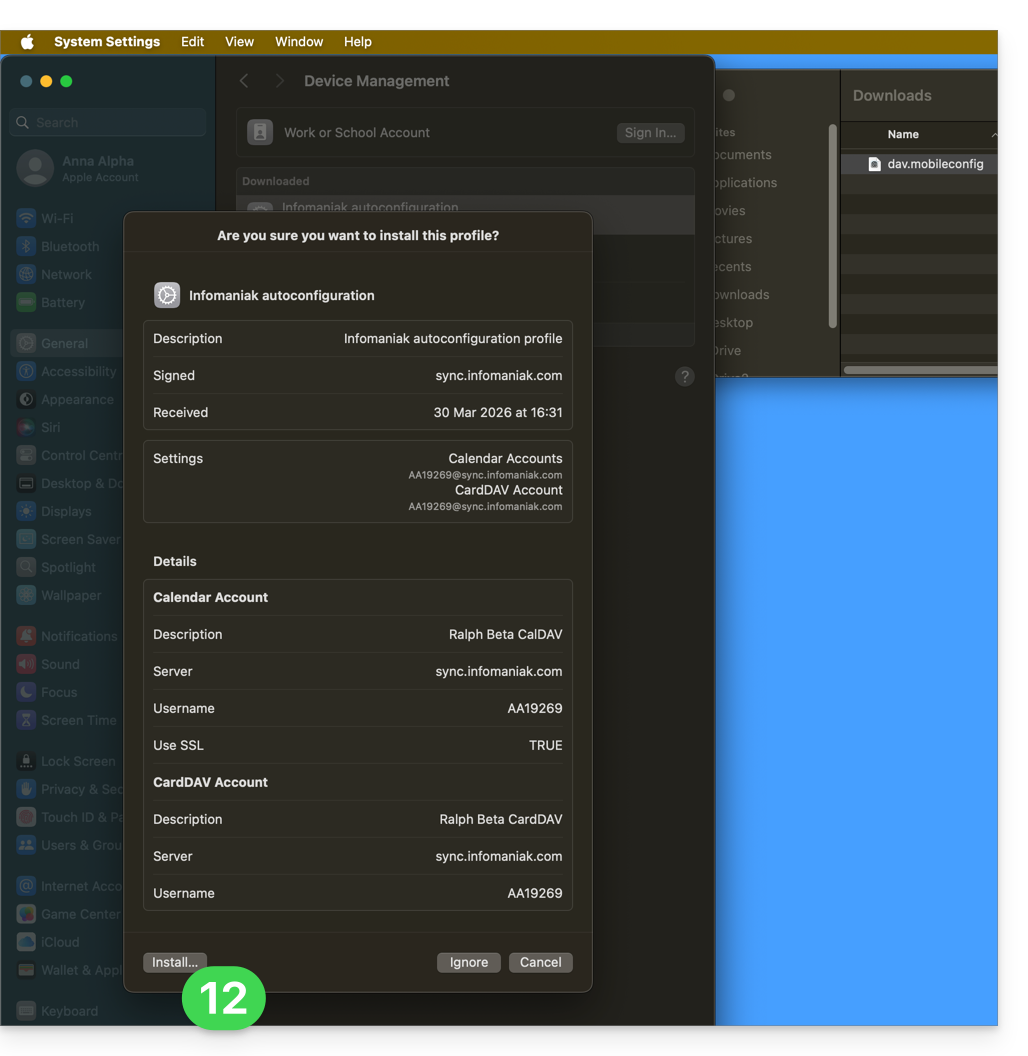
- Enter the application password noted in point 5 above, in order to connect to the Calendars.
- Click on Next:
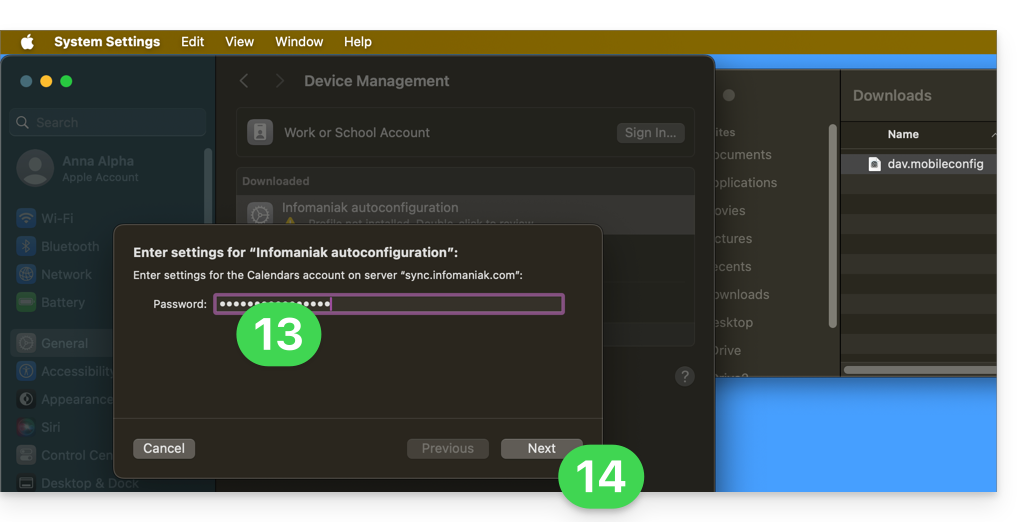
- Enter the password a second time (for Contacts this time) and click on Install to finish.
- There you go, you can now open your macOS Contacts and Calendar applications.
If your applications were already open, you need to restart them. You will then see the information added by the synchronization: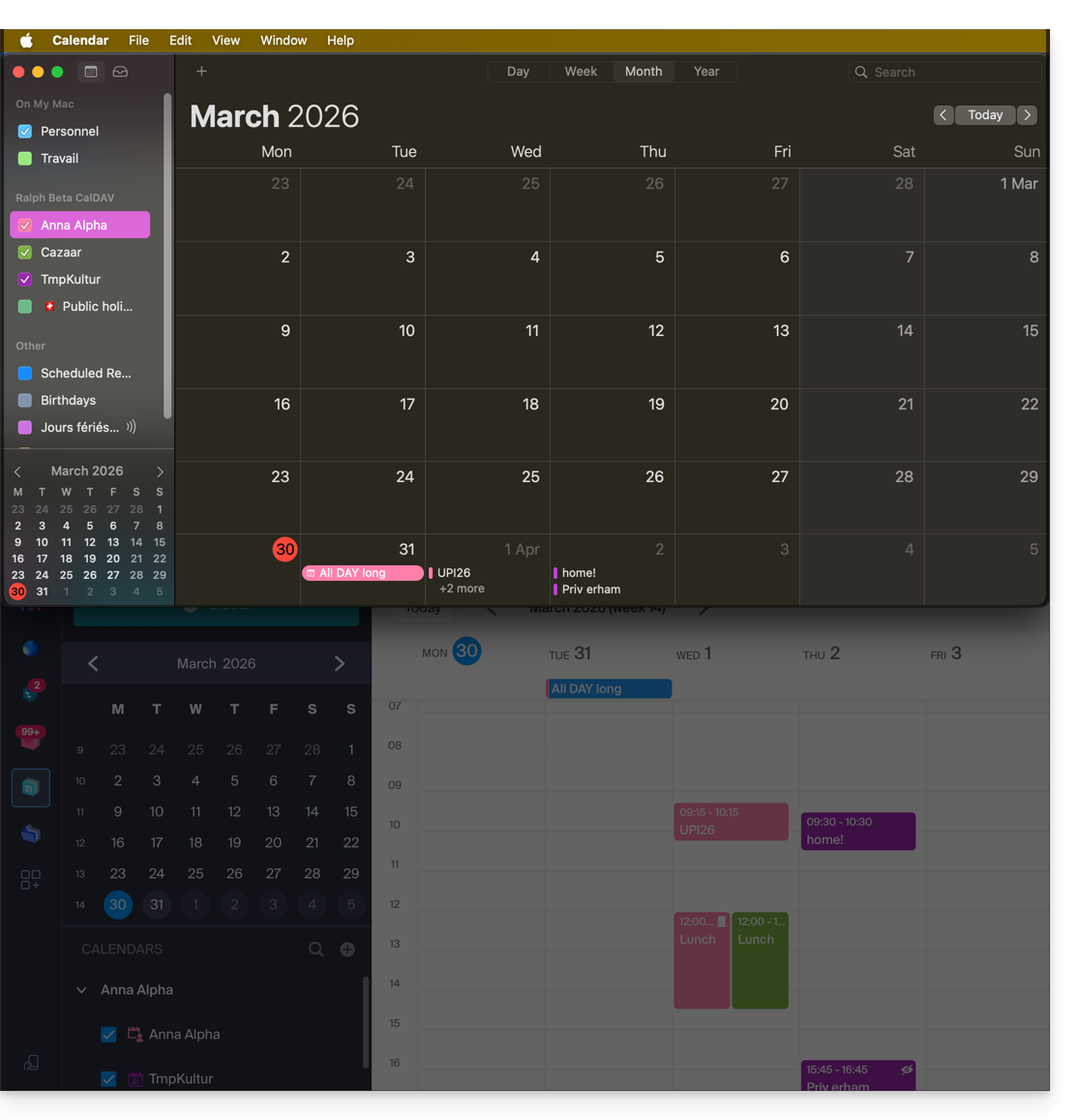
Synchronization specifics
Refer to this other guide.
Delete an Apple profile
Refer to the official documentation by changing the version of your system at the top of the page if necessary: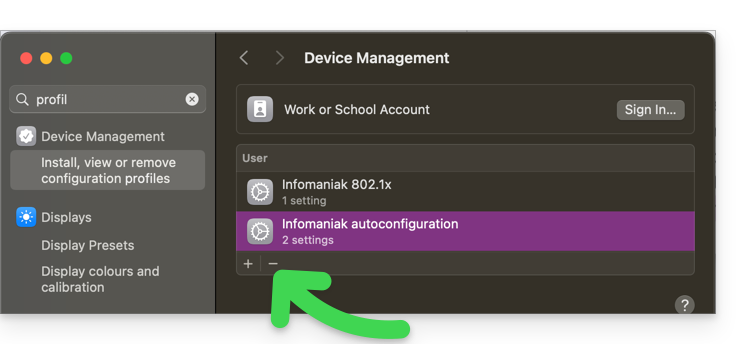
*Why is it necessary to choose the guide version that exactly matches your macOS / iOS system version? Apple introduces changes, sometimes subtle, with each new version of its system, for example a path on iOS 15…
… becomes this on iOS 18…
Link to this FAQ: https://faq.infomaniak.com/2143
Has this FAQ been helpful?