Knowledge base
1000 FAQs, 500 tutorials and instructional videos. Here, there are only solutions!
Automatically check Service Mail and Domain links (DNS diagnostic)
This guide presents the DNS Diagnostic tool, which allows you to verify that the relationships between…
- DOMAIN NAME at Infomaniak
and
- MAIL SERVICE at Infomaniak
… are correct, so that Mail traffic is directed to the right place.
Preamble
- To verify, the tool checks the MX, SPF, etc. records.
- You will thus be able to detect and correct certain Mail problems, especially if they are related to DNS (technical information that, in short, determines where such and such Mail traffic should be directed) by acting at the level of your domain.
- Automatic correction is only possible when the domain name is present in the same Organization as the product to which it must be attached.
- If this is not the case, then the correction must be done manually.
Diagnose a DNS problem
To access the DNS diagnosis of your domain name:
- Click here to access the management of your Mail Service on the Infomaniak Manager (need help?).
- Click directly on the name assigned to the product concerned:
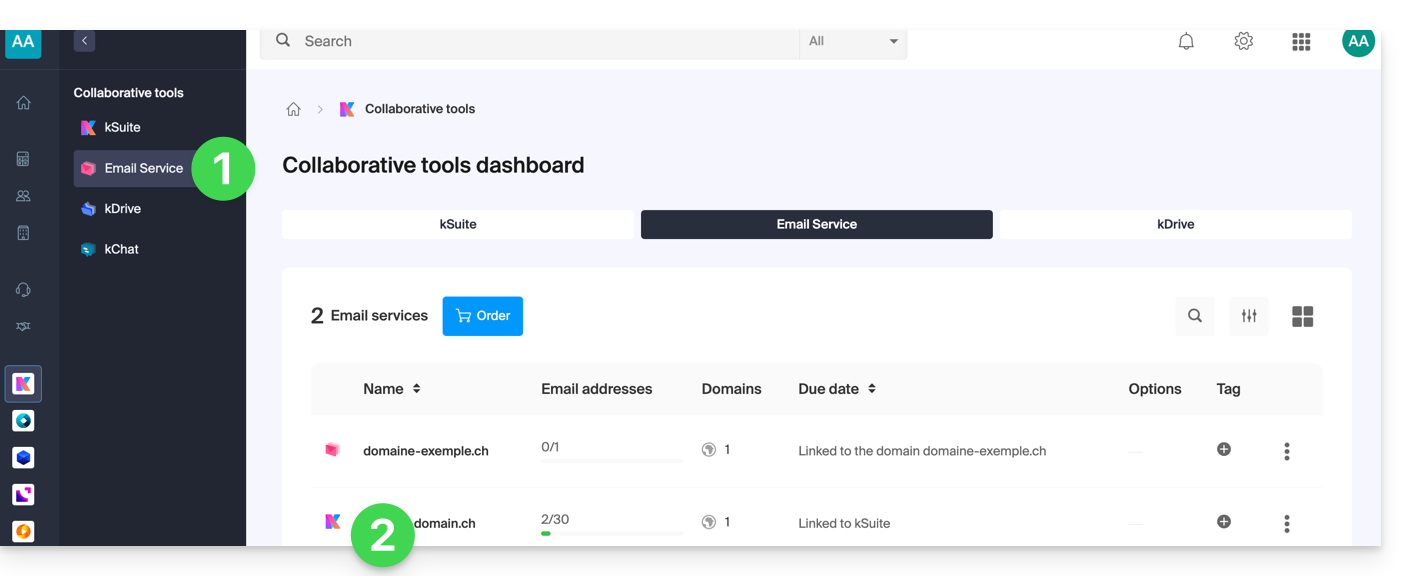
- Click on Domain Management in the left sidebar:
- Click on DNS Diagnostic in the left sidebar.
- Click the button if necessary to refresh the information that should be green.
- If DNS problems are detected, a red display on the dashboard indicates this:
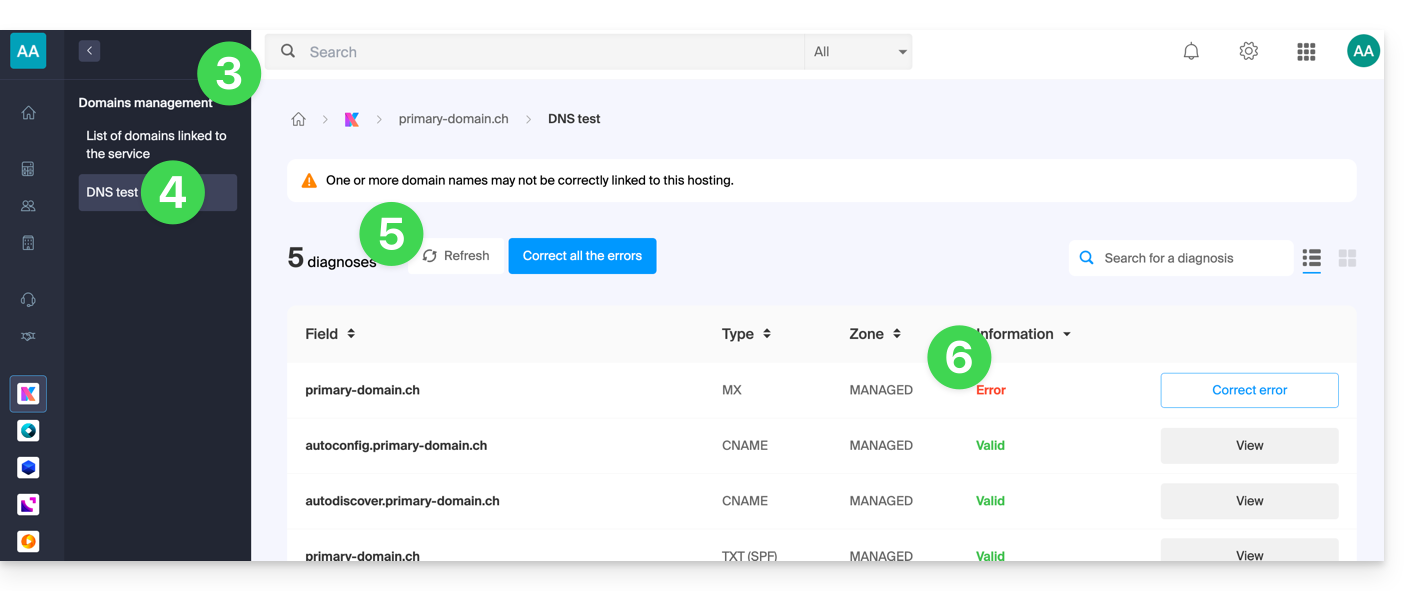
- Correct each error individually by clicking on the button located to the right of the item concerned…
- … or all errors at once with the button located above the dashboard
Refer to this other guide regarding the same automatic verification process but for Web Hosting.
And if necessary, refer to the messaging security diagnosis.
Link to this FAQ:
Has this FAQ been helpful?