Knowledge base
1000 FAQs, 500 tutorials and instructional videos. Here, there are only solutions!
Put an email on hold (snooze feature) on the Infomaniak Web Mail app
This guide explains how to temporarily set aside an email until a specific date/time, this on the Web app Mail Infomaniak (online service ksuite.infomaniak.com/mail).
Preamble
- The snooze is also possible on the mobile app Infomaniak Mail (application for iOS / Android smartphone or tablet).
- At most a total of 1000 discussions from the inbox only can be snoozed, this up to a maximum of 1 year (this snooze can be stopped or temporarily modified at any time).
- kSuite free / my kSuite / Mail Service Starter do not allow scheduling when snoozing.
Operation
When this snooze (function snooze, or remind):
- The discussion is moved to a folder "Pending" visible on the Mail app and on which the number of pending discussions is displayed.
- If a new message arrives in a snoozed discussion, it will be automatically canceled and the discussion will be visible in the inbox.
- When the deadline arrives:
- The discussion automatically returns to the inbox, in the first position, with a particular notification.
- The message, until it is read, will display an indication "Pending since X" (X being the date on which the message returned to the inbox).
On a mail client software type Outlook in IMAP:
- When snoozing, the discussion will remain in its original place.
- If you manually move a snoozed message, the functionality on this message is no longer effective on the side of the Web app.
- When the deadline arrives, the discussion will move back to the top position as in the Web app and a standard notification of 'new message' will be displayed.
Temporarily archive an email
Prerequisites
- Enable discussions mode for your email addresses in the Infomaniak Web app Mail (online service ksuite.infomaniak.com/mail).
Then, to temporarily hide one of your messages among all your emails and make it reappear in your inbox at a future time that you have scheduled:
- Click here to access the Infomaniak Web app Mail (online service ksuite.infomaniak.com/mail).
- Open the message to recall later.
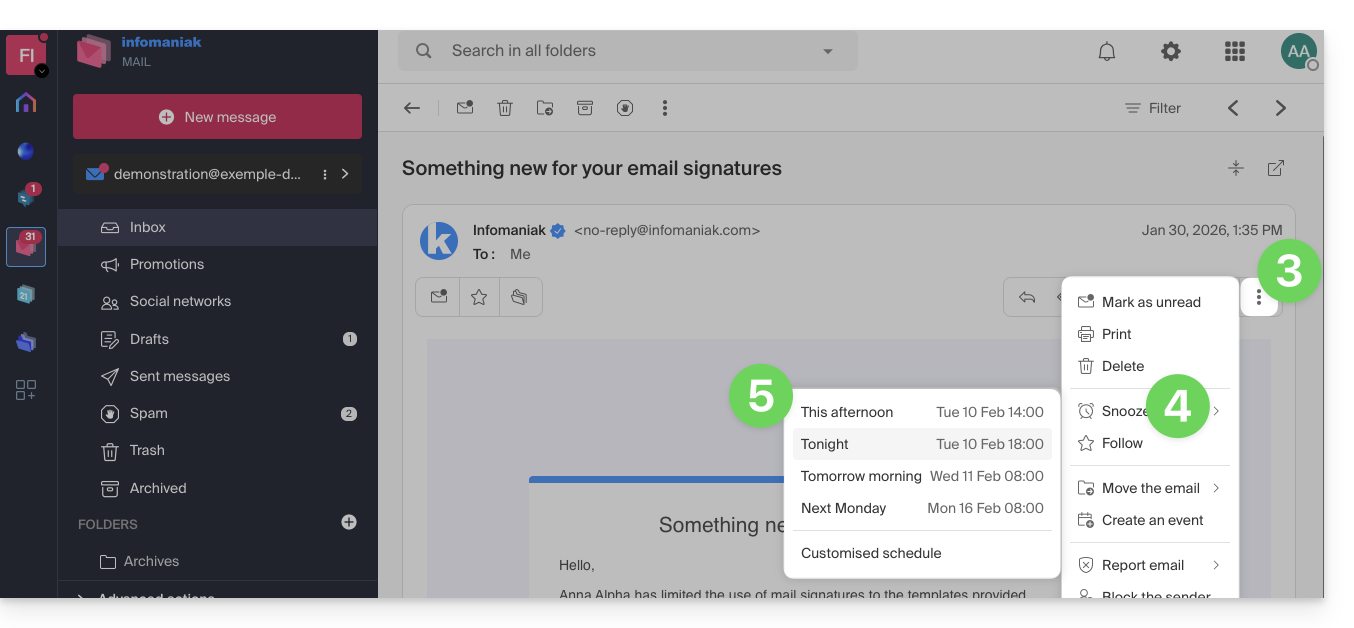
- Click on the action menu ⋮ in the top right corner
- Click on the Recall function.
- Choose until when the message should disappear from your inbox, among the predefined choices or by customizing the duration:
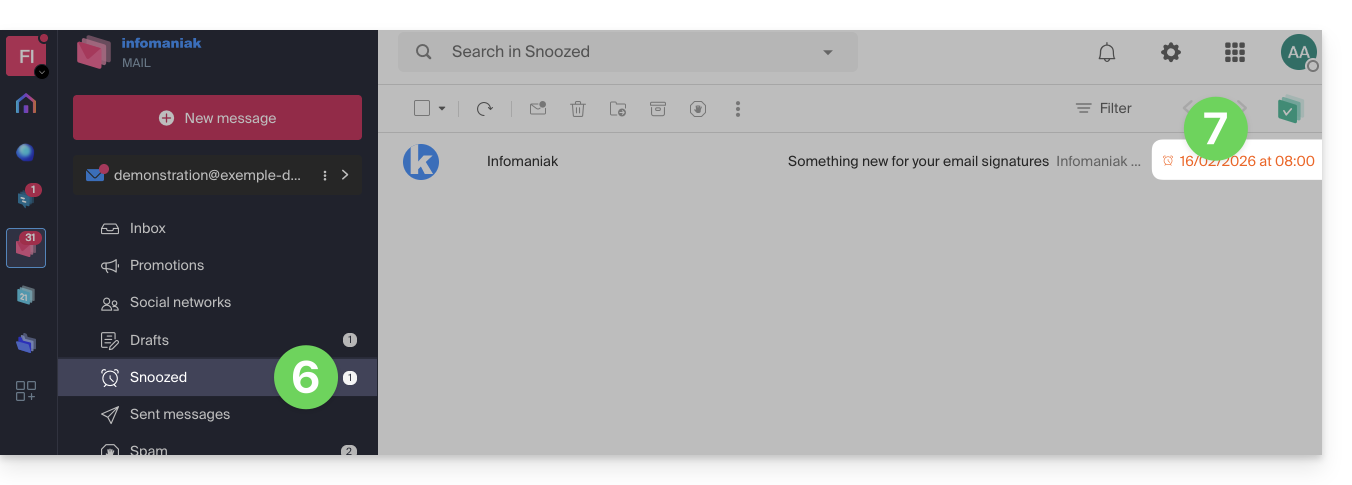
- Once on hold, the message is displayed in a new folder dedicated to pending messages.
- The end date/time of the hold is displayed next to each of the messages:
To enable access to this feature directly from the action bar above an email:
- Click here to access the Infomaniak Web app Mail (online service ksuite.infomaniak.com/mail).
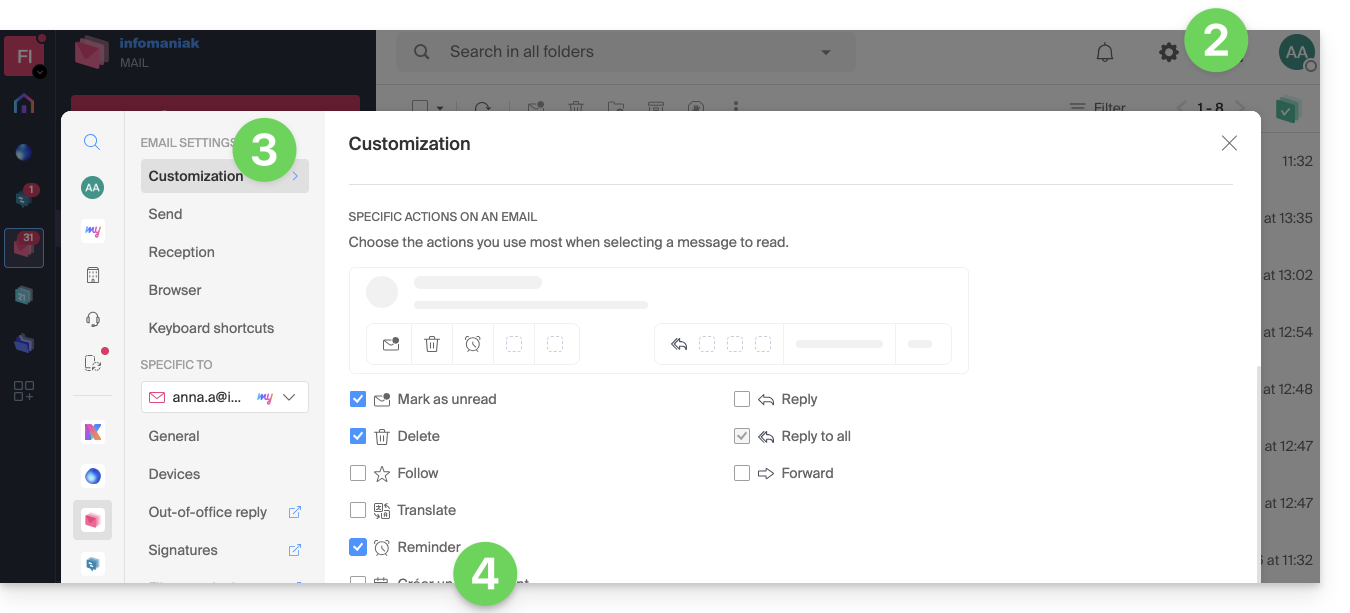
- Click on the Settings icon in the top right corner.
- Click on Customization in the left sidebar.
- Enable the message recall feature in the Specific actions on an email section:
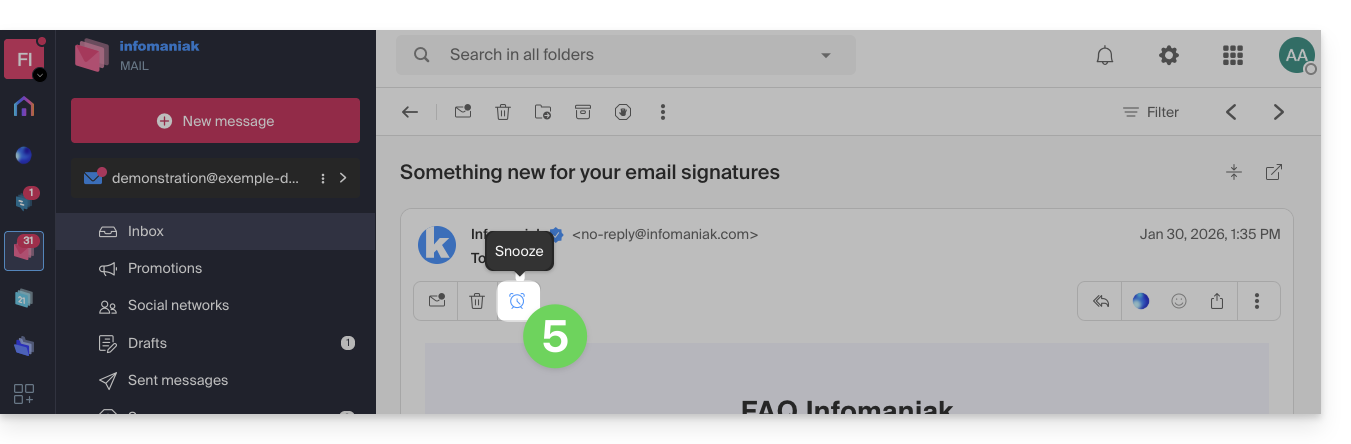
- Go back to your message, you will then have the possibility to put it on hold directly from the action bar:
To enable access to this feature directly from the list of your messages in the inbox:
- Click here to access the Infomaniak Web app Mail (online service ksuite.infomaniak.com/mail).
- Click on the Settings icon in the top right corner.
- Click on Customization in the left sidebar.
- Activate the message reminder feature in the Actions on hover section:
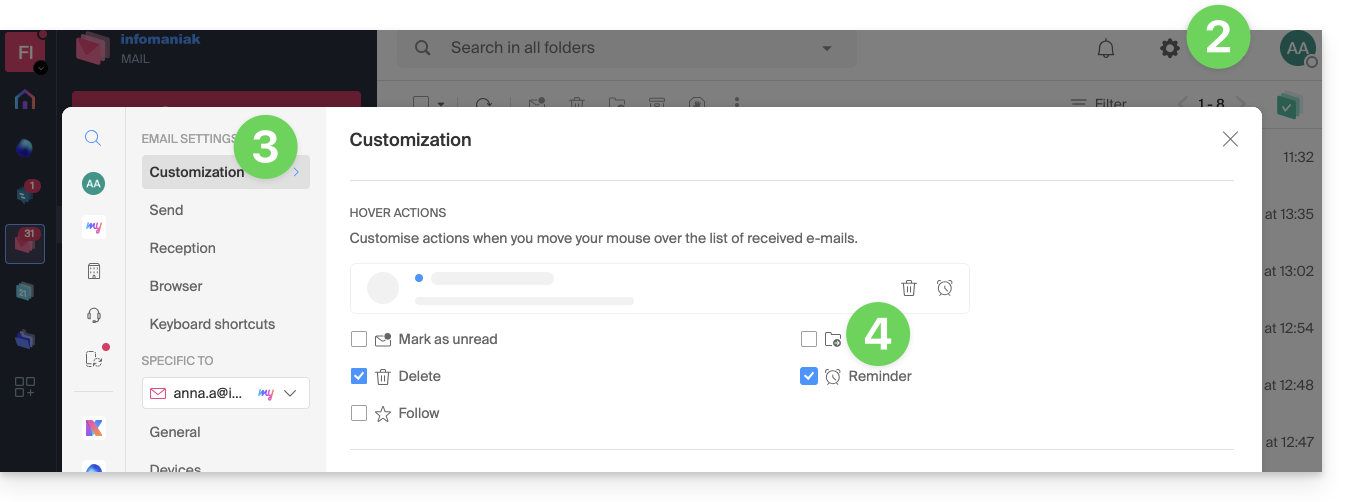
- Go back to the inbox, you will then have the possibility to put one of your emails on hold directly in the list:
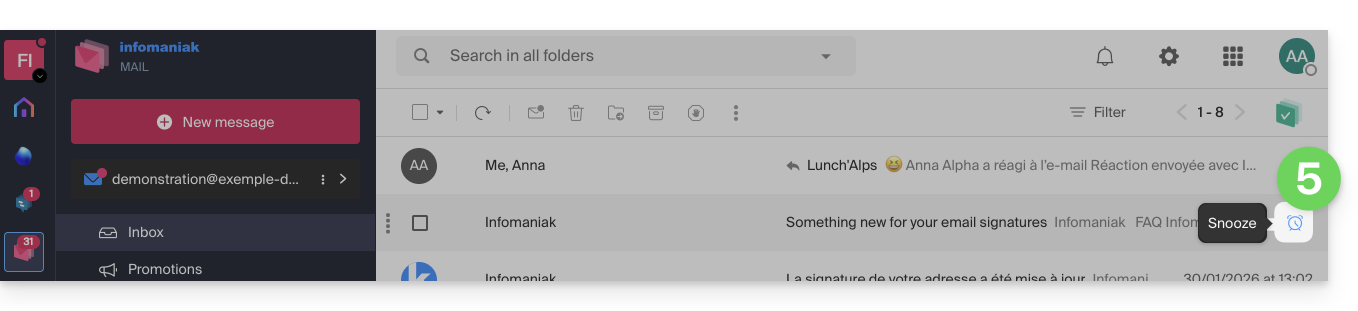
- You can put multiple messages on hold at the same time by selecting them (a maximum of 5 messages) then right-clicking to choose the hold option.
Link to this FAQ: https://faq.infomaniak.com/207
Has this FAQ been helpful?