Knowledge base
1000 FAQs, 500 tutorials and instructional videos. Here, there are only solutions!
Synchronize Contacts & Calendars Thunderbird (desktop app) in CardDAV/CalDAV
This guide explains how to set up the synchronization of calendars/agendas and contacts Infomaniak with the desktop app Mozilla Thunderbird (desktop application on macOS / Windows / Linux).
Preamble
- The various services offered by Infomaniak are all compatible with the corresponding standard protocols (CalDAV/CardDAV for contacts & calendars, for example), therefore if you encounter a problem with third-party software, contact its publisher or a Partner and consult the support policy as well as article 11.9 of the Infomaniak TOS.
Obtain the advanced URL
Prerequisites
- Obtain your synchronization information provided by the Infomaniak synchronization assistant:
- account address:
https://sync.infomaniak.com - username: for example
AB12345 - application password if double authentication is enabled or the one from your Infomaniak account if you have not enabled 2FA
- account address:
To obtain a more elaborate synchronization URL, usually requested for synchronization with Thunderbird:
- Open the Infomaniak synchronization assistant.
- Click on the blue link Select a device:
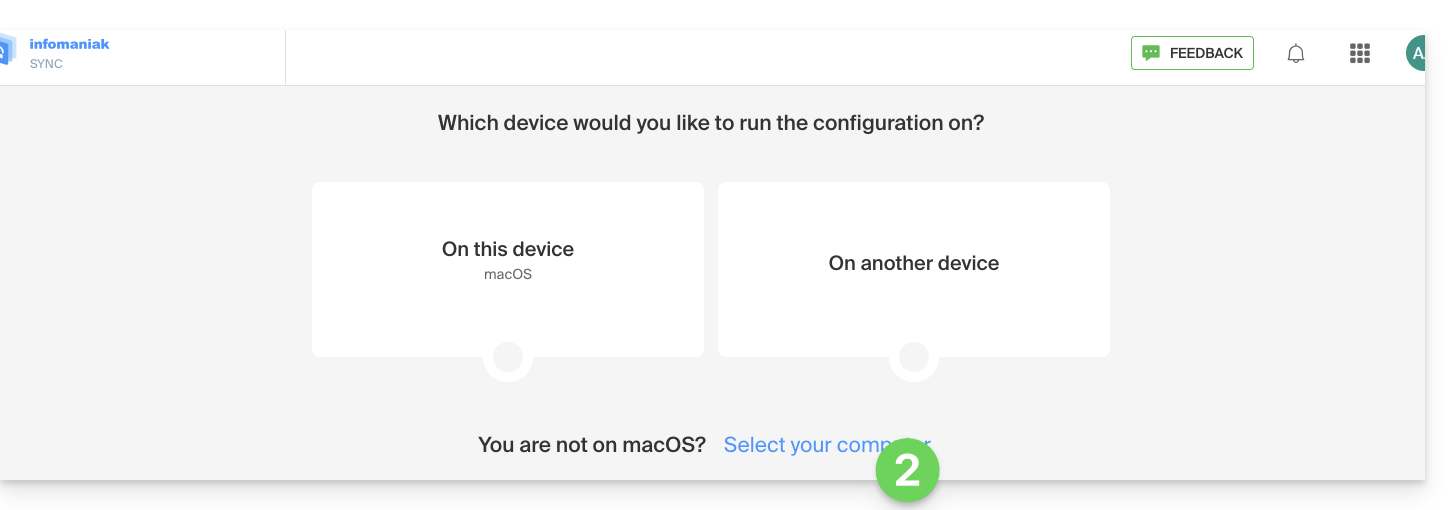
- Choose a GNU/Linux synchronization.
- Note the complete synchronization URL displayed in step 4 of the assistant:

Synchronize calendars and address books
Connect to a CardDAV address book
With the latest versions of Thunderbird, the synchronization of your Infomaniak calendars and address books is offered to you right after configuring your email address within the software: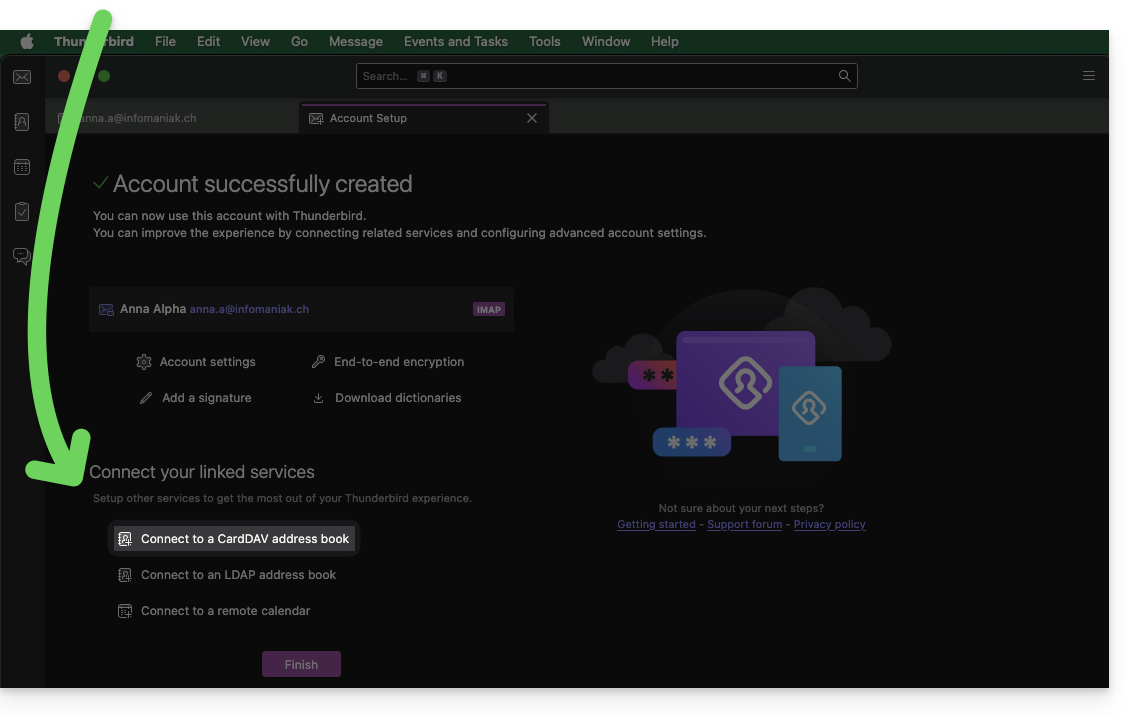
Click on it; the configuration starts:
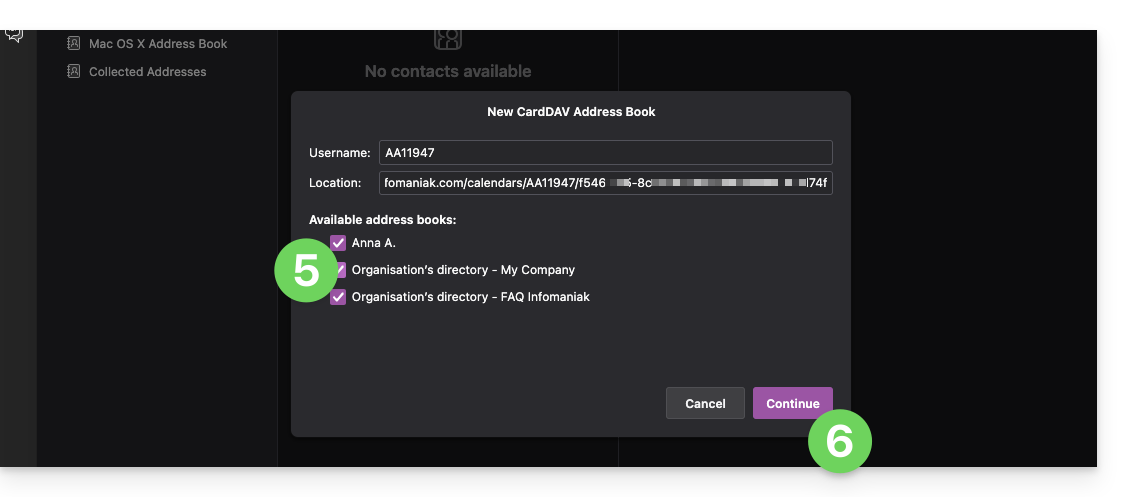
- Enter the short username and the advanced URL (see above).
- Press Continue.
- Thunderbird then asks for the password (see above).
- Press OK:

- Once the authentication is successfully completed, the application shows you the address books linked to your Infomaniak account; choose which ones to synchronize.
- Press Continue to finish:
Connect to a remote calendar
Add a new calendar in Thunderbird:
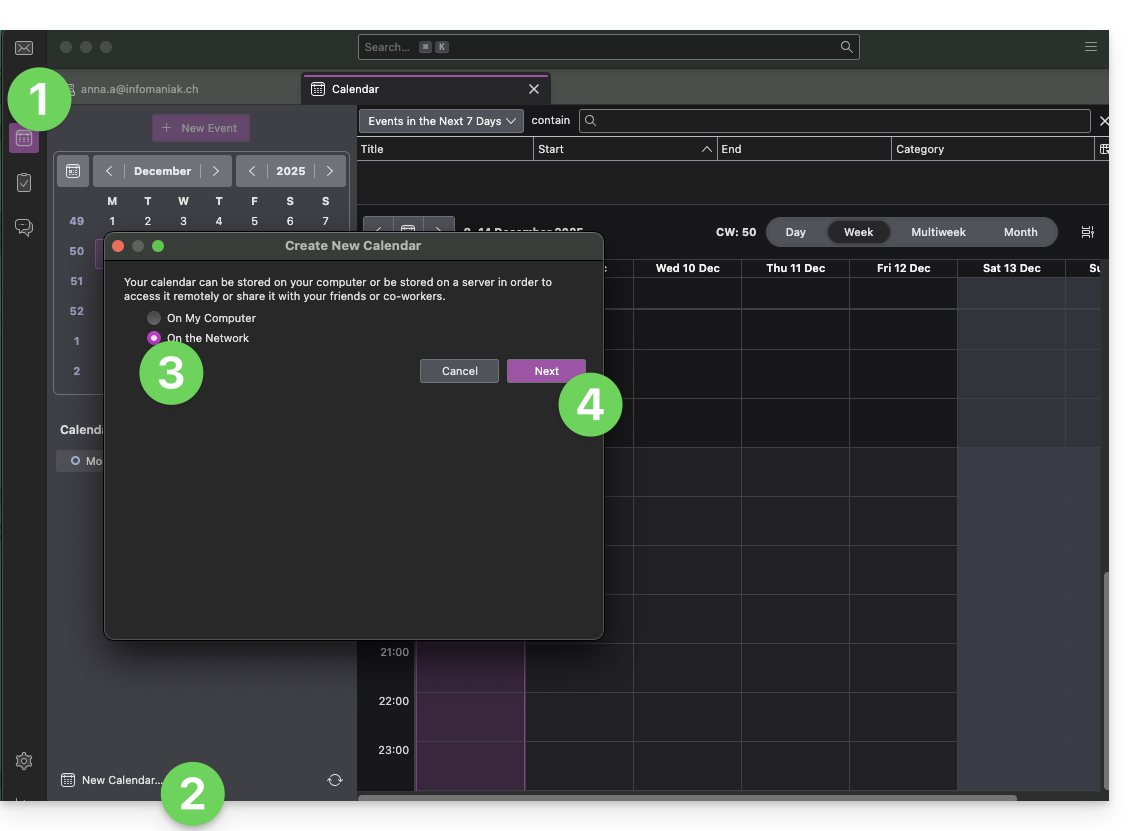
- Switch to Calendars if necessary.
- Click on New Calendar…
- Choose On the network.
- Click on Next:
- Enter the short username and the advanced URL (see above).
- Press the button to find the Calendars associated.
- Thunderbird then asks for the password (see above).
- Press OK:
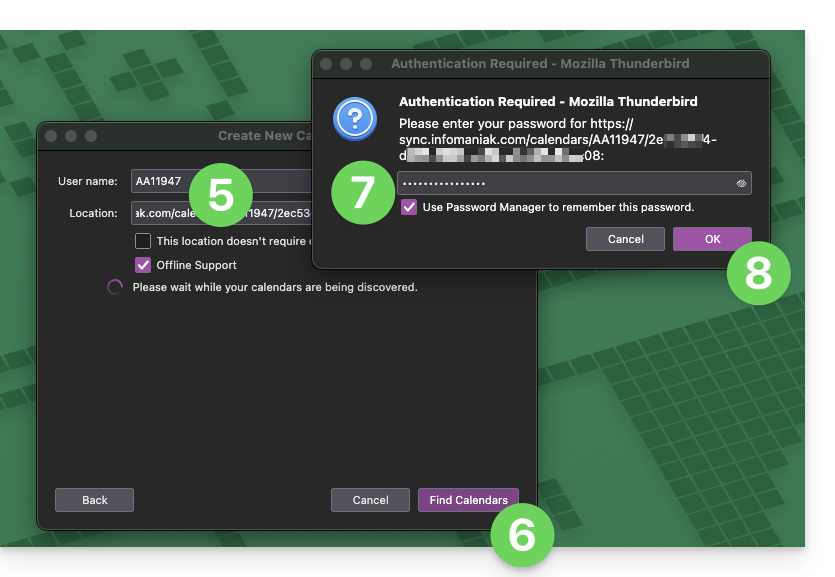
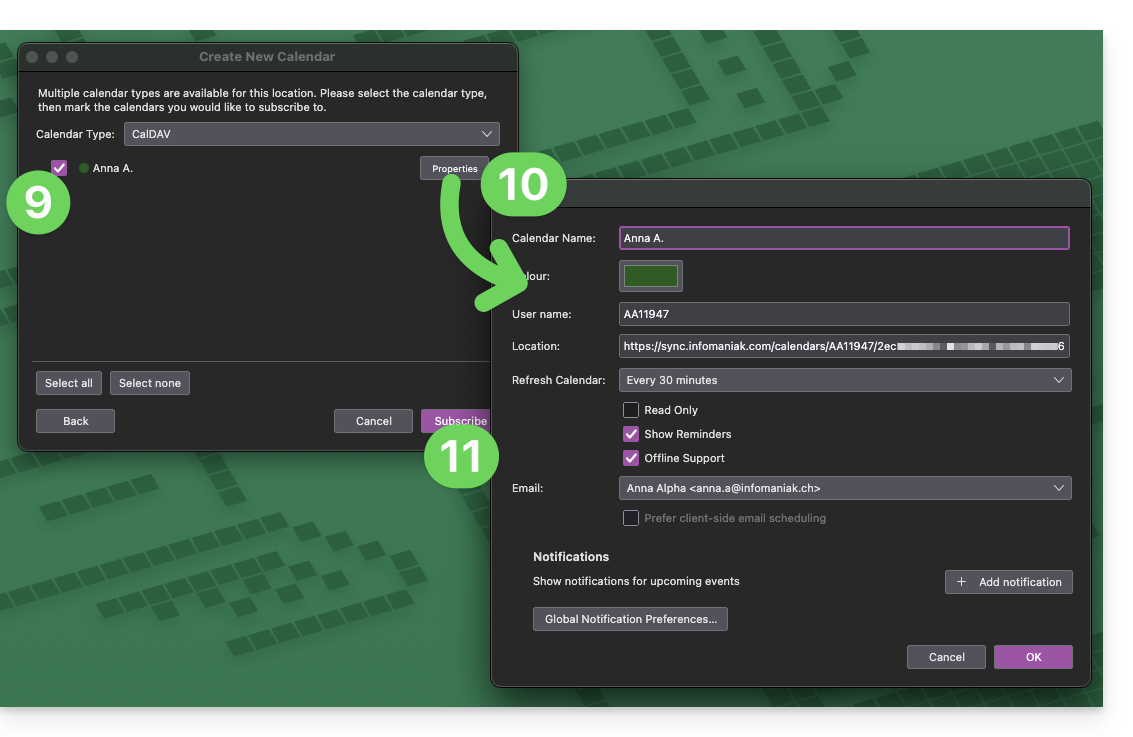
- Once authentication is successfully completed, the application shows you the schedules linked to your Infomaniak account; choose which ones to synchronize.
- You can manage advanced properties of your calendars in Thunderbird if necessary.
- Press the button to Subscribe and finish:
Refer to this other guide if you need to fix a configuration issue with Thunderbird (email, contacts, schedules)…
Link to this FAQ:
Has this FAQ been helpful?