Knowledge base
1000 FAQs, 500 tutorials and instructional videos. Here, there are only solutions!
Connect external applications to kChat
This guide explains how to manage external applications with kChat using webhooks.
Introduction
- A webhook is a method that allows an application to be notified immediately when a specific event occurs in another application, rather than constantly asking that application if anything new has happened ("polling").
- Outgoing webhook: kChat communicates information to other apps when an event occurs in kChat.
- Incoming webhook: kChat receives information from other apps to trigger actions in kChat.
- It is not possible to import the history of discussions from another application (Slack, Teams, Jabber, etc.) or from another Organization.
- Maximum number of incoming/outgoing Webhooks:
- kSuite Free = 1 / 1
- kSuite Standard = 20 / 20
- kSuite Business = unlimited
- kSuite Enterprise = unlimited
Accessing the kChat webhooks interface
Prerequisites
- You must not be an external user (they will not see the Integrations menu).
To configure a webhook, find self-hosted or third-party applications and integrations:
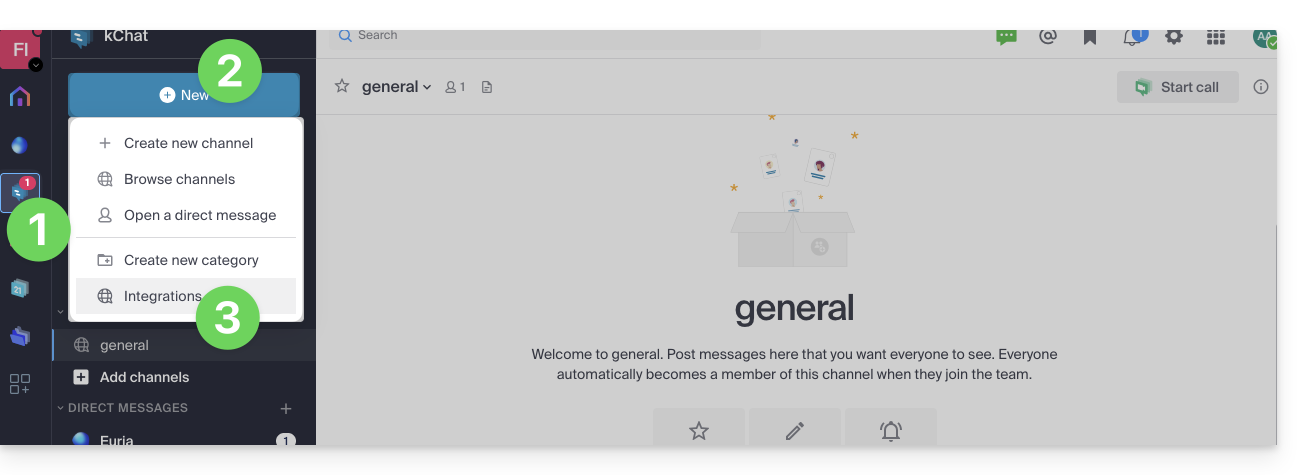
- Click here to access the kChat web app (online service ksuite.infomaniak.com/kchat) or open the kChat desktop app (desktop application on macOS / Windows / Linux).
- Click on the New icon next to your kChat organization's name.
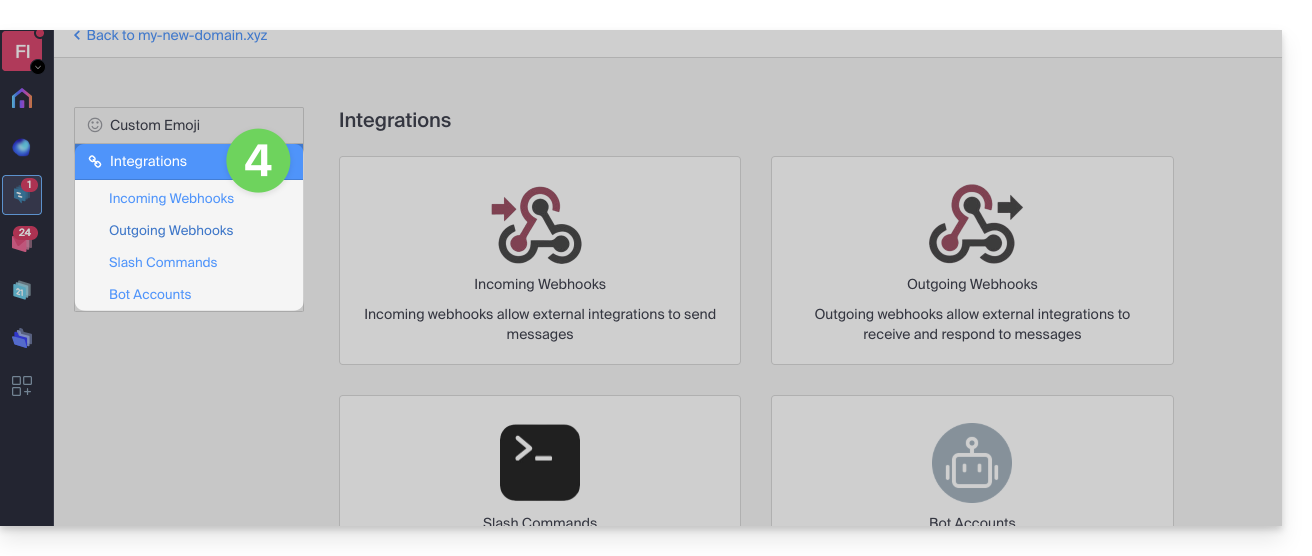
- Click on Integrations:
- Access the categories:
Specific guides
Examples of integration on kChat:
- Calendar Infomaniak: display an event reminder on kChat
- n8n application: trigger the sending of a message on kChat
Guides for other uses
To create an incoming webhook (to display an external event on kChat):
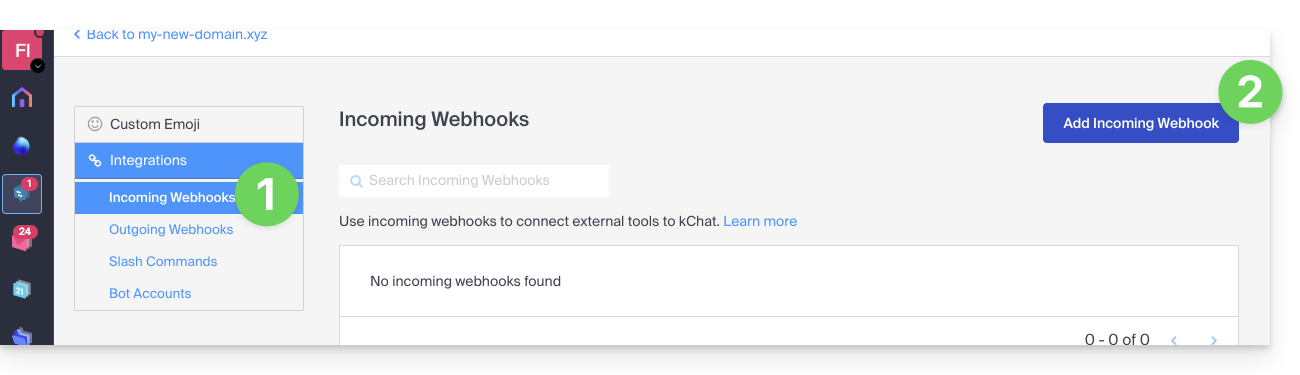
- Click on the Incoming Webhooks category.
- Click on the blue Add incoming webhooks button:
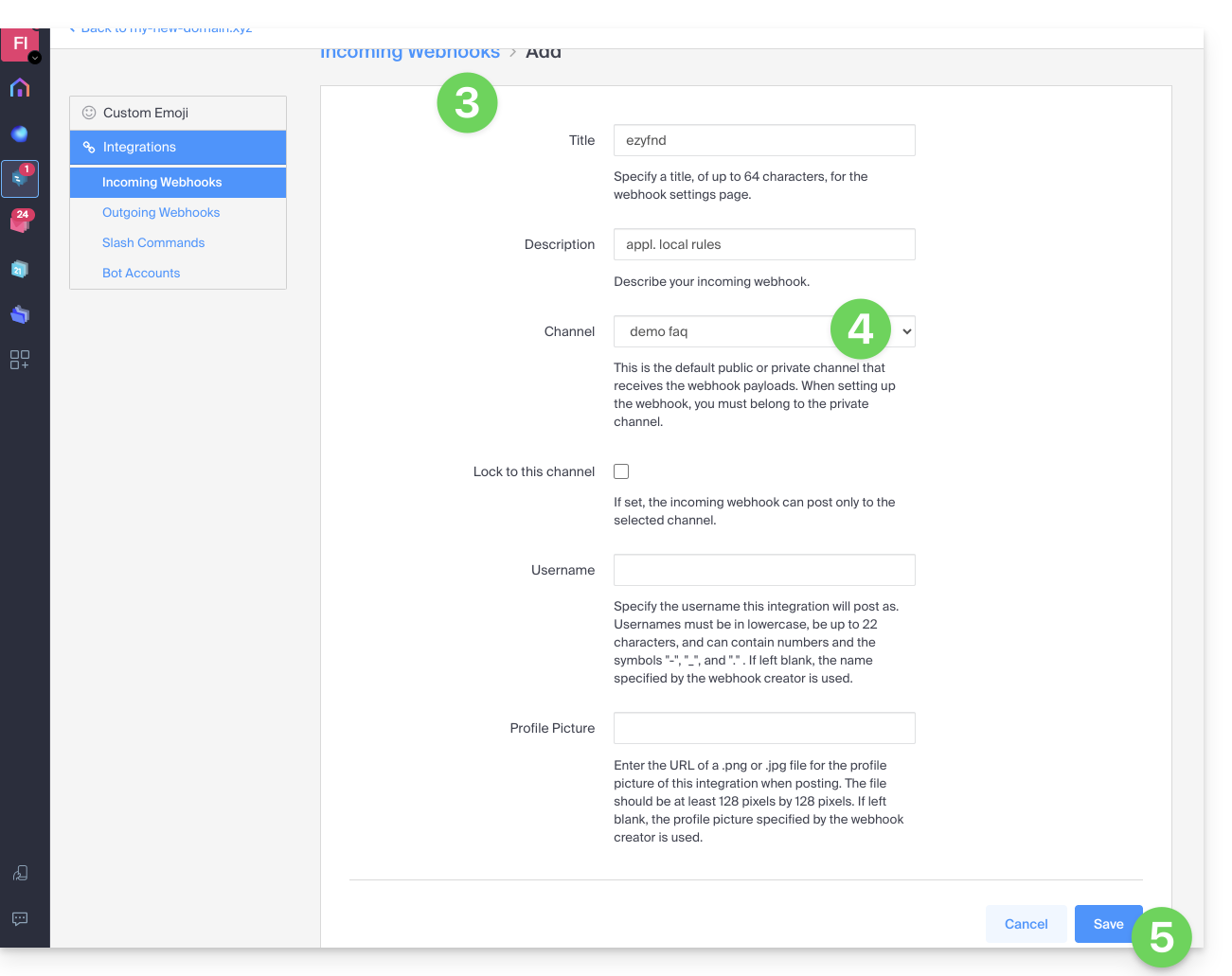
- Add a name and description for the webhook.
- Select the channel that will receive the messages.
- Click the button to Save:
- The URL to keep for your developments is displayed (do not disclose it publicly); example: “
https://your-server-kchat.xyz/hooks/xxx-key-generated-xxx”: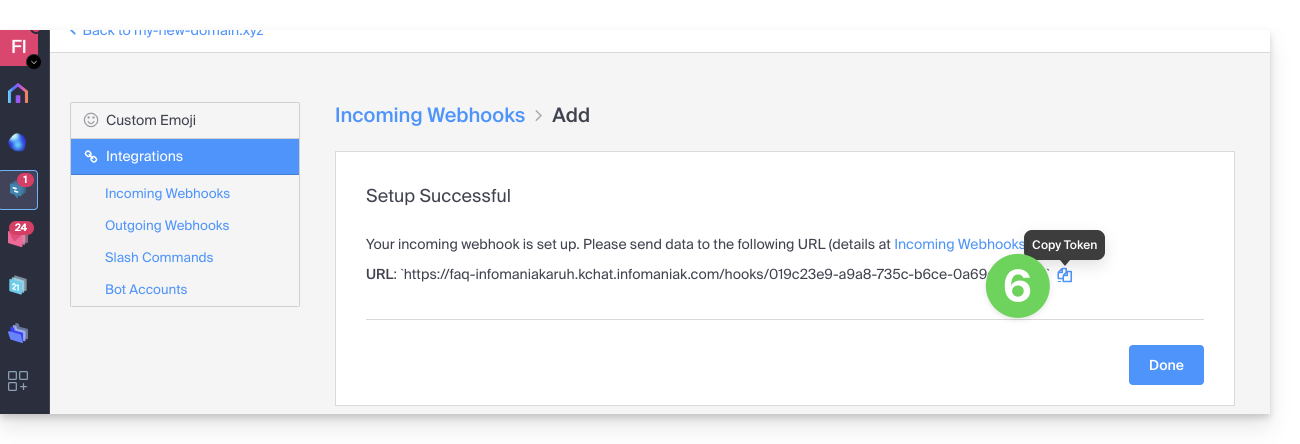
Using the webhook
Quick example
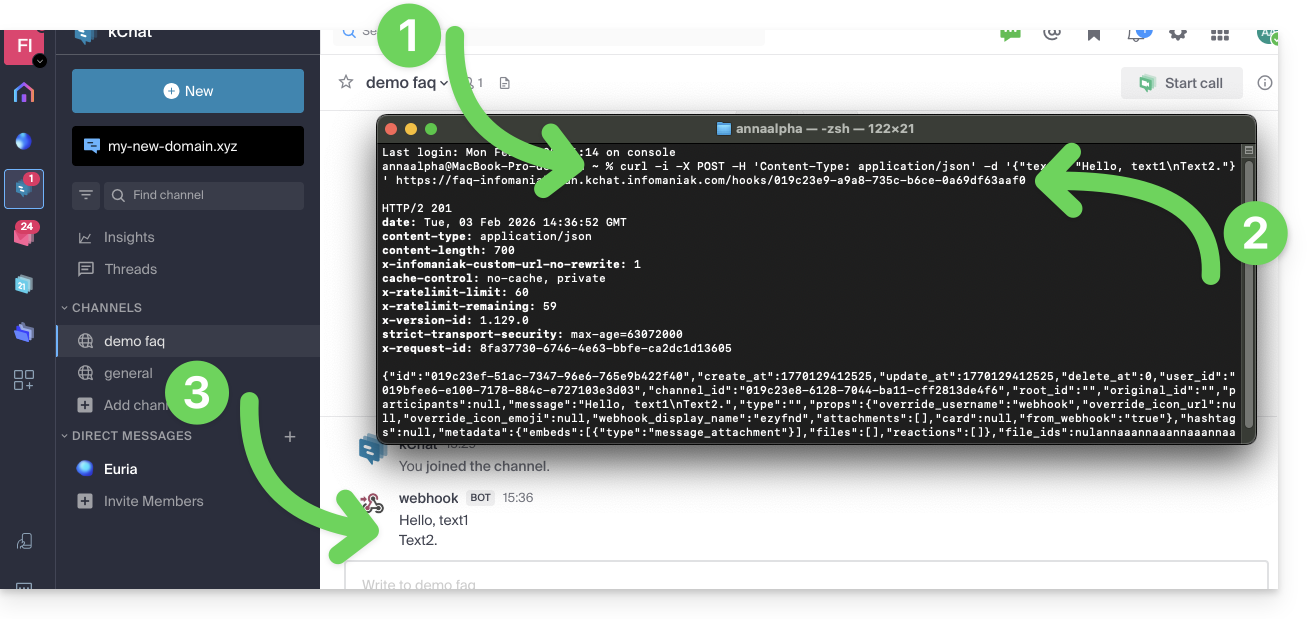
- A specific
curlcommand (detailed below) is entered into a terminal. - The command contains the URL obtained in step 6 above.
- The command will post a message in the channel specified in step 4 above:
Details
Regarding the application that will post on kChat:
Adjust the code below based on the URL obtained from kChat:
POST /hooks/xxx-key-generated-xxx HTTP/1.1
Host: your-server-kchat.xyz
Content-Type: application/json
Content-Length: 63
{
    "text": "Hello, text1\nText2."
}
If necessary, use the same request but with
curl(to test from aTerminalapplication (command-line interface,CLI) on your device), as in the example image above:curl -i -X POST -H 'Content-Type: application/json' -d '{"text": "Hello, text1\nText2."}' {{URL_12}}
The BOT indicator is added next to the username on kChat for security reasons.
If no Content-Type header is defined, the request body must be preceded by payload= as follows:
payload={"text": "Hello, text1\nText2."}A successful request will receive the following response:
HTTP/1.1 200 OK
Content-Type: application/json
X-Version-Id: 4.7.1.dev.12799dvd77e172e8a2eba0f4041ec1471.false
Date: Sun, 01 Jun 2023 17:00:00 GMT
Content-Length: 58

{
    "id":"x",
    "create_at":1713198308869,
    "update_at":1713198308869,
    "delete_at":0,
    "user_id":"x",
    "channel_id":"x",
    "root_id":"",
    "original_id":"",
    "participants":null,
    "message":"test",
    "type":"",
    "props":{
        "override_username":"webhook",
        "override_icon_url":null,
        "override_icon_emoji":null,
        "webhook_display_name":"test",
        "attachments":[

        ],
        "card":null,
        "from_webhook":"true"
    },
    "hashtags":null,
    "metadata":{
        "embeds":[
            {
                "type":"message_attachment"
            }
        ],
        "files":[

        ],
        "reactions":[

        ]
    },
    "file_ids":null,
    "has_reactions":false,
    "edit_at":0,
    "is_pinned":false,
    "remote_id":null,
    "reply_count":0,
    "pending_post_id":null,
    "is_following":false
}
If you want to have the same response format as Slack:
HTTP/1.1 200 OK
Content-Type: text/plain
X-Request-Id: hoan69ws7rp5xj7wu9rmystry
X-Version-Id: 4.7.1.dev.12799dvd77e172e8a2eba0f4041ec1471.false
Date: Sun, 01 Jun 2023 17:00:00 GMT
Content-Length: 2
ok
You must add ?slack_return_format=true to the webhook URL.
Parameters
In addition to the text field, here is the complete list of supported parameters:
| Parameter | Description | Requirements |
|---|---|---|
text | Message in Markdown format to be displayed in the post. To trigger notifications, use “@<username>”, “@channel”, and “@here” as you would in other kChat messages. | Yes, if attachments is not defined |
channel | Replaces the channel in which the message is posted. Use the channel name, not the display name; for example, use “town-square,” not “Place de la ville.” Use "@" followed by a username to send a direct message. By default, it uses the channel defined when the webhook was created. The webhook can post in any public or private channel where the webhook creator is present. Posts in direct messages will appear in the direct message between the target user and the webhook creator. | No |
username | Replaces the username under which the message is posted. By default, it uses the username defined when the webhook was created; if no username was defined during creation, it uses webhook. | No |
icon_url | Replaces the profile image with which the message is posted. By default, it uses the URL defined when creating the webhook; if no icon was defined during creation, the standard webhook icon () is displayed. The configuration parameter Allow integrations to replace profile picture icons must be enabled for the icon replacement to take effect. | No |
icon_emoji | Replaces the profile image and the icon_url setting.By default, nothing is defined when the webhook is created. The expected value is the name of an emoji as it is typed in a message, with or without a colon ( :).The configuration parameterAllow integrations to replace profile picture icons must be enabled for the replacement to take effect. | No |
attachments | Message attachments used for richer formatting options. | Yes, if text is not defined. |
type | Defines the type of publication, primarily for use by plugins.If not empty, it must start with " custom_". | No |
Code example with parameters
Here's how to generate a more complete message with parameters, some of which can replace parameters already defined when creating the webhook (username, preferred channel, avatar, etc.), as shown in the table above:
curl -i -X POST -H 'Content-Type: application/json' \
-d '{
"username": "System Monitor",
  "icon_url": "{{URL_13}}",
  "text": "### System Status Report\nEnvironment: PRODUCTION\nStatus: SUCCESSFUL\n\n---\n\n| Component | Version | Build ID | Status |\n|:----------|:-------:|:---------|:-------|\n| API-Core  | 2.4.1   | #88421   | OK     |\n| Web-UI    | 1.9.0   | #88425   | OK     |\n| Database  | 14.5    | N/A      | OK     |\n\n---\n\n**Commit Reference:**\n`git-ref: a7f8e9c21b` \n\n**Summary:**\nAll automated integration tests passed successfully. No manual intervention is required. Please contact the DevOps team for further details regarding this release."
}' \
{{URL_14}}
Result of a similar example in the image: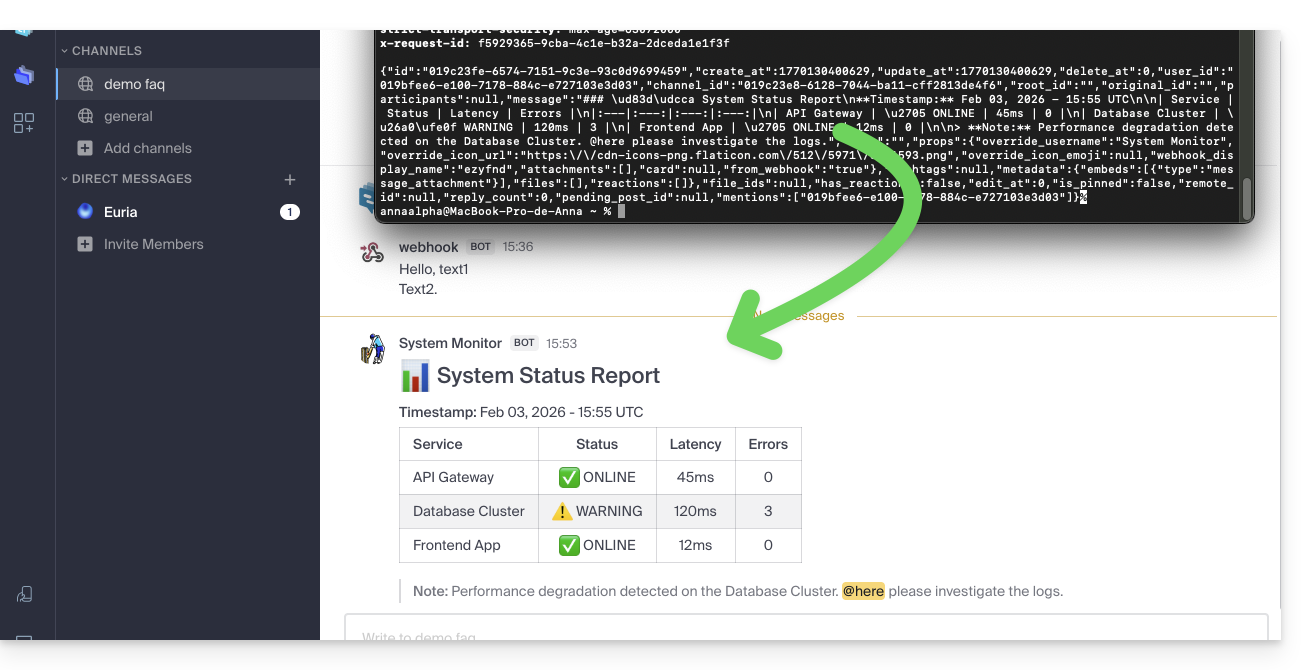
Link to this FAQ: https://faq.infomaniak.com/2001
Has this FAQ been helpful?