Knowledge base
1000 FAQs, 500 tutorials and explanatory videos. Here, there are only solutions!
Create an email address or delete it
This guide explains how to create an email address from the Mail Service Infomaniak, the powerful and secure solution for hosting your email addresses.
Preamble
- To create multiple email addresses in bulk, refer to this other guide.
- To create “virtual” addresses serving as redirections, refer to this other guide.
- Refer to this other guide if you are looking for additional information about invitations to use a new address or an existing address.
Create an address on a Mail Service
Prerequisites
- Have a Mail Service on your Infomaniak Manager.
- Have a quota of available free addresses or adjust it in advance if necessary.
Then, the administrator of a Mail Service creates a new email address:
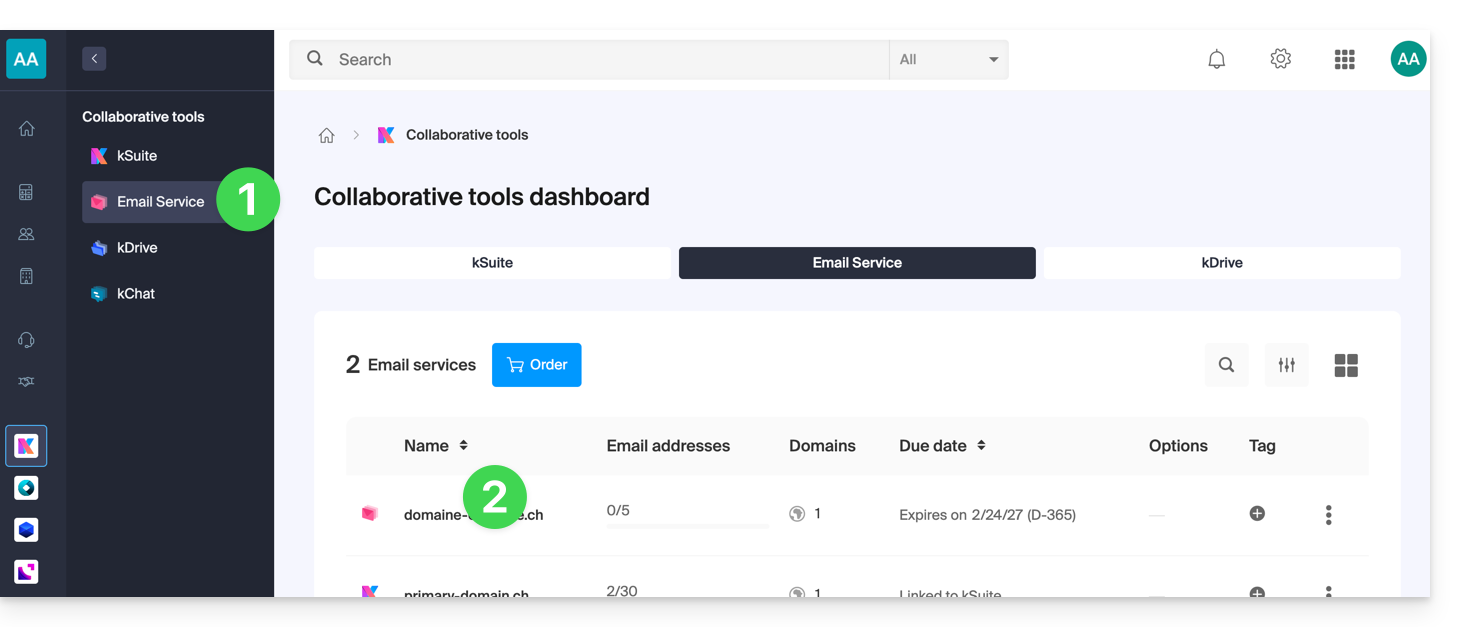
- Click here to access the management of your product on the Infomaniak Manager (need help?).
- Click directly on the name assigned to the product concerned.
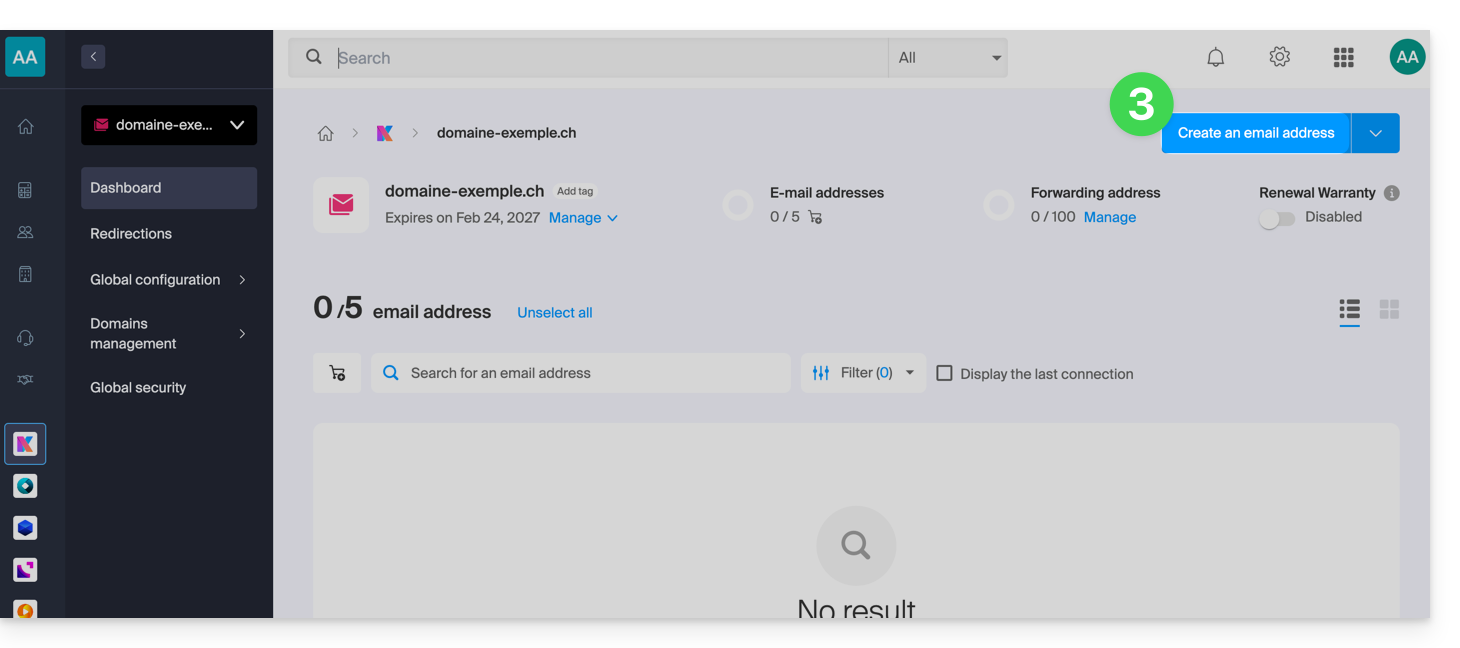
- Click on the blue button Create an email address at the top right:

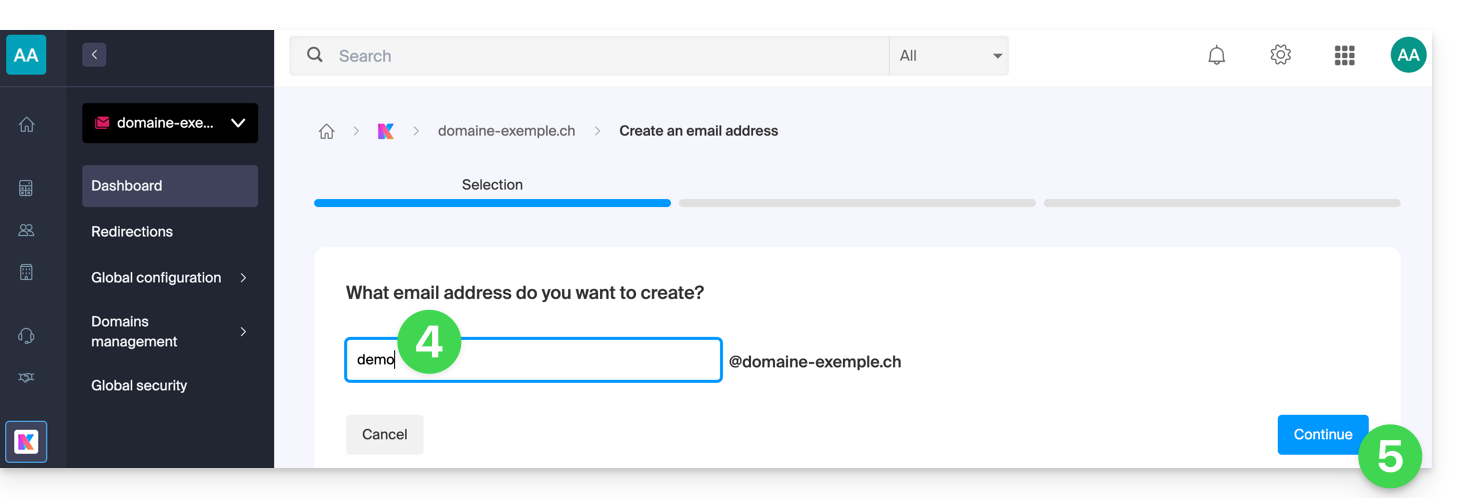
- Enter the name that will compose the email address.
- Click on the button to continue:

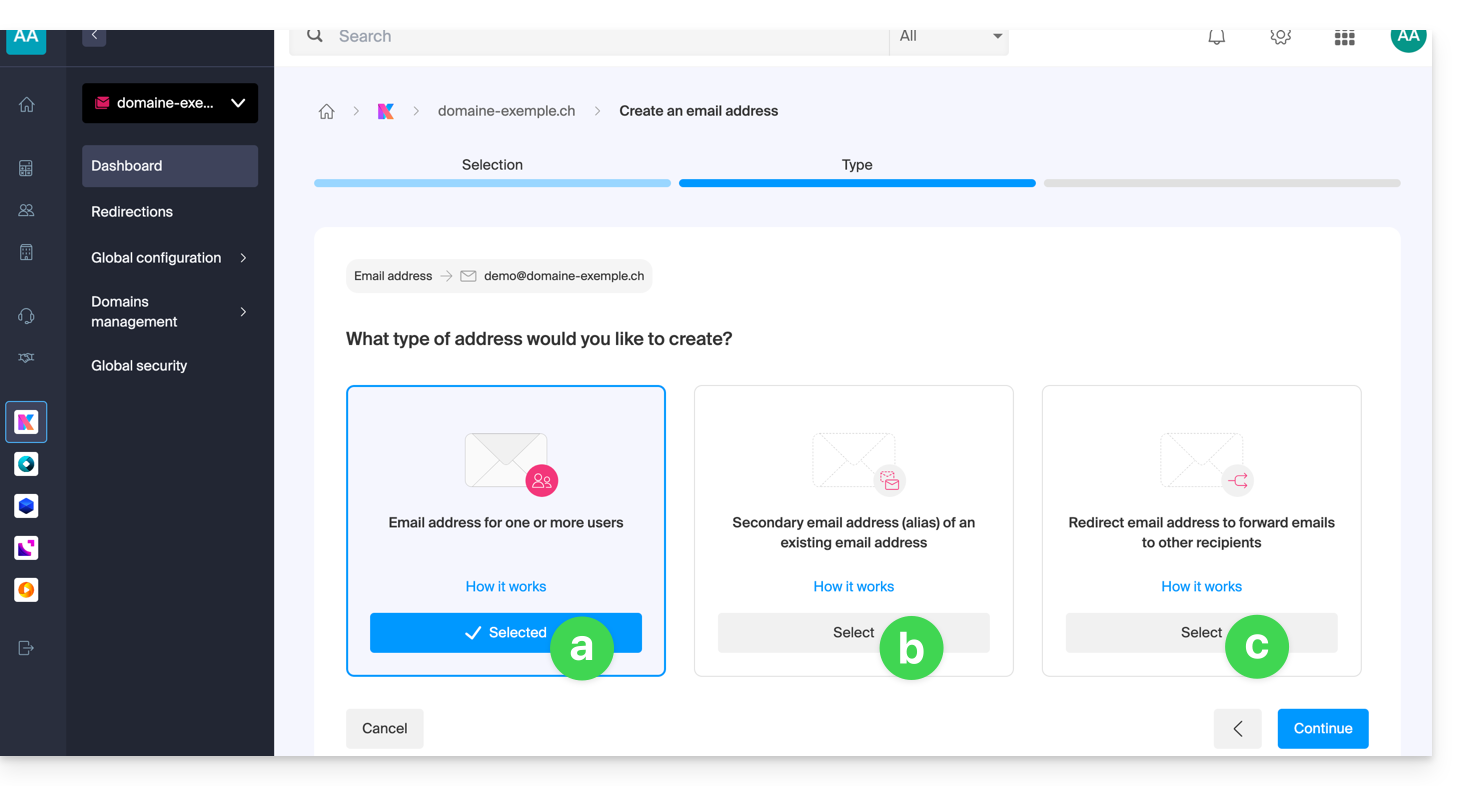
- Select the creation mode suitable for your situation:
- An address for yourself (and directly visible on your Mail interface)
- An address for multiple users (sending invitations)
- An address without invitation (no attachment to your Mail interface)

- Click on the button to continue.
Choice [a]
- Choose a possible signature template then click on Continue:

- That's it, the email address is now visible on Mail ksuite.infomaniak.com/mail:

If you need to obtain a password for third-party use, refer to this other guide.
Choice [b]
- Choose who should be able to view the address among:
- existing users on your Organization
- an external email address to whom you send an invitation link to the email address you need to specify in the field
- a new user to whom you will send an invitation link by your own means

- If you have chosen:
- existing users on your Organization then you can manage their access rights to the answering machine, device addition, etc. by clicking on the small icons, then choose a possible signature template and click on Continue to finish and give them access to the address which will be automatically visible on Mail ksuite.infomaniak.com/mail:

- an external email address then you can manage their access rights to the answering machine, device addition, etc. by clicking on the small icons, then choose whether the user must log in with the new email address or the address of their choice, choose a possible signature template and click on Continue to finish:
The user receives an invitation to view the email address, valid for 30 days:
The button takes them to a page where, depending on your initial choices, they can either create a new account or log in to an existing account they may already have with Infomaniak, or create a new account whose identifier must necessarily be the email address created. Once completed, the address will be automatically visible on Mail ksuite.infomaniak.com/mail. - a new user then you can manage their access rights to the answering machine, device addition, etc. by clicking on the small icons, then choose whether the user must log in with the new email address or the address of their choice, choose a possible signature template and click on Continue to finish:

The difference with point b is that the invitation link is directly visible — you can still send it by email if necessary using the link below the invitation URL:
The invitation link valid for 30 days takes them to a page where, depending on your initial choices, they can either create a new account or log in to an existing account they may already have with Infomaniak, or create a new account whose identifier must necessarily be the email address created. Once completed, the address will be automatically visible on Mail ksuite.infomaniak.com/mail.
- existing users on your Organization then you can manage their access rights to the answering machine, device addition, etc. by clicking on the small icons, then choose a possible signature template and click on Continue to finish and give them access to the address which will be automatically visible on Mail ksuite.infomaniak.com/mail:
Choice [c]
- The email address is directly created (always without password, and this time without any user, so the address will not be visible anywhere initially) and works fully.
- You can of course manage the users and the passwords from the email address management directly.
2. Create an Infomaniak account with the created email address
If the user is led to create an Infomaniak account to use the new email address, and this address is specified as the login identifier…
- … this is mainly the case when choosing [ b ] above, when this box is selected:

… some restrictions may then exist: refer to this other guide on this subject.
Additional actions (button ‍)
Click on the chevron to the right of the Create an email address button to access additional actions:
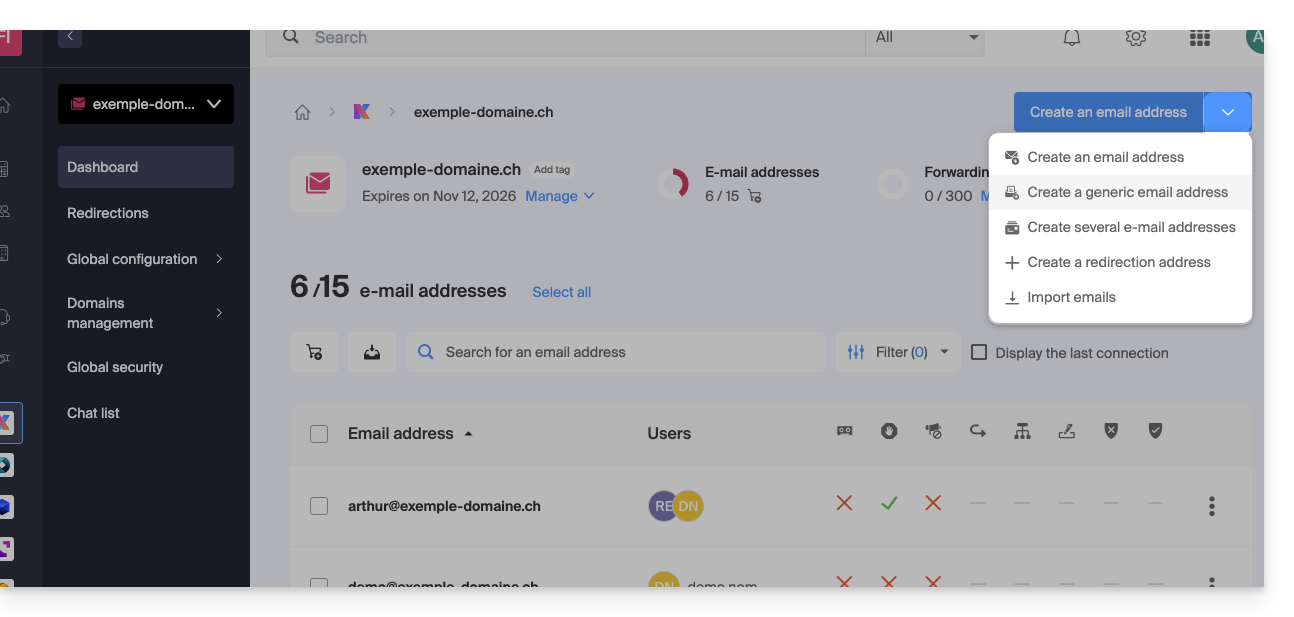
- Create a generic email address of type:
- no-reply (for sending confirmation, validation, invoice, etc.)
- catchall (allows you to receive all messages for which there is no specific email address on your domain)
- Create multiple email addresses: allows you to create multiple email addresses at once using a
CSVfile. - Create “virtual” addresses serving as redirection.
- Import content from other email addresses.
Delete one or more email addresses
To remove an email address (its content will be permanently deleted):
- Click here to access the management of your product on the Infomaniak Manager (need help?).
- Click directly on the name assigned to the product in question.
Once in front of the email address table:
A. Delete one address at a time
- Click on the action menu â‹® located to the right of the item in question.
- Choose to delete the email address.
B. Delete multiple addresses at once
- Select the addresses to delete by checking the boxes to the left of the line.
- Click on Delete at the bottom of the screen.
Link to this FAQ: