Knowledge base
1000 FAQs, 500 tutorials and instructional videos. Here, there are only solutions!
Create an email address or delete it
This guide explains how to create an email address from the Mail Service Infomaniak, the powerful and secure solution for hosting your email addresses.
Preamble
- To create multiple email addresses in bulk, refer to this other guide.
- Refer to this other guide to invite a user to use an existing address.
Create an address on a Mail Service
Prerequisites
- Have a Mail Service on your Infomaniak Manager.
- Have a quota of available addresses or adjust it in advance if necessary.
Then, the administrator of a Mail Service creates a new email address:
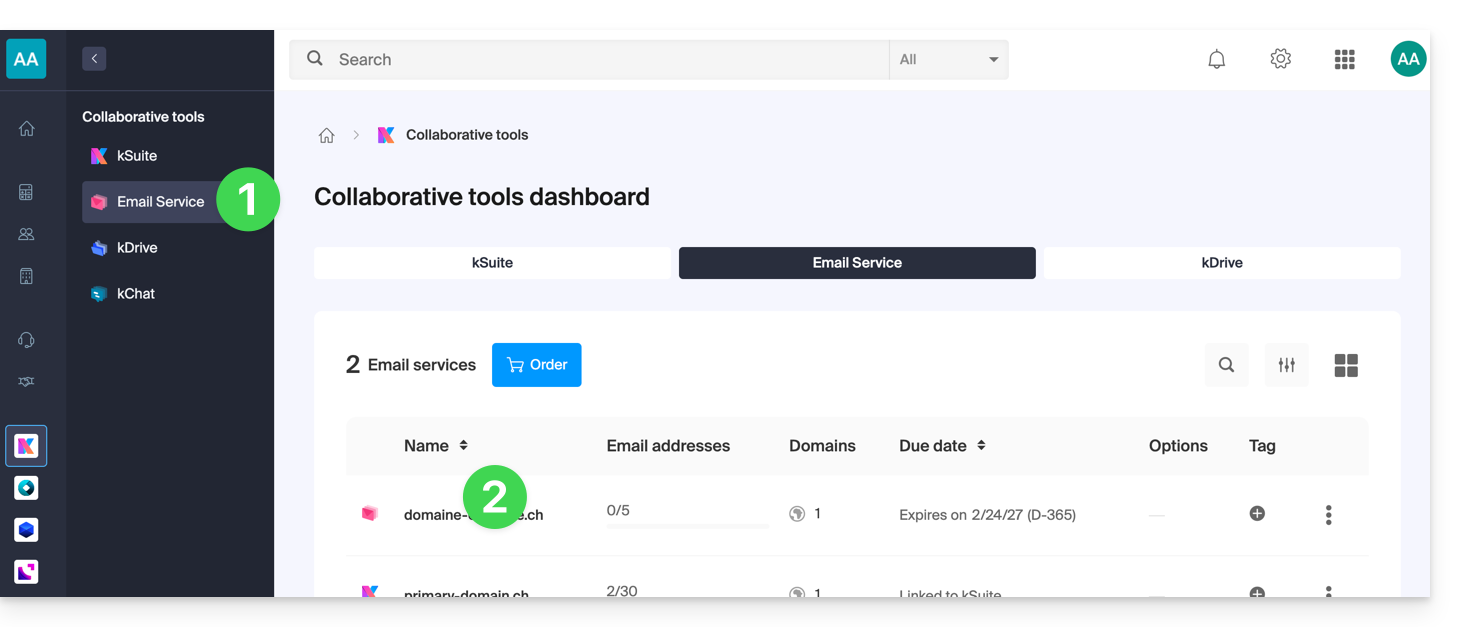
- Click here to access the management of your Mail Service on the Infomaniak Manager (need help?).
- Click directly on the name assigned to the Mail Service concerned:
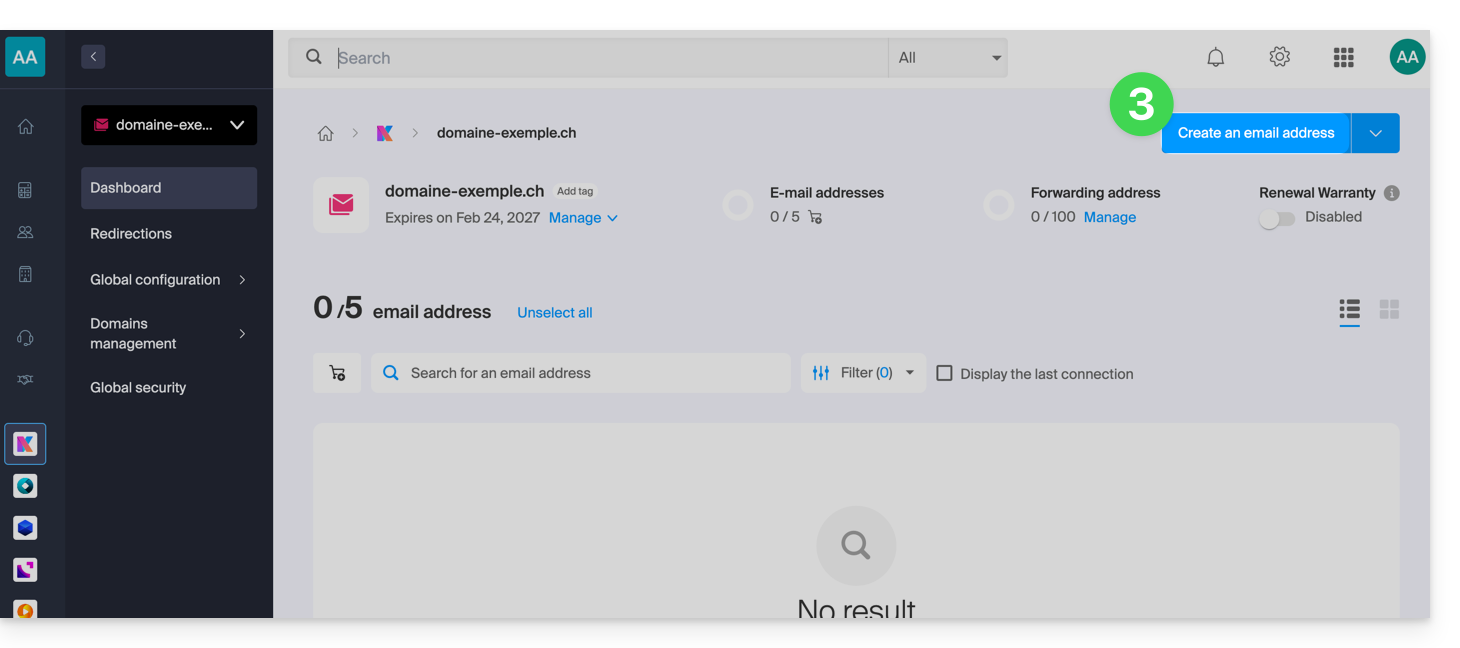
- Click on the blue button Create an email address at the top right:
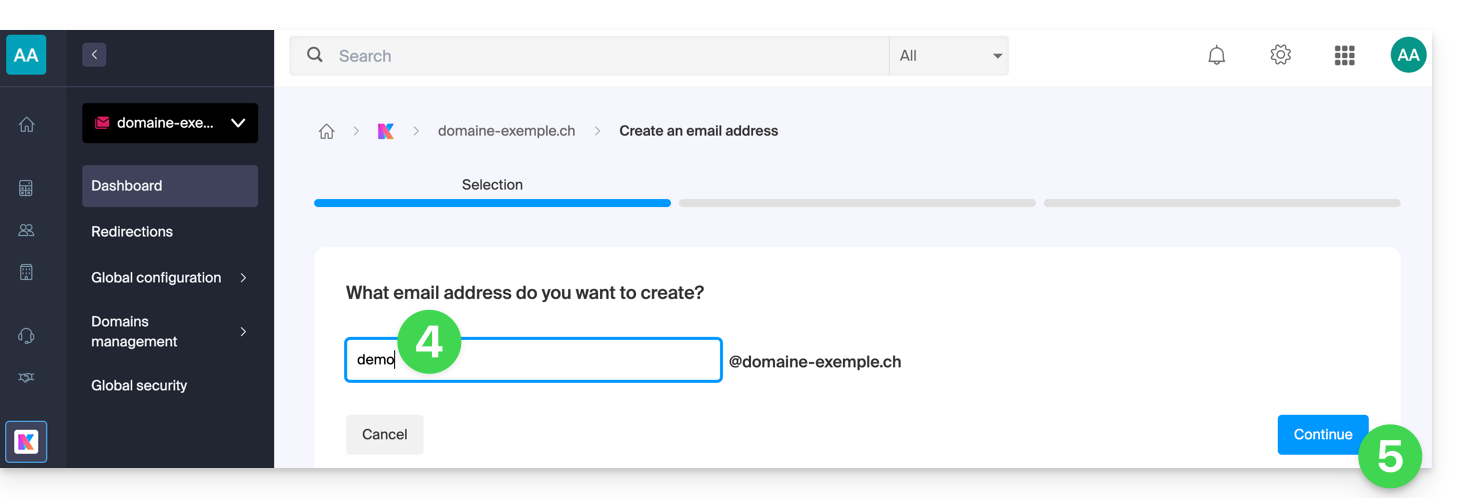
- Enter the name that will compose the email address.
- Click on the button to continue:
- Select the creation mode suitable for your situation:
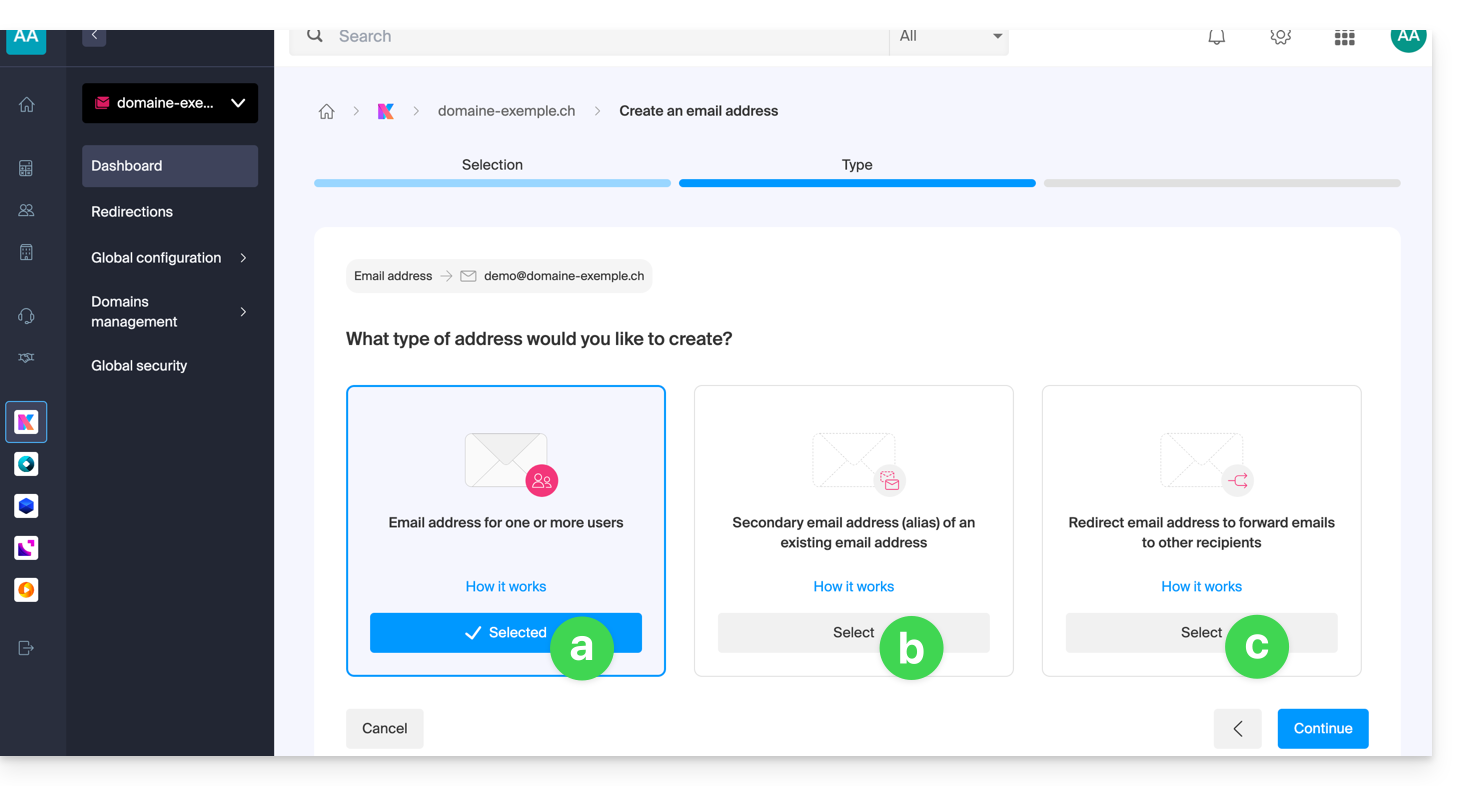
An address for you or other users [☍]
- Example: make the address directly visible on your Mail interface, or send invitations so that others can use it.
A secondary (alias) address [☍] that will not be deducted from the main quota
- Requires having a first email address, to which the new designation will be attached.
An address used only to redirect emails [☍] that will not be deducted from the main quota
- You will not be able to send messages from this address, but only forward incoming emails to the existing address of your choice.
- Click on the button to continue after making your choice.
Delete one or more email addresses
The removal of an email address or the termination of a user account is done via the Mail Service dashboard. This action results in the disassociation of linked services and requires special attention to the preservation of existing data. To remove an email address (its content will be permanently destroyed):
- Click here to access the management of your product on the Infomaniak Manager (need help?).
- Click directly on the name assigned to the product concerned.
Once in front of the email address table: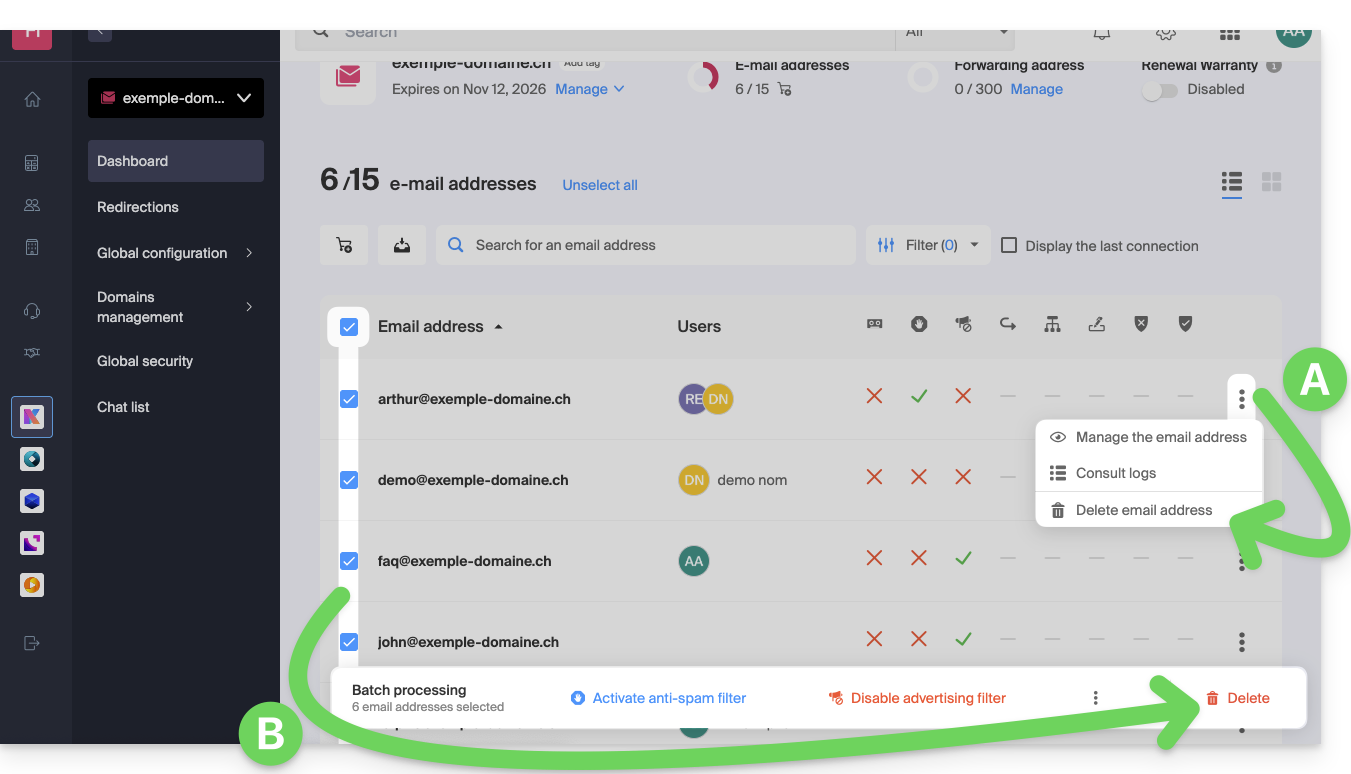
A. Delete one address at a time
- Click on the action menu ⋮ located to the right of the item in question.
- Choose to delete the email address.
B. Delete multiple addresses at once
- Select the addresses to delete by checking the boxes to the left of the line.
- Click on Delete at the bottom of the screen.
Link to this FAQ:
Has this FAQ been helpful?