Knowledge base
1000 FAQs, 500 tutorials and instructional videos. Here, there are only solutions!
Manage MySQL/MariaDB users and databases
Update 03/17/2026
This guide explains how to add a MySQL/MariaDB database, create or modify users, and how to find all the necessary parameters to configure your scripts and CMS on a Web Hosting.
Manage databases
To access the database management page of your hosting:
- Click here to access your hosting management on the Infomaniak Manager (need help?).
- Click directly on the name assigned to the hosting concerned.
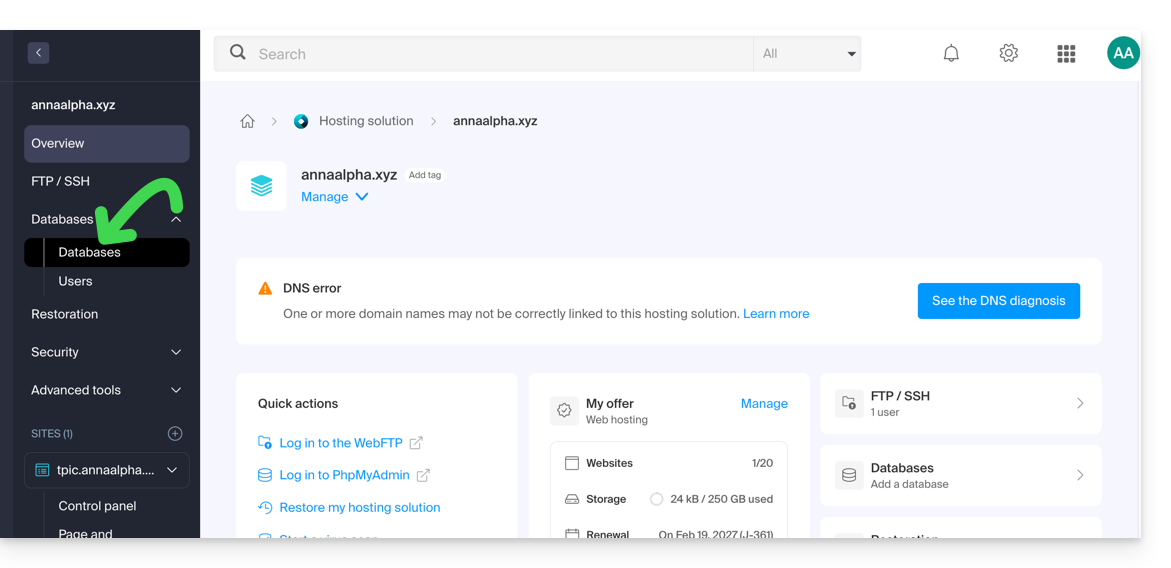
- Click on Databases (or MariaDB if necessary) in the left sidebar to access the Databases and Users menu:
Databases
Under the Databases tab you can: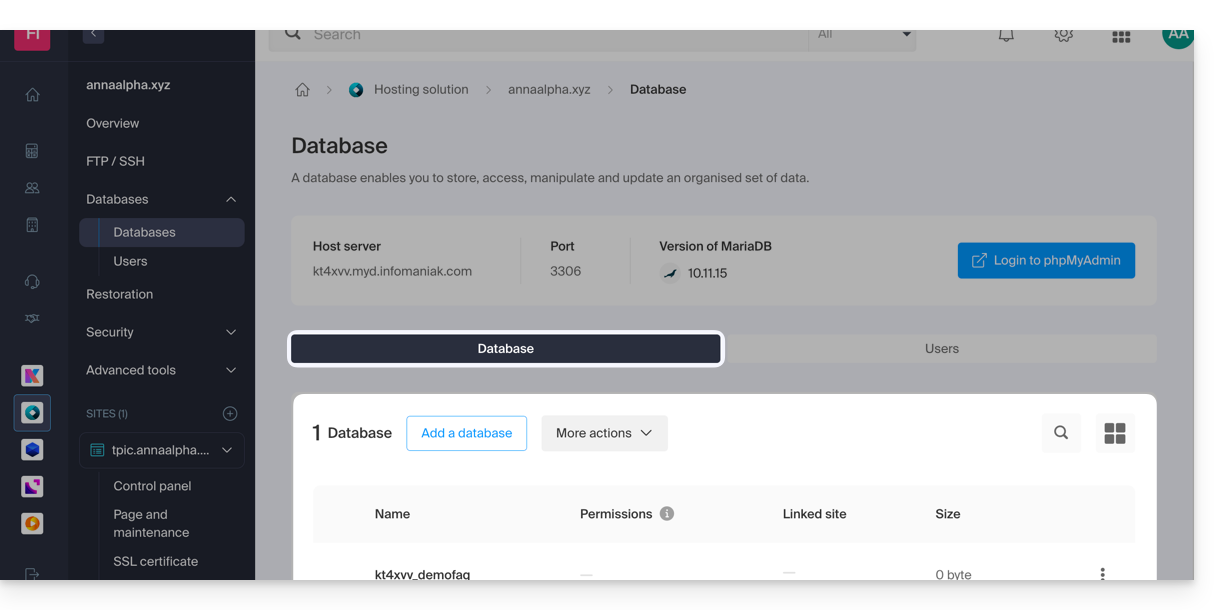
- Create a MySQL/MariaDB database by clicking on the Add a database button.
- Import, export or restore a MySQL database by clicking on the dropdown to the right of the Add button.
Users
Under the Users tab you can: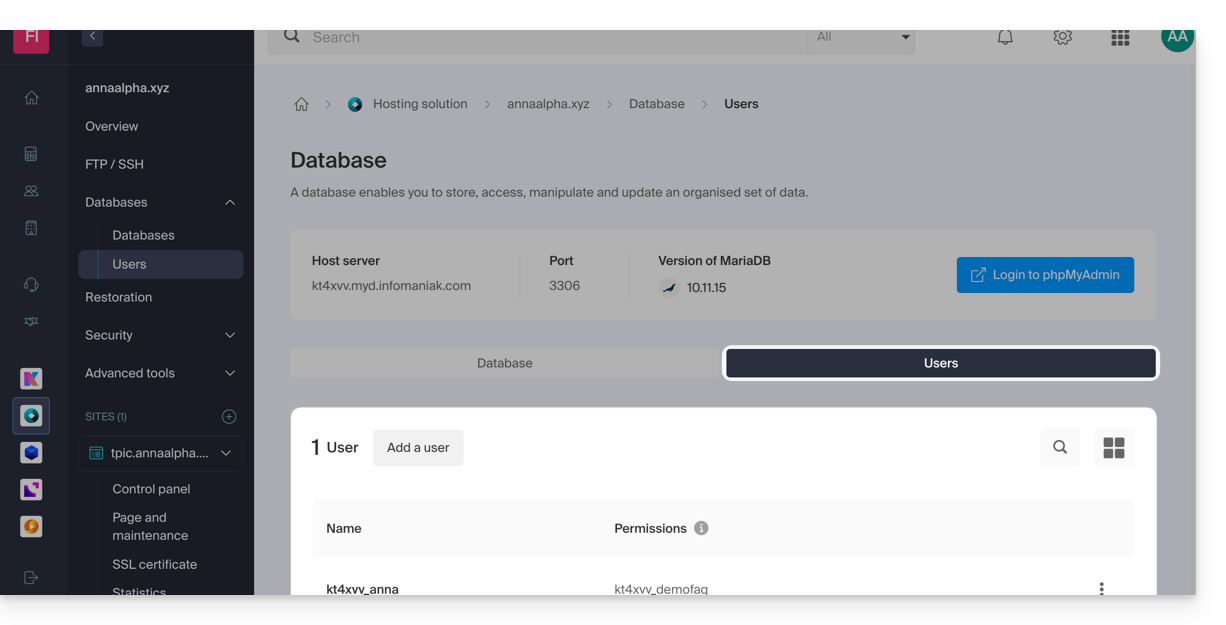
- Create a MySQL/MariaDB database user by clicking on the Add a user button.
Configuration information
This is also where you will find the required information to configure CMS or Web applications:
- The name of a database (e.g.
XXXX_dbname) - The username of a database (e.g.
XXXX_username) - The password of the username of a database (the one you chose when creating the MySQL/MariaDB user to reset if you forgot it)
- The MySQL/MariaDB server of the databases / the hostname (e.g.
XXXX.myd.infomaniak.com) with its version (5.7 for example)
User rights, shared servers & Cloud
- With read permissions: “SELECT”
- With write permissions: “INSERT, UPDATE, DELETE, CREATE TEMPORARY TABLES, LOCK TABLES”
- With admin permissions: “CREATE, DROP, INDEX, ALTER, CREATE VIEW, SHOW VIEW, REFERENCES”
- + “CREATE ROUTINE, ALTER ROUTINE, EXECUTE, TRIGGER, EVENT” on Cloud Server only (see this other guide on this subject)
- With no permissions: the user will not see the database appear in phpMyAdmin
Web application databases
- See this other guide on WordPress.
- See this other guide on Joomla.
Link to this FAQ:
Has this FAQ been helpful?