Knowledge base
1000 FAQs, 500 tutorials and instructional videos. Here, there are only solutions!
Import tasks on the Calendar Infomaniak web app
This guide explains how to import tasks in the dedicated section of the Infomaniak Web app Calendar (online service ksuite.infomaniak.com/all/calendar/tasks).
Preamble
- The
.icsfile is a standard container (RFC 5545) and inside this file, you will find “components”:VEVENT(Event): this is what you see on the calendar grid, with a notion of occupied time (Start timeDTSTARTand End timeDTENDor duration).VTODO(Task): this is an action to be performed, often with a due date (DUE), but not necessarily a duration, and a binary status (done or not done).
- Therefore, when importing a
.icsfile into the Infomaniak Calendar app, the system imports the data into the calendar and its “Tasks” section based on their type.
Import tasks
If you have a .ics file to import:
- Click here to access the Infomaniak Web app Calendar (online service ksuite.infomaniak.com/calendar).
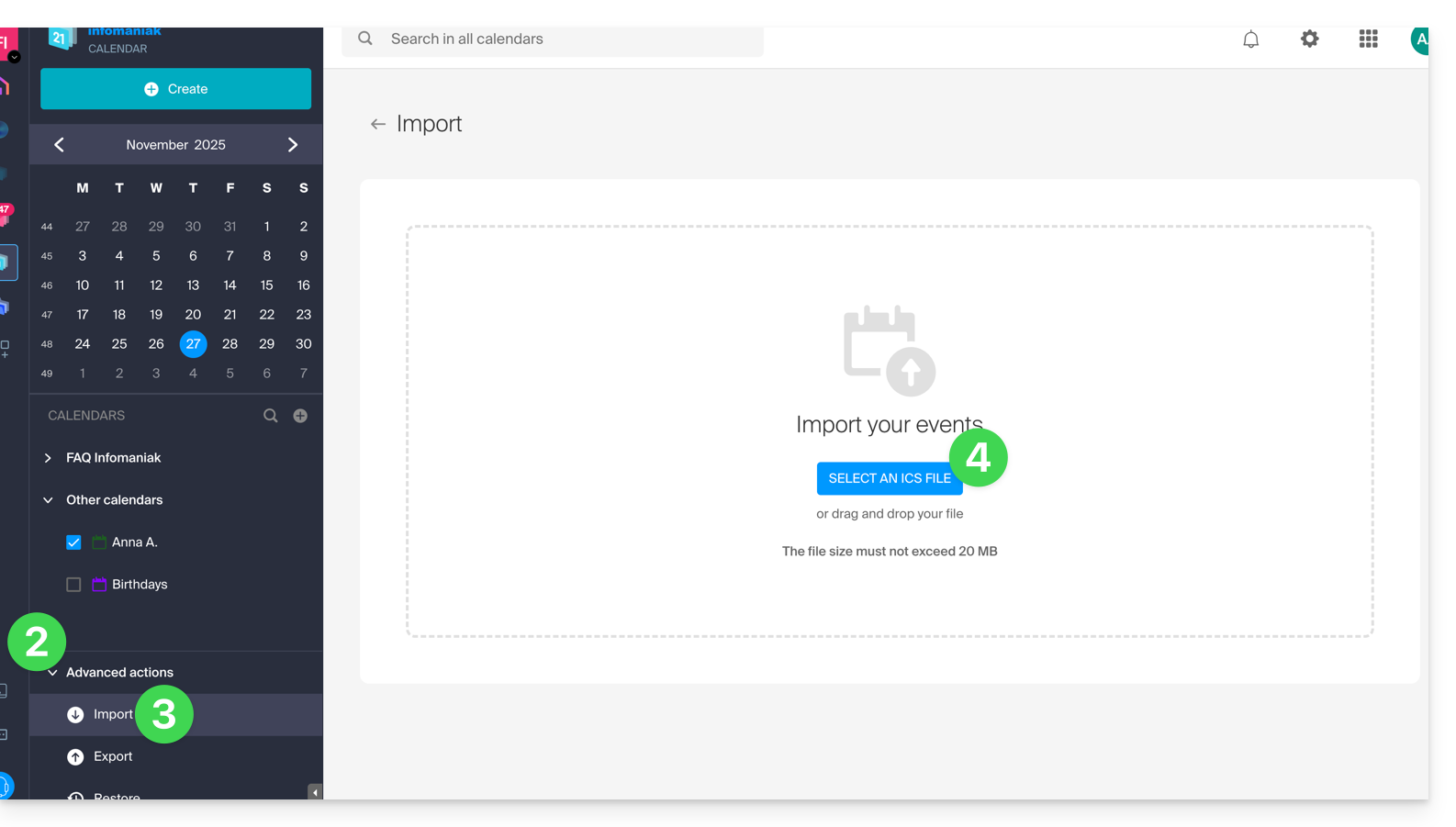
- Click on the chevron to expand the Advanced Actions section.
- Click on Import.
- Click the button to select an ICS file (max 20 Mo):
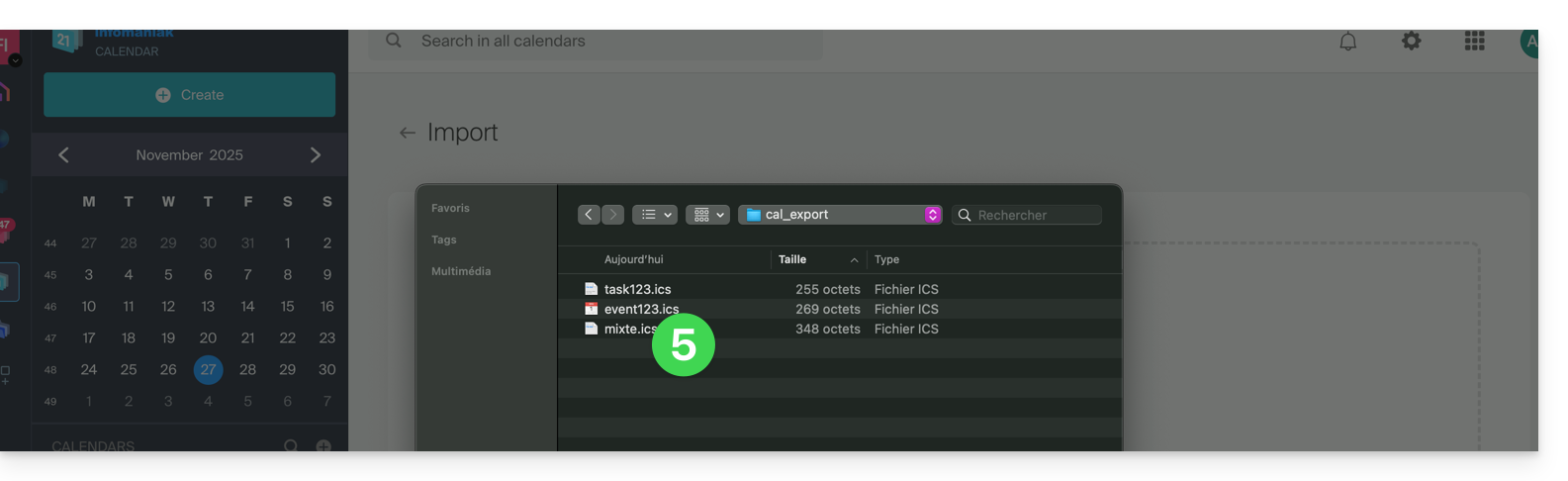
- Select the file containing the tasks (and/or events):
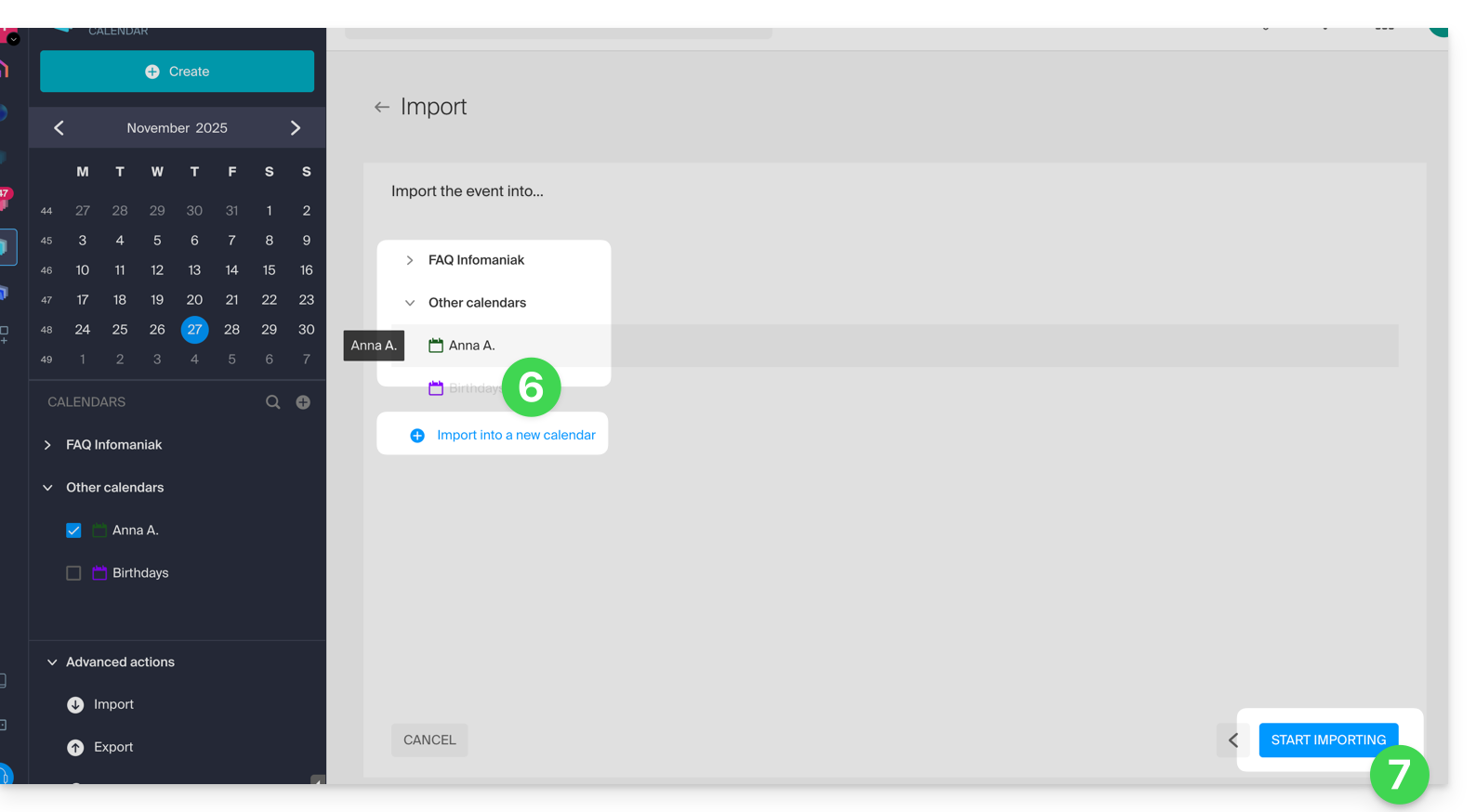
- Choose the calendar into which to import the data (or create a new calendar for the occasion).
- Click the button to start the import:
- If the
.icsfile contained tasks, you will find them in the Tasks section (and any events present in the file will be on the calendar):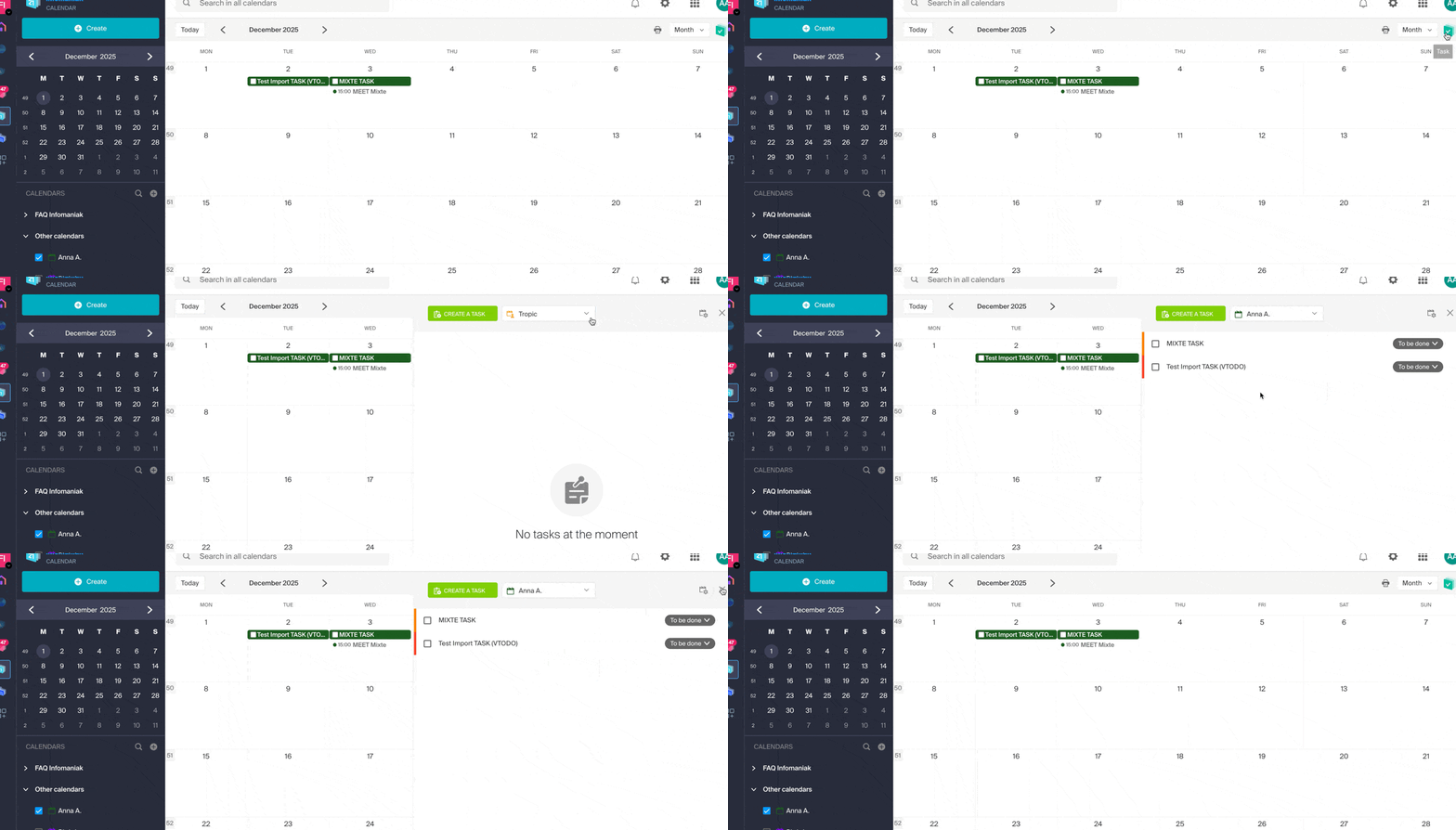
Link to this FAQ:
Has this FAQ been helpful?