Knowledge base
1000 FAQs, 500 tutorials and instructional videos. Here, there are only solutions!
Link an additional domain name to a website
This guide explains how to add a new domain name to a Web site Infomaniak.
Preamble
- When you add a new domain name to a website, it is referred to as a linked domain but also as an alias.
- In this case, an alias domain is an additional domain name, also linked to an existing site.
- For the website
domain.xyzto be reachable with a completely different domain name such asprivate.abcfor example, you need to addprivate.abcas an alias to the website. - Second example, for the site
domain.xyzto also be reachable withwww.domain.xyz, you need to add it as an alias to the domaindomain.xyz. In this example,domain.xyzis the parent site of the aliaswww.domain.xyz. Generally, the aliaswwwis already added automatically and present…
- For the website
Adding an alias to an existing site
Prerequisites
- If the domain name (intended to become an alias) or its DNS zone is managed by Infomaniak, everything is OK. If not:
- The A record of the domain name must point to Infomaniak.
- To simplify, you can delegate the management of the domain to Infomaniak.
- It is also necessary that the future alias is not already one, in which case it will be necessary to unlink it from the current site beforehand (same if synonym).
To add an additional domain that will be linked to your website:
- Click here to access the management of your product on the Infomaniak Manager (need help?).
- Click directly on the name assigned to the product concerned:
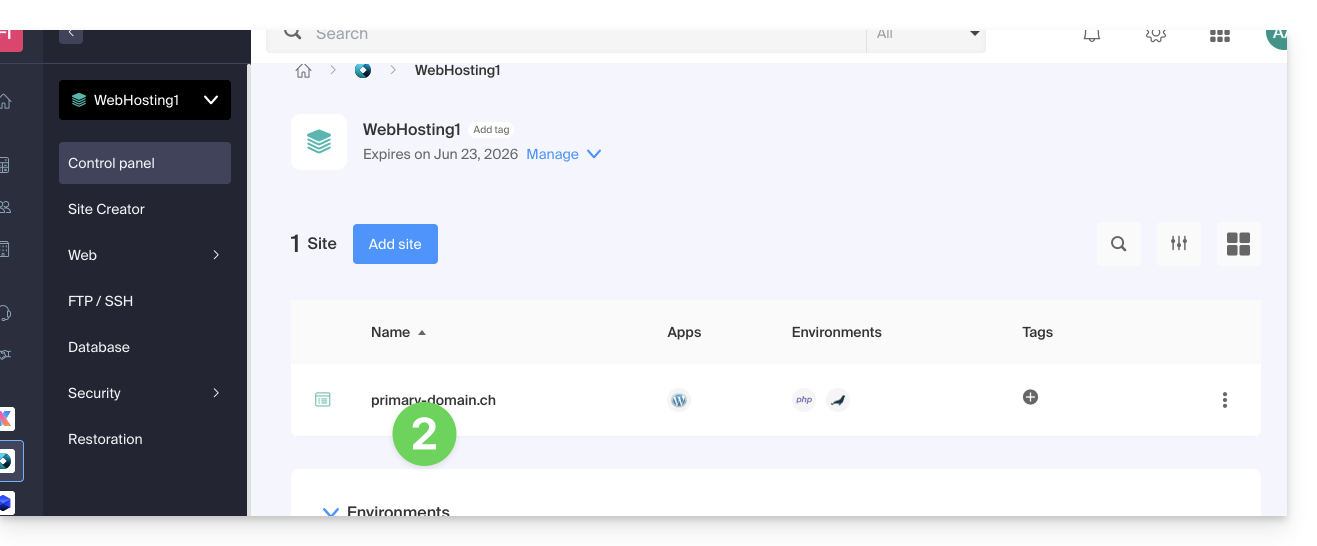
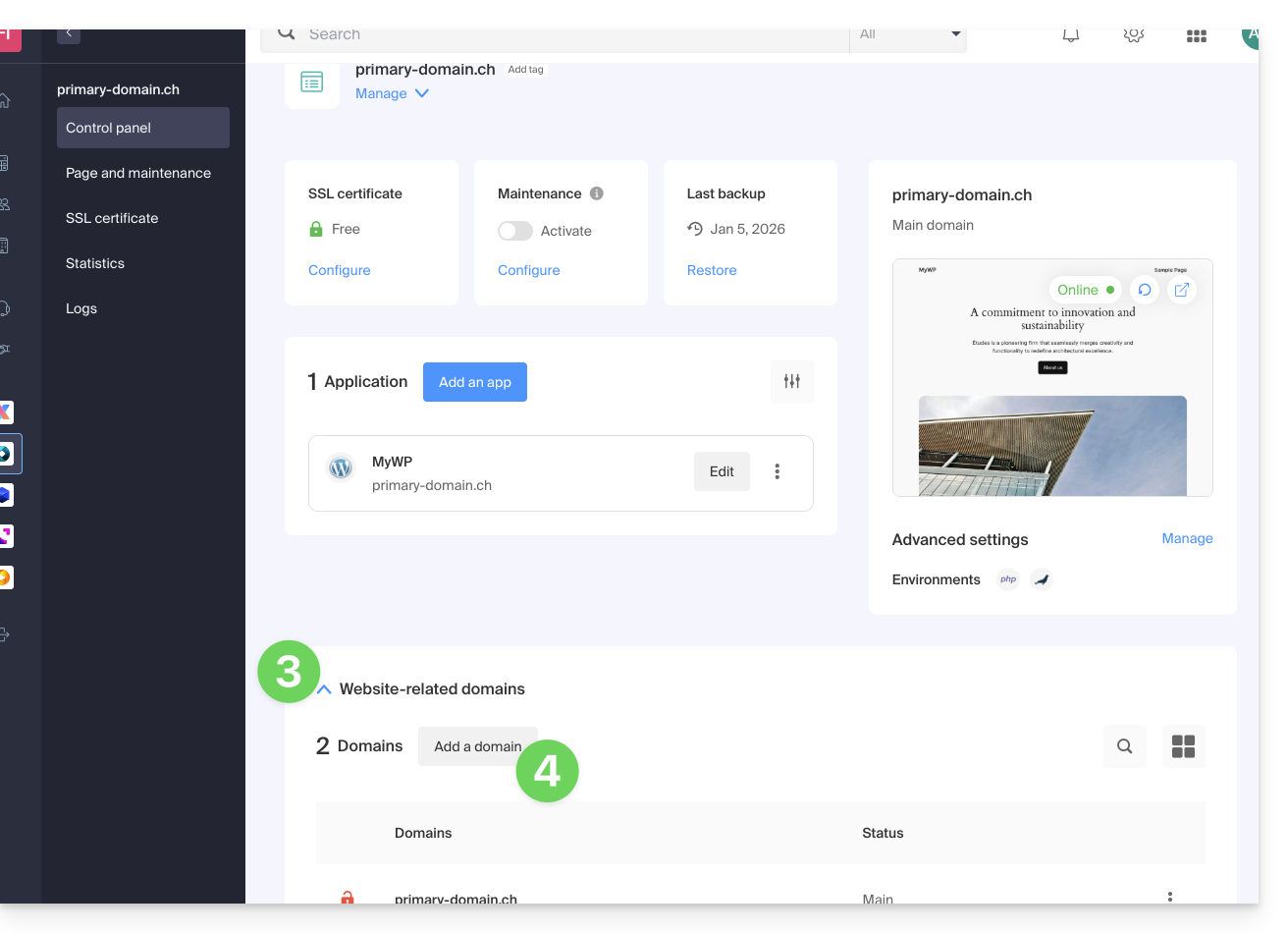
- Then click on the chevron to expand the Domains section of this site.
- Click on the Add a domain button:
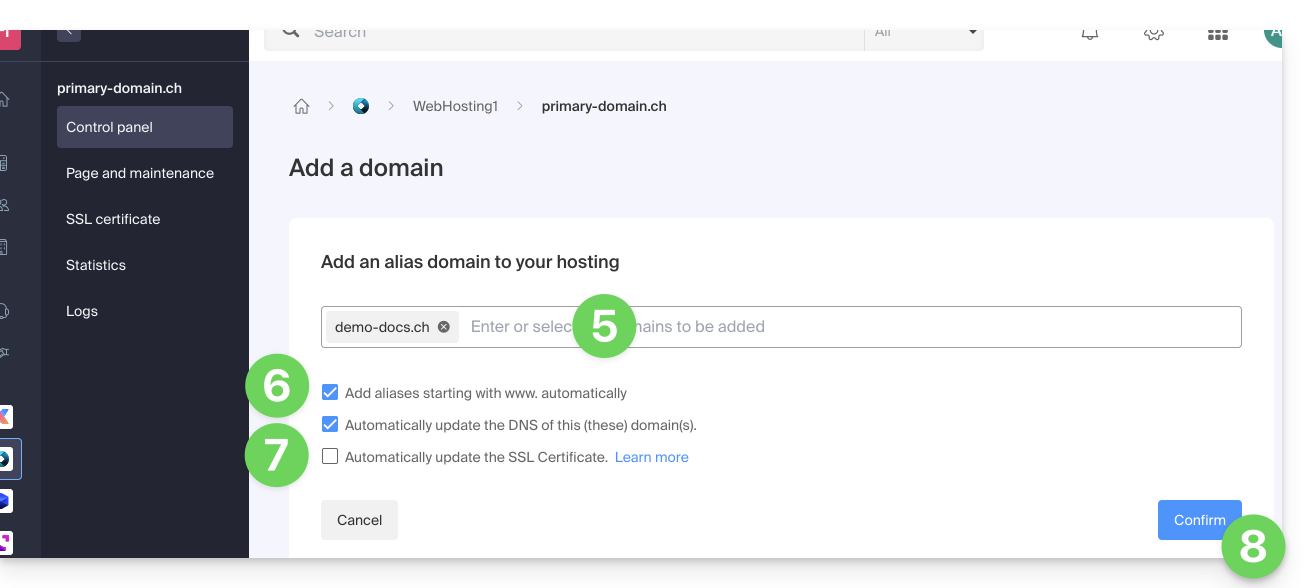
- Enter the domain name(s) to be added, separating them with the Enter key.
- If the alias or its DNS zone is managed by Infomaniak, it is possible to automatically update the DNS entries. In the opposite case, make any necessary changes with your registrar or transfer the management of the domain name to Infomaniak.
- If you have an SSL certificate such as Let's Encrypt, for example, you can request to update it here to include the new names.
- Click on Validate to complete the procedure:
To set the alias as the main domain, refer to this other guide.
Link to this FAQ: https://faq.infomaniak.com/1946
Has this FAQ been helpful?