Knowledge base
1000 FAQs, 500 tutorials and instructional videos. Here, there are only solutions!
Import a calendar on the Infomaniak Calendar Web app
This guide explains how to import a calendar/schedule on the Infomaniak Web app Calendar (online service ksuite.infomaniak.com/calendar).
Preamble
- Refer to this other guide if you only want to display a read-only Infomaniak calendar on Google Calendar (Web & mobile app).
- Refer to this other guide if you want to edit events on both calendars but only on the mobile version of the Google Calendar app.
- It is also possible to import tasks in the dedicated section of the calendar.
Import a calendar via a URL
It is possible to display an existing calendar managed externally in Calendar. It will be automatically updated every hour via the URL you specify.
Note that this is not a calendar synchronization but a read-only, one-way display.
To do this:
- Click here to access the Infomaniak Web app Calendar (online service ksuite.infomaniak.com/calendar).
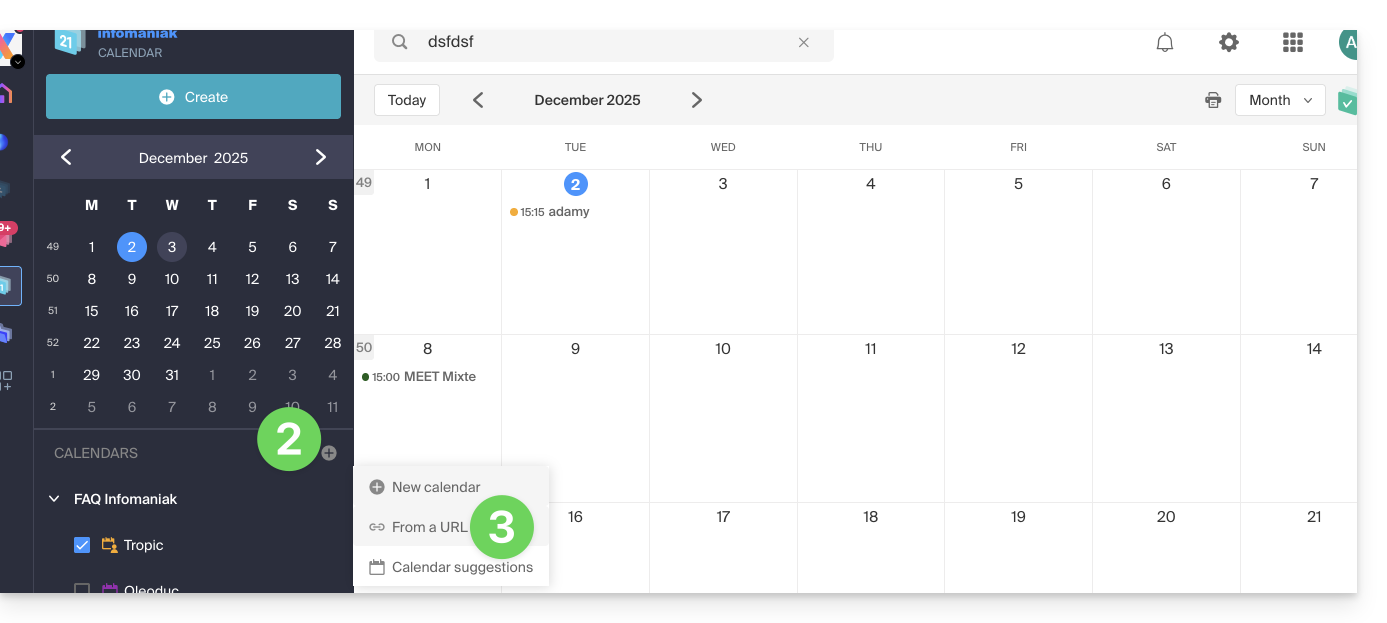
- Click on in the left sidebar menu.
- Click on "From a URL":
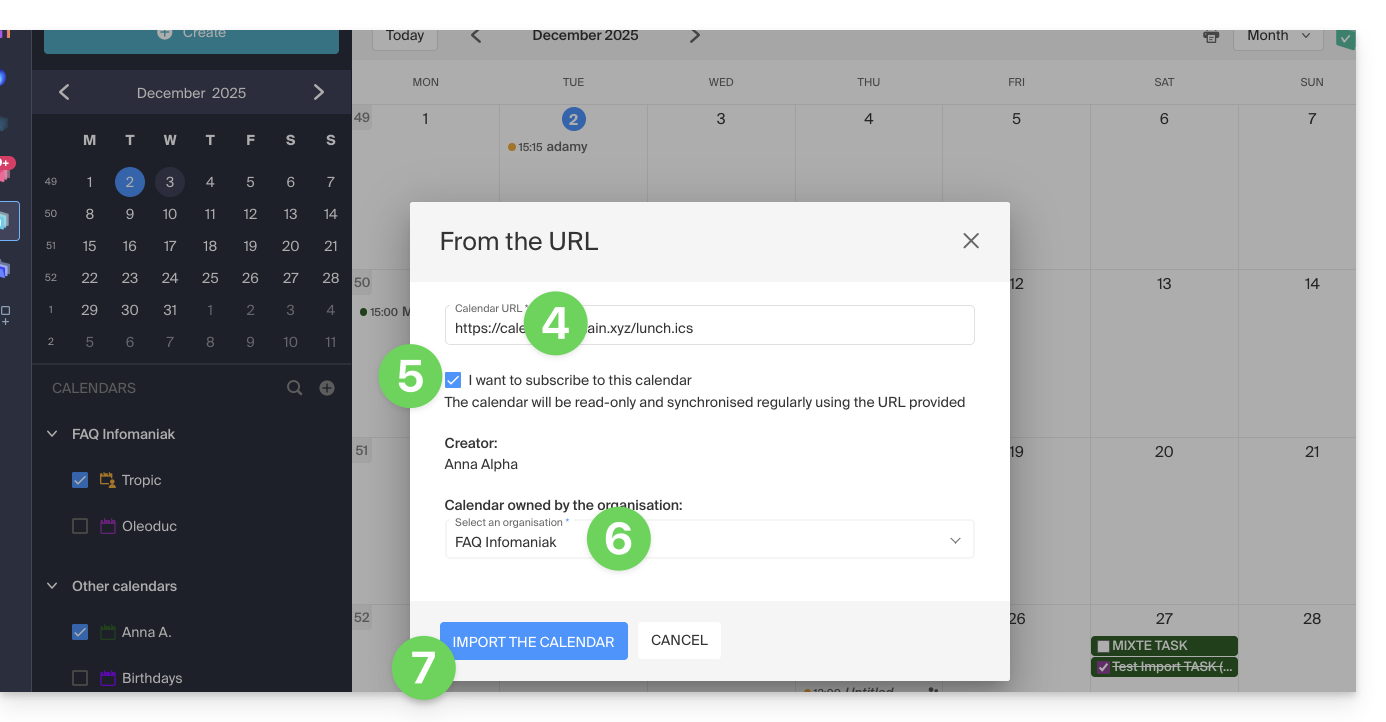
- Enter the URL of the calendar to import.
- Check the box I want to subscribe to this schedule.
- If necessary, choose the Organization in which the calendar will be imported.
- Click on Import the calendar:
You can also go directly through one of the Organizations you are part of:
- Click here to access the Infomaniak Web app Calendar (online service ksuite.infomaniak.com/calendar).
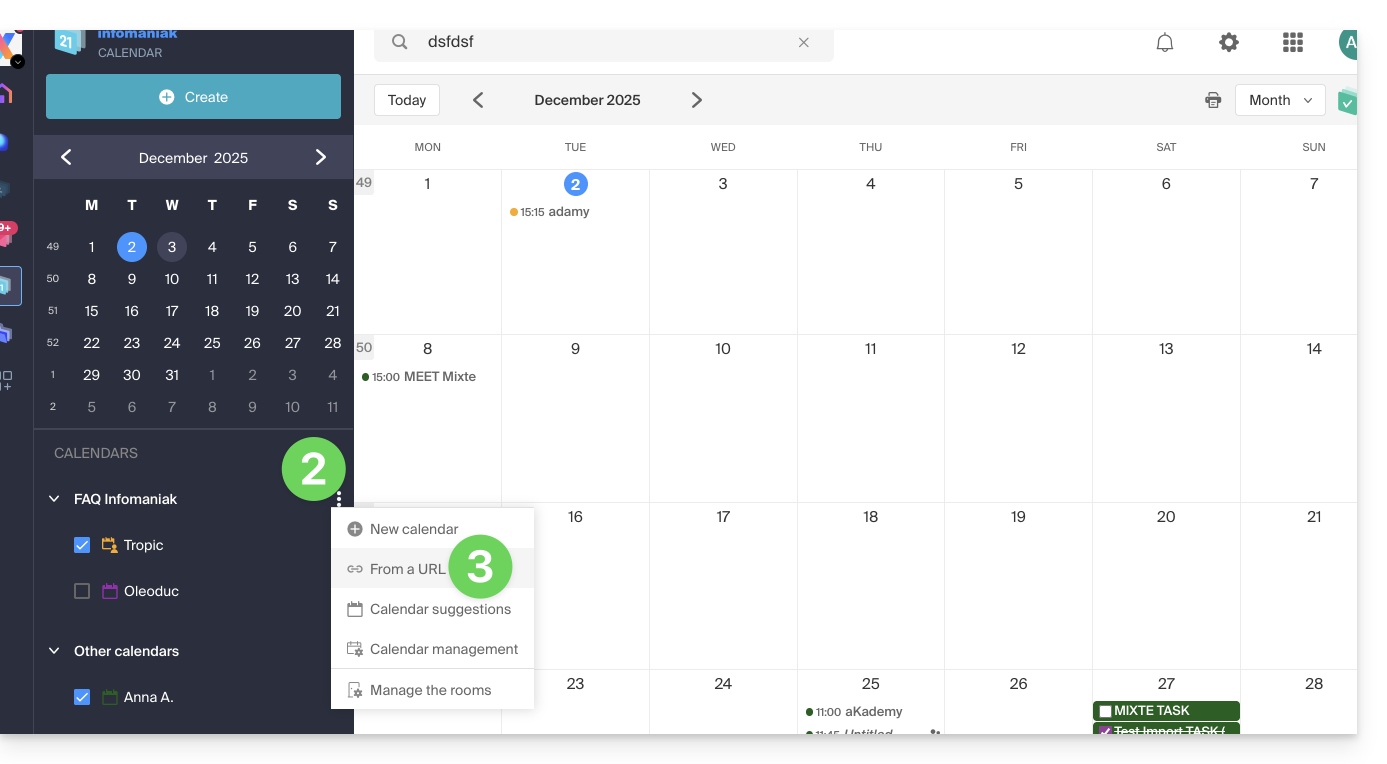
- Click on the action menu ⋮ to the right of the Organization in the displayed table.
- Click on "From a URL":
Link a Google calendar by its "secret" URL
The "secret" URL of a Google calendar, which you will be able to paste in step 3 above, is found in the Google calendar settings:
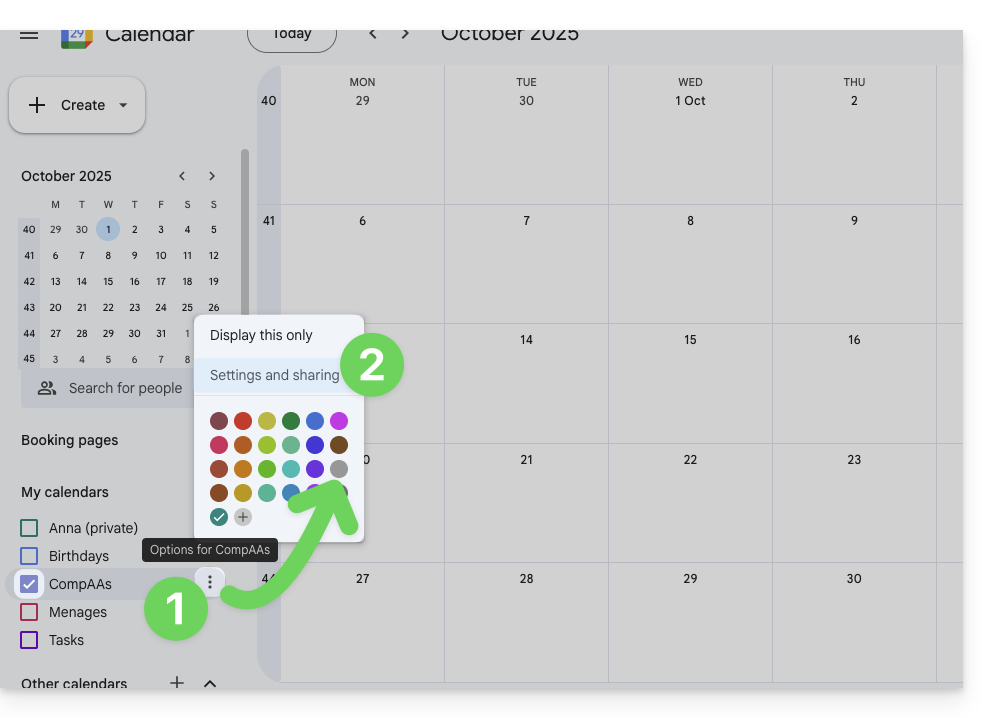
- Click on the action menu ⋮ to the right of the relevant Google calendar.
- Click on Settings and sharing:
- Scroll down the page to obtain the secret iCal URL and click on the icons to view the URL and/or copy it:
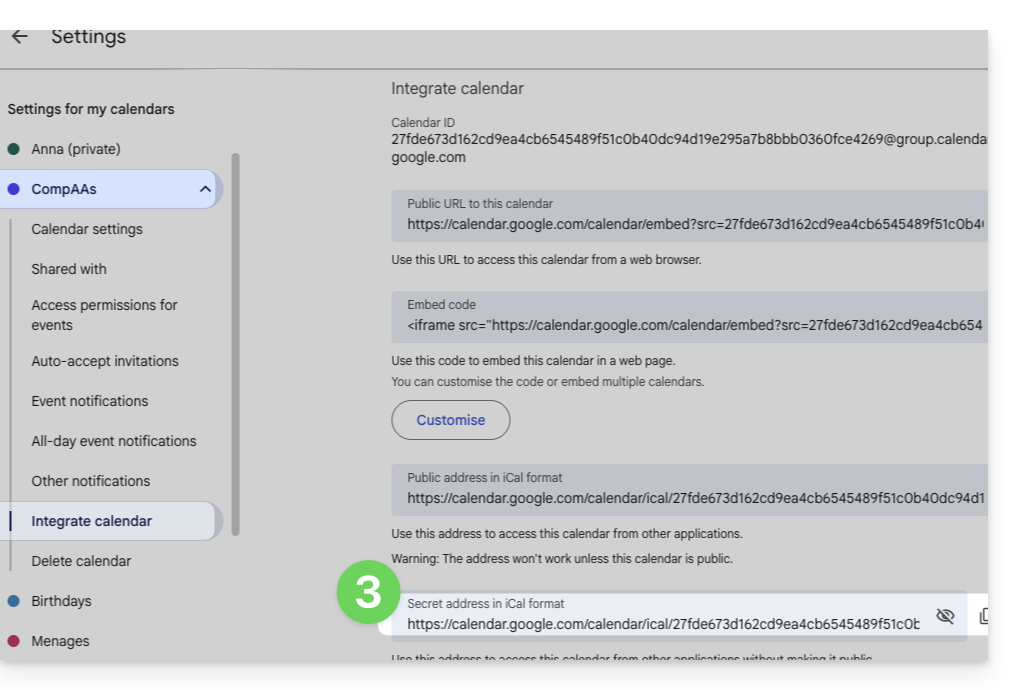
- Paste the URL according to the procedure in step 3 of the previous chapter above.
Note that this is not a calendar synchronization but a read-only, one-way display.
The calendar will be visible and will regularly display any updates made, but it will not be possible to edit it directly from the Infomaniak interface; this is a "one-way synchronization" with Google.
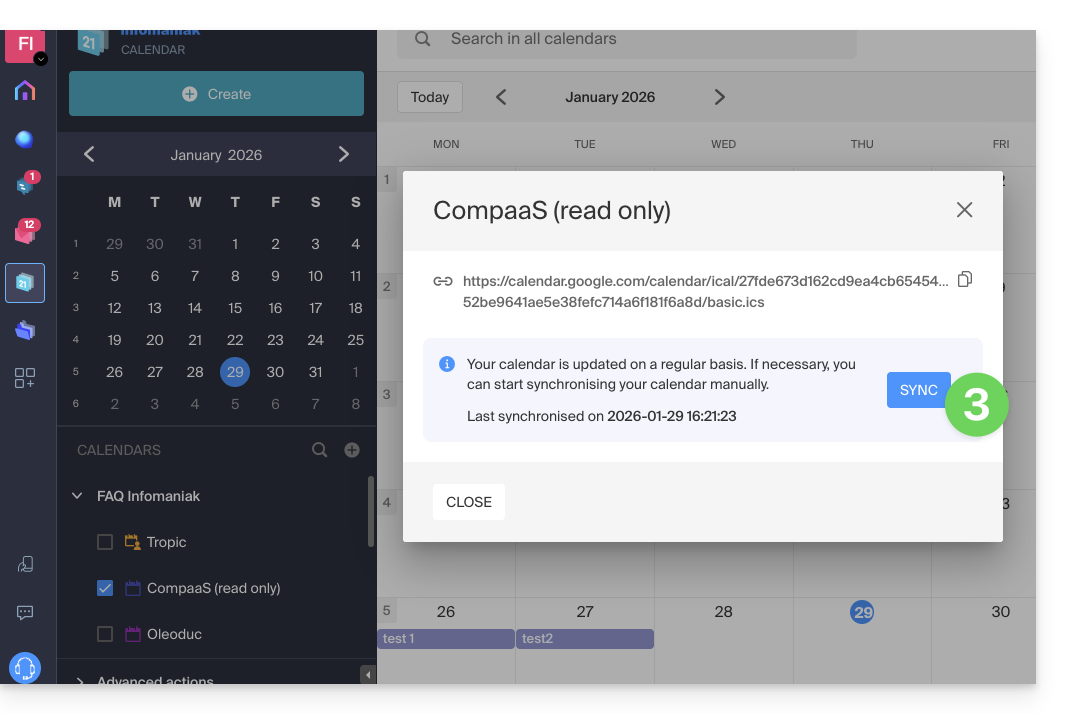
However, you can force synchronization to directly display any new events or modifications:
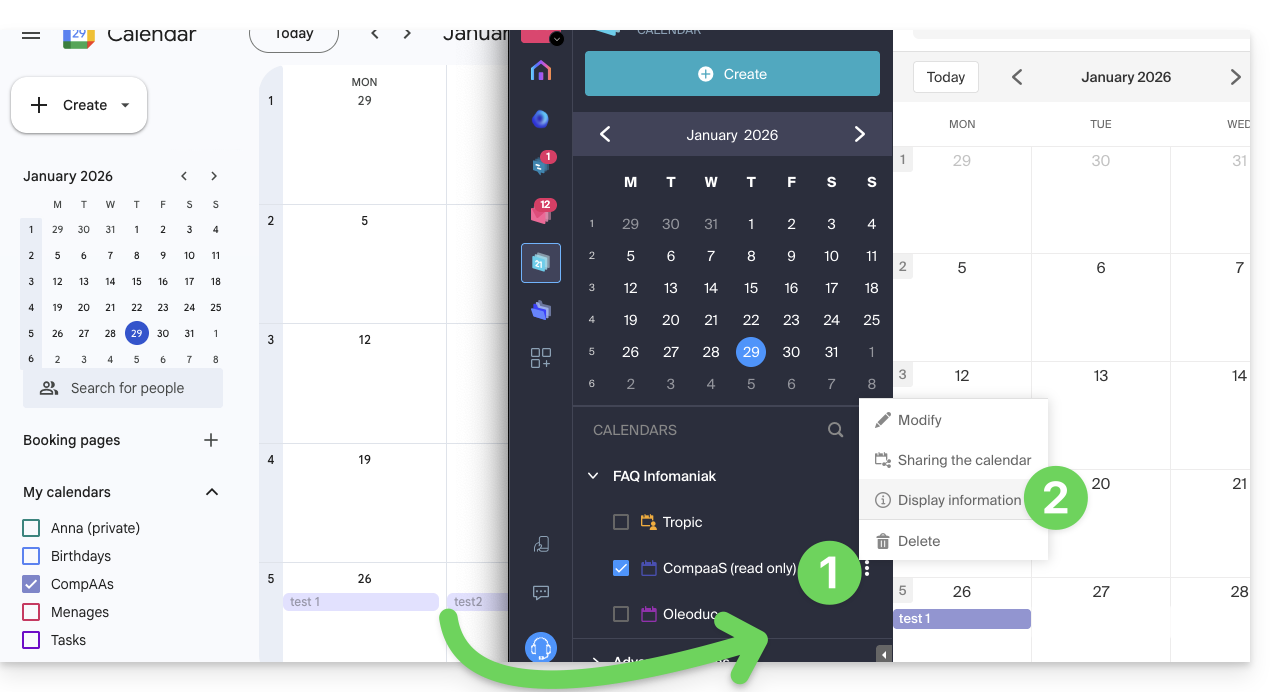
- Click on the action menu ⋮ to the right of the calendar imported on Infomaniak.
- Click on Display information:
- Click the SYNC button to synchronize the imported content, then wait a few seconds:
Import events via .ics file
To access the Advanced actions that allow the import, export, and restoration of the calendar:
- Click here to access the Infomaniak Web app Calendar (online service ksuite.infomaniak.com/calendar).
- Click on Advanced actions in the left sidebar menu.
- Click on Import.
- Upload the
.icsfile corresponding to the export performed from your previous provider: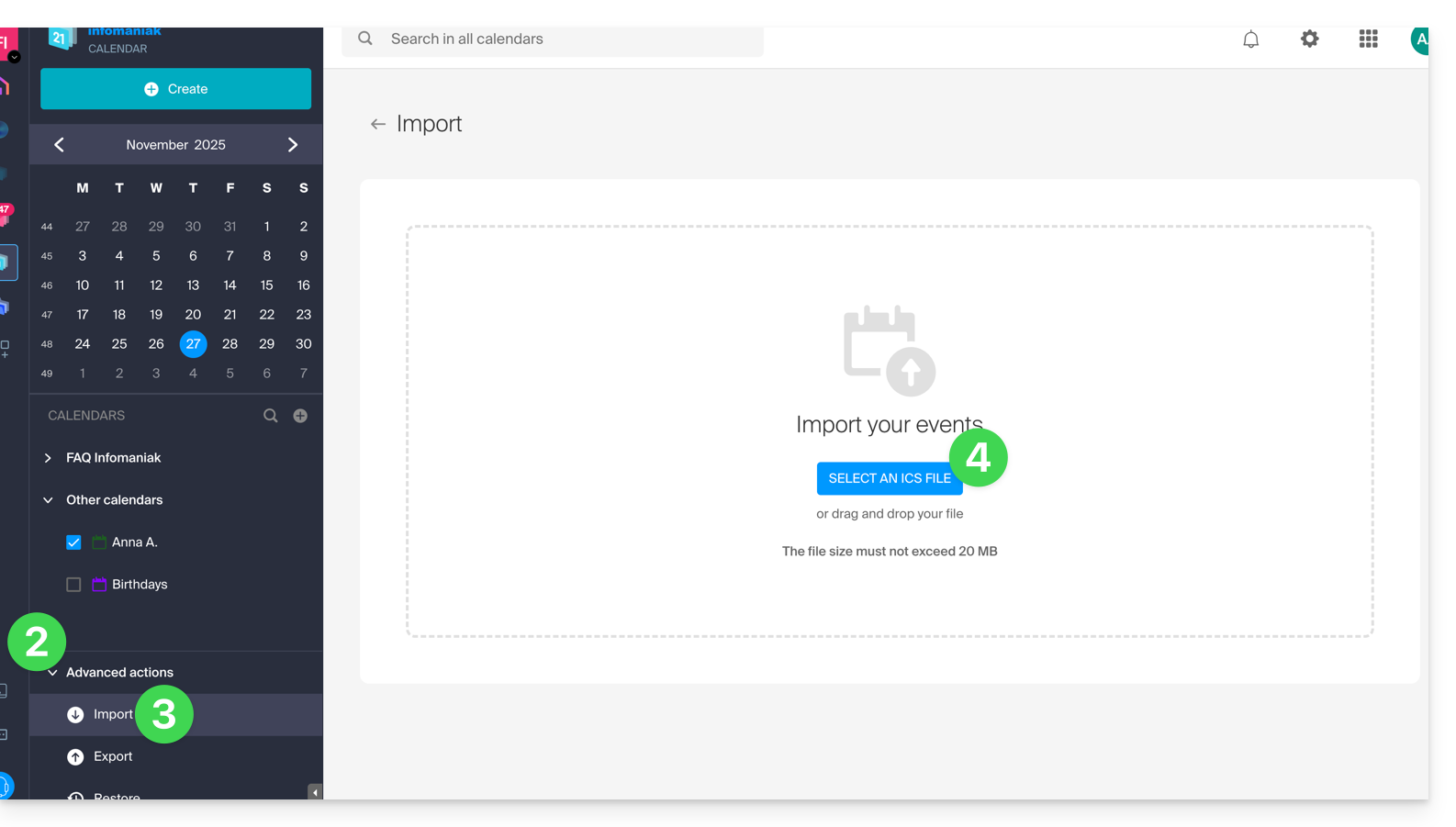
You will be able to choose which existing calendar to import the events into or create a new agenda (tasks are also imported if the .ics file contains them).
Note that this is not a calendar synchronization but a one-time, one-way import.
Export data from the previous service provider
Here are some guides provided for reference to export the calendar from a third-party provider, which will allow you to re-import this data with Infomaniak:
- Apple Mail
- Gmail
- Outlook (section Publish > ICS link)
- Yahoo
- Proton
- Thunderbird
Link to this FAQ:
Has this FAQ been helpful?