Knowledge base
1000 FAQs, 500 tutorials and instructional videos. Here, there are only solutions!
Enable two-step verification (2FA) for Infomaniak account logins
This guide explains how to enable two-factor authentication, or two-step verification, to secure the connection to your Infomaniak account (and consequently access to kSuite tools, hosting, etc.).
Preamble
- This two-step validation, also known as multi-factor / two-factor authentication (2FA, in English two-factor authentication, 2FA) protects access to your Infomaniak account by:
- the password of your choice
- and a second method of identity verification, such as a code obtained on your mobile device, for example.
- If a malicious person manages to decipher or steal your password, they would still need a validation code that only the legitimate user can obtain on their mobile device.
- Refer to this other guide if you are an administrator of an Organization and wish to enforce 2FA for all users who have not yet activated it.
Enable two-step validation
To increase the security level of your Infomaniak account:
- Click here to log in and access the management of two-factor authentication on the Infomaniak Manager.
- Once logged in, you can choose a 2FA method:
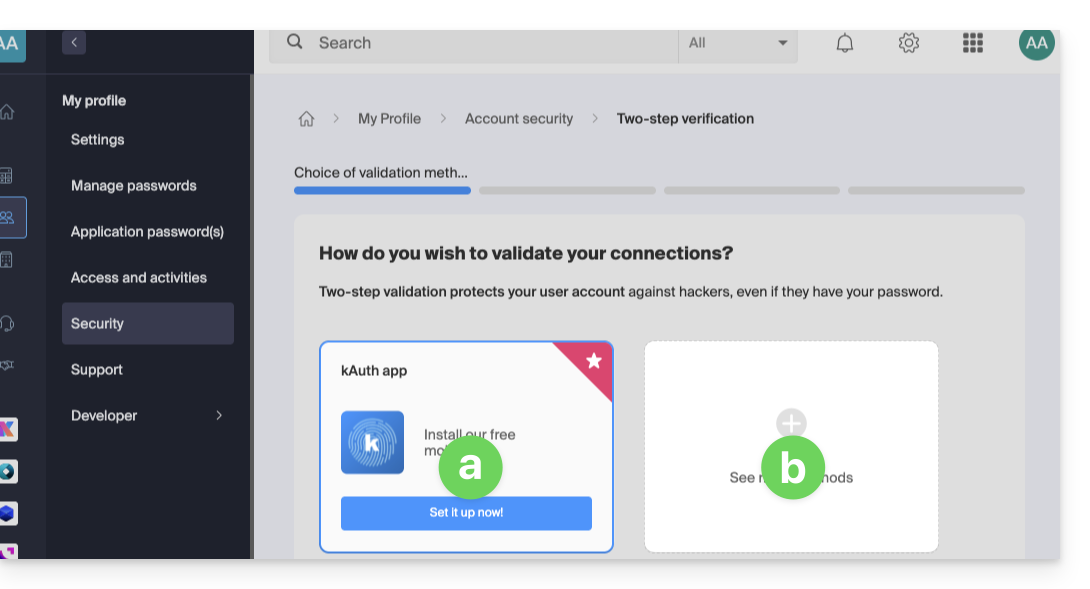
- the kAuth app for iOS / Android devices
- another method
Choose the validation method
At point a above, you can download and configure the iOS / Android kAuth app (refer to this other guide on this subject):
- It allows you to receive a YES / NO push notification to authorize or deny the connection to your Infomaniak account.
- It also generates a one-time code, even when offline, to allow connection.
- If another Infomaniak app (Mail, Euria, kDrive…) is installed and your user ID is also logged in there, then the authorization request will be made through this means; refer to this other guide on this subject.
At point b above, you can choose another method from: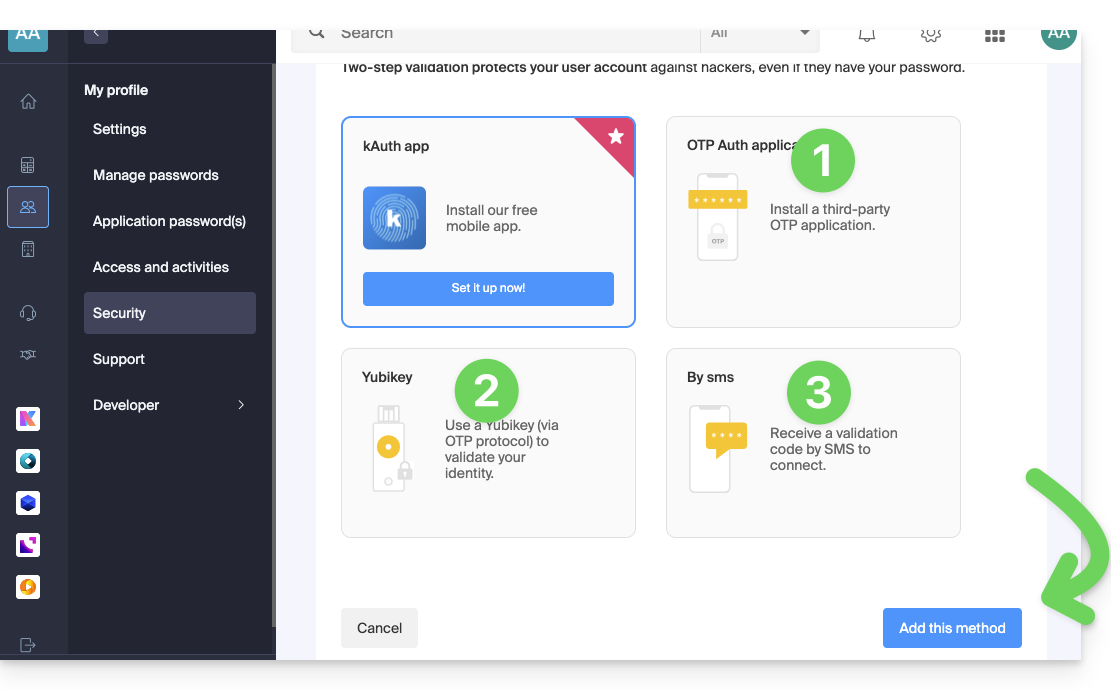
- any OTP application (such as Authy, for example) to obtain a one-time code
- YubiKey (from Yubico)
- SMS (only for CH / FR / BE / DE countries) to obtain a one-time code
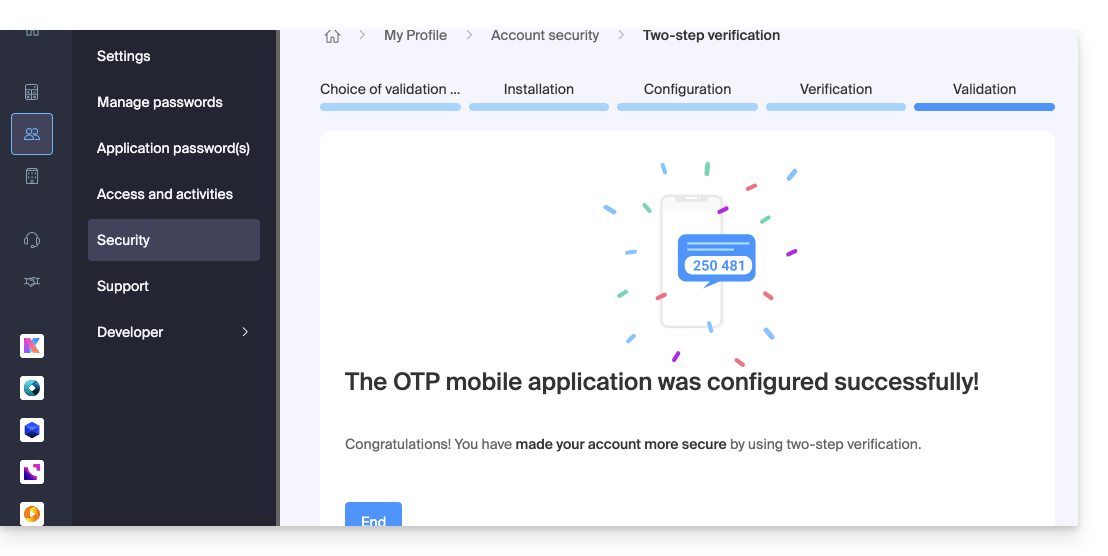
Then click the button to add the method and follow the on-screen instructions to complete the setup.
In all cases, carefully note the recovery codes offered for download after each configuration.
Be careful with synchronizations already in place
Once strong authentication is enabled, to access certain tools (synchronization for example) it is necessary to create application passwords.
It is not necessary to call Infomaniak, which does not have any of your codes & passwords in its possession. For any request for help regarding 2FA, refer to this other guide.
Modify the default option or remove one
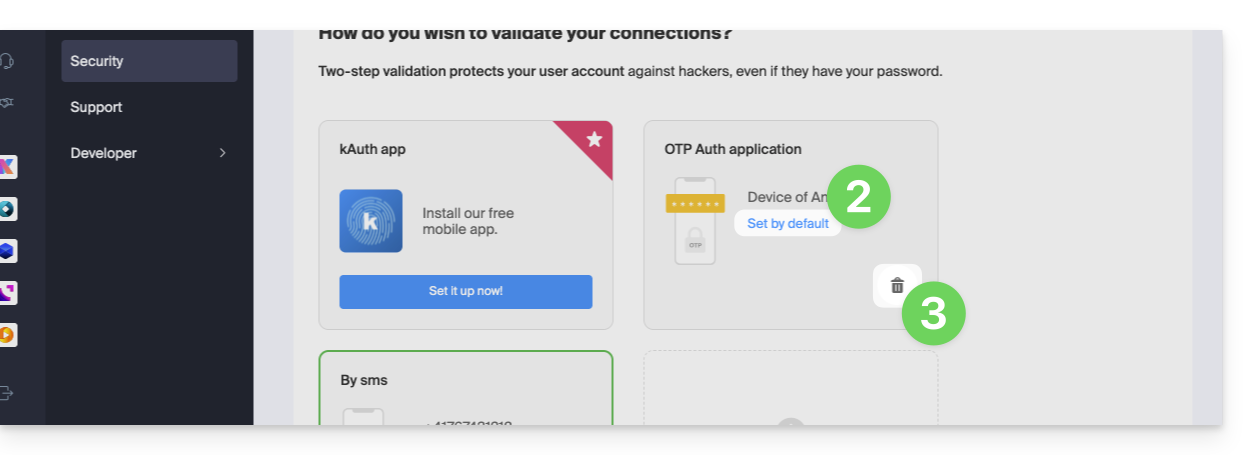
If you have enabled multiple validation methods (SMS, OTP application...), you can define the one that will be offered by default for each connection.
Note, however, that the default method will remain that of the validation in the Infomaniak app installed (Mail, kChat, kDrive...) on your devices.
- Click here to log in and access the management of two-factor authentication on the Infomaniak Manager.
- Click the button to set as default.
- Click on the trash can to remove and no longer offer the selected method:
To completely remove 2FA, refer to this other guide.
Authenticate each time you open a browser
To request not to keep cookies when closing browser windows, and therefore request authentication each time you access the Infomaniak Manager when you restart the browser...
... on Chrome
Specify in Google Chrome settings (chrome://settings/content/siteData to paste into the address bar or refer to the official documentation) the address [*.]infomaniak.com: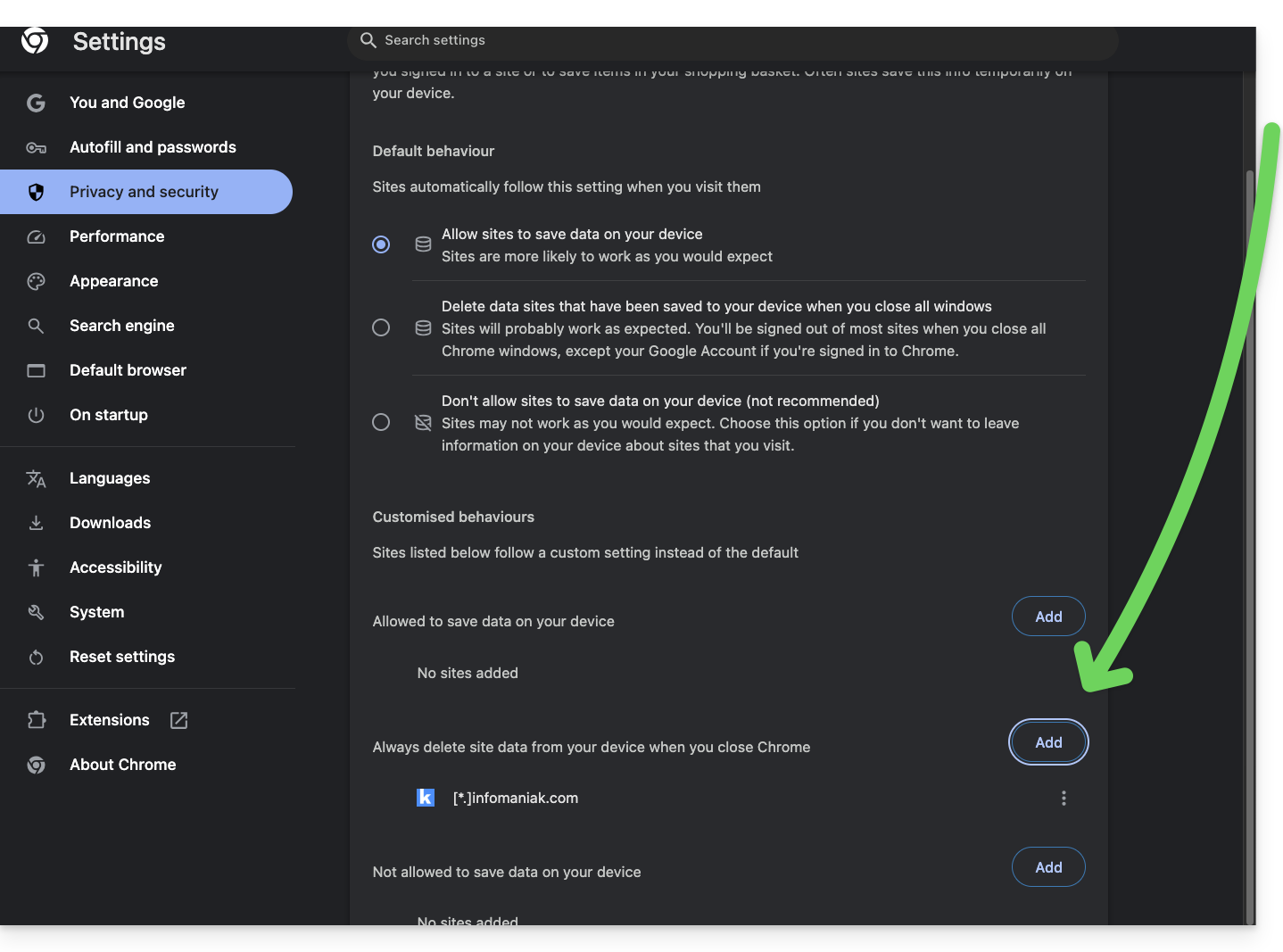
Link to this FAQ:
Has this FAQ been helpful?