Knowledge base
1000 FAQs, 500 tutorials and instructional videos. Here, there are only solutions!
Enable two-factor authentication (2FA) for Infomaniak account logins
This guide explains how to enable two-factor authentication to secure your Infomaniak account login (and therefore access to kSuite tools, hosting, etc.).
Introduction
- This two-step verification, also known as multi-factor/two-factor authentication (2FA), protects access to your Infomaniak account by:
- your chosen password
- and a second identity verification method, such as a code obtained on your mobile device.
- If a malicious person were to decipher or steal your password, they would still need a validation code that only the legitimate user can obtain on their mobile device.
- Refer to this other guide if you are an administrator of an Organization and want to enforce 2FA for all users who have not yet activated it.
- You do not need to contact Infomaniak, as we do not have any of your codes or passwords.
- For any assistance regarding 2FA, please refer to this other guide.
Enable two-factor authentication
To increase the security level of your Infomaniak account:
- Click here to log in and access the two-factor authentication management in the Infomaniak Manager:
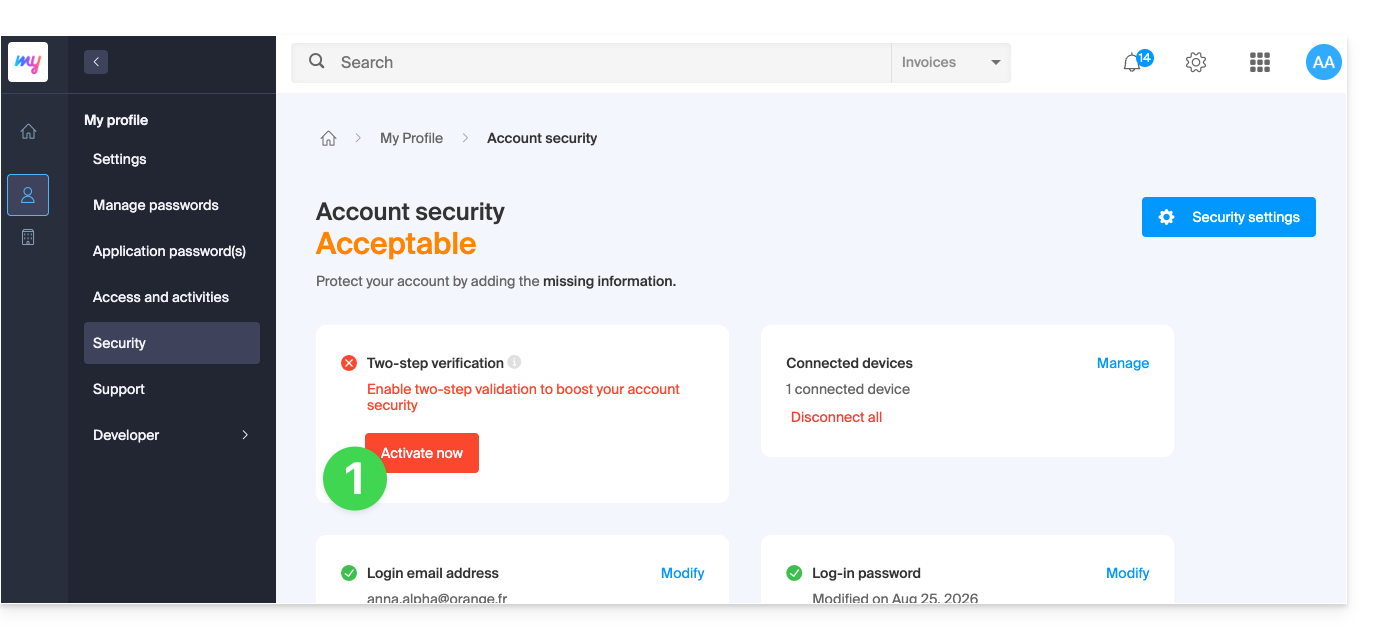
- Once logged in, you can choose a 2FA method:
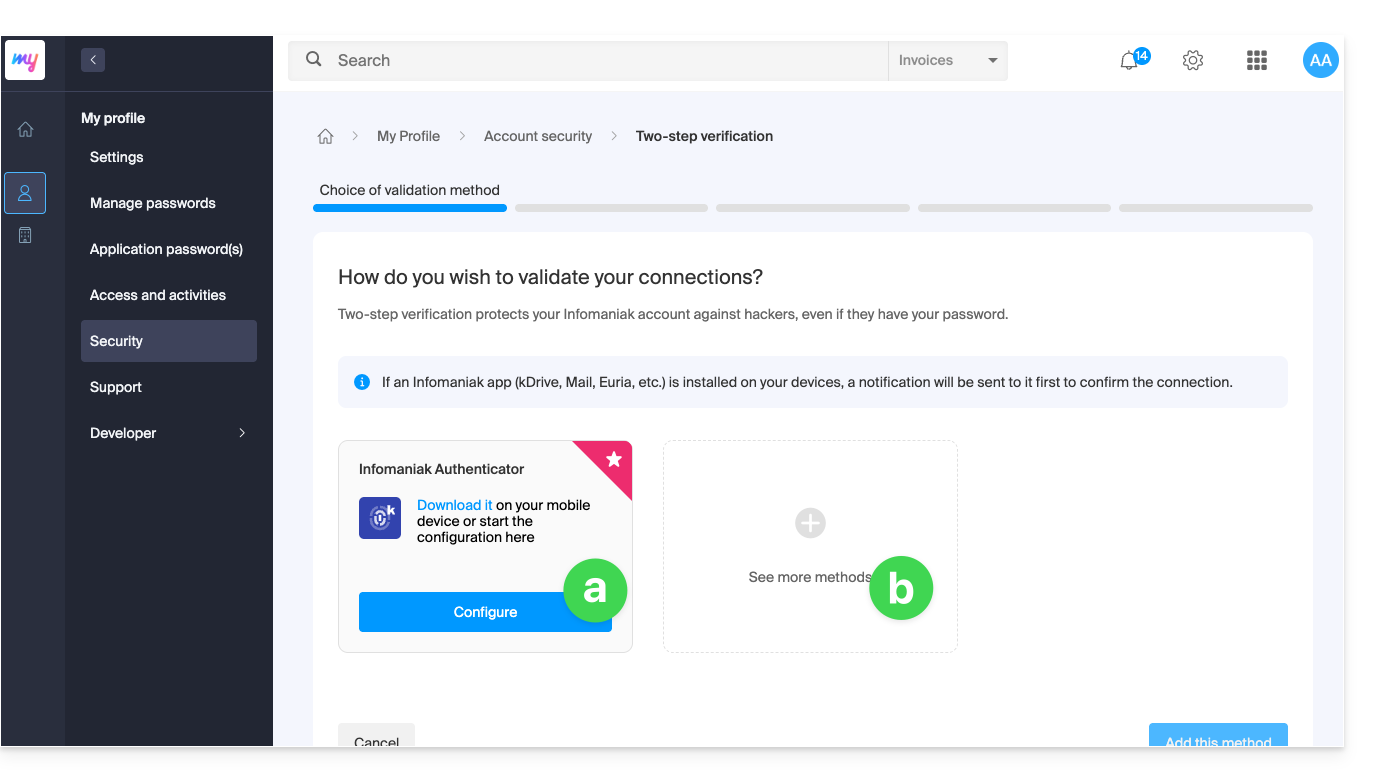
- the Infomaniak Authenticator app for iOS / Android devices (refer to this other guide for more information),
- another method from the following:
- any OTP application (such as Authy, for example) to obtain a one-time use code,
- YubiKey (from Yubico); refer to this other guide for more information,
- SMS (only for CH / FR / BE / DE countries) to obtain a one-time use code.
- Click the button to configure the selected alternative method:
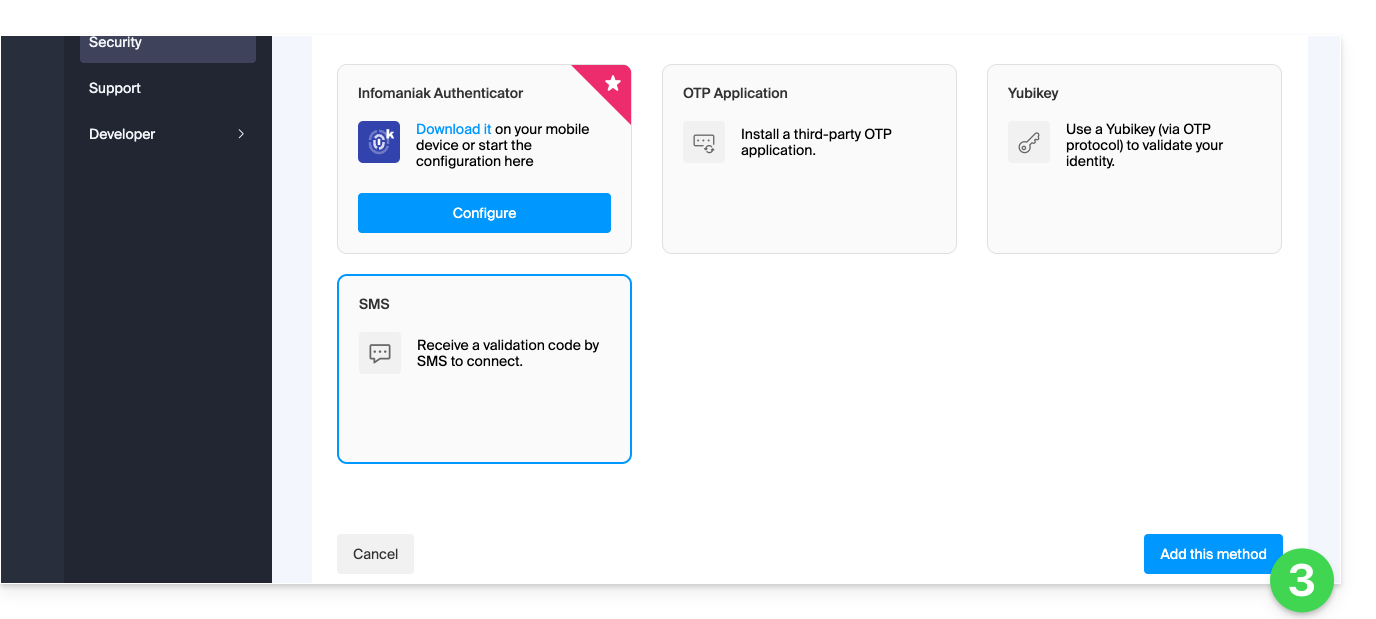
- Follow the on-screen instructions to complete the configuration.
Be mindful of existing synchronizations
Once two-factor authentication is enabled, some synchronization tools, such as those using CardDAV or CalDAV protocols, require an application password to replace the previous password and continue connecting directly at regular intervals.
Email services are not affected because the IMAP, POP, and SMTP protocols work with device passwords, which remain the same before and after enabling a two-factor authentication method.
Change the default option or remove one
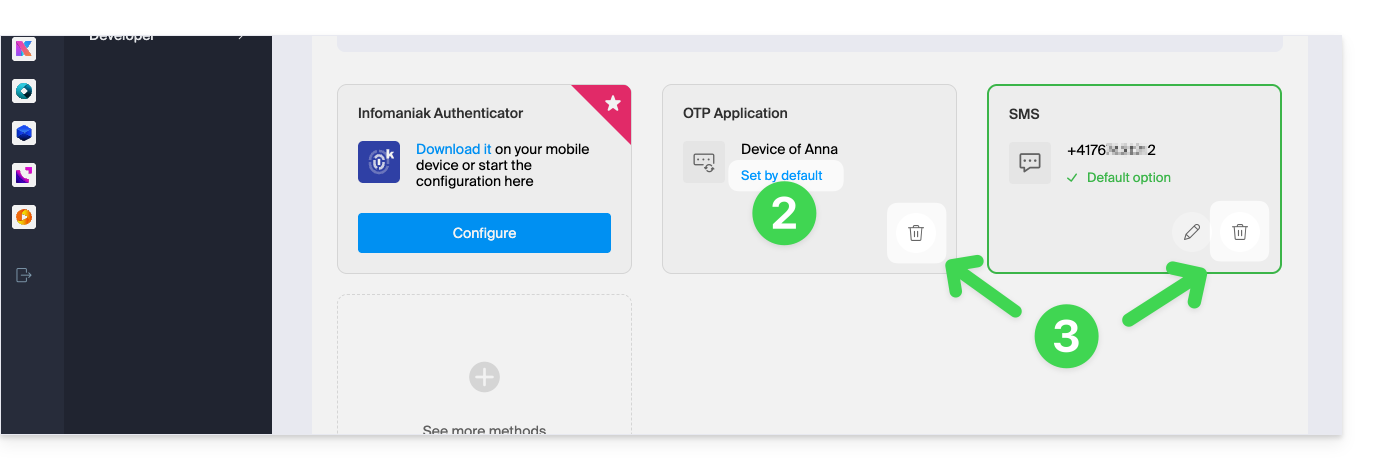
If you have enabled multiple verification methods (SMS, OTP app, etc.), you can specify which one will be offered by default each time you log in.
Please note, however, that the main, default method will remain the one used for validation within the installed Infomaniak app (Mail, kChat, kDrive, etc.) on your devices.
- Click here to log in and access the two-factor authentication management interface in the Infomaniak Manager.
- Click the button to set it as the default.
- Click the trash can to remove the selected method and prevent it from being offered again (this only works if another method exists):
To completely disable 2FA, please refer to this other guide.
Require authentication each time the browser is opened
To prevent cookies from being saved when browser windows are closed, and therefore require authentication each time you access the Infomaniak Manager when you restart the browser…
… on Chrome
In the Google Chrome settings (chrome://settings/content/siteData – paste this into the address bar, or consult the official documentation), specify the address [*.]infomaniak.com: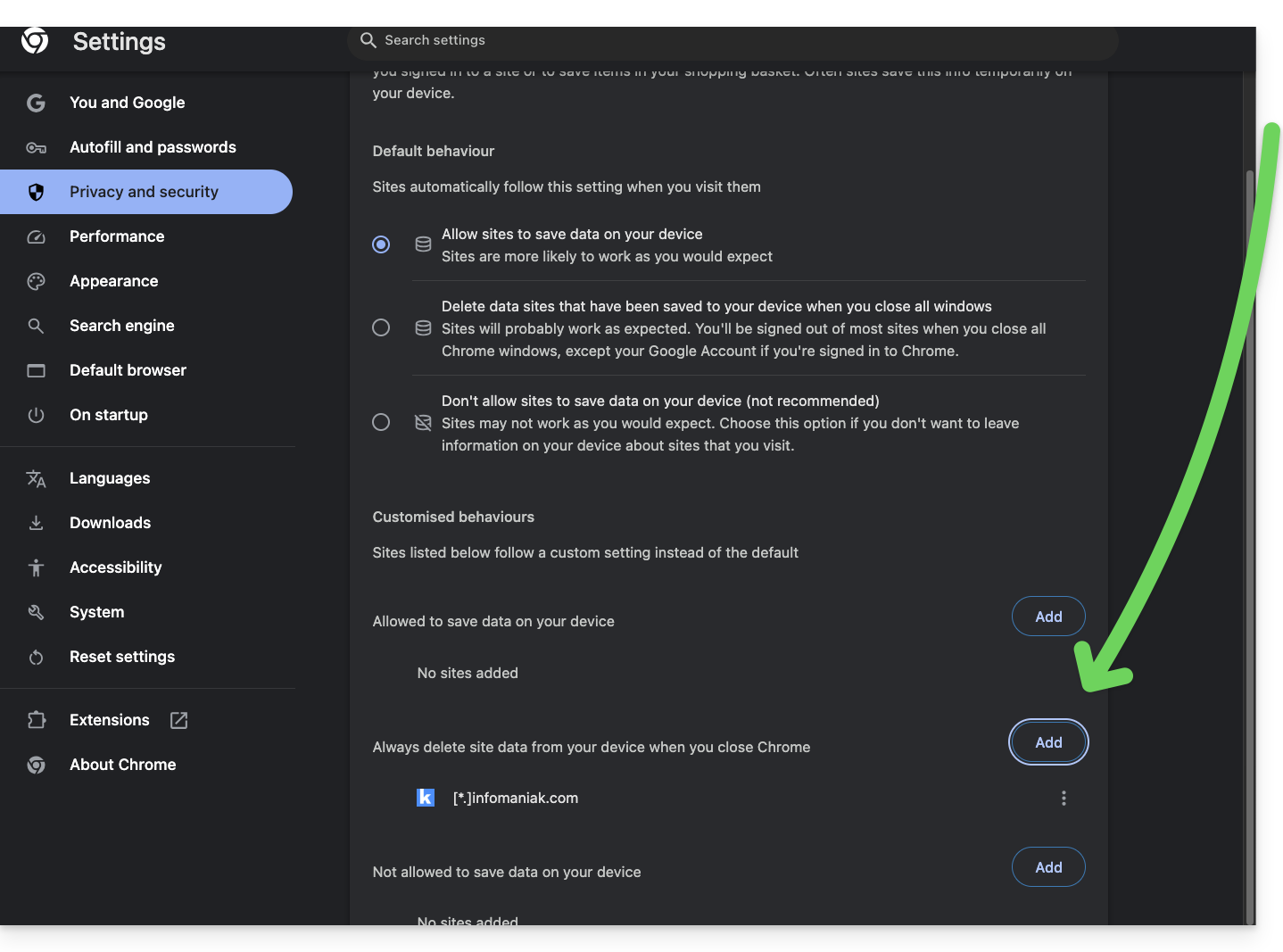
Link to this FAQ: https://faq.infomaniak.com/1940
Has this FAQ been helpful?