Knowledge base
1000 FAQs, 500 tutorials and instructional videos. Here, there are only solutions!
Quickly install WordPress (+ uninstall)
This guide explains how to install a new Infomaniak WordPress site included in the paid Web Hosting offers. You will find 2 different ways to create a WordPress site as well as explanations about uninstallation.
Create a WordPress site on an existing hosting
To access Web Hosting and add a new site by installing WordPress at the same time:
- Click here to access the management of your hosting on the Infomaniak Manager (need help?).
- Click directly on the name assigned to the hosting in question:

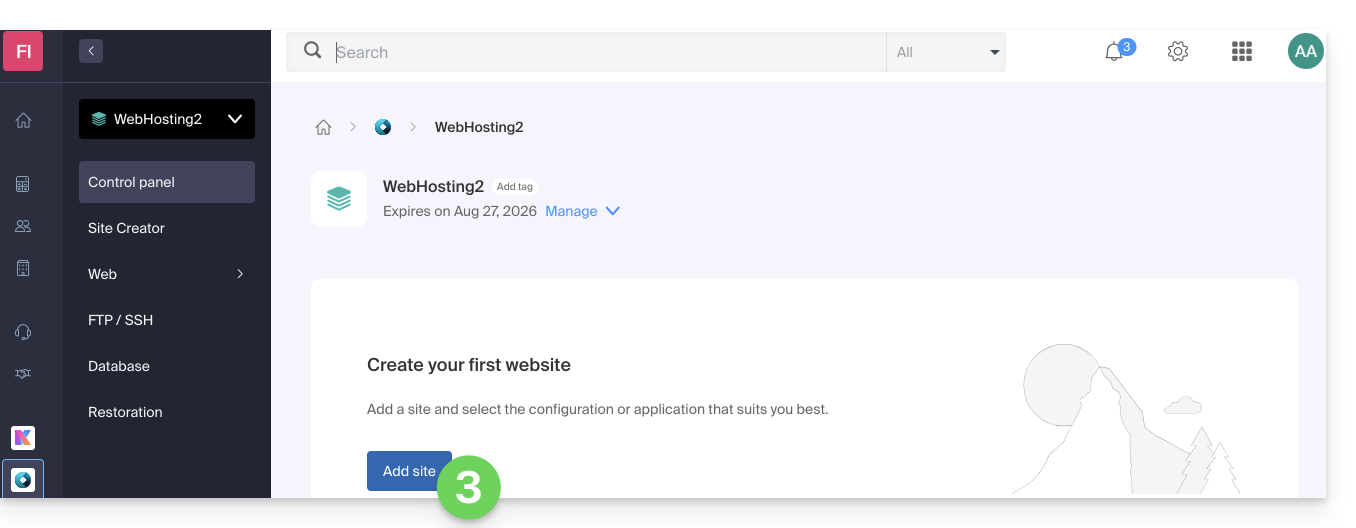
- Click the button to add a site:
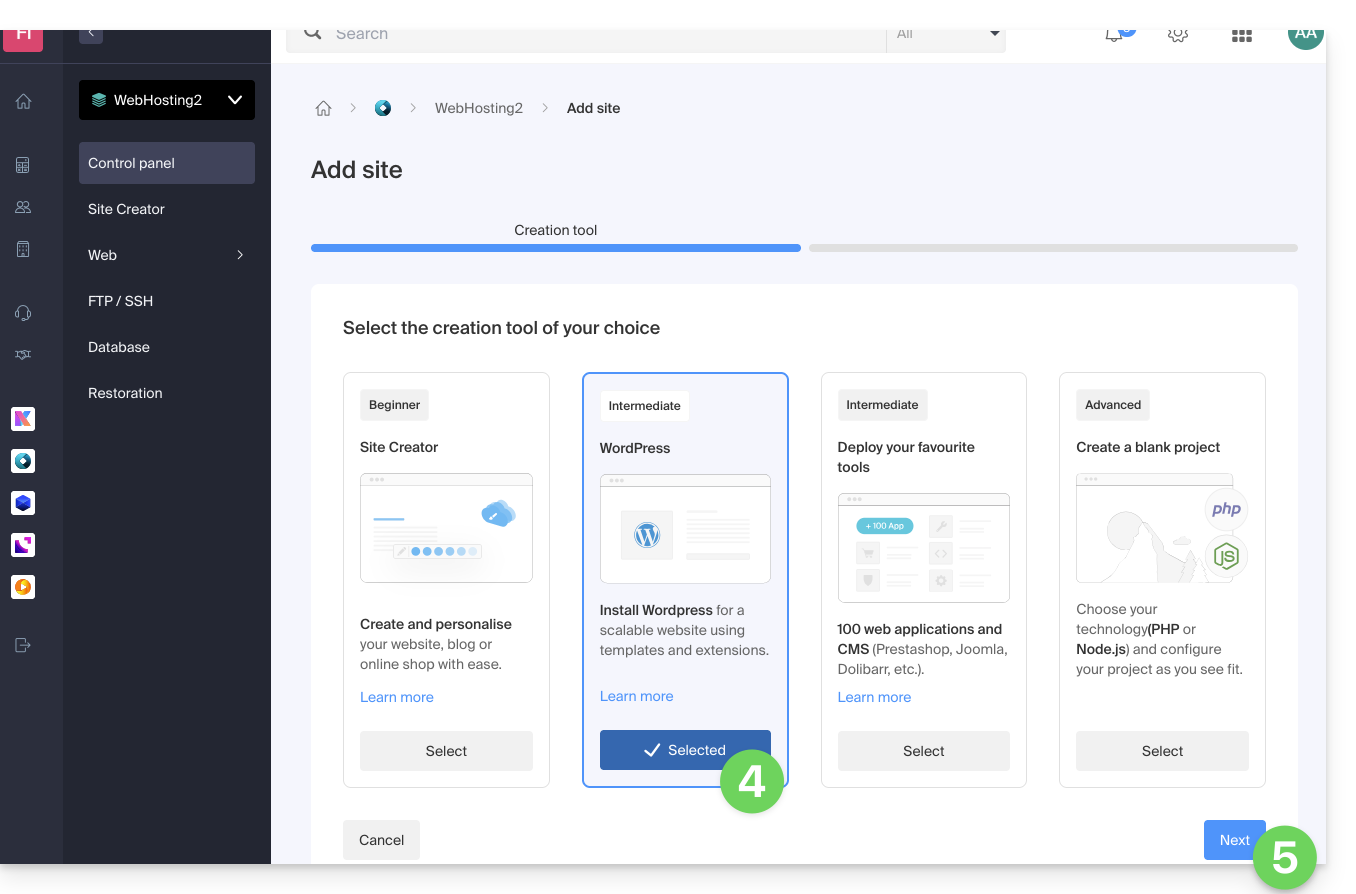
- Choose to install WordPress.
- Click the Next button:
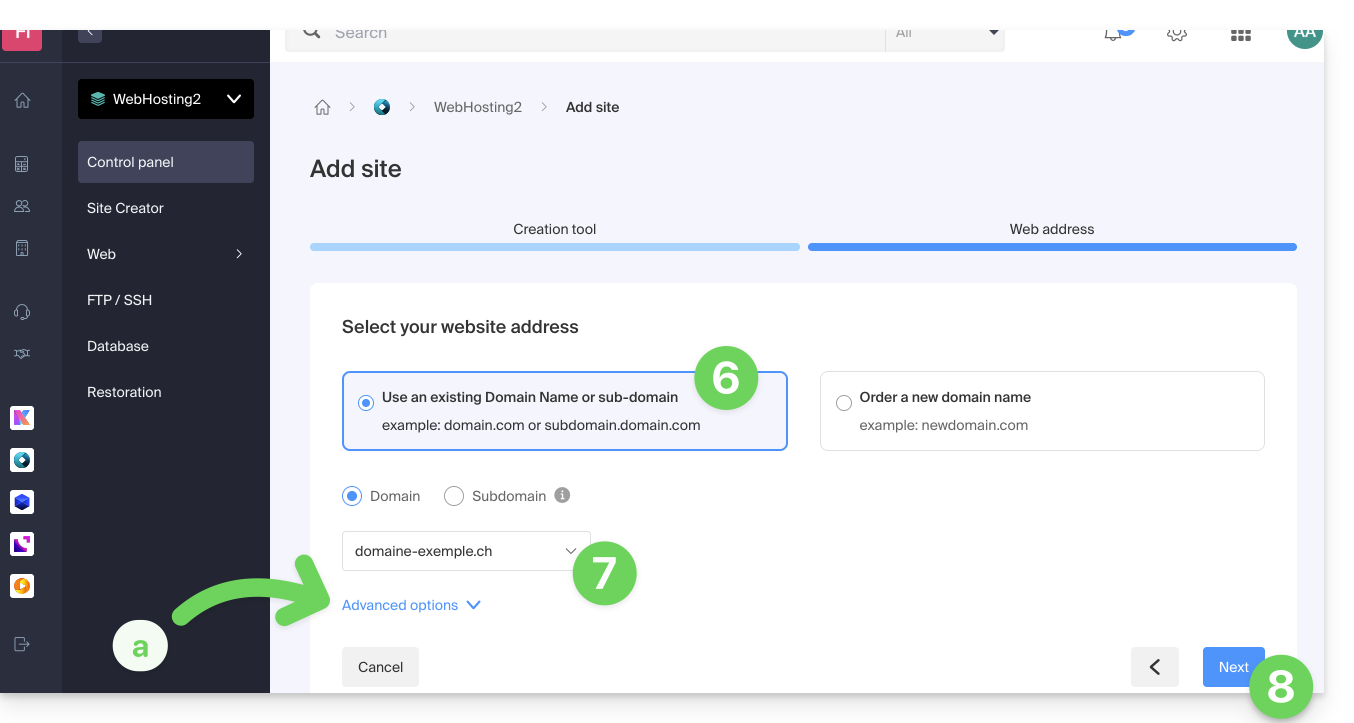
- Click the button to use a domain name already present in your Organization (or on the other button if you need to order a new domain first).
- Select the domain name from your already acquired domains.
- The advanced options allow you to choose a custom location on the hosting server, and an older version of PHP.
- Click the Next button:
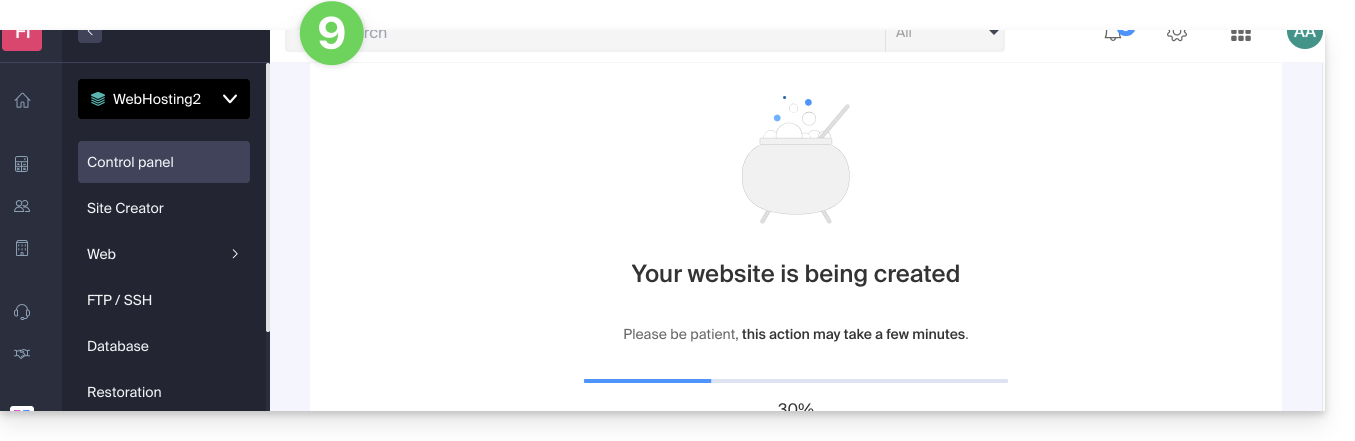
- Wait a few minutes for the site to be created on the hosting:
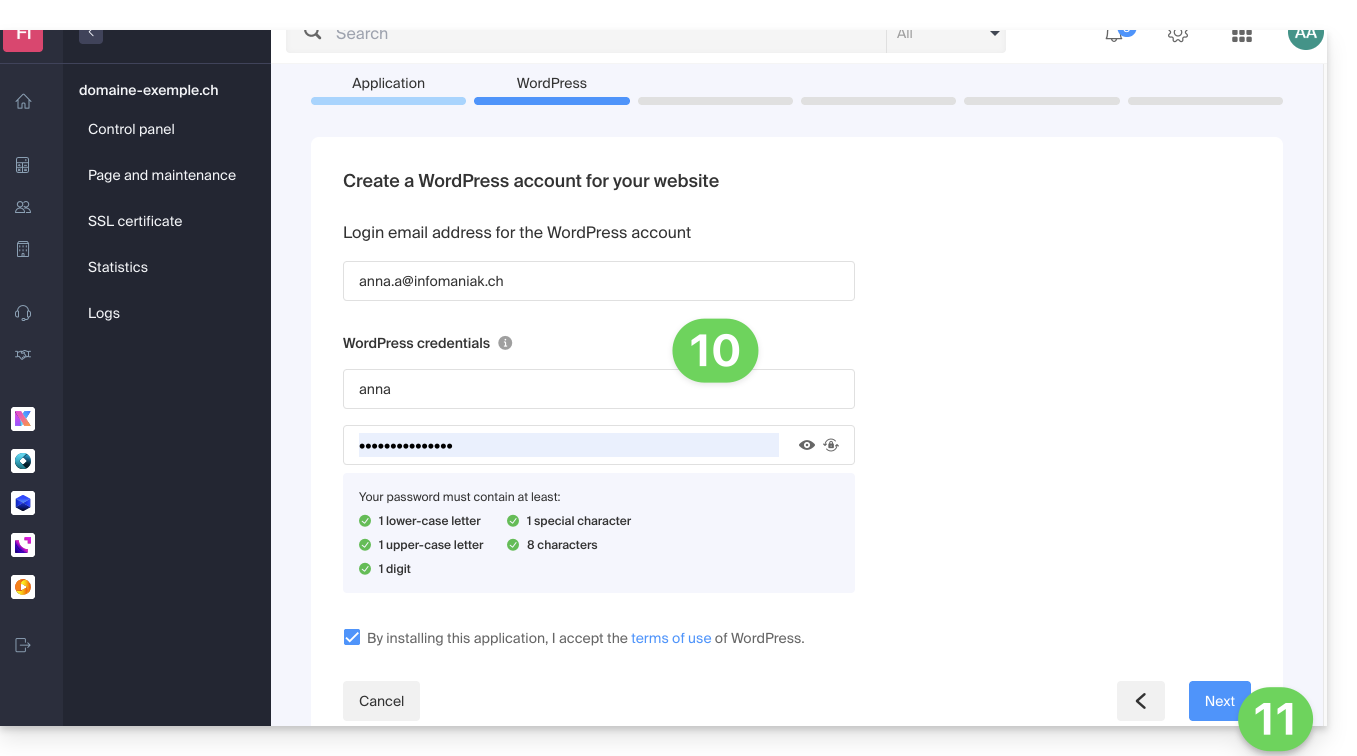
- Enter the requested information, it will be used to log in to the WordPress dashboard (it is possible to modify this information at any time after installation).
- Click the Next button:
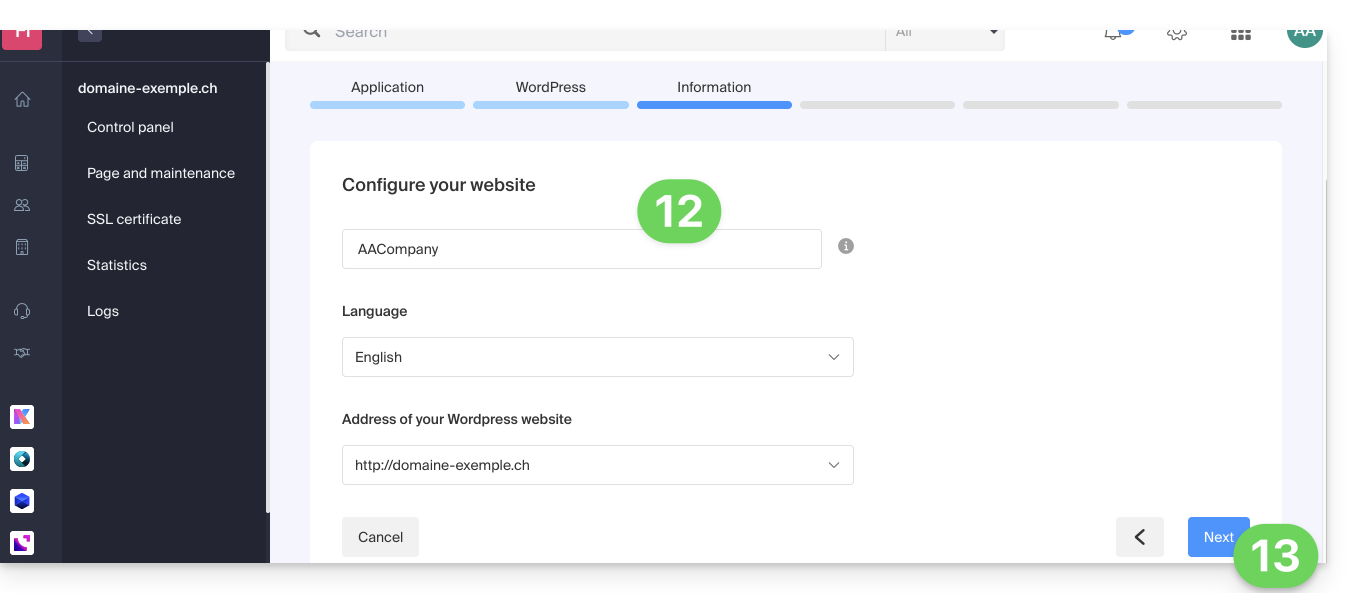
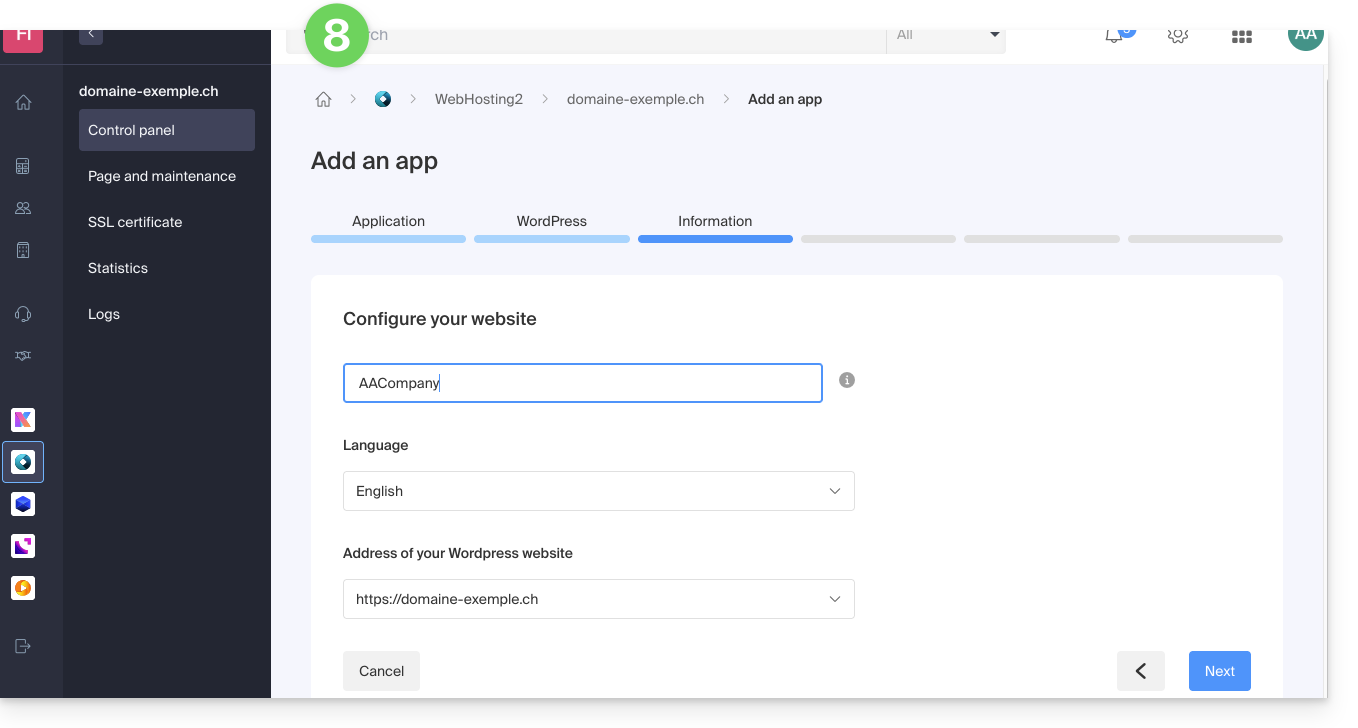
- Enter the information related to your site (it is possible to modify this information at any time after installation).
- Click the Next button:
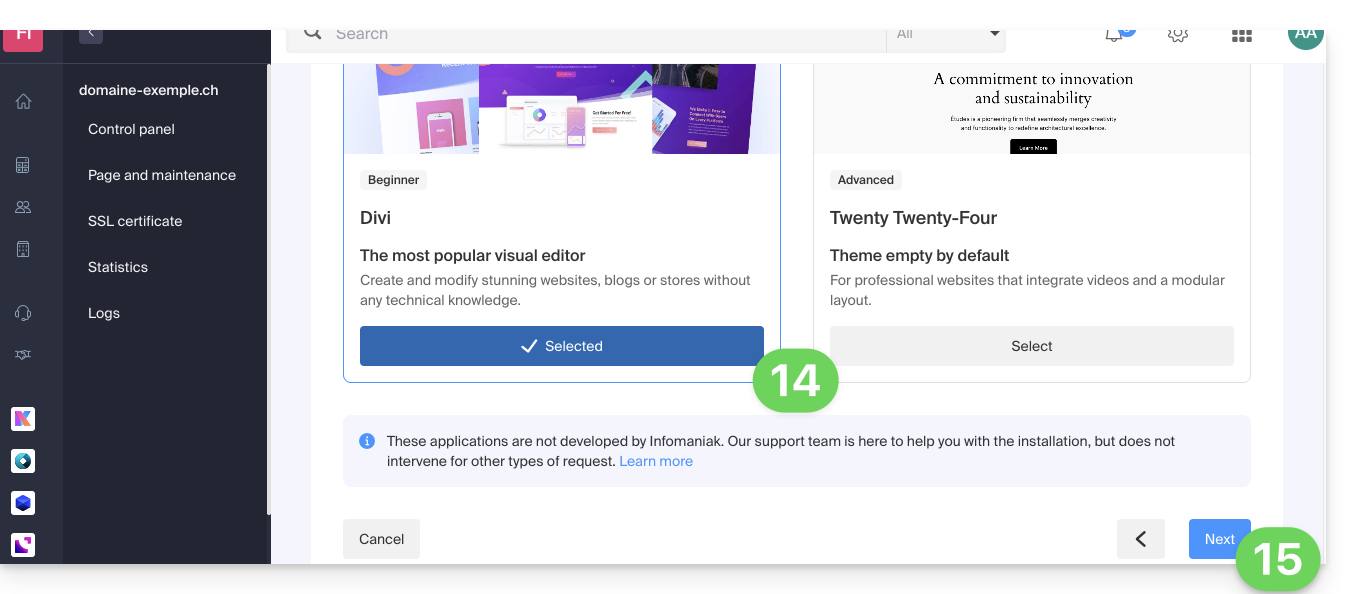
- Choose between the Divi theme and the official theme of the latest WordPress version (it is possible to modify this information at any time after installation).
- Click Next:
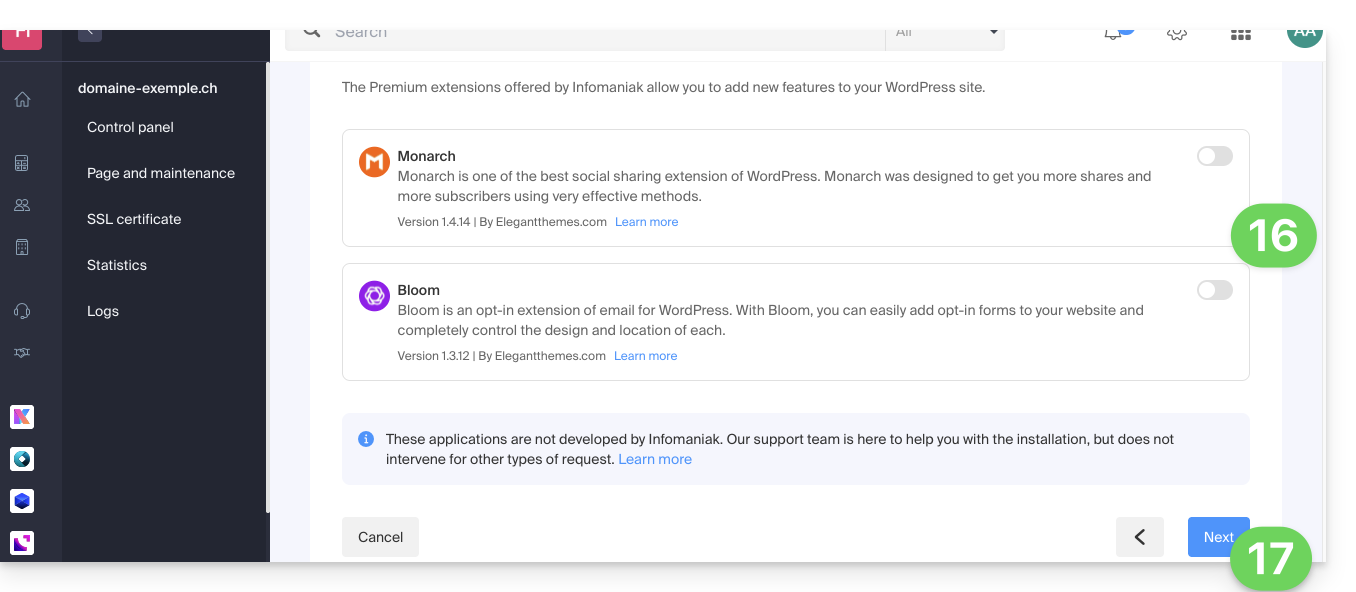
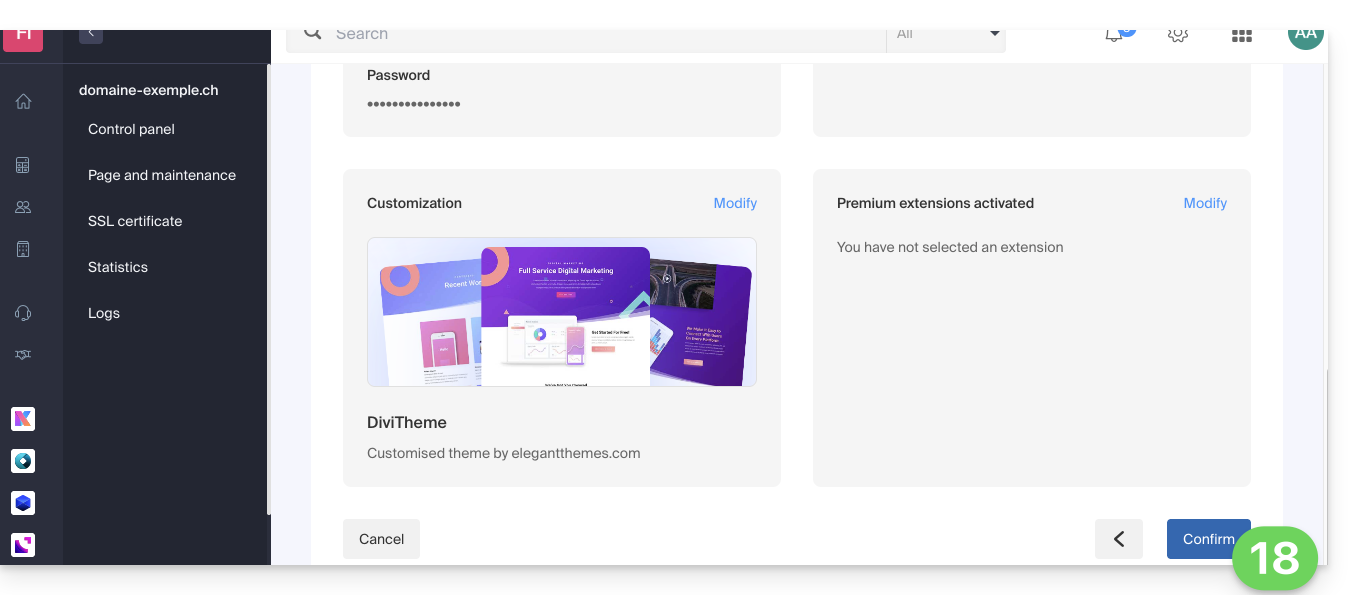
- Choose to install or not two Premium extensions offered with your subscription: Monarch and Bloom.
- Click on Next:
- Confirm the installation from the summary page:
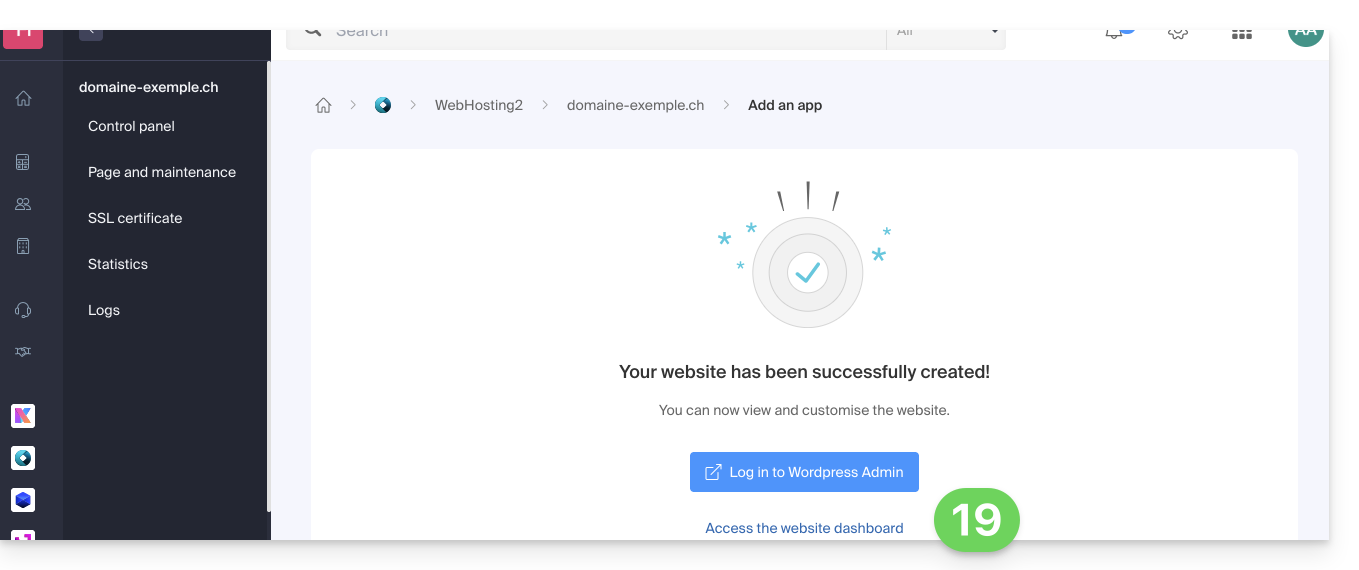
- You can then log in to the WordPress dashboard or return to the Infomaniak site management:
Install WordPress on an existing blank site
To access the existing blank site on the hosting and install WordPress:
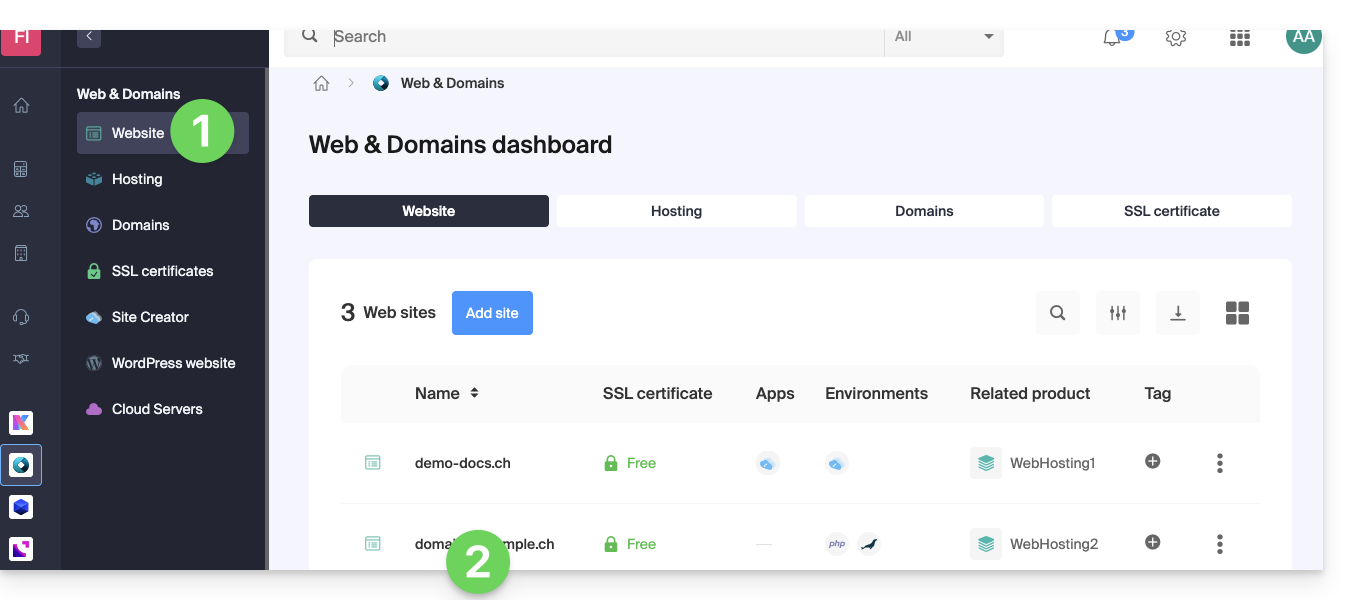
- Click here to access the management of your site on the Infomaniak Manager (need help?).
- Click directly on the name assigned to the site concerned:
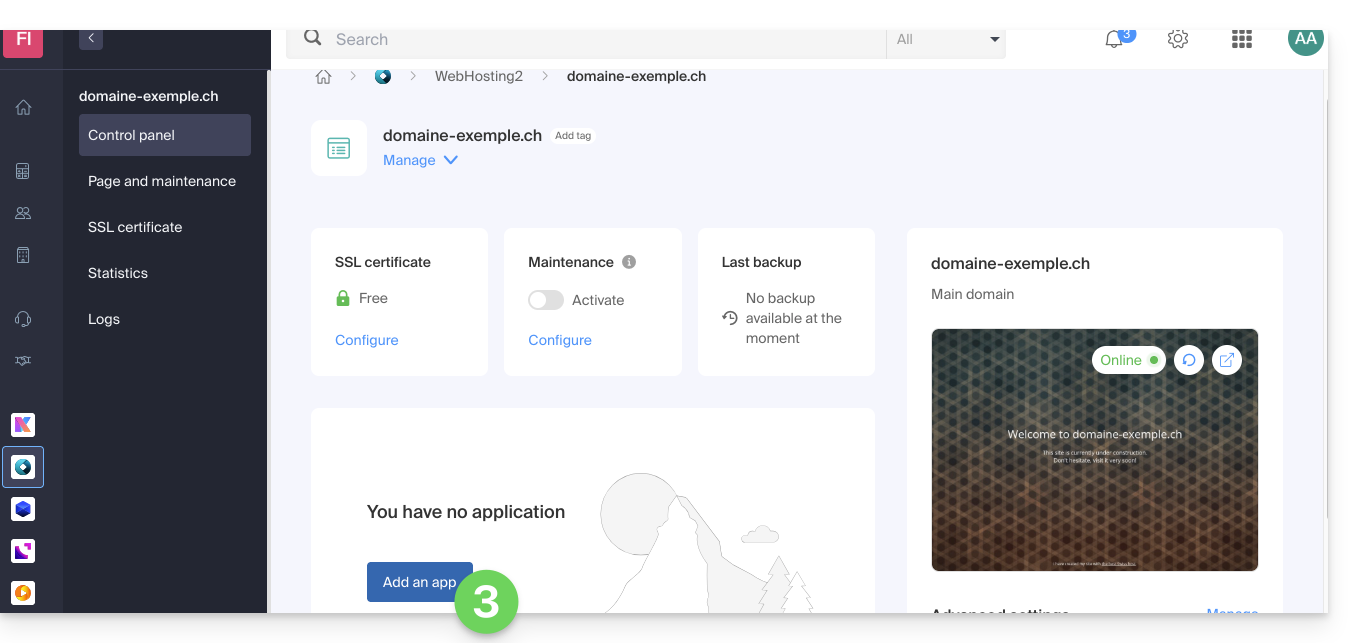
- Click the button to add an application:
- Choose to install WordPress:
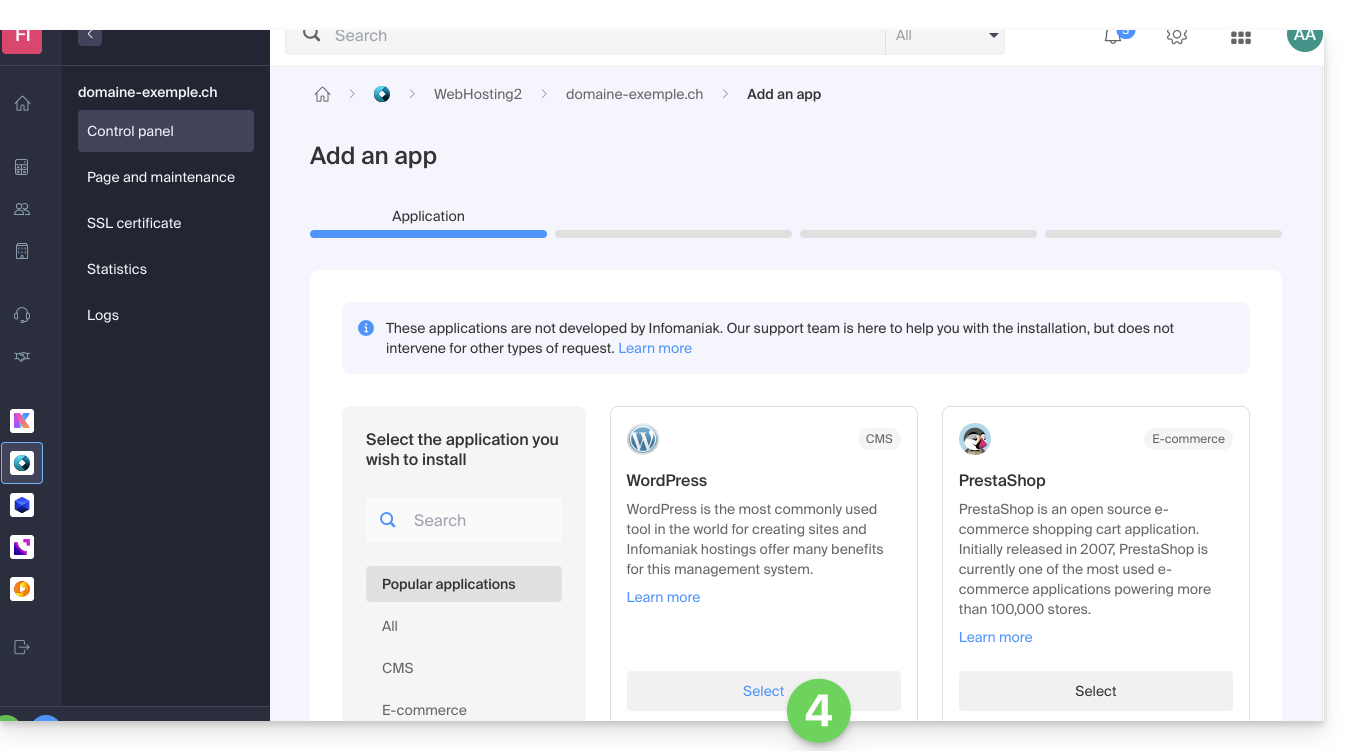
- Click the Next button at the bottom of the page.
- Enter the requested information, it will be used to log in to the WordPress dashboard (it is possible to modify this information at any time after installation).
- Click the Next button:
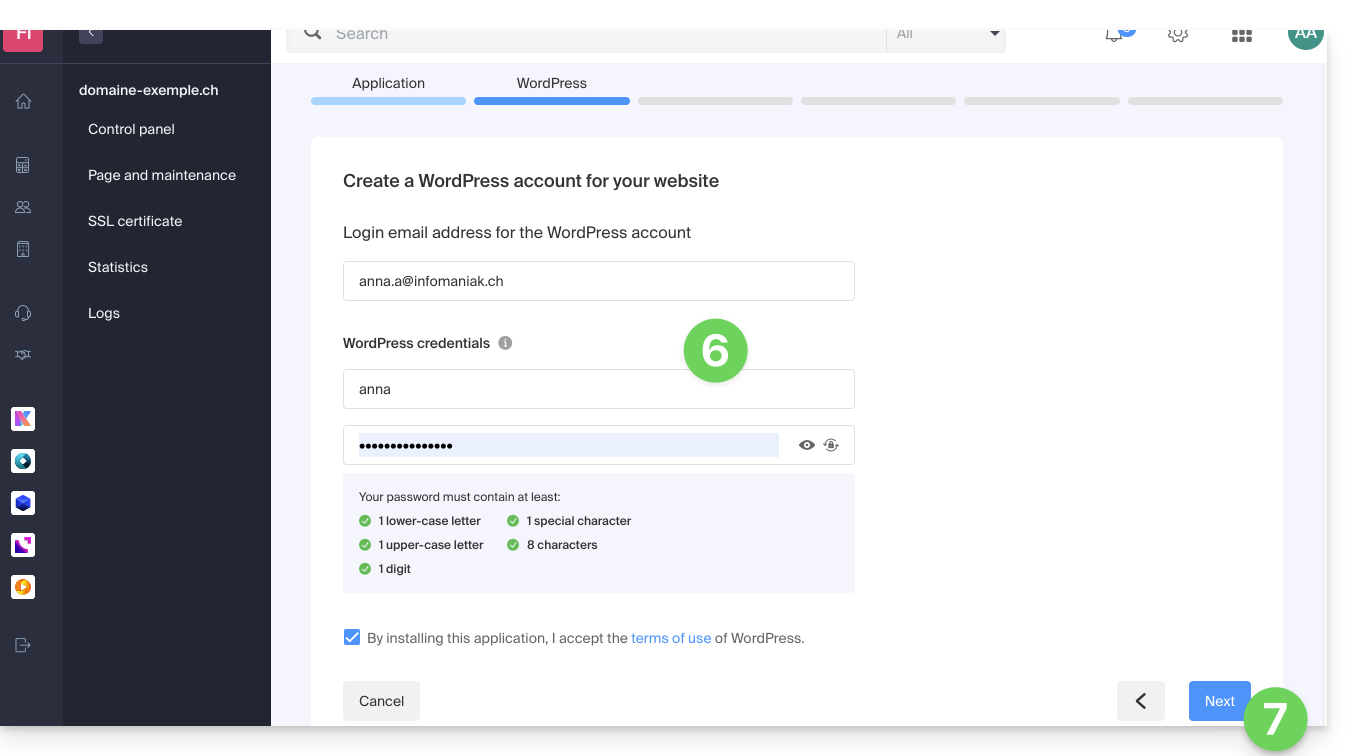
- Continue as from point 12 of the previous chapter above.
Uninstall Infomaniak WordPress
You can delete a WordPress site:
- by completely removing the website from the hosting (and keeping or not the WordPress data, databases, etc.)
- by keeping the website on the hosting but removing the WordPress app…
Option 1
- Click here to access the management of your WordPress site on the Infomaniak Manager (need help?).
- Click on the action menu ⋮ located to the right of the item concerned.
- Click on Unlink the site:
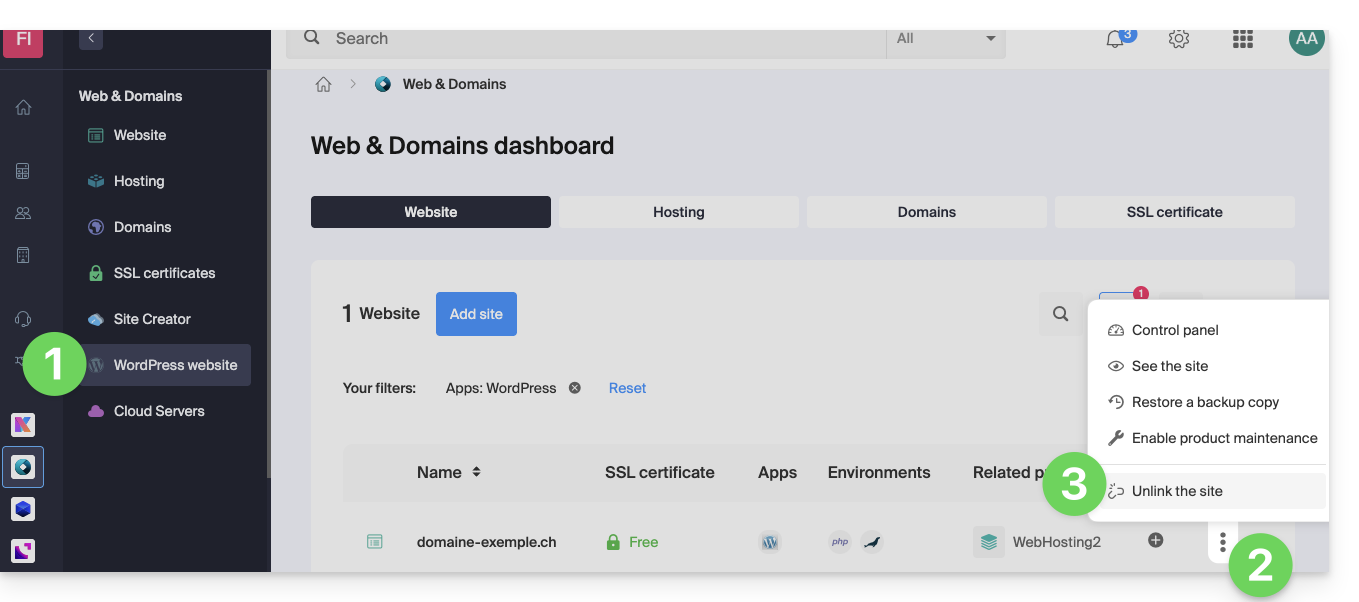
- Choose whether you want to delete everything or keep a trace of the WordPress data on the hosting server anyway:
- If you check the box, there will be nothing left in the Manager (except backups):
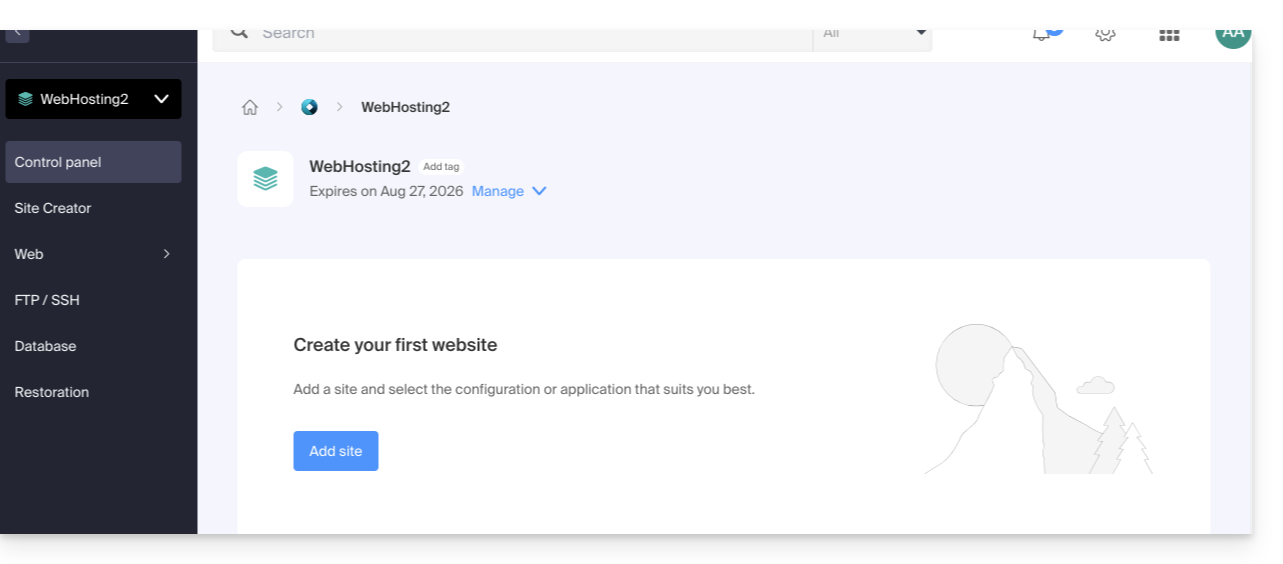
and nothing left on the server: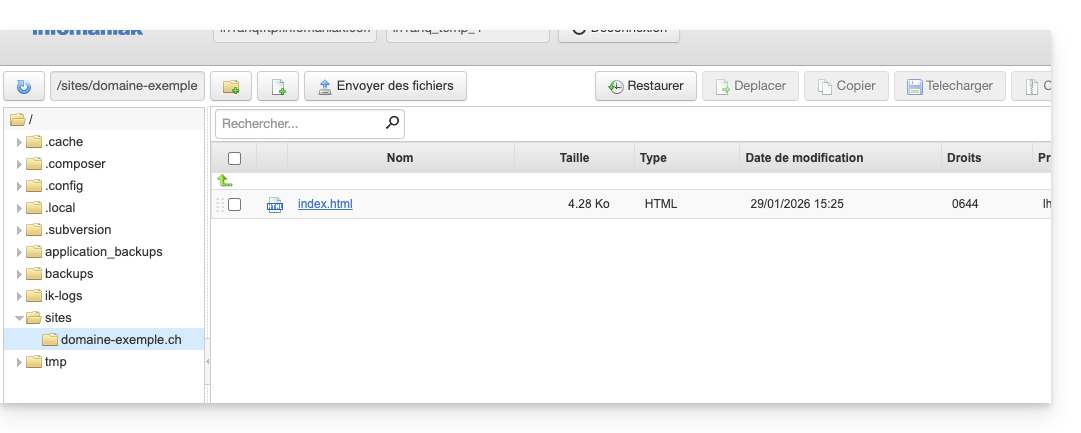
- If you do not check the box, there will be nothing left in the Manager (except backups):
but the WordPress files will still be accessible on the server: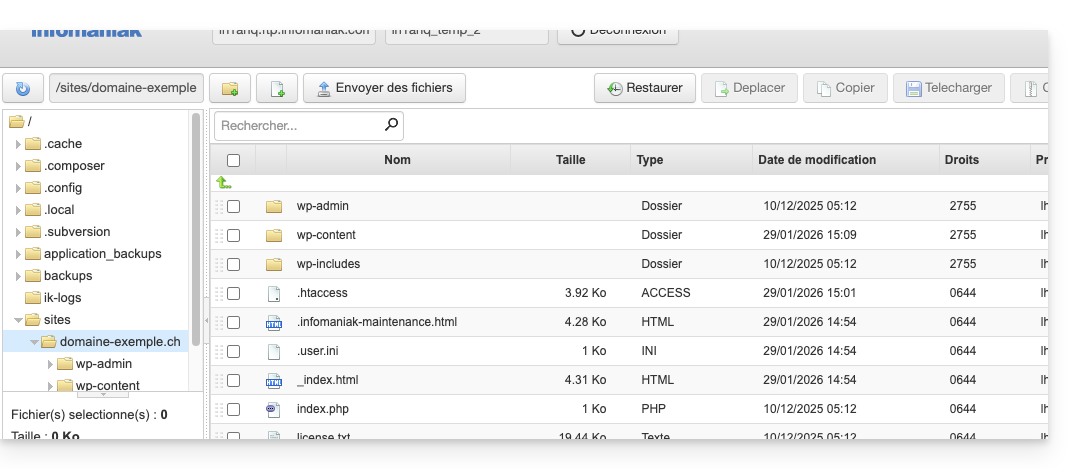
And you will get an error if you later try to reinstall a new WordPress site in the same place with the same domain name: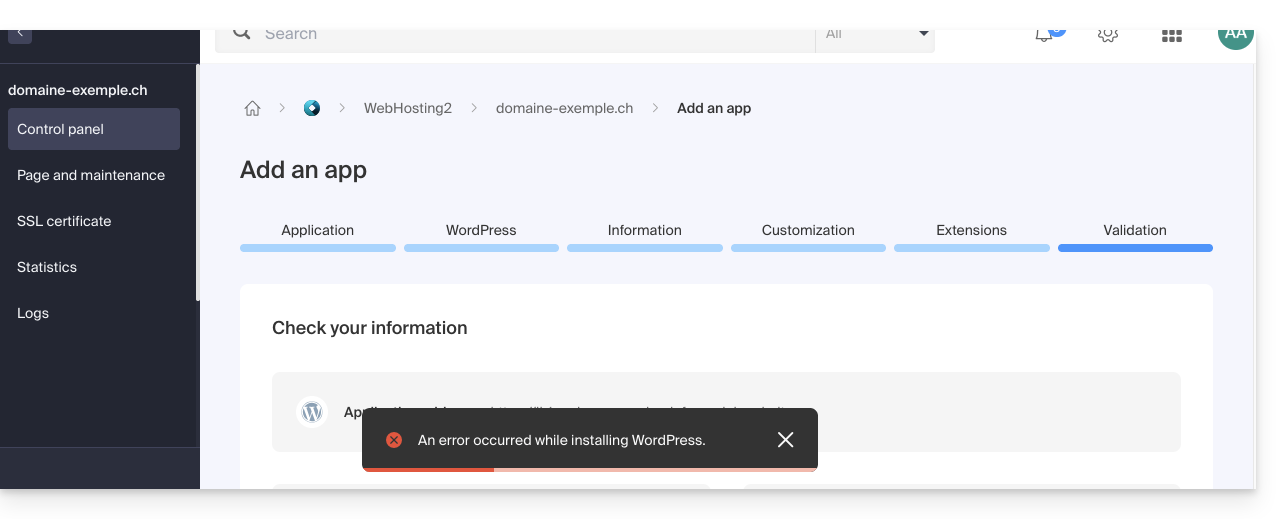
- If you check the box, there will be nothing left in the Manager (except backups):
- Confirm the deletion.
- Click to delete and wait.
Option 2
- Click here to access the management of your WordPress site on the Infomaniak Manager (need help?).
- Click directly on the name assigned to the site in question:
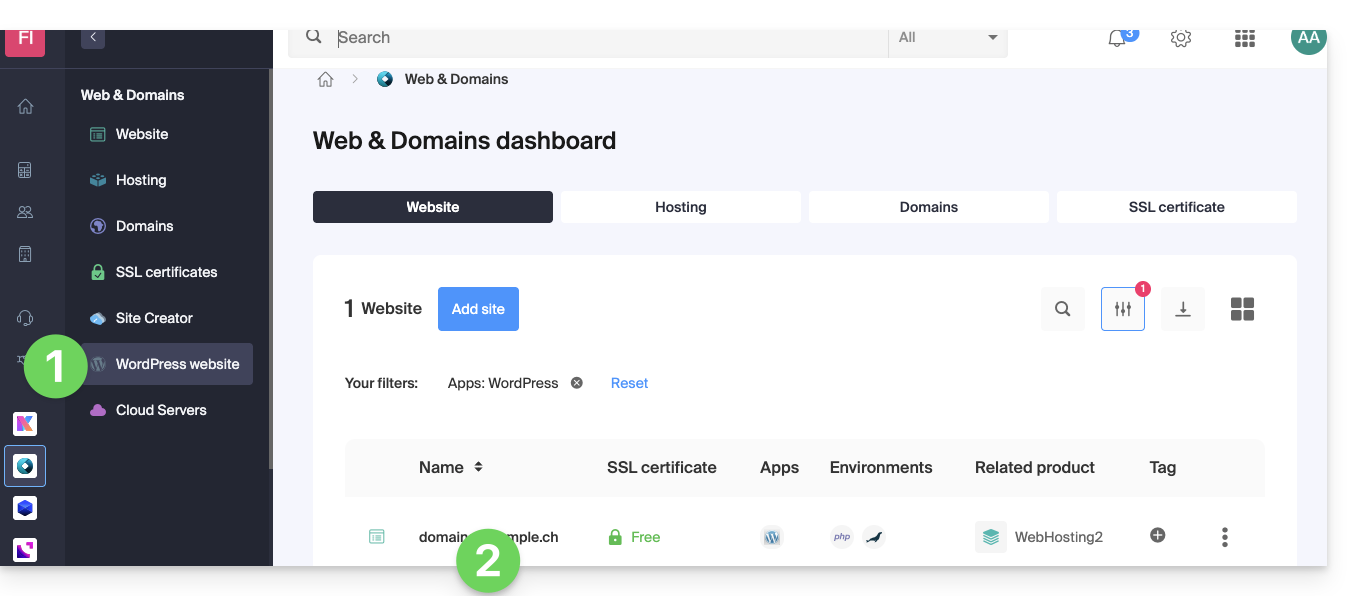
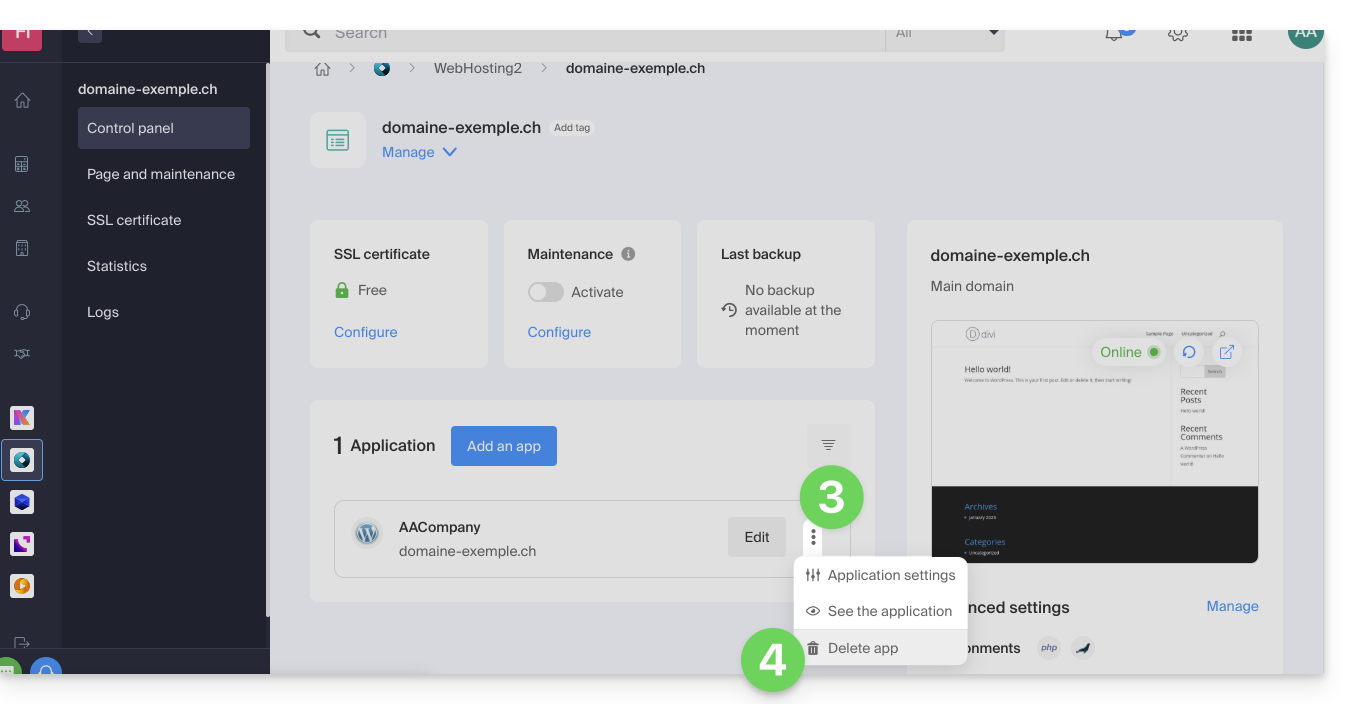
- Click on the action menu ⋮ located to the right of the item concerned.
- Click on Delete the app:
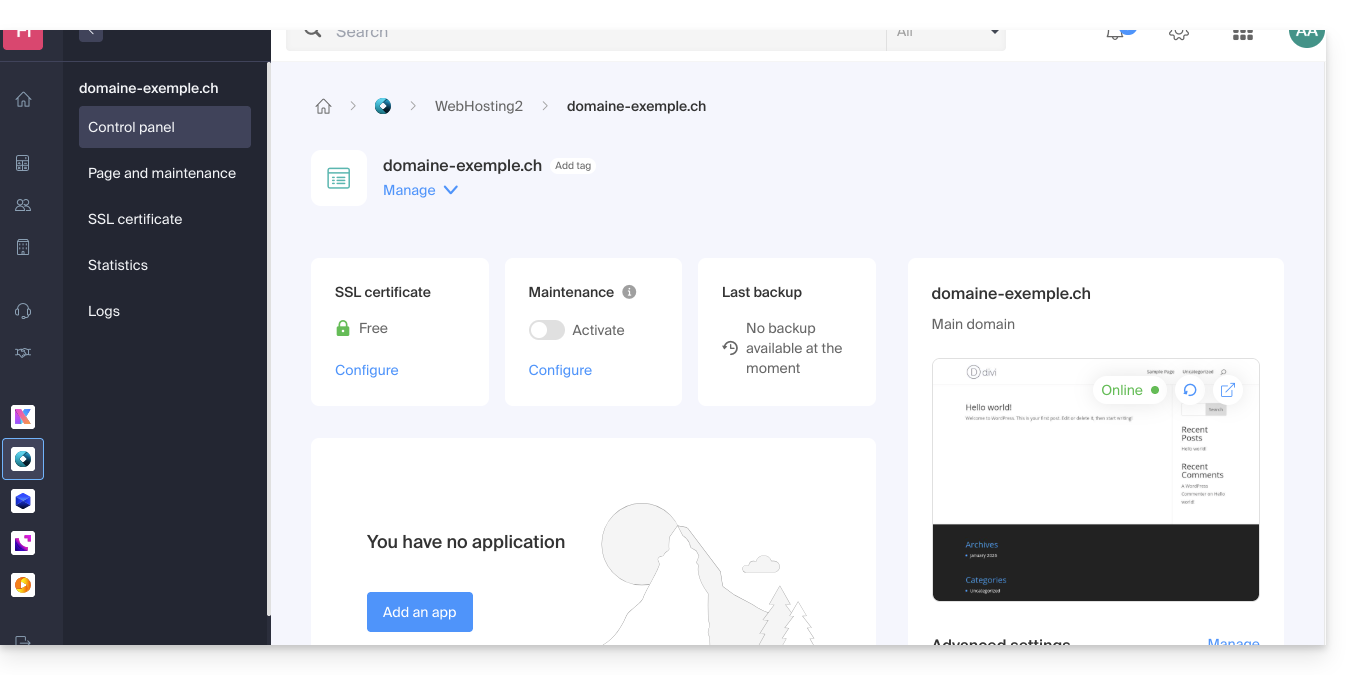
- Confirm the deletion and wait, your hosting will still contain a site but without an installed application:
Learn more
Link to this FAQ: https://faq.infomaniak.com/1931
Has this FAQ been helpful?