Knowledge base
1000 FAQs, 500 tutorials and instructional videos. Here, there are only solutions!
Display the Web Mail app keyboard shortcuts
This guide explains how to increase your productivity with the Infomaniak Web app Mail (online service ksuite.infomaniak.com/mail) by using its keyboard shortcuts, functions that allow you to perform certain actions without using the mouse cursor.
Enable or disable shortcuts
To enable or disable keyboard shortcuts across the entire Infomaniak Mail interface:
- Click here to access the Infomaniak Web app Mail (online service ksuite.infomaniak.com/mail).
- Click on the Settings icon in the top right of the interface.
- Click on Shortcuts.
- Enable or disable the use of shortcuts:
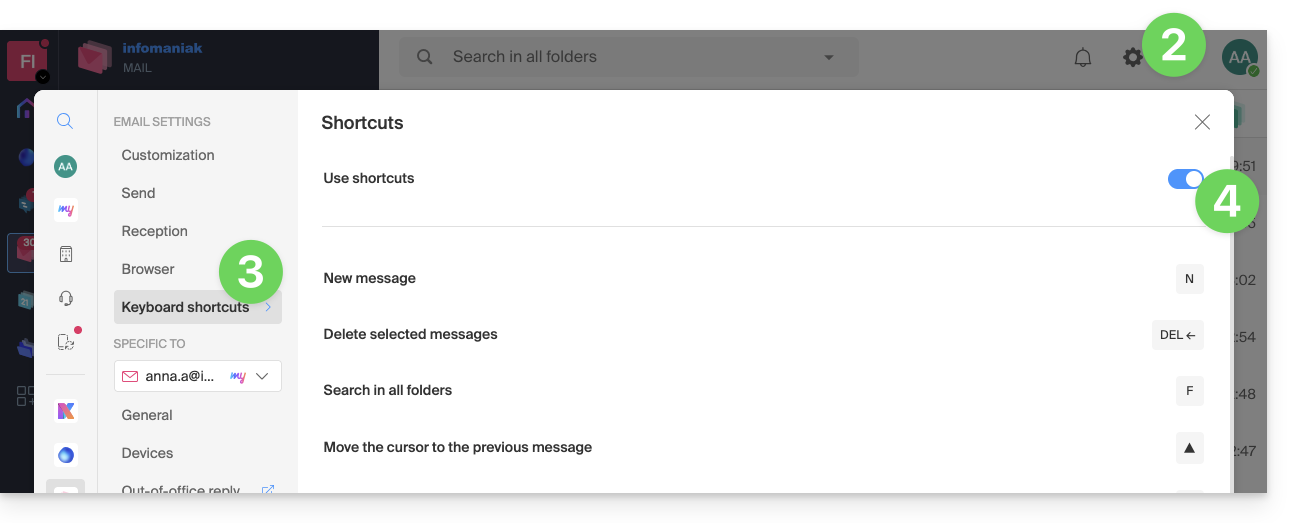
You can also access it via the key combination SHIFT+ALT+H (OPTION+SHIFT+H on macOS).
Keyboard shortcut examples
Here are a few keyboard shortcuts (refer to the chapters above to go directly to the complete list):
| Keyboard shortcuts | Definition | Action |
|---|---|---|
SHIFT+ALT+H | List of shortcuts | Displays the complete list of available keyboard shortcuts in the webmail. |
! | First message | Allows you to select the first message in the current folder |
SHIFT+LT+A | All messages | Allows you to select all messages in the current folder |
| DOWN | Next message | Allows you to move the cursor to the next message. |
| UP | Previous message | Allows you to move the cursor to the previous message. |
| LEFT | Return to the message list | Allows you to return to the message list |
SHIFT+CLICK | Select multiple messages | Allows you to select multiple consecutive messages |
CMD/WINDOWS+CLICK | Select/Deselect a message | Allows you to select/deselect a message |
SHIFT+R | Reply to the message | Allows you to reply to the sender of the message |
SHIFT+ALT+R | Reply to all | Allows you to reply to the sender and all people in copy of the message. |
SHIFT+ALT+N | New message | Allows you to create a new message |
SHIFT+ALT+DEL | Deletes the selected messages | Allows you to delete all selected messages at once |
SHIFT+ALT+E | Archive the message | Allows you to file the message in the archive folder |
Link to this FAQ: https://faq.infomaniak.com/1890
Has this FAQ been helpful?