Knowledge base
1000 FAQs, 500 tutorials and instructional videos. Here, there are only solutions!
Copy Gmail mail content to Infomaniak
This guide explains how to transfer to Infomaniak a Gmail email address hosted by Google; refer to this other guide if you are looking for information on importing email addresses from custom domains.
Preamble
- It is easy to switch the entire structure of your emails to Infomaniak - discover the offers.
- Use your email address on a simple browser, Outlook, etc. and on mobile devices iOS/Android thanks to the Infomaniak Mail app.
- Import your contacts to continue communicating with them from your new email.
- The operation does not affect either the data already present on the destination address, or that of the source address.
- The entirety of the external mailbox will be imported.
- Once the import process has started, it is no longer possible to interrupt it.
- Any duplicates are managed: identical content will only be copied once.
Import the entire history of your emails
Infomaniak Prerequisites
- Have a Mail Service on your Infomaniak Manager.
- Have a quota of free addresses available or adjust it in advance if necessary.
- Ensure that the email is correctly secured
- Create one or more addresses on this Mail Service.
- If you have many (10+) email addresses to create, refer to this other guide regarding mass creations.
- The destination email address must be linked to the user (= to the Infomaniak account) that you are using.
Import Gmail email content to Infomaniak
- Click here to access the import tool (online service https://import-email.infomaniak.com).
- If you have many (10+) email addresses to import, refer to this other guide regarding mass imports.
- If necessary log in to your Infomaniak account on the Organization of your choice; indeed the import will be to one of the email addresses linked to the Web interface Mail Infomaniak (online service ksuite.infomaniak.com/mail) of the Infomaniak account that you are using.
- Click on the single import.
- Fill in the left field with your Gmail address (the content of which is to be copied).
- Click on the "Sign in with Google" button that has appeared:
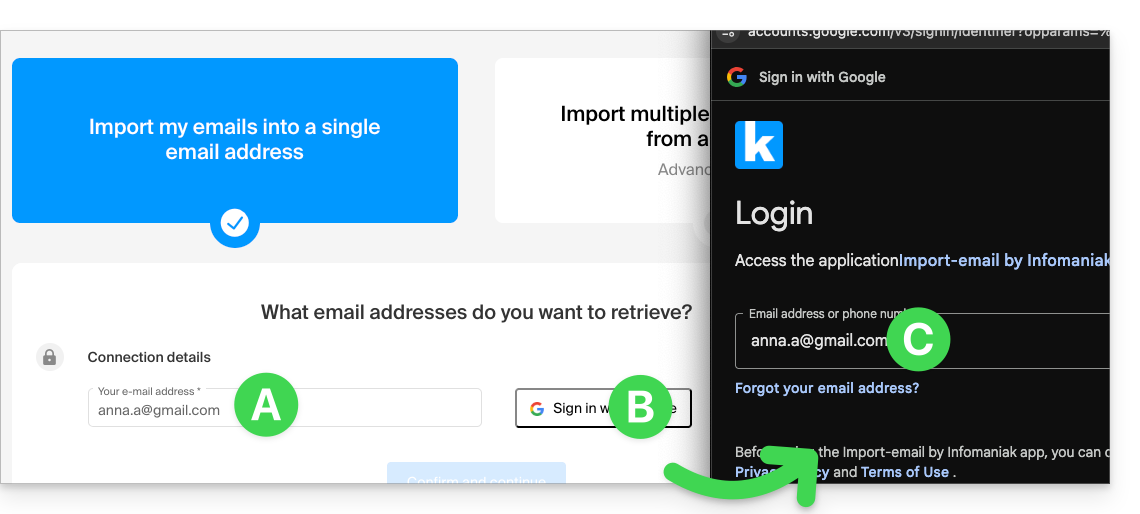
- Make sure you are logging into the Google account concerned by the email copy.
- Confirm that you authorize the Infomaniak tool to connect to your account (automatic procedure).
- Once the popup is validated, you will be able to choose which Infomaniak address to import your emails to (if necessary, refer to this other guide from point 7).
Adjust the application settings
As soon as you take the necessary steps to make the domain name associated with your email work with Infomaniak, modify the settings of the email software/clients you use so that they connect correctly to the Infomaniak servers: follow the configuration assistant.
Labels and data volume
The storage space displayed at Infomaniak may not match the one indicated in Gmail, notably due to the different management of labels/tags. Indeed, those present in Gmail will be converted into folders on the Infomaniak servers (same principle as when retrieving mail with an IMAP email software/client like Thunderbird):
Therefore, an email labeled in multiple Gmail folders may be counted multiple times during migration, which explains why an account displaying, for example, 6 GB in Gmail can occupy 18 GB once transferred to the Infomaniak servers.
Be patient when importing a large volume of emails; Gmail and Microsoft imports are deliberately slowed down (example: 1 GB/day bandwidth for Google) to avoid rejections from their side.
Link to this FAQ:
Has this FAQ been helpful?