Knowledge base
1000 FAQs, 500 tutorials and instructional videos. Here, there are only solutions!
Forward received emails to a recipient on the Infomaniak Webmail app
This guide explains how to forward one or more already received emails to a recipient, by placing them either…
- … in the body of a new message directly,
- … as an attachment (this allows you to forward the entire message with its headers and not just its content).
Preamble
- To obtain a share link allowing you to view a specific email, refer to this other guide.
- To automatically redirect all future incoming messages, refer to this other guide.
- To filter and automatically redirect only certain messages, refer to this other guide.
- To learn how to forward emails but from a third-party software/email client:
Forward a message from the Infomaniak Web Mail app
To do this:
- Click here to access the Infomaniak Web Mail app (online service ksuite.infomaniak.com/mail).
- Open the message to forward.
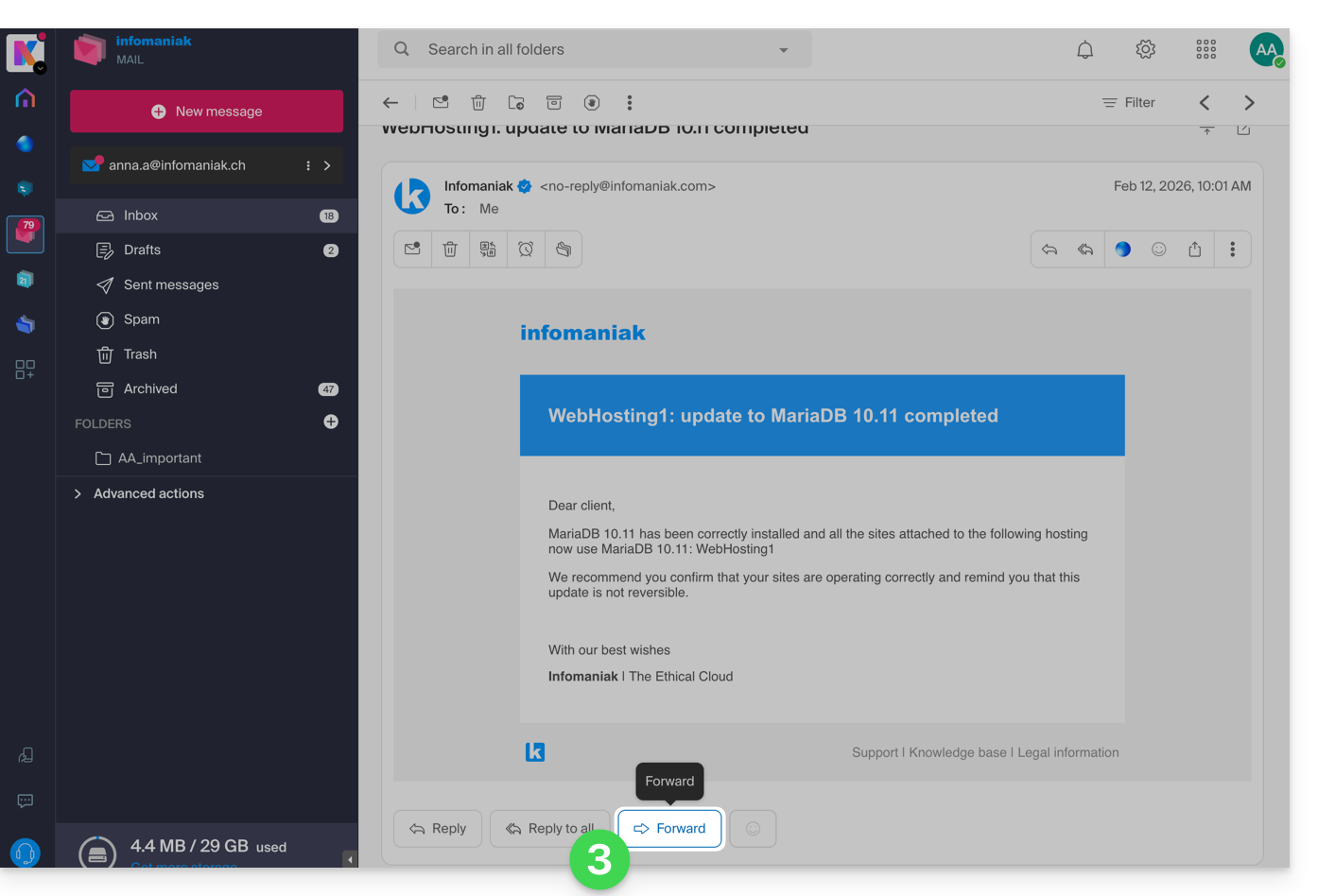
- The FORWARD button is located below the message:
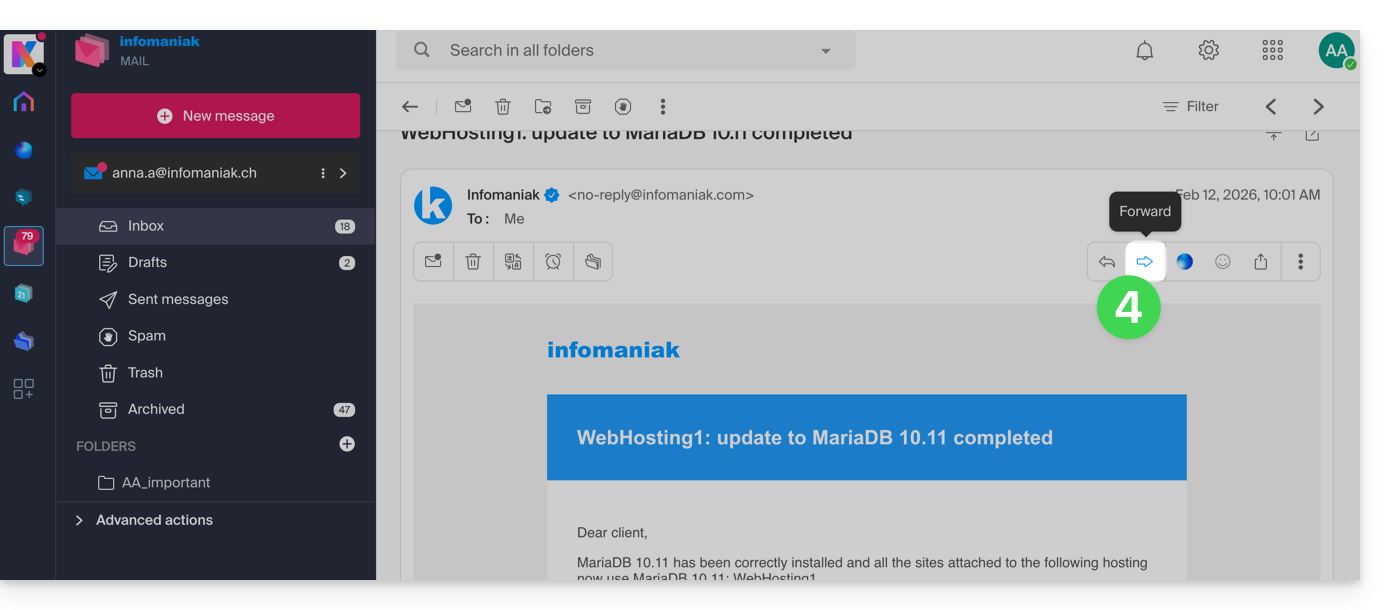
- You can also enable shortcuts so that a forward button appears above the message, in the toolbar:
Configure the default forwarding method
You can configure Mail Infomaniak so that an email (forward) is always forwarded as an attachment and not quoted in the body of the message.
Indeed, by default the original email will be quoted in plain text directly in the body of the email: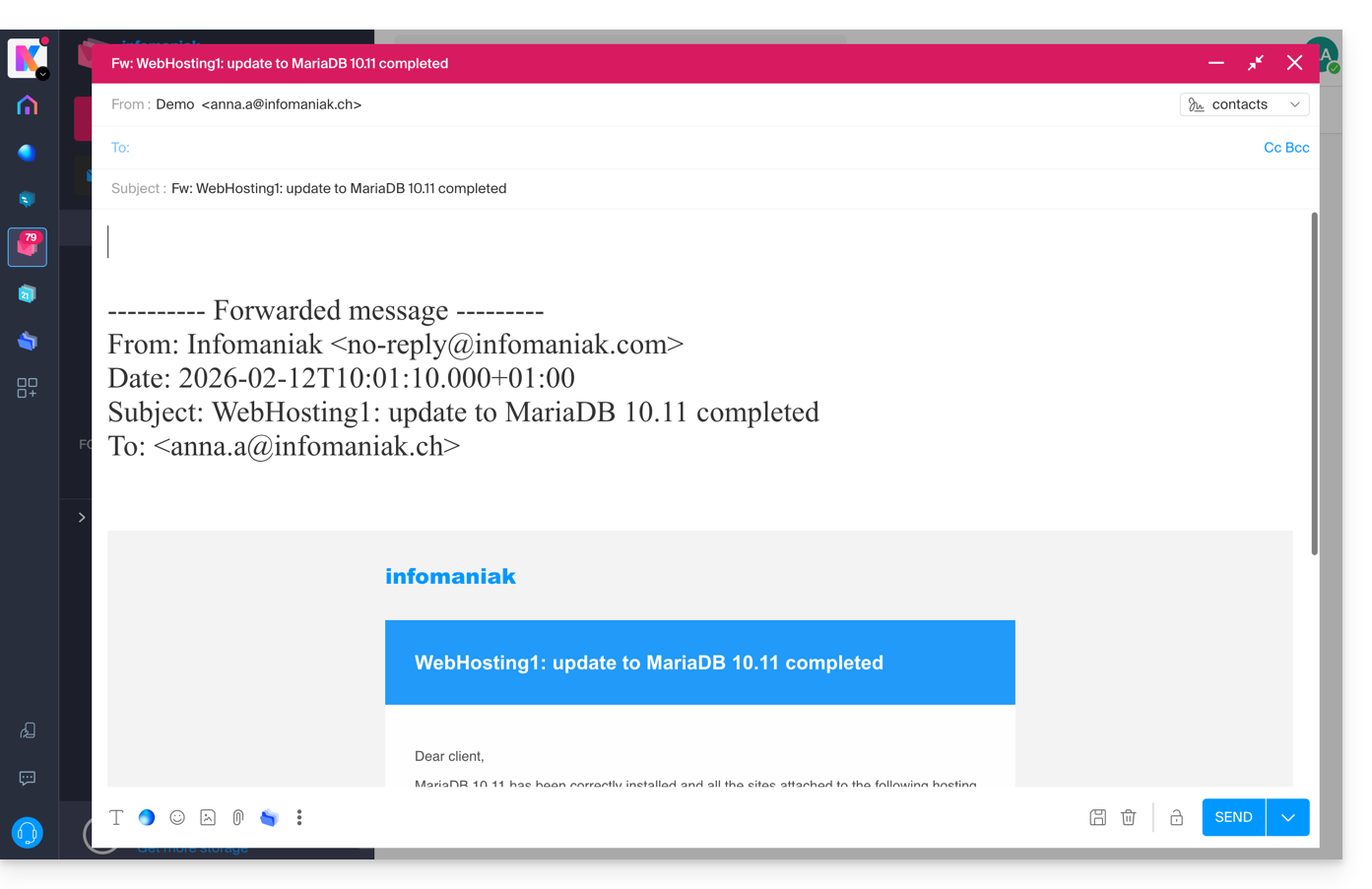
To change this and set the default forwarding method:
- Click here to access the Infomaniak Web Mail app (online service ksuite.infomaniak.com/mail).
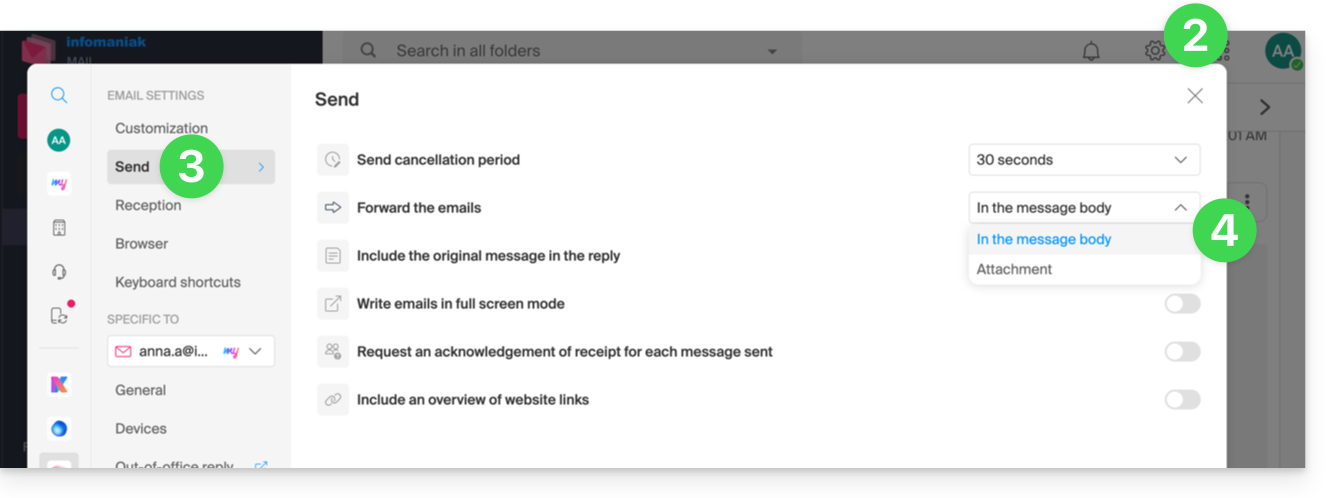
- Click on the Settings icon at the top right.
- Click on Sending in the secondary sidebar menu.
- Click on the desired option ("As an attachment" ) to "Transfer emails":
From now on, the original email will be attached as an attachment to the email: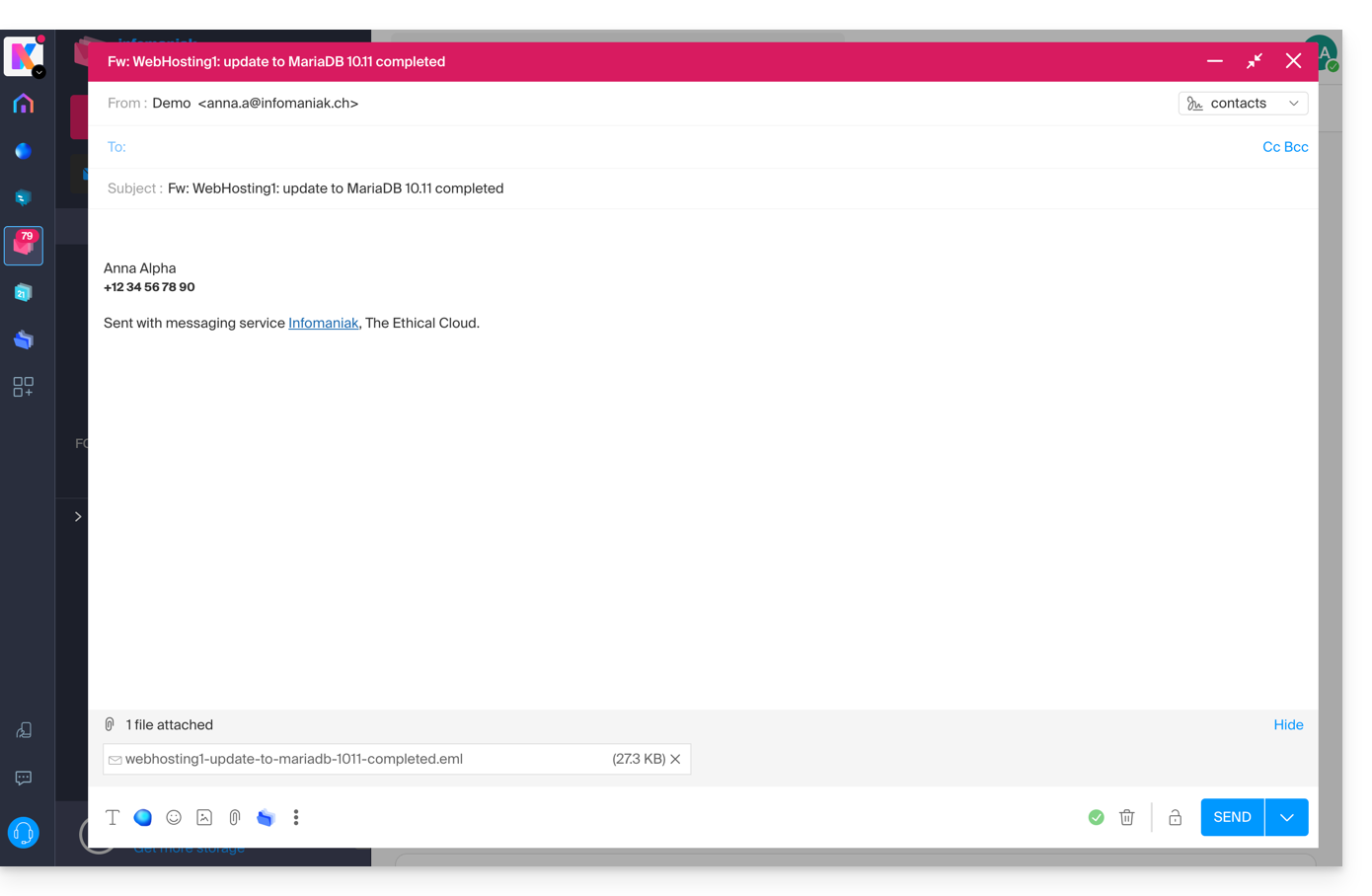
Link to this FAQ: https://faq.infomaniak.com/1750
Has this FAQ been helpful?