Knowledge base
1000 FAQs, 500 tutorials and instructional videos. Here, there are only solutions!
Manage favorite folders on the Infomaniak Webmail app
This guide explains how to add a folder or subfolder as a favorite on the Infomaniak Web app Mail (online service ksuite.infomaniak.com/mail).
Preamble
- Automatically placed at the top of your folder list, you will get a shortcut and quick access to this folder.
- Several folders can be marked as favorites.
Define a folder as a favorite
To add a folder as a favorite or remove it:
- Click here to access the Infomaniak Web app Mail (online service ksuite.infomaniak.com/mail).
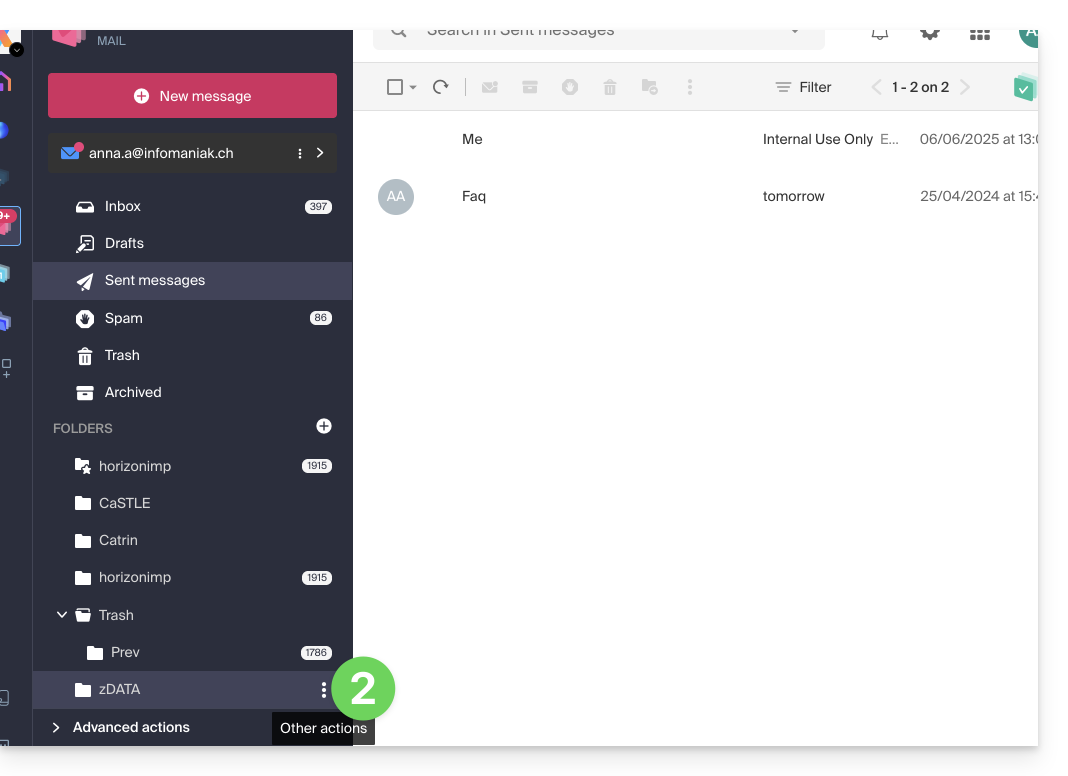
- Click on the action menu ⋮ to the right of the folder concerned in the left sidebar:
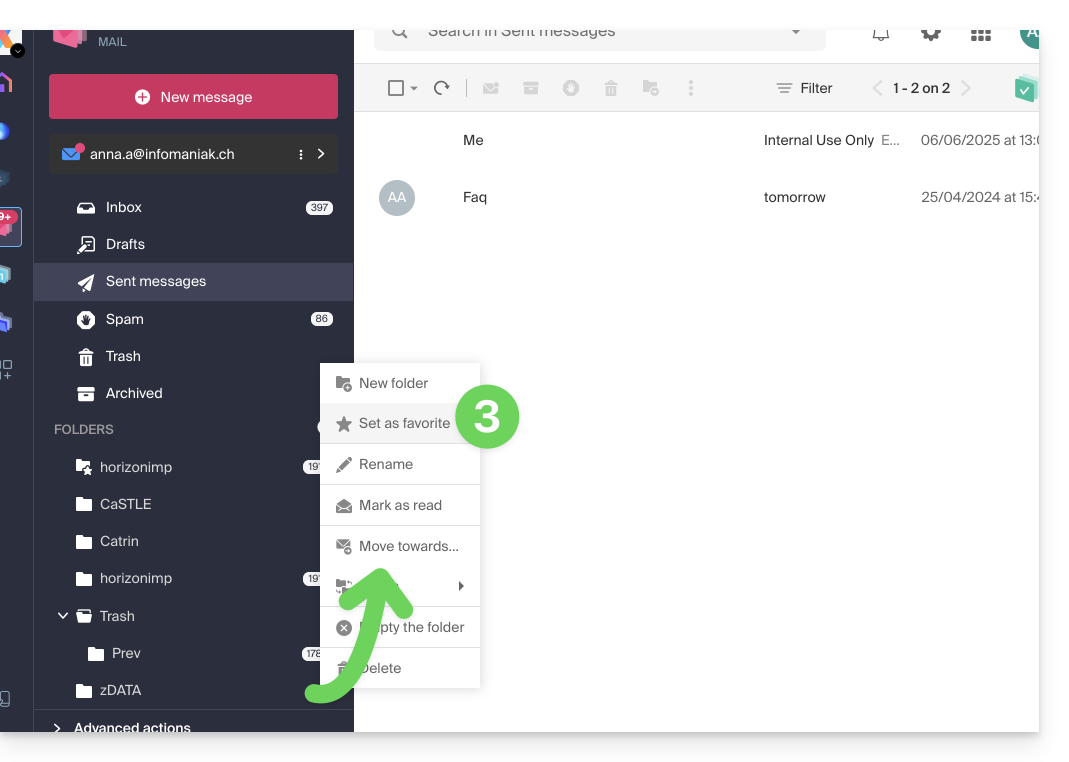
- Choose the desired action:
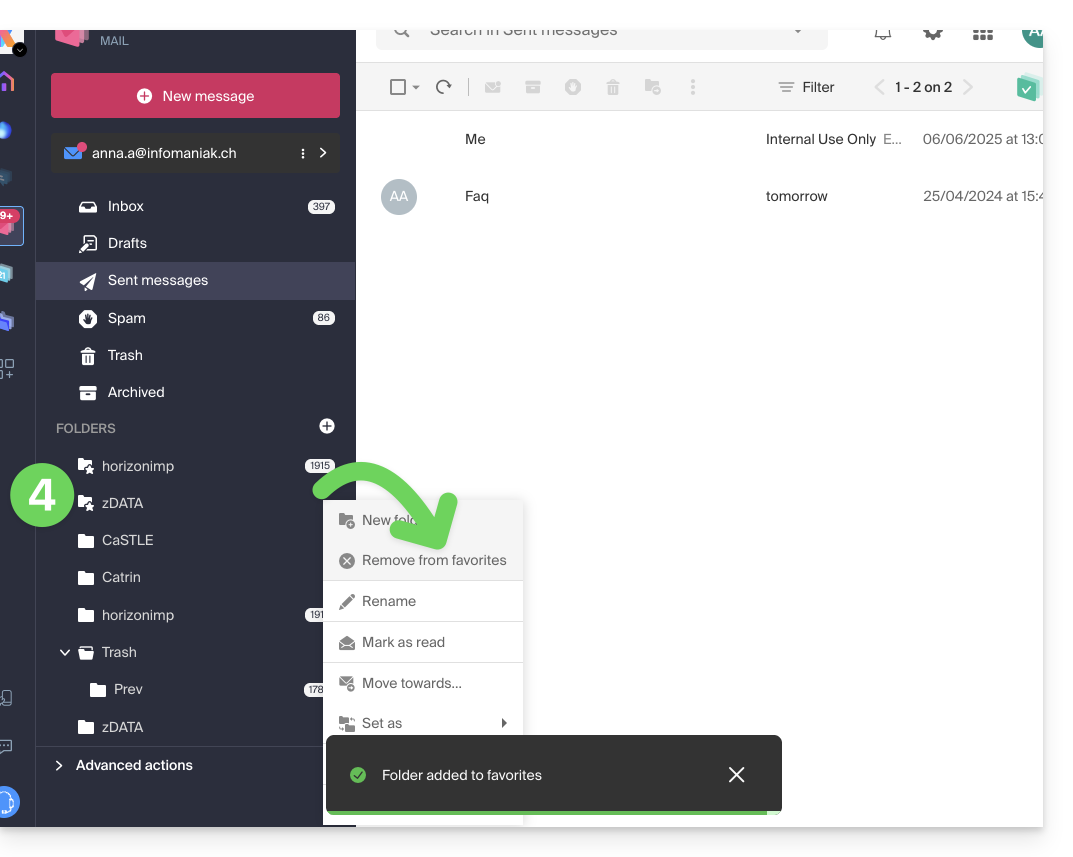
- The folder defined as a favorite is “duplicated” at the beginning of the folder list with a star on its icon (but it is the same folder as the one in the list below); you can remove a favorite at any time via the action menu:
And on the mobile app?
It is not possible to add a folder as a favorite from the Infomaniak mobile app Mail (application for iOS / Android smartphone or tablet).
You can mark messages as favorites to keep track of them.
Otherwise, to access your folders on the mobile app:
- Tap the icon at the top left of the Mail inbox.
- A panel unfolds from the left and displays several sections.
- The collapsible "Folders" section displays your folders in alphabetical order; you can create new folders, then rename or delete them by holding down on the folder name in the list.
Link to this FAQ: https://faq.infomaniak.com/1745
Has this FAQ been helpful?