Knowledge base
1000 FAQs, 500 tutorials and instructional videos. Here, there are only solutions!
Filter incoming emails with simple sorting rules
This guide explains how to create sorting rules (in Standard mode) to automatically classify your incoming emails on Infomaniak according to certain conditions.
Preamble
- These rules allow the following automatic actions, among others:
- Delete or move messages from email addresses you no longer wish to see.
- Forward to your spouse the emails from an email address so that you both receive them.
- Copy messages that contain a specific keyword to a folder.
- etc.
- Unlike the sorting rules offered within email software/clients (Microsoft Outlook, Mozilla Thunderbird, Apple Mail...), these rules will act directly on the server of your mailboxes before even the IMAP connection.
- You can make a template for all the addresses of your Mail Service.
- If you use an email software/client configured in POP, in parallel with Mail Infomaniak, messages classified in folders will no longer be downloaded by your application as the POP protocol only retrieves messages that are in your main inbox. To view the classified messages, it will be necessary to use the IMAP protocol or Mail only.
- Depending on the offer you have, there is an advanced mode to create sorting rules in a dedicated language.
Access the rules from the Infomaniak Web Mail app
Prerequisites
- Have permission to manage the rules: if you had been invited to the Infomaniak Web Mail app (online service ksuite.infomaniak.com/mail) to manage your address, it is possible that the Mail Service manager has revoked this right from their admin account.
To access the sorting filters for your Infomaniak mail:
- Click here to access the Infomaniak Web Mail app (online service ksuite.infomaniak.com/mail).
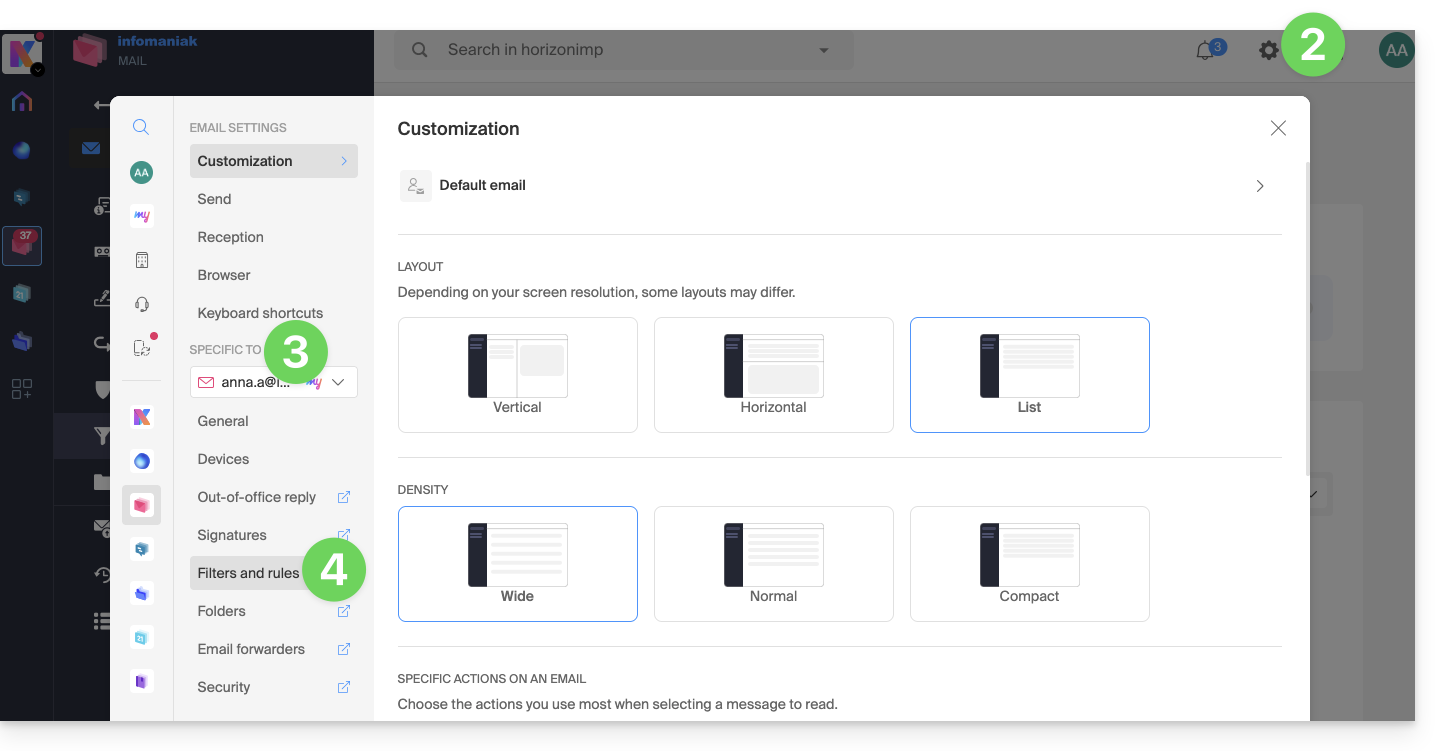
- Click on the Settings icon at the top right.
- Check or select the email address concerned in the dropdown menu.
- Click on Filters and rules:
Define a rule based on a received email
You can also create a rule directly from the received email:
- Click here to access the Infomaniak Web Mail app (online service ksuite.infomaniak.com/mail).
- Open the message from the sender in question.
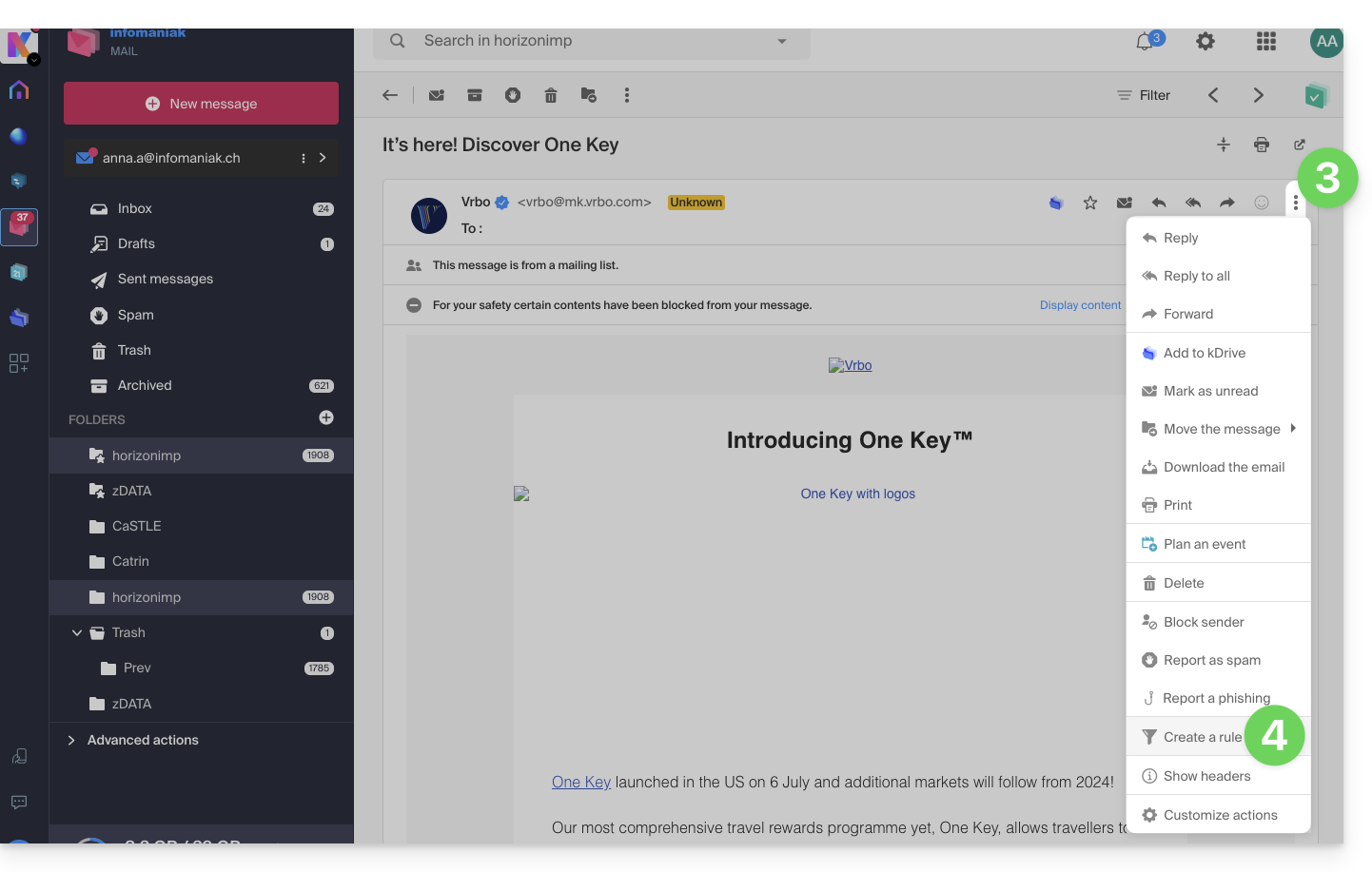
- Click on the action menu ⋮ at the top right of the open message.
- Choose Create a rule to open the creation assistant that will be pre-filled with the elements of the message:
Access rules from a Mail Service
To access the sorting filters for your Infomaniak mail:
- Click here to access the management of your product on the Infomaniak Manager (need help?).
- Click directly on the name assigned to the product in question.
- Click on the email address concerned in the table that appears.
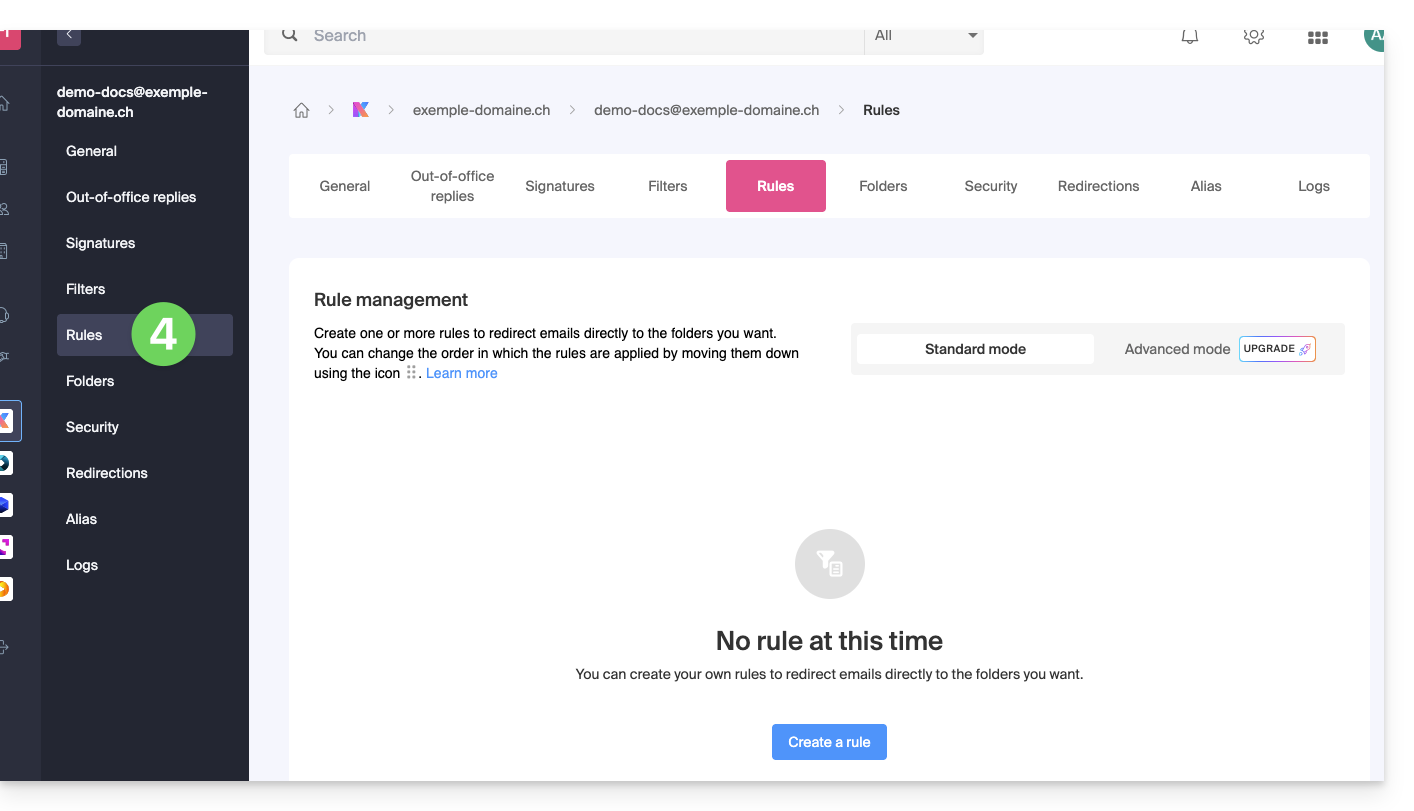
- Click on the tab Rules from the left sidebar (or top bar):
Create a new rule in Standard mode
- Click on the button Add a rule in Standard mode to create a new rule using a creation assistant/form:

- The different conditions available for sorting filters are presented in this other guide.
- Once a filter is created, click on Continue to activate it.
Add, duplicate, or modify a rule in Standard mode
If there are already sorting filters, the button to add is at the top right of the table: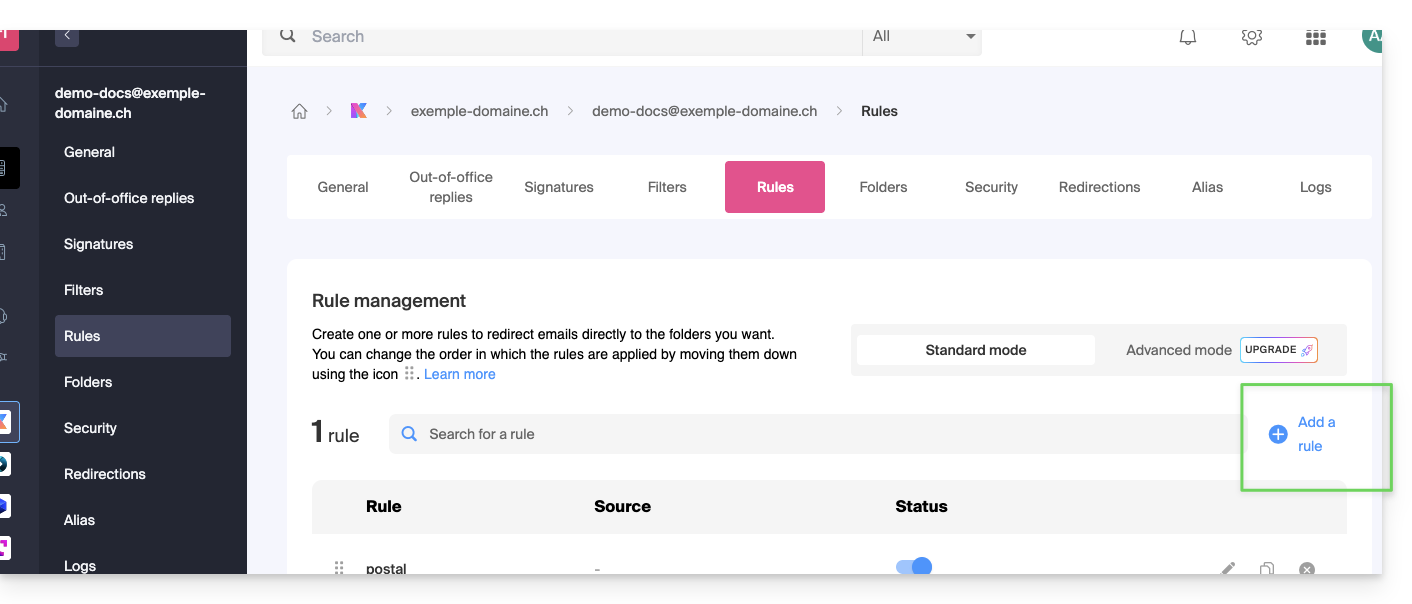
These settings can be modified whenever you want by clicking on the pencil ✎ icon located to the right of the item in question.
It is also possible to duplicate an existing rule to rework it as a copy without affecting the first one: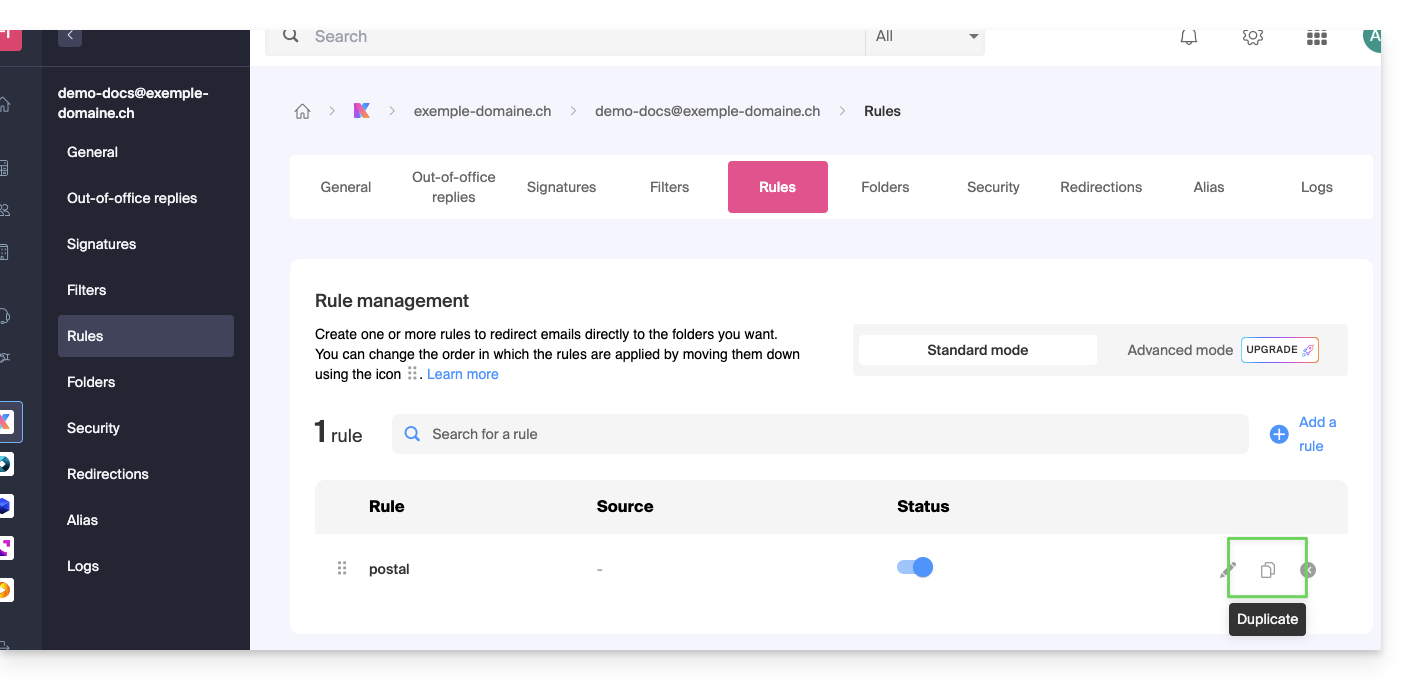
Link to this FAQ: https://faq.infomaniak.com/1729
Has this FAQ been helpful?