Knowledge base
1000 FAQs, 500 tutorials and instructional videos. Here, there are only solutions!
Add an attachment on the Infomaniak Webmail app
This guide explains how to attach files and/or images to emails sent from the Infomaniak Web app Mail (online service ksuite.infomaniak.com/mail), the complete online solution for reading and managing your emails.
Preamble
- Refer to this other guide regarding email / attachment sending limitations.
Attach computer files to your message
To add an attachment present on your computer:
- Click here to access the Infomaniak Web app Mail (online service ksuite.infomaniak.com/mail).
- Click on New message.
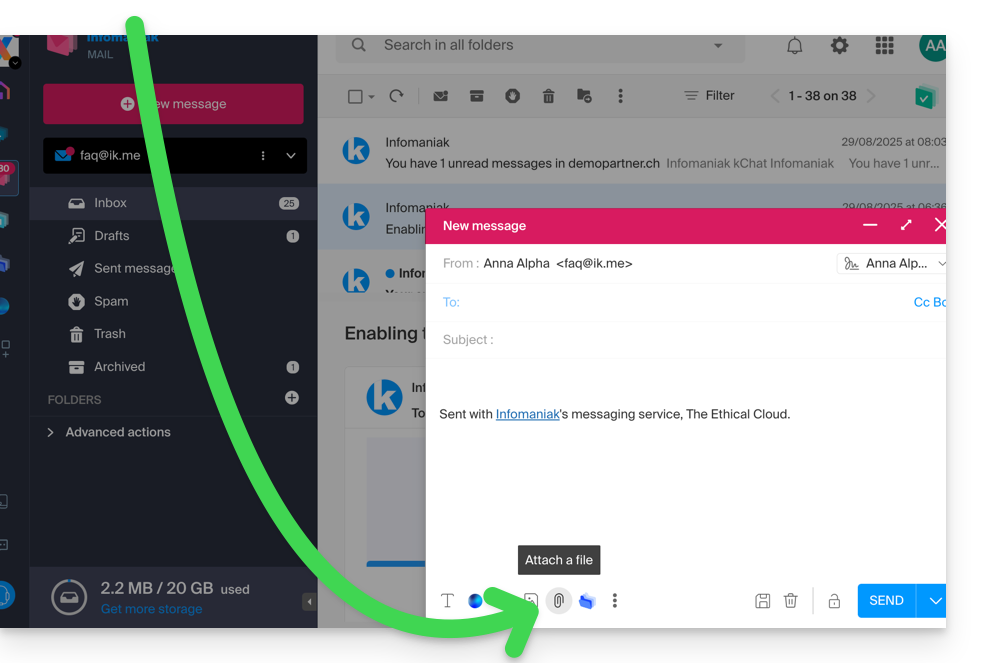
- Click on the paperclip icon Attach a file:
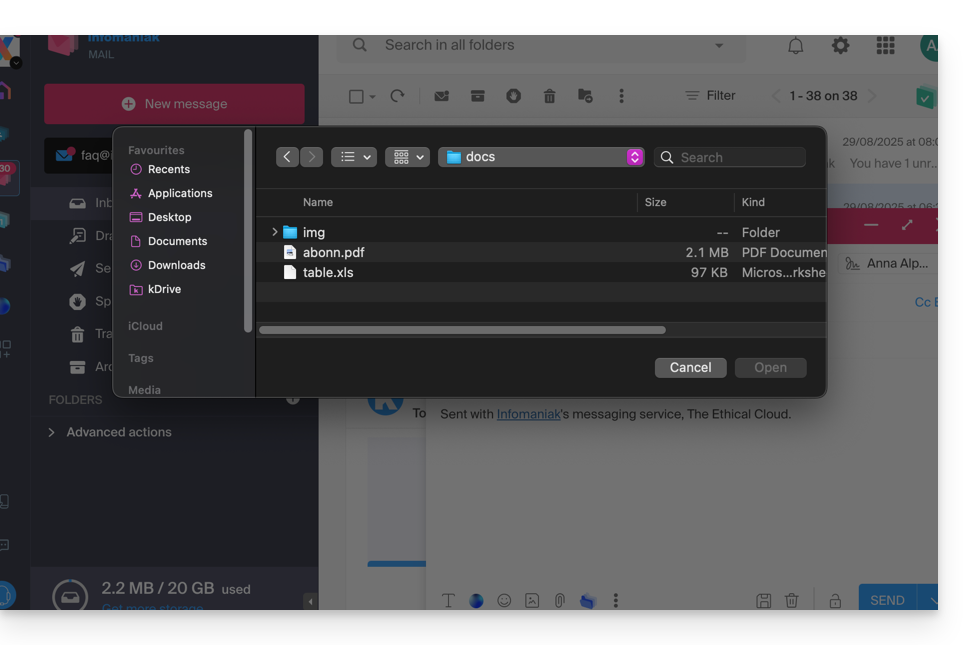
- Browse locations to select the files to attach to the message:
- With the Infomaniak Web app Mail (online service ksuite.infomaniak.com/mail) the size limit for attachments is 25 MB.
- Beyond this and up to a limit of 3 GB, a SwissTransfer link is generated and integrated into your message: the data is stored in Switzerland in the Infomaniak Cloud and your recipients will be able to use this link to easily download the attachments during a predefined period.
- Beyond 3 GB (and up to 50 GB), it is recommended to always use SwissTransfer for your sends.
- With the Infomaniak Web app Mail (online service ksuite.infomaniak.com/mail) the size limit for attachments is 25 MB.
Attach kDrive files to your message
To add an existing attachment on kDrive:
- Click here to access the Infomaniak Web app Mail (online service ksuite.infomaniak.com/mail).
- Click on New message.
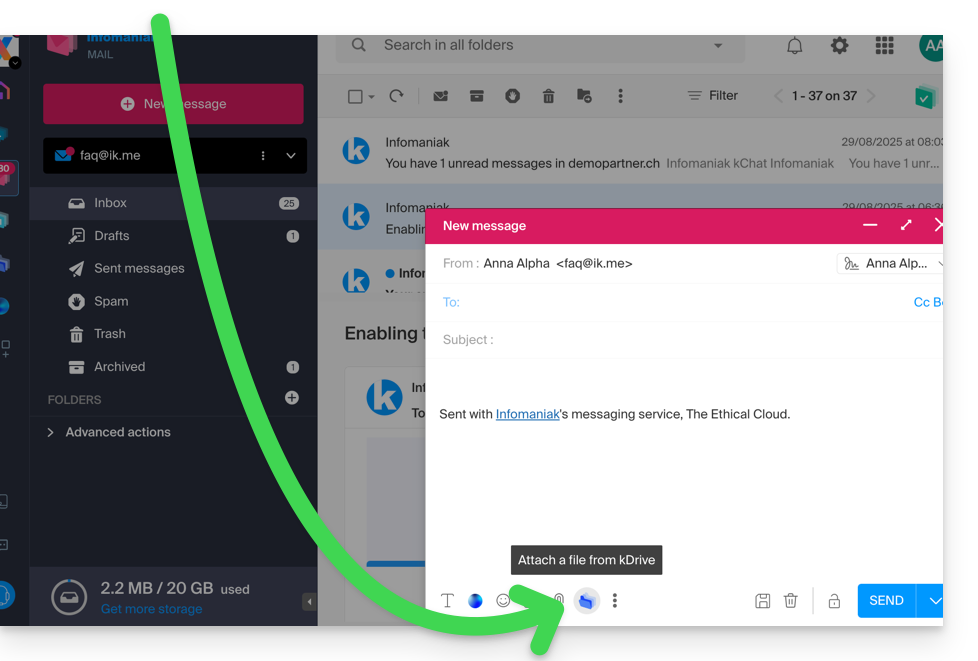
- Click on the kDrive folder icon to browse locations; select the kDrive files to attach to the message:
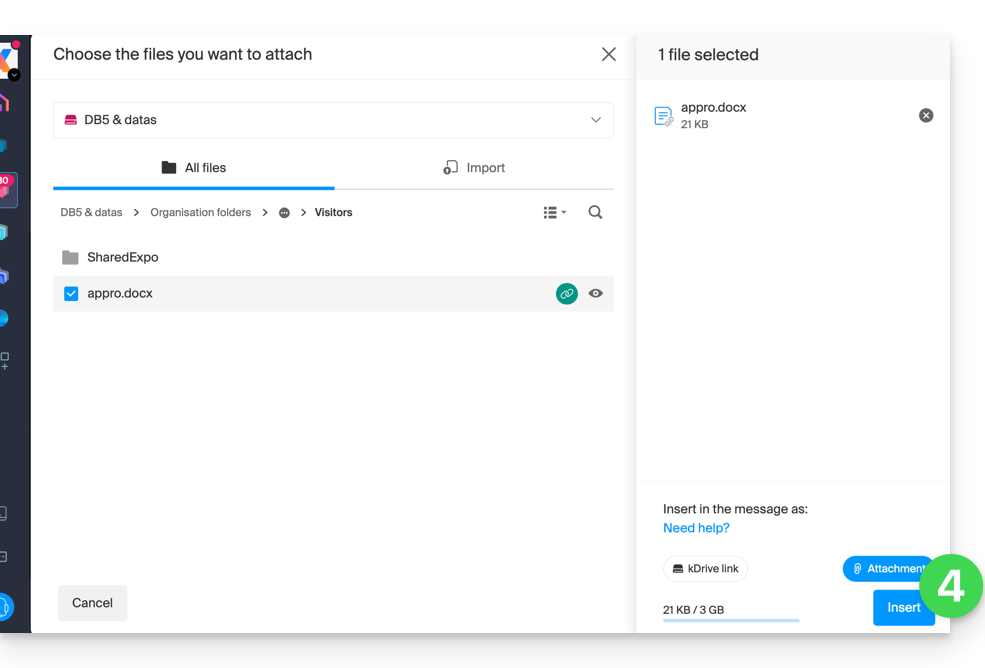
- Once the data is found and selected, choose the Attachment option on the right (to attach the kDrive files to the message rather than sending a simple link to the files) then click on the Insert button:
Include an image in the body of your message
To add an image to the message (in the middle of the text of your message for example), 2 possibilities:
- Drag/drop the image into the input interface (images larger than 10 MB will not be displayed but will be attached).
- … or Click on the icon representing the frame with the mountains:
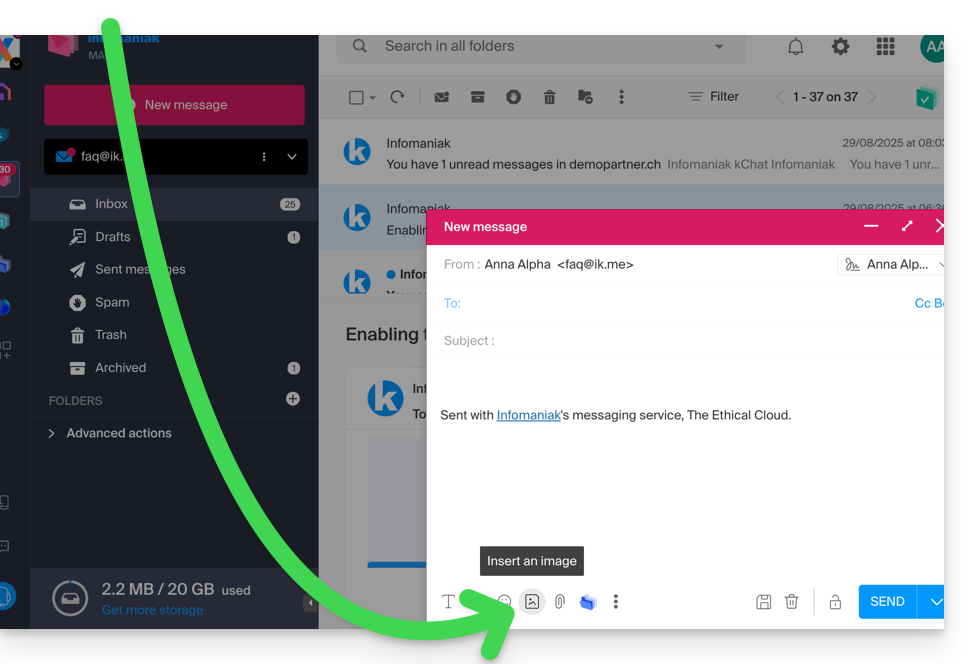
- then:
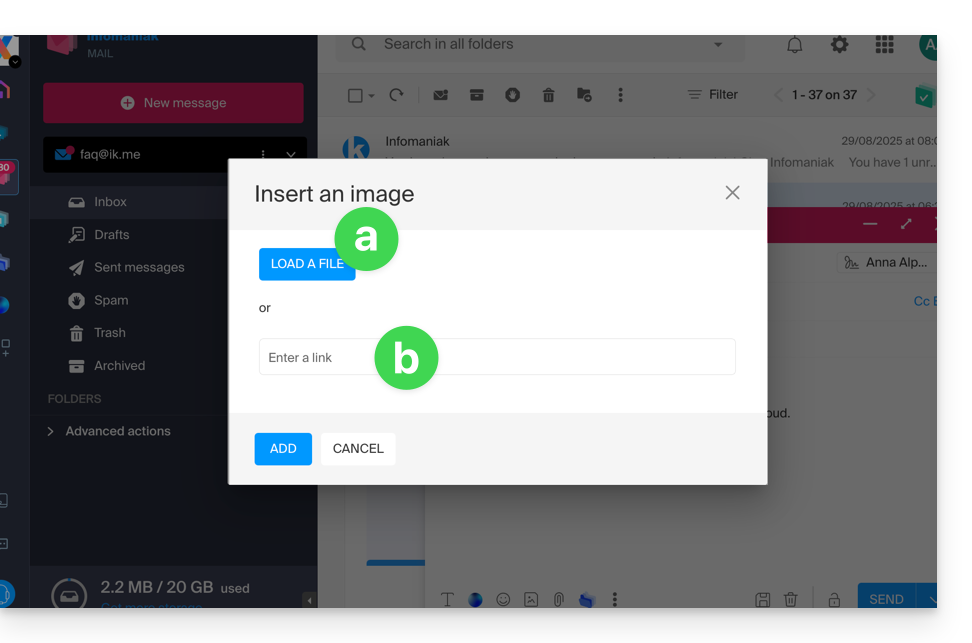
- Click on the button to upload an image (which allows you to choose it from your desired location and then insert it into the body of the message)…
- … or enter the URL of the image you wish to include dynamically; the image must be located somewhere on the Internet (you can use the Web FTP to send your image to your hosting space if you have one) and must still be there when your correspondent views the message.
- Click on the button to add the image.
Link to this FAQ:
Has this FAQ been helpful?