Knowledge base
1000 FAQs, 500 tutorials and instructional videos. Here, there are only solutions!
Discover the free Swiss alternative to Bluewin for your emails
This guide explains how to transfer your email currently managed by Bluewin to the free-for-life Infomaniak offer!
Preamble
- It is easy to switch the entire structure of your emails to Infomaniak - discover the offers.
- Use your email address on a simple browser, Outlook, etc. and on mobile devices iOS/Android thanks to the Infomaniak Mail app.
- Import your contacts to continue communicating with them from your new email.
- The operation does not affect either the data already present on the destination address, nor that of the source address.
- The entirety of the external mailbox will be imported.
- Once the import process has started, it is no longer possible to interrupt it.
- Any duplicates are managed: identical content will only be copied once.
- Inform your correspondents that your
@bluewinaddress becomes the Infomaniak address you chose when subscribing to the offer. - If necessary, local partners referenced by Infomaniak can handle these procedures: launch a free call for tenders; they take care of everything, freeing you from the technical details.
Create your free email address
From your iOS or Android mobile device, download the Infomaniak Mail app here:


Open the application, you can sign up for free and choose your new Infomaniak email address.
Import your entire email history
To retrieve all your messages on the Bluewin mailbox, launch the assistant here:
https://import-email.infomaniak.com
Once connected to the assistant:
- Click on one-time import.
- Fill in the left field with your Bluewin address (whose content is to be copied).
- Fill in the right-hand field with the password for the same email address.
- Click on Confirm and continue:
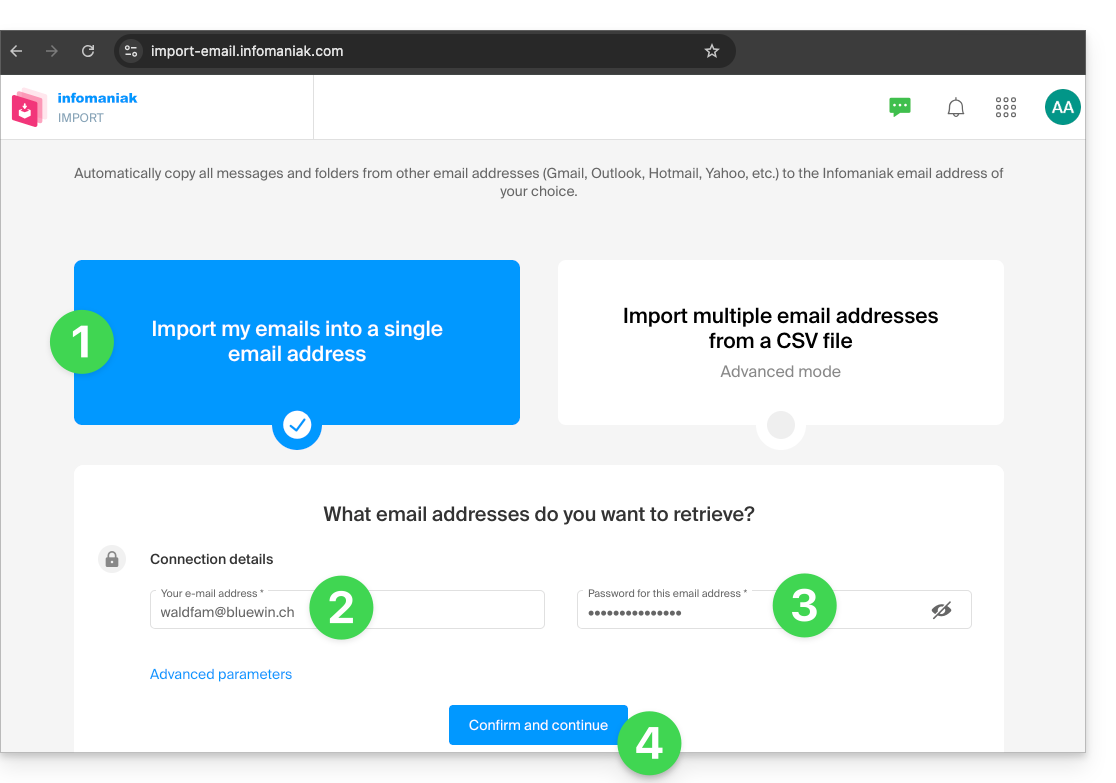
- Select your new Infomaniak email address to import emails:
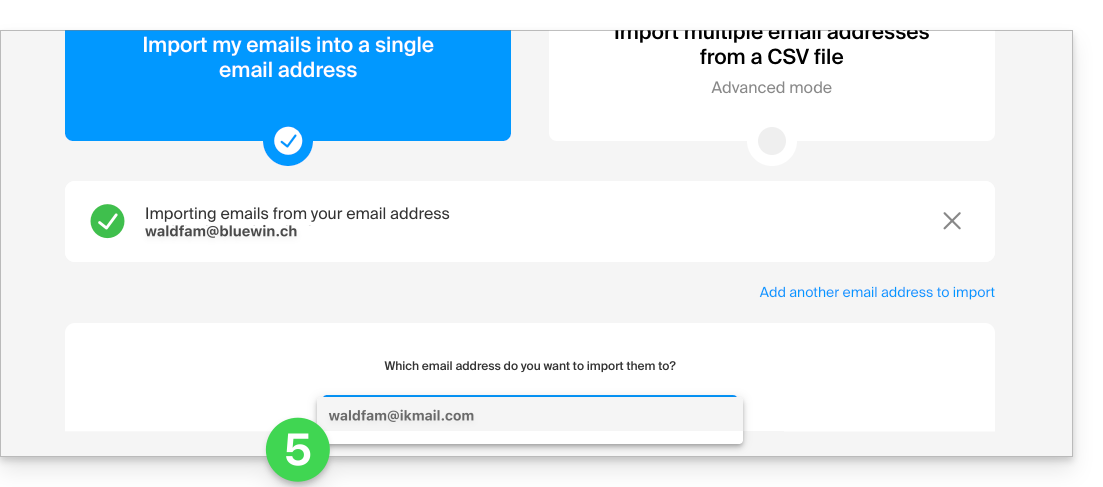
- After selecting the desired destination address from the list, click the blue Import emails button.
- The copy process begins. You can wait and see the result on the page once the import is complete, or close the window (the import continues in the background - refer to this other guide from point 13 regarding import tracking).
- A confirmation email will be automatically sent to all email addresses concerned by the operation once the import is complete, mentioning the number of messages copied.
Import all your contacts
To continue using your address book, you need to export contacts from Bluewin:
- Log in to your Bluewin interface.
- Click on Contacts.
- Click on the Settings icon in the toolbar.
- Click on Export contacts.
- Save the
contacts.csvfile to your device.
Then you need to import them:
- Log in to your Infomaniak Address Book.
- Click on Advanced actions at the bottom left.
- Click on Import.
- Select your
.csvfile downloaded in step 5 above. - Click on Next and start the import.
Redirect emails to Infomaniak
If the Bluewin address continues to exist for a while, you can set up a redirect for incoming messages. This way, they are automatically forwarded to your new Infomaniak address:
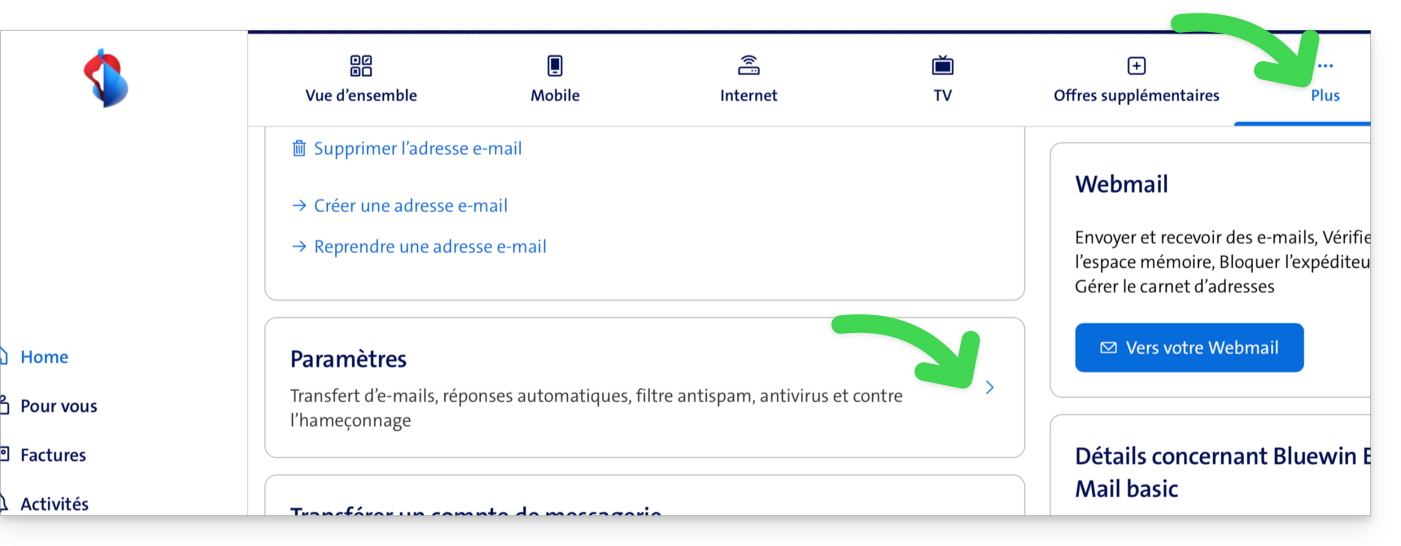
- Log in to “MySwisscom", click on the "More" box then "Settings":
- Click on “Manage transfers”:
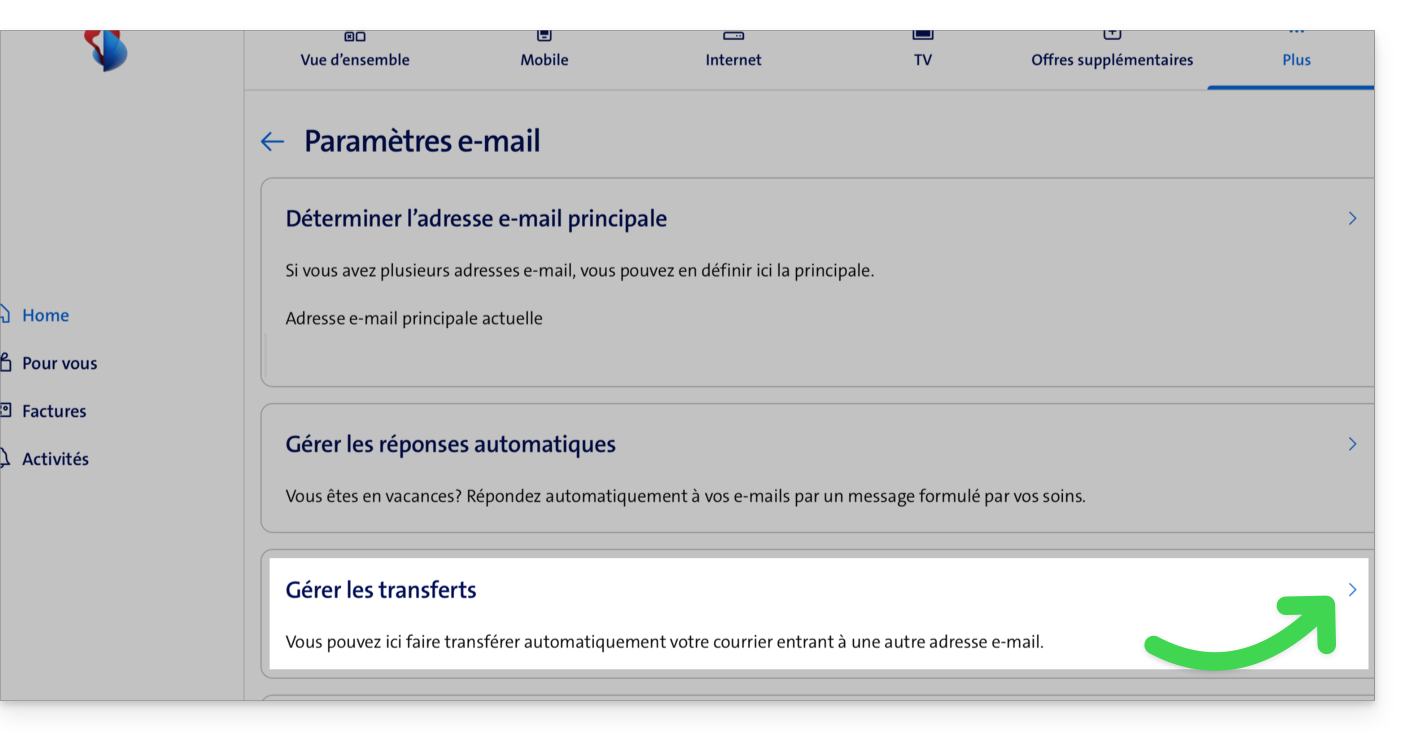
- Enter the email address created with Infomaniak as the destination for all your future incoming emails.
Link to this FAQ:
Has this FAQ been helpful?