Knowledge base
1000 FAQs, 500 tutorials and instructional videos. Here, there are only solutions!
Share a calendar from the Infomaniak Web Calendar app
Update 06/04/2026
This guide explains how to share one of your calendars with other Infomaniak users, collaborators, from the Infomaniak Web app Calendar (online service ksuite.infomaniak.com/calendar).
Introduction
- Refer to this other guide to configure the synchronization of your calendars, or this other guide to integrate a read-only calendar into a third-party tool.
Share an Infomaniak Calendar
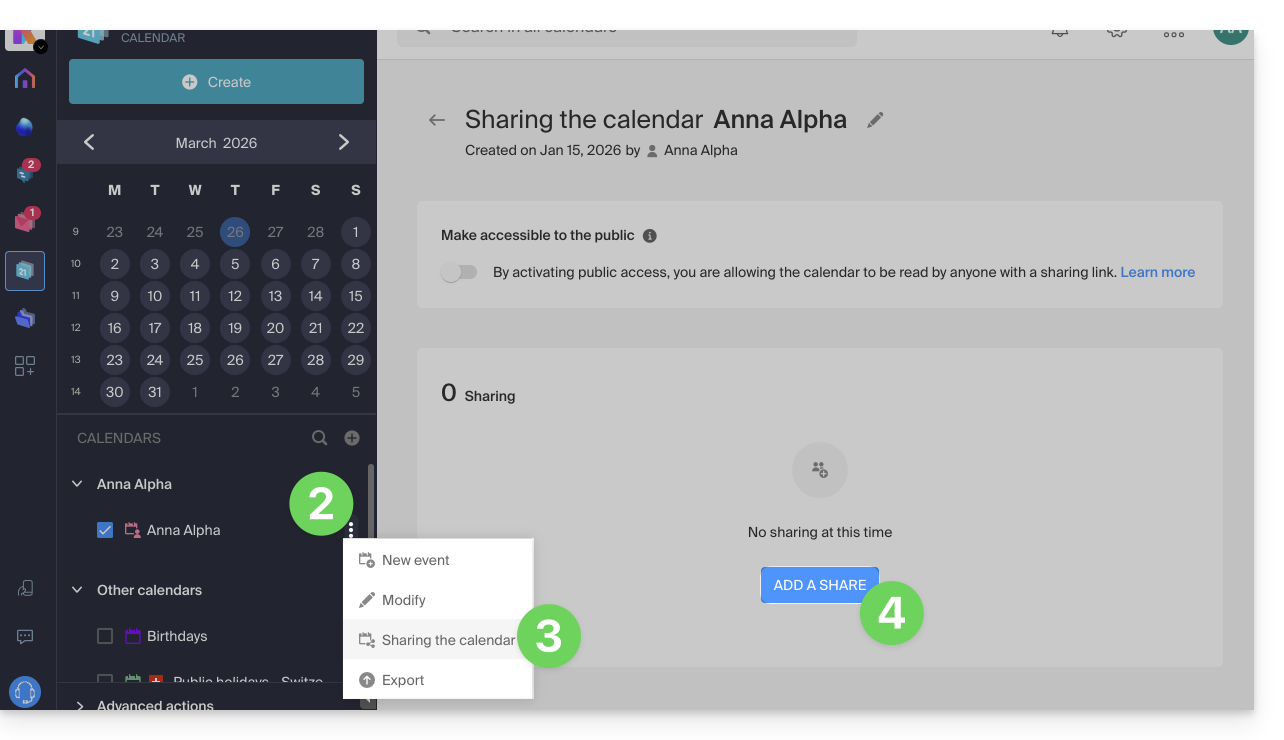
To enable sharing of one of your calendars:
- Click here to access the Infomaniak Web app Calendar (online service ksuite.infomaniak.com/calendar).
- Click on the action menu ⋮ to the right of a calendar.
- Click on Share calendar.
- Click on the button to Add a share:
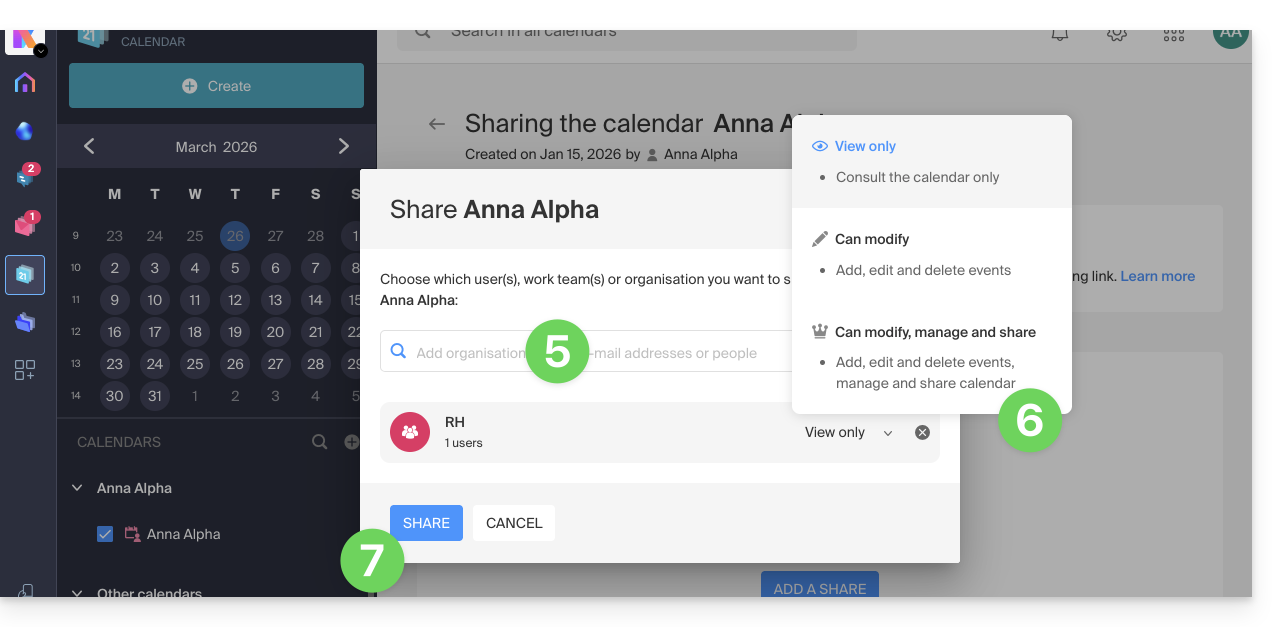
- Enter the Organization, group, or email address corresponding to the Infomaniak user account that will access the calendar (if the user does not yet have an account, they can create one for free with the invitation they receive).
- Determine the user's permissions for this calendar (Can view, Can edit, Can edit and share).
- Finish by clicking the button:
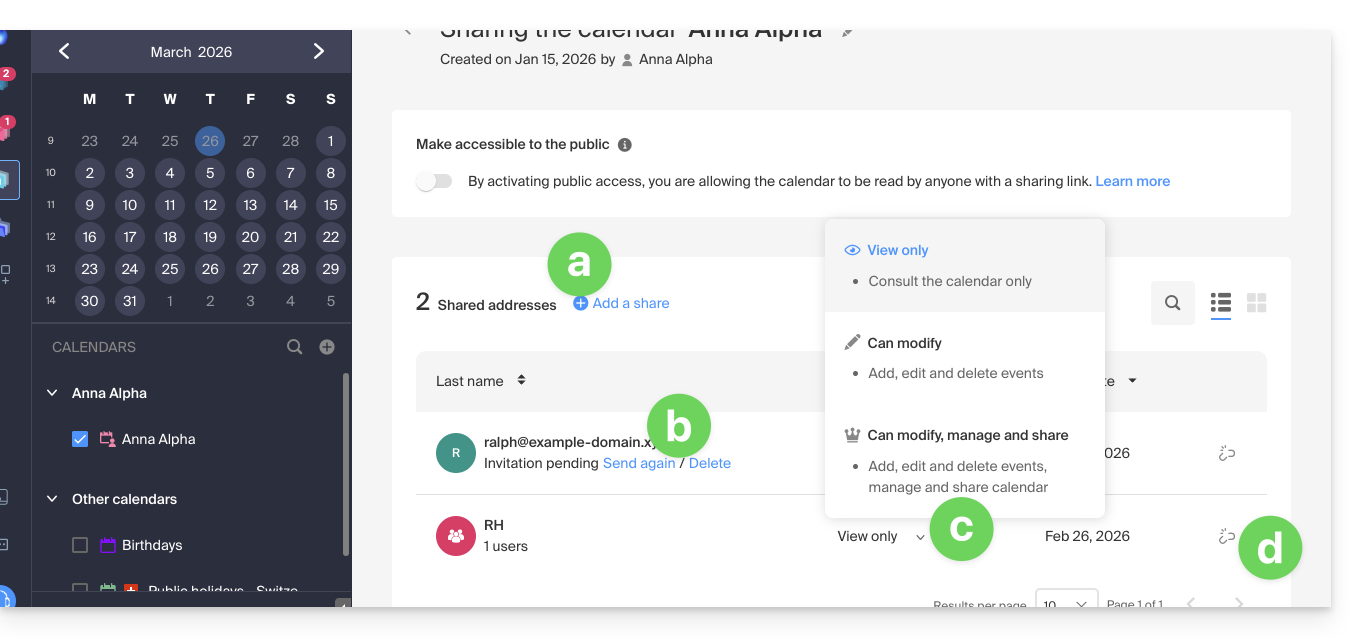
- You can perform other actions from the same page at any time:
- add an additional share
- resend or delete an access invitation
- modify the permissions related to calendar sharing
- delete / revoke the share
Share a meeting room calendar
To share the calendar of meeting rooms, the principle of sharing and assigning rights is based on the same principle as above: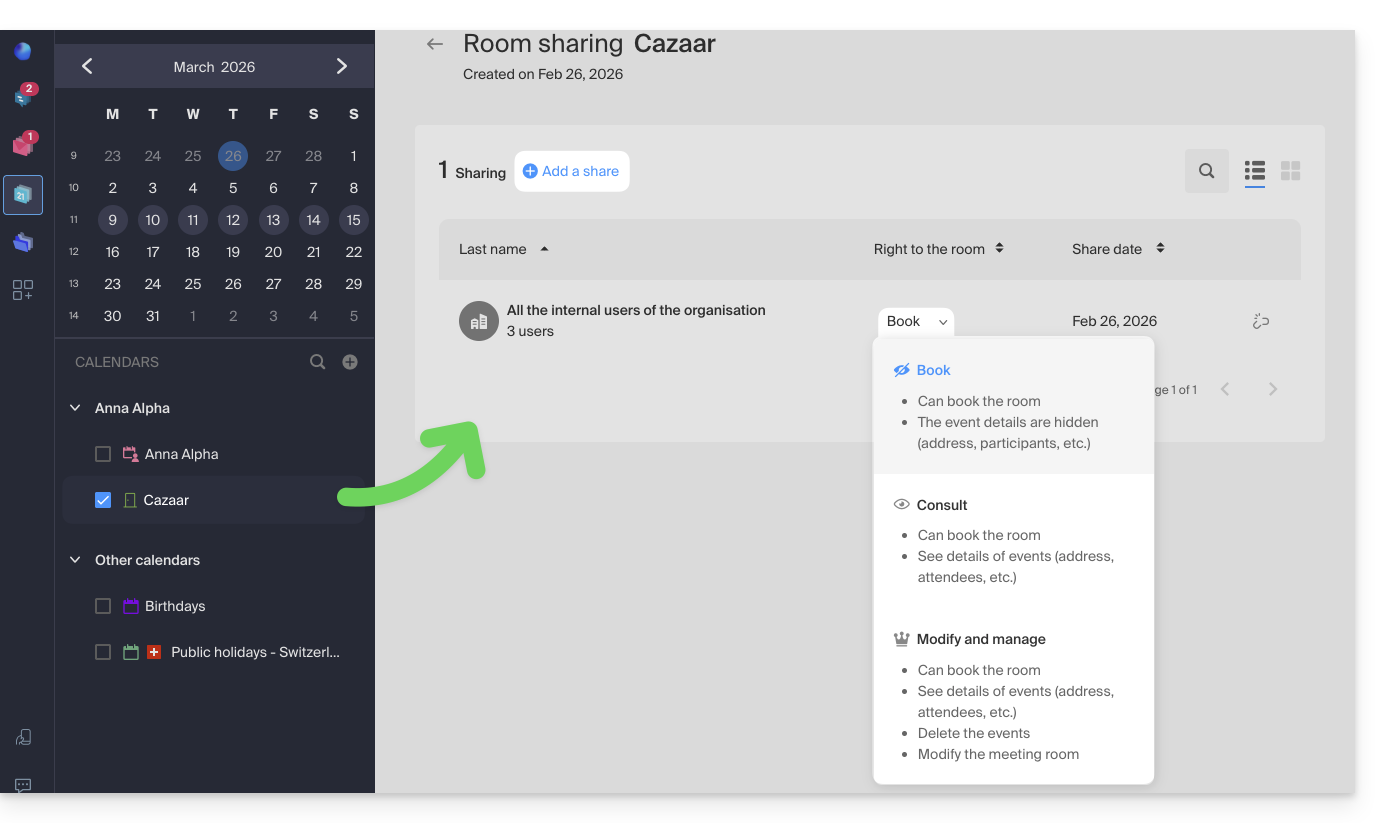
Link to this FAQ: https://faq.infomaniak.com/1679
Has this FAQ been helpful?