Knowledge base
1000 FAQs, 500 tutorials and instructional videos. Here, there are only solutions!
Add an attachment to an event in the Infomaniak Calendar Web app
This guide explains how to add an attachment from kDrive to an event in a calendar / agenda on the Infomaniak Web app Calendar (online service ksuite.infomaniak.com/calendar).
Preamble
- Some software or applications also allow you to add an attachment, and in this case, if you synchronize the agenda with that of your solution, the attached file is possible up to the maximum size of 64 ko.
Add a kDrive attachment
When you create a new event on the Infomaniak Web app Calendar (online service ksuite.infomaniak.com/calendar), you can add one or more attachments (links to files from kDrive):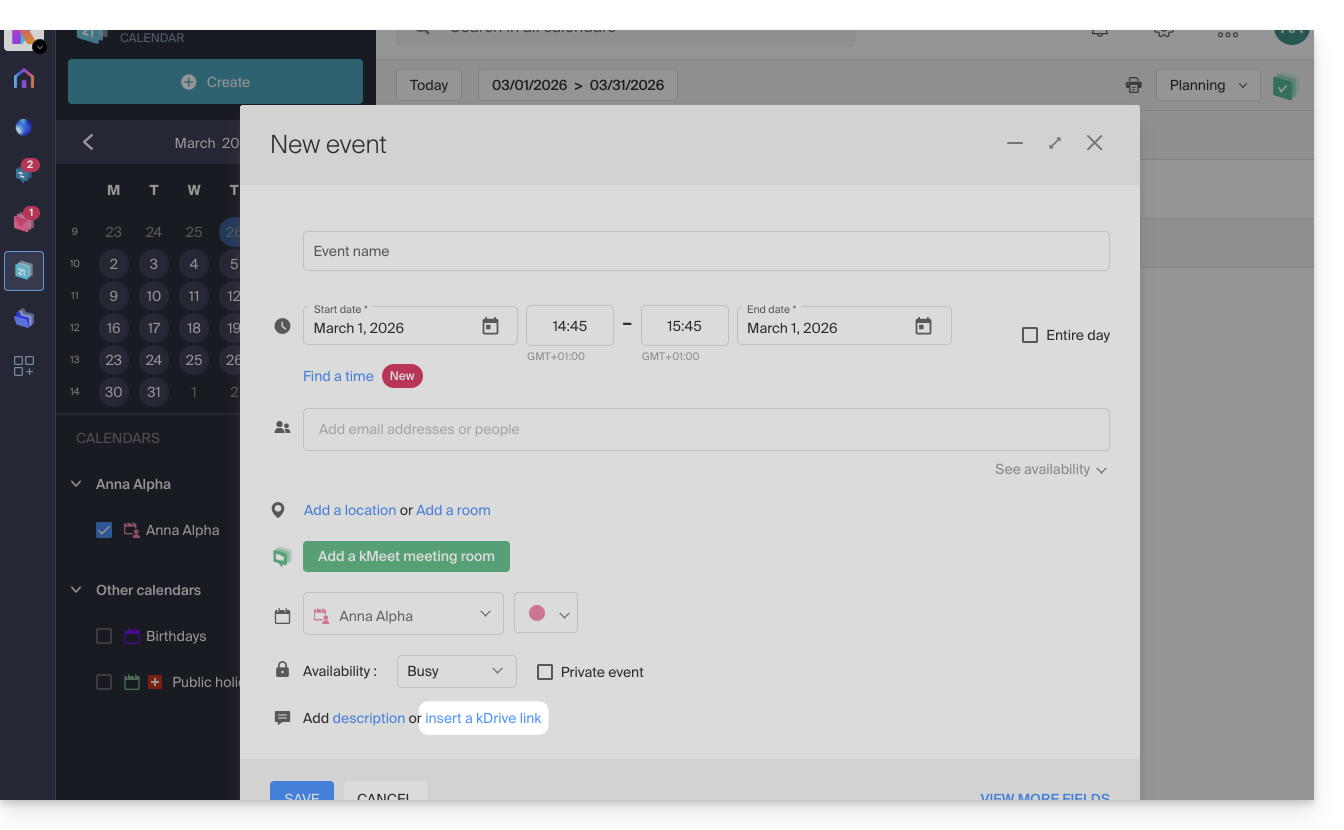
Thanks to this link “Insert a kDrive link”, you can access kDrive directly from the event creation window Calendar: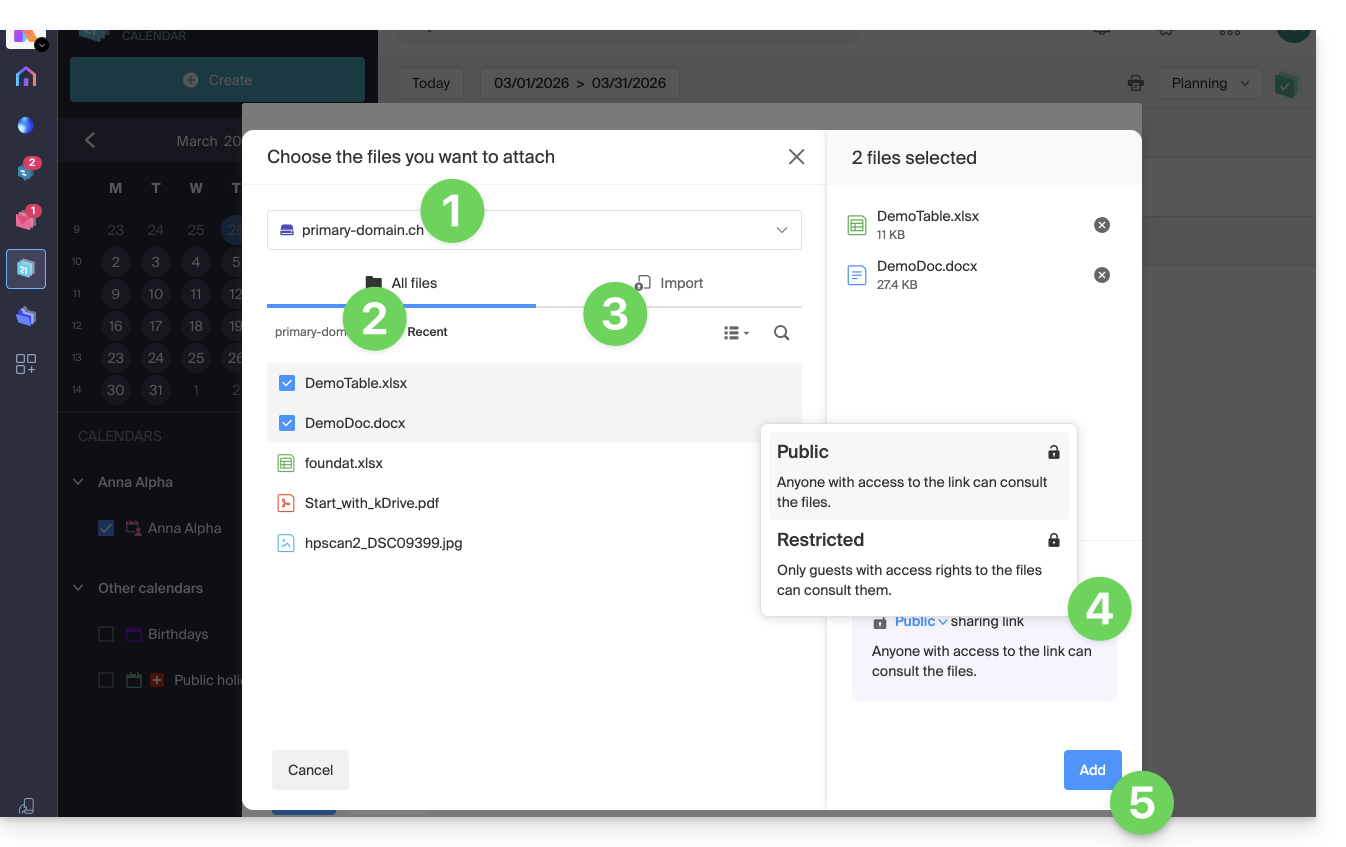
- Select kDrive if necessary.
- Browse and select the files to add to the event.
- Otherwise, import new documents that will be stored on kDrive.
- Once selected, choose whether their link should be:
- a public link (everyone can access it)
- a restricted link (only people with access can access it)
Whether the event is recurring or not, you can add files that will be shared with those who view the event in the calendar: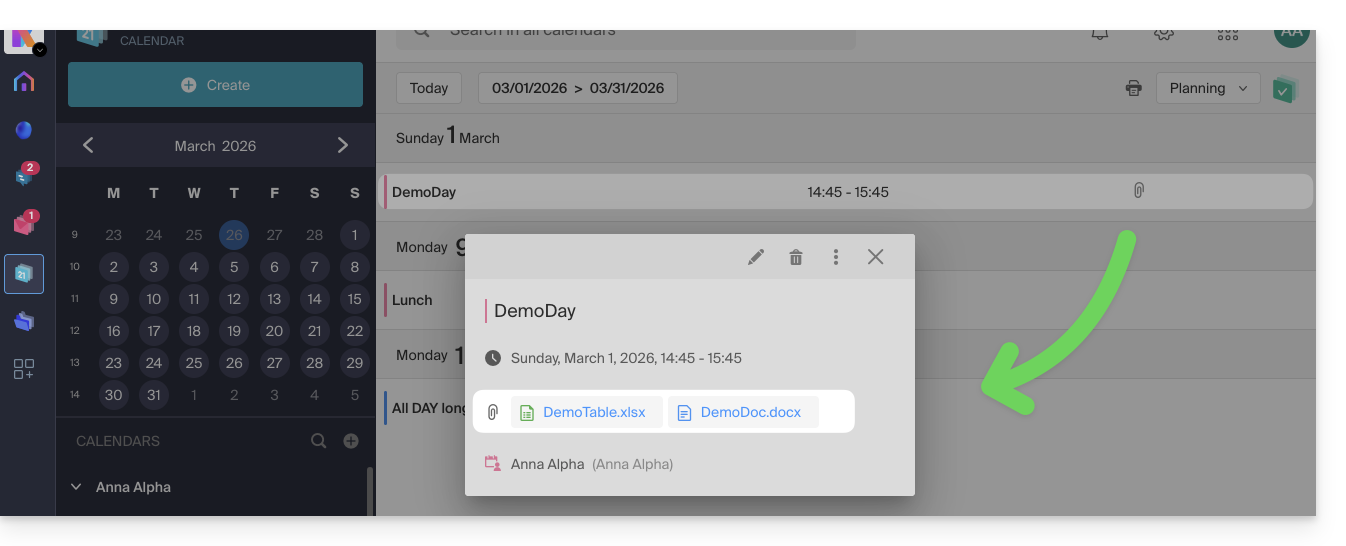
Guests to the event who view the card via a synchronized application, Outlook, Gmail, and others, will see the links in the description (as is the case for the possible kMeet link, for example, if a videoconference is scheduled for the event).
Link to this FAQ: https://faq.infomaniak.com/1673
Has this FAQ been helpful?