Knowledge base
1000 FAQs, 500 tutorials and instructional videos. Here, there are only solutions!
Manage the sender name in the Infomaniak Web Mail app
This guide explains how to add or modify a sender name that will be used when sending your emails from the Infomaniak Mail web app (online service ksuite.infomaniak.com/mail).
Introduction
- This full name (usually a first name and last name) is linked to your email address, your Infomaniak account, and any signatures.
- It is displayed instead of or next to your email address for the recipient of your email.
- Please note that if the recipient has already added you to their address book with a name/first name, it is often these saved details that take precedence.
Add / modify the sender name
Without a signature
If you do not use a signature when sending your message, the details used are those of your Infomaniak account:
- Click here to access the Infomaniak Mail web app (online service ksuite.infomaniak.com/mail) to compose a new message.
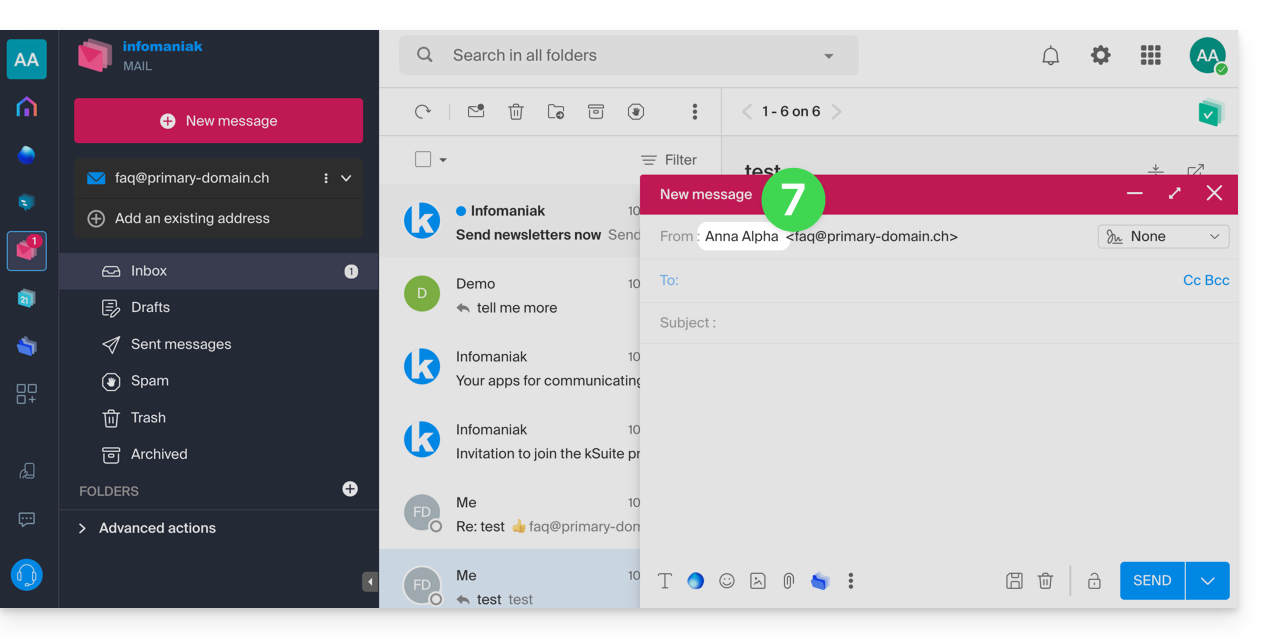
- Check the From: field, i.e., the sender.
- Check that you are not using a signature:
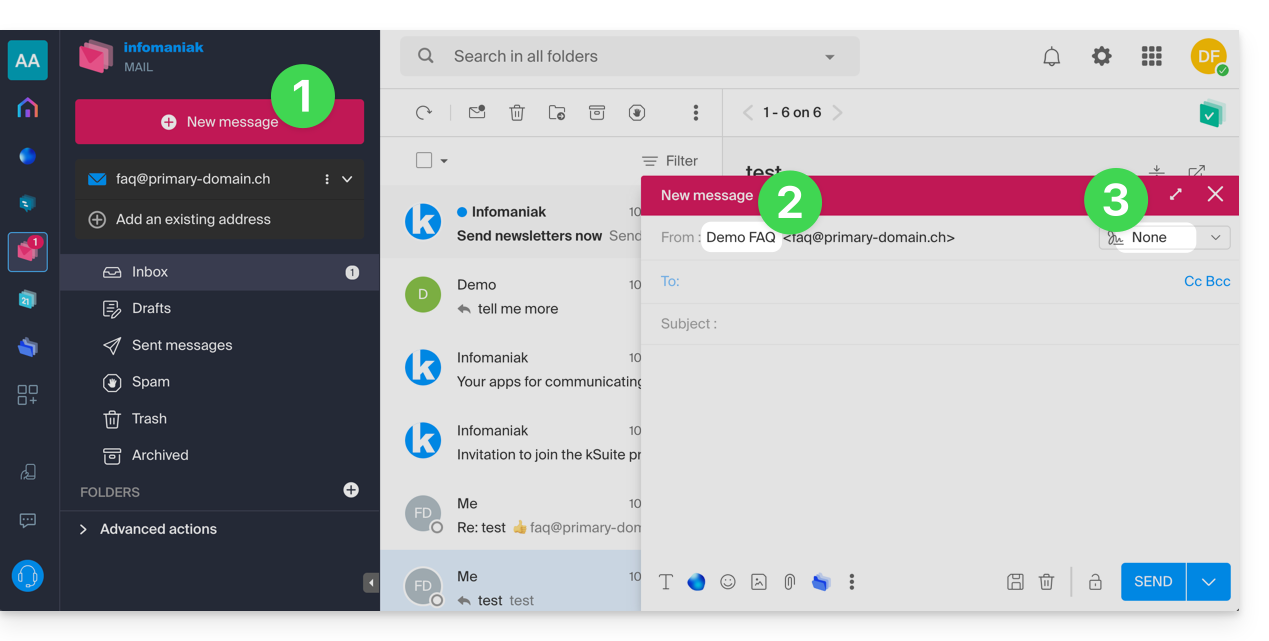
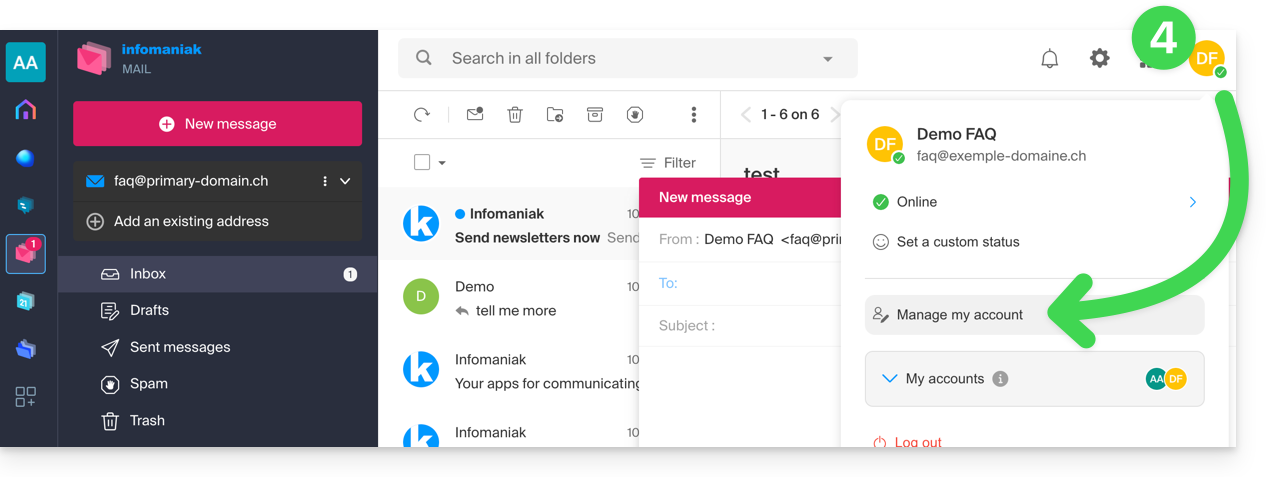
- In this case, click here (or on the badge with your initials / avatar in the top right corner of the Infomaniak Manager) to "Manage my account":
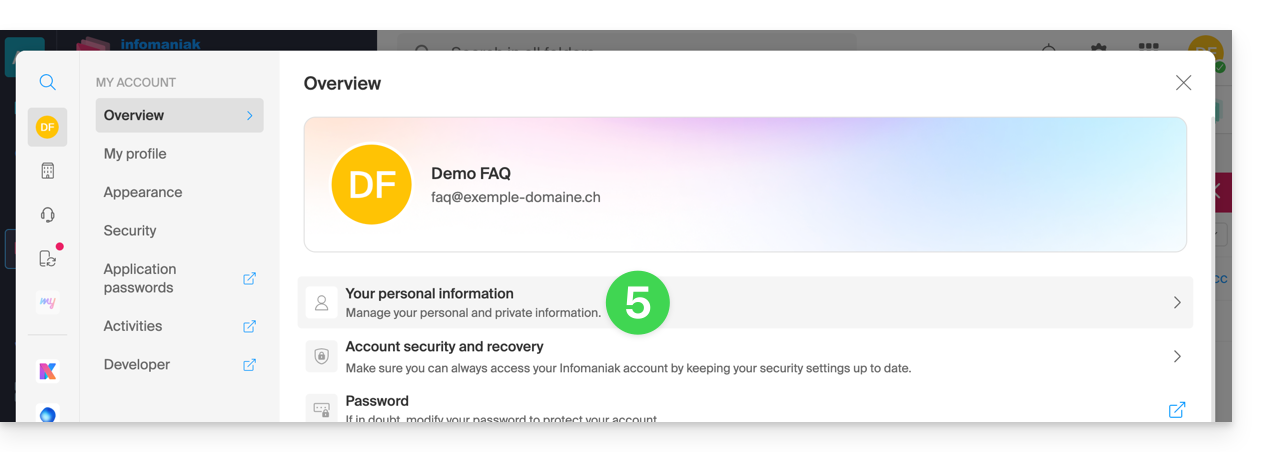
- Click to edit your personal information:
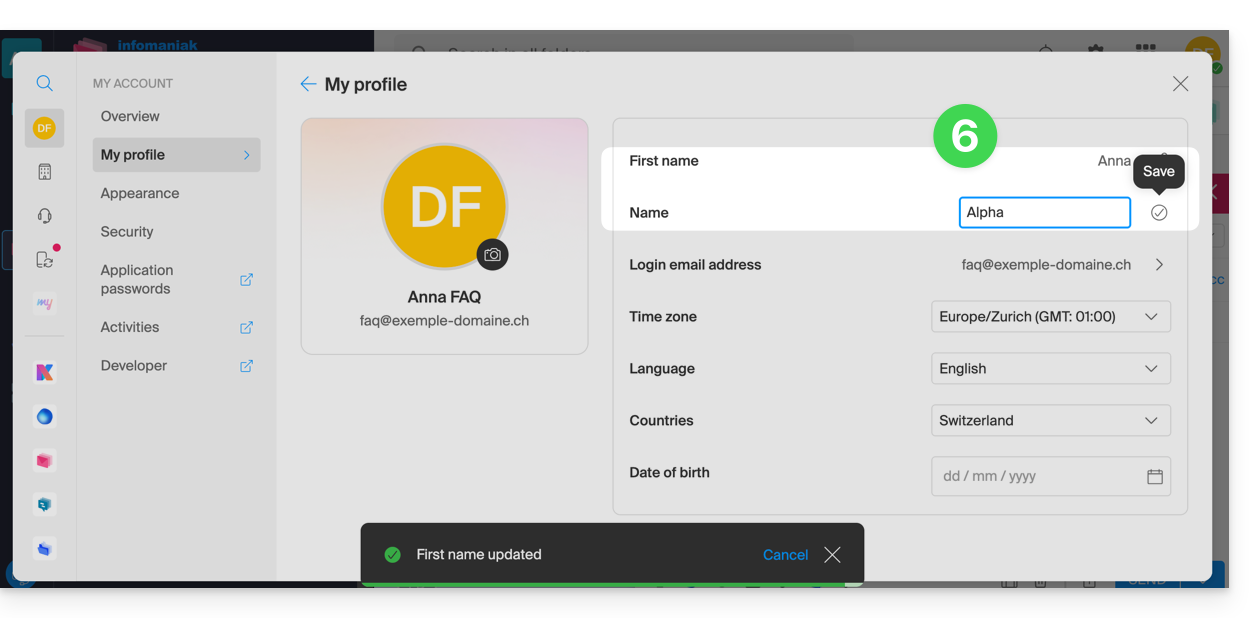
- Edit the first and last name, then validate by clicking to the right of the corresponding line:
- Go back to composing a new email, refresh the browser window if necessary, and check that the from field has been correctly updated:
With a signature
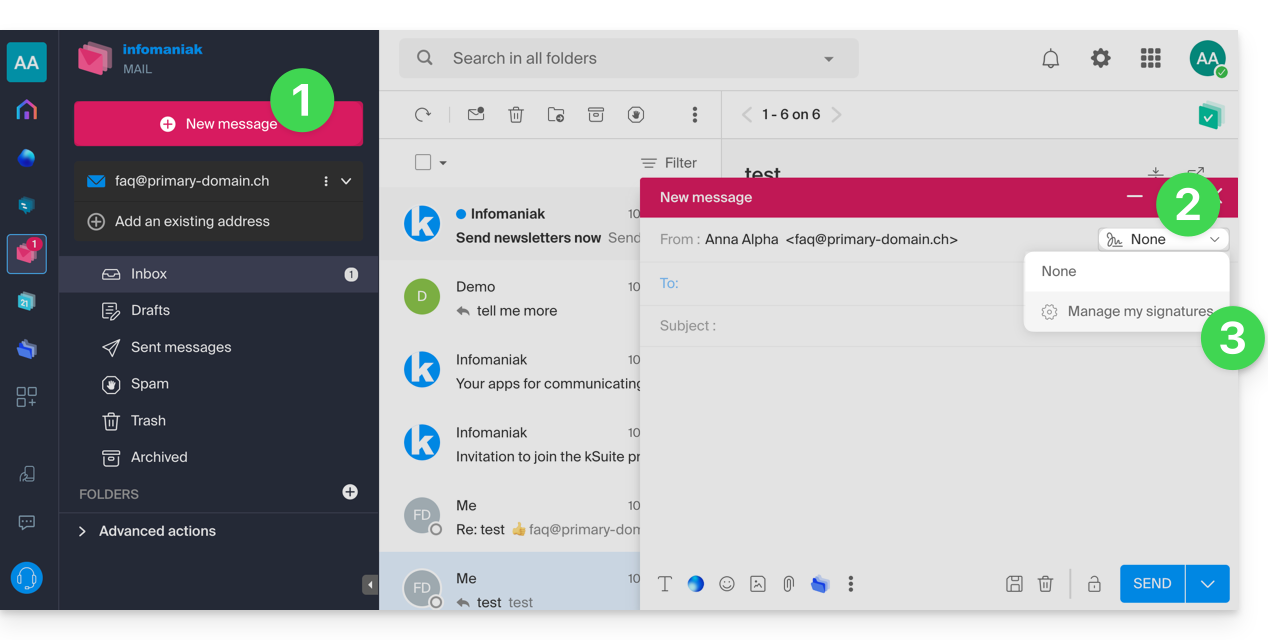
- Click here to access the Infomaniak Mail web app (online service ksuite.infomaniak.com/mail) and compose a new message.
- Click on the signatures menu.
- Click on Manage my signatures:
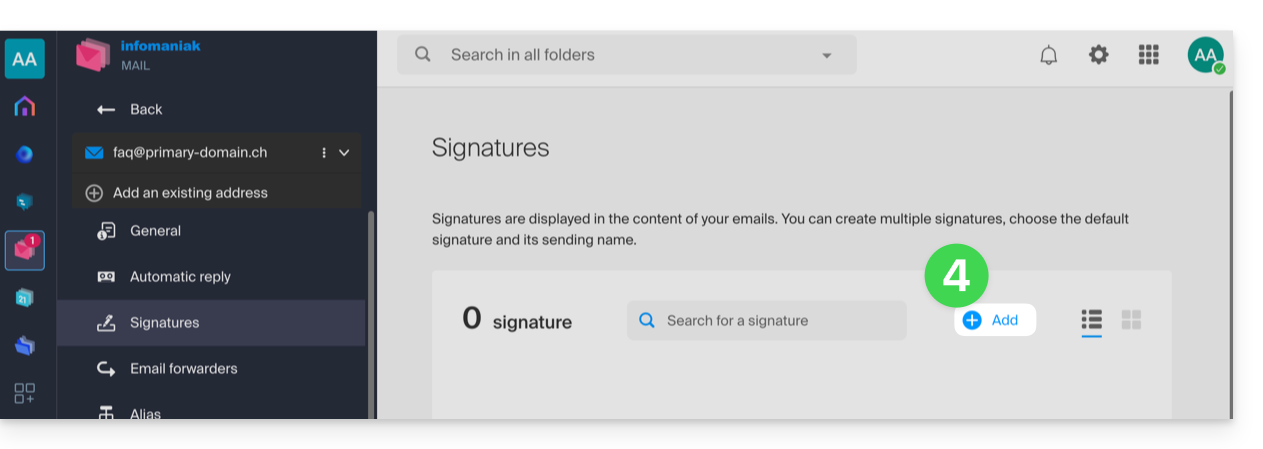
- Add a new signature:
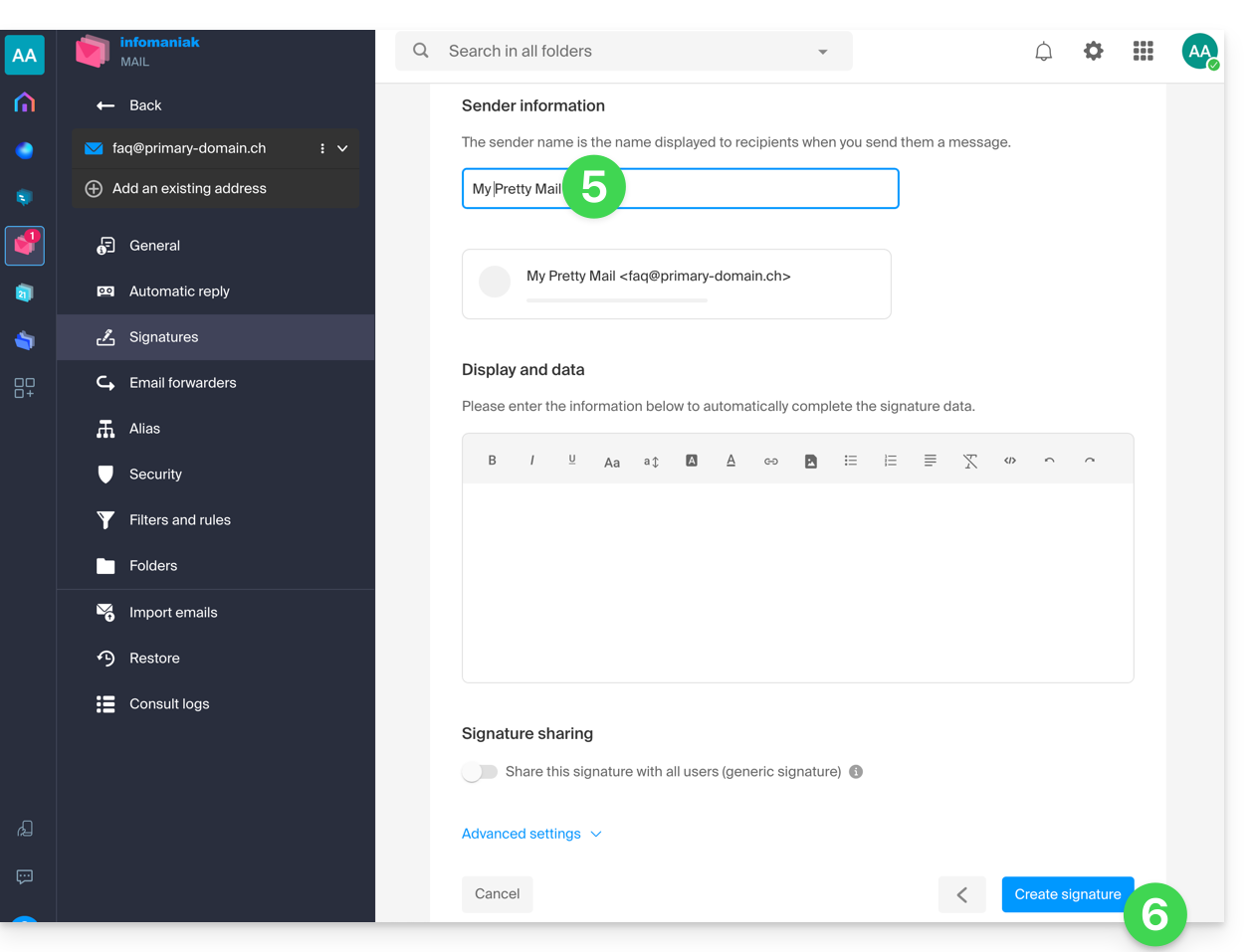
- Choose the template to use, then on the editing page, enter the name that should appear as the sender.
- Save your signature:
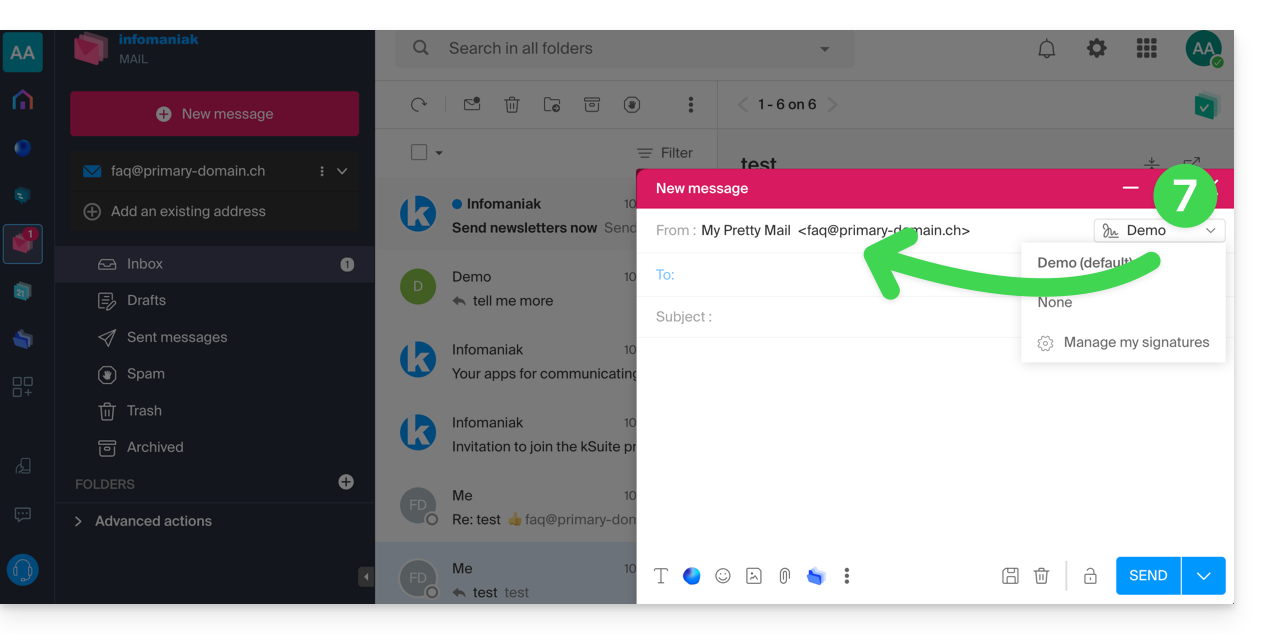
- Select your new signature; it will complete the from field of your message with the name you customized:
Refer to this other guide if you need information on editing Mail signatures and on how the full name is handled for different users of a signature template.
Link to this FAQ: https://faq.infomaniak.com/1662
Has this FAQ been helpful?