Knowledge base
1000 FAQs, 500 tutorials and instructional videos. Here, there are only solutions!
Receive your daily schedule by email or kChat
This guide explains how to automatically receive a summary of your activities scheduled on Calendar Infomaniak in your Mail and/or kChat inbox every morning.
Preamble
- This feature is disabled by default on all calendars.
- This summary is sent to your email address (the one used to log in to your Infomaniak account).
- It contains a list of all the day's events with their most important information (possible kMeet link, location, times, etc.).
- You can even imagine forwarding this daily schedule to your team or assistant so they know the best times to contact you, including creating a rule for automatic forwarding based on the criteria corresponding to the received email.
Obtain a schedule automatically and daily
Prerequisites
- Sending a summary on kChat requires having kChat within your Organization.
To start the day by consulting a message in your Infomaniak inbox containing the schedule based on your Infomaniak agenda:
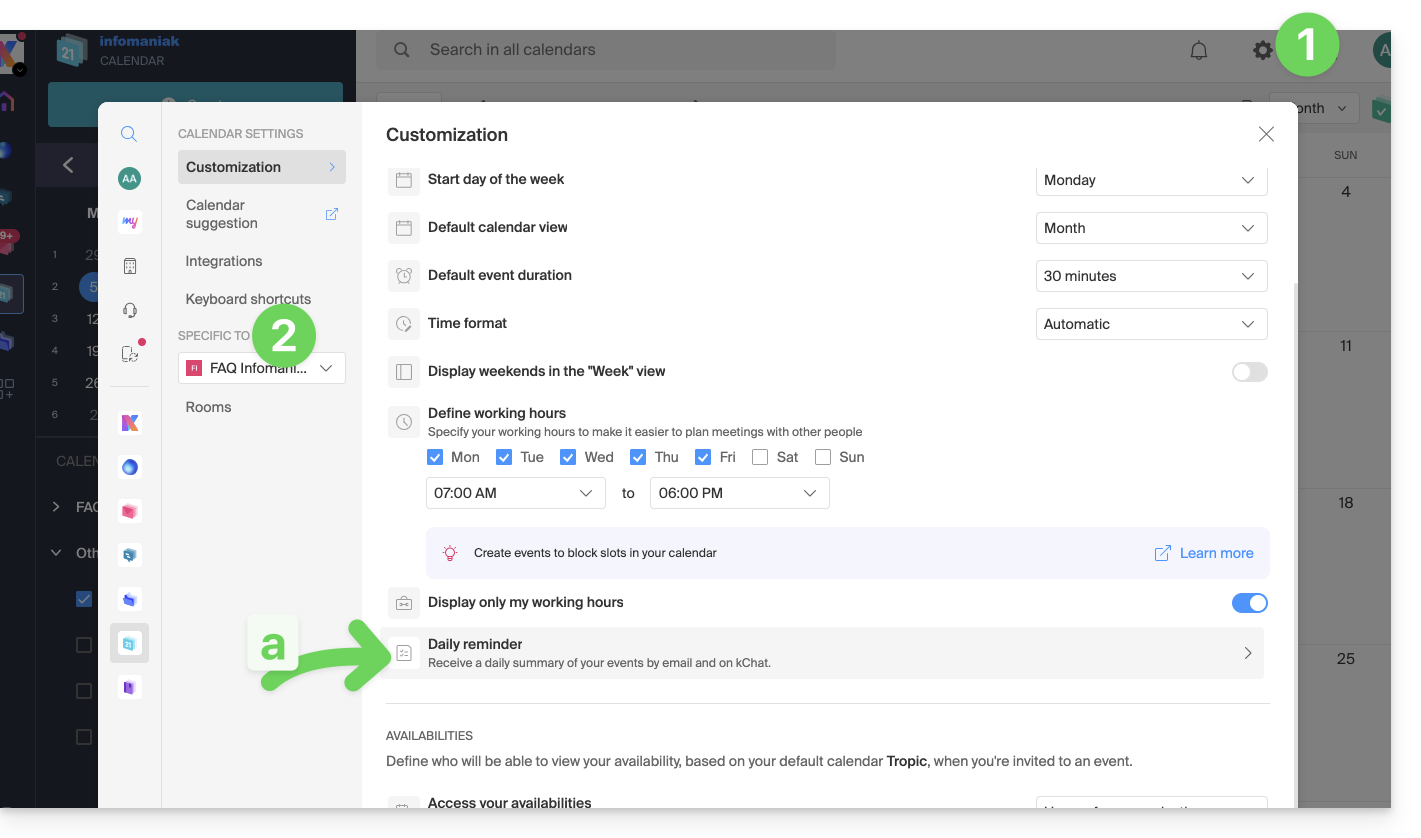
- Click here to log in to the unified settings of your Infomaniak Web apps and more specifically to the settings of the daily reminder of the Calendar app.
- Check or select the relevant Organization in the dropdown menu of the left sidebar.
- If you modify it, return to the settings by clicking on the daily reminder item to access the settings:
- If you modify it, return to the settings by clicking on the daily reminder item to access the settings:
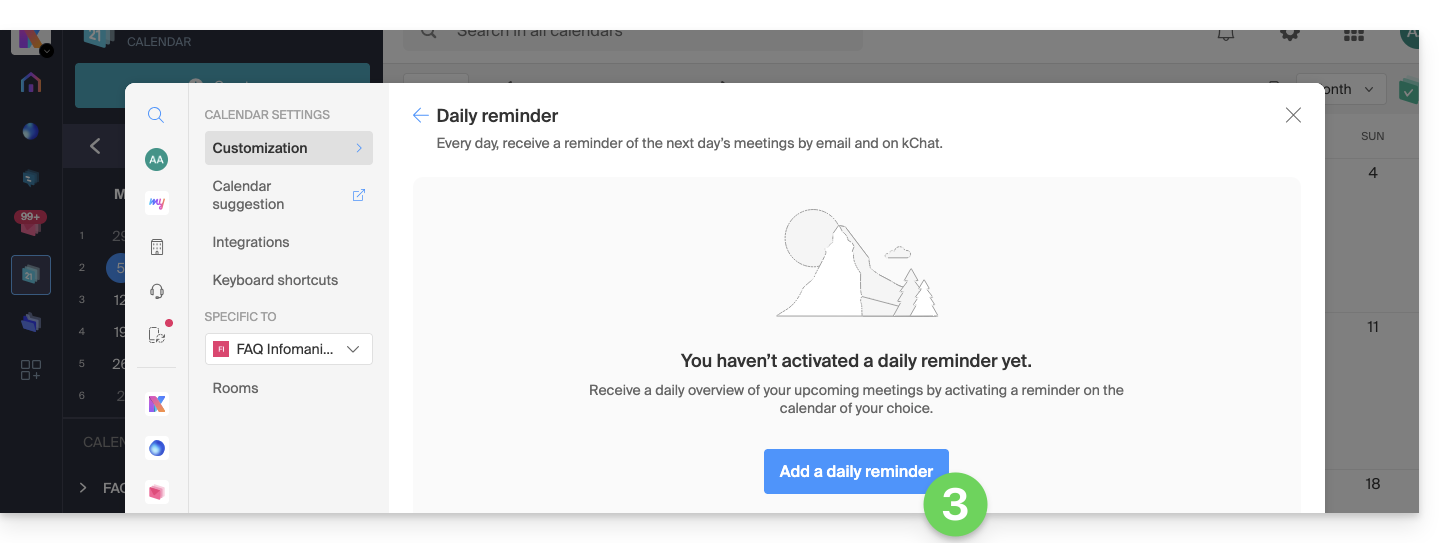
- Click the button to Add a daily reminder and configure it:
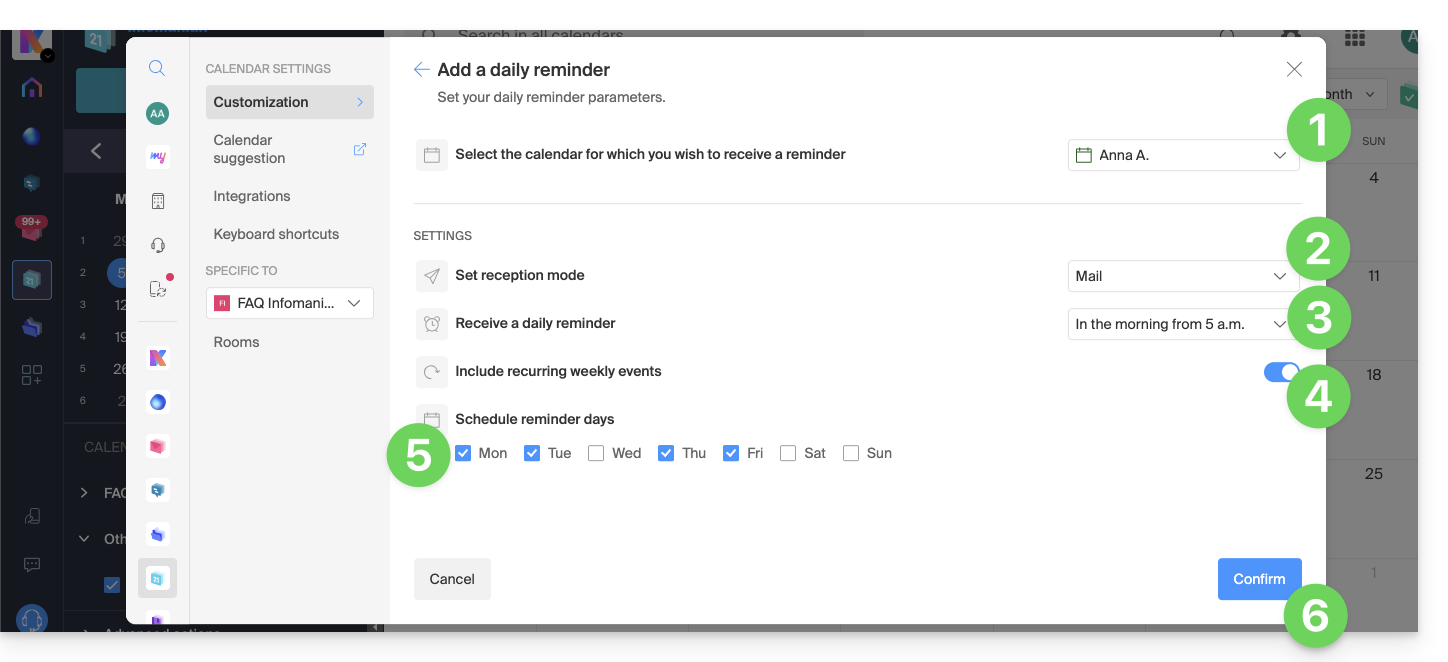
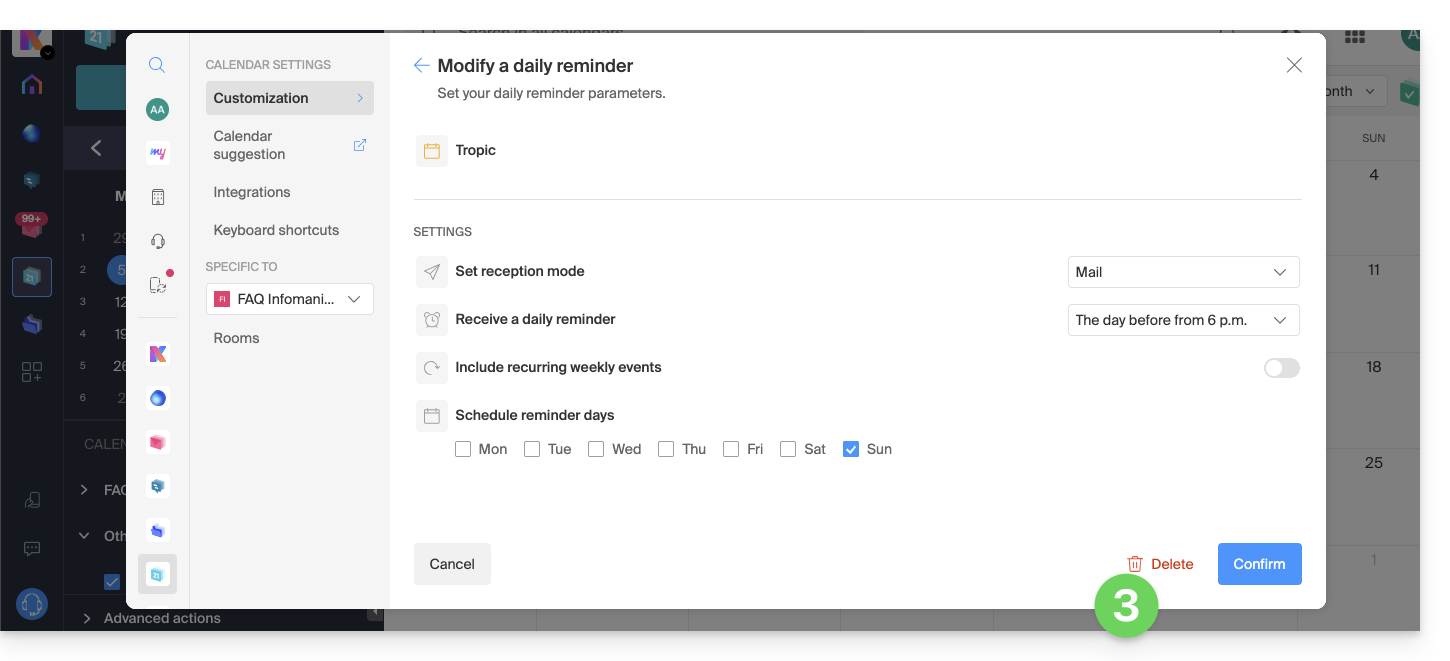
To customize your reminder according to your needs:
- Select the relevant calendar.
- Choose the reception mode (Mail, kChat, or both).
- Choose the time you want to receive the reminder (the night before or early the same day).
- Choose whether or not to include recurring events.
- Choose the days on which the daily reminder will be sent.
- Confirm your choices at the bottom of the page:
Disable the daily reminder
To stop receiving the daily summary by email or by Euria on kChat:
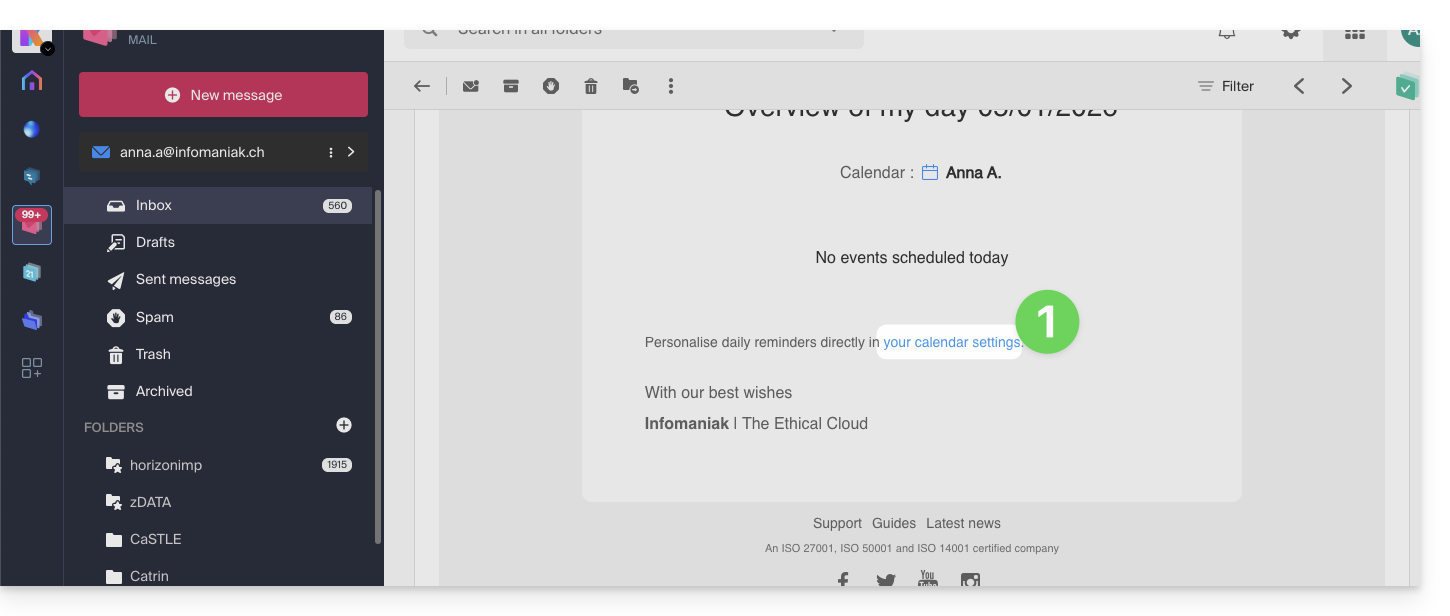
- Click on the link located at the bottom of the received notification:
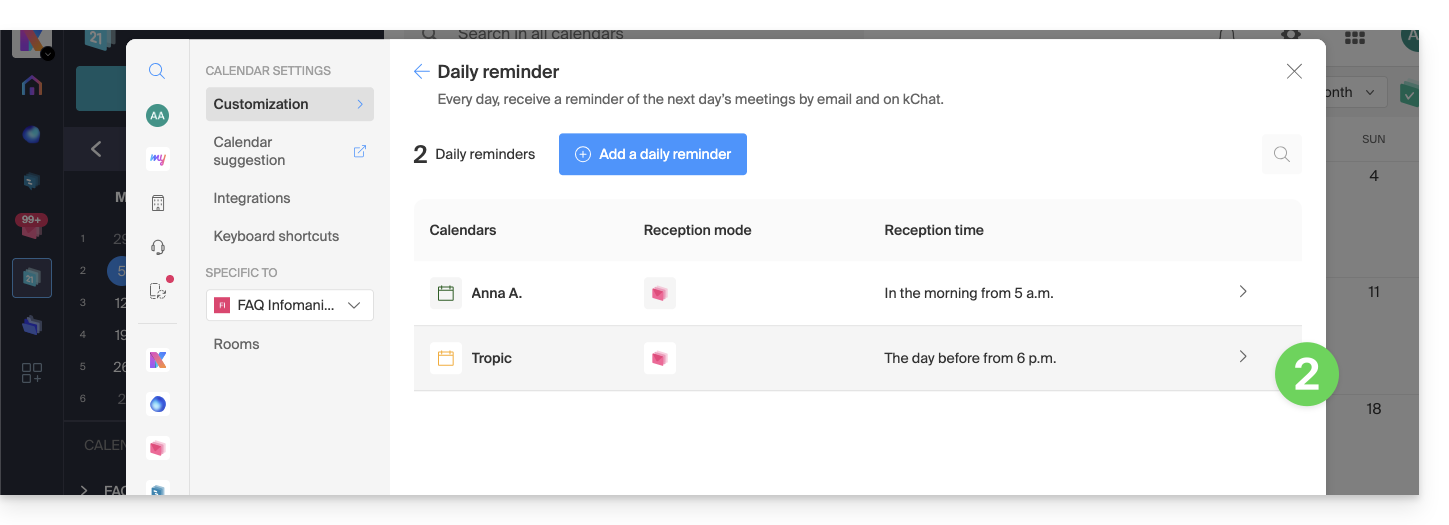
- Click on the reminder to delete:
- Delete the reminder from the edit page:
Link to this FAQ:
Has this FAQ been helpful?