Knowledge base
1000 FAQs, 500 tutorials and instructional videos. Here, there are only solutions!
Import contacts on the Infomaniak Contacts Web App
This guide explains how to import contacts into address books of the Infomaniak Web app Contacts (online service ksuite.infomaniak.com/contacts).
Preamble
- A wizard allows for the easy import of contacts from various sources, such as Outlook, macOS address books, Thunderbird, Gmail, etc.
- Importing can be done using a file in
VCARDorCSVformat. - The file must not exceed 50 MB or contain more than 10,000 lines.
Import contacts
To do this:
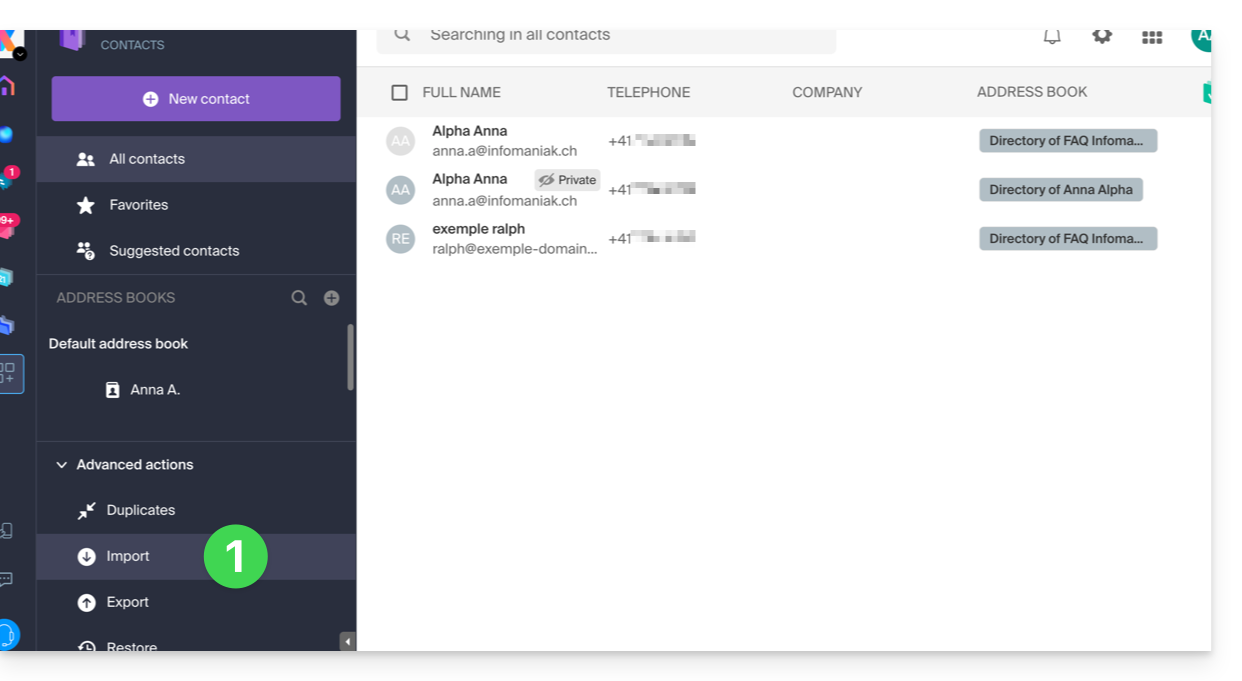
- Click here to access the Import section of the Infomaniak Web app Contacts (online service ksuite.infomaniak.com/contacts):
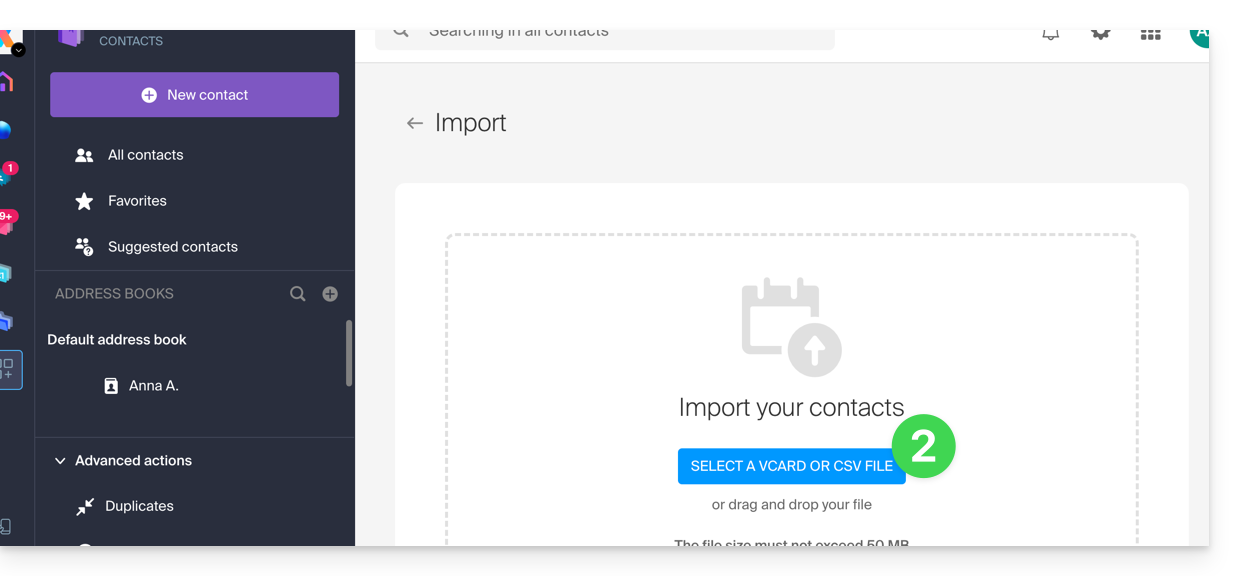
- Click the blue button Select a VCARD or CSV file:
Import from a vCard file (.vcf)
The content of a vCard format contact export looks like this:
BEGIN:VCARD
VERSION:3.0
FN:Jean Dupont
N:Dupont;Jean;;;
EMAIL;TYPE=INTERNET:jean.dupont@email.com
TEL;TYPE=CELL:0601020304
ORG:Logistique SAS
END:VCARD
BEGIN:VCARD
VERSION:3.0
FN:Alice Martin
N:Martin;Alice;;;
EMAIL;TYPE=INTERNET:a.martin@web.fr
ORG:Indépendante
END:VCARD
...
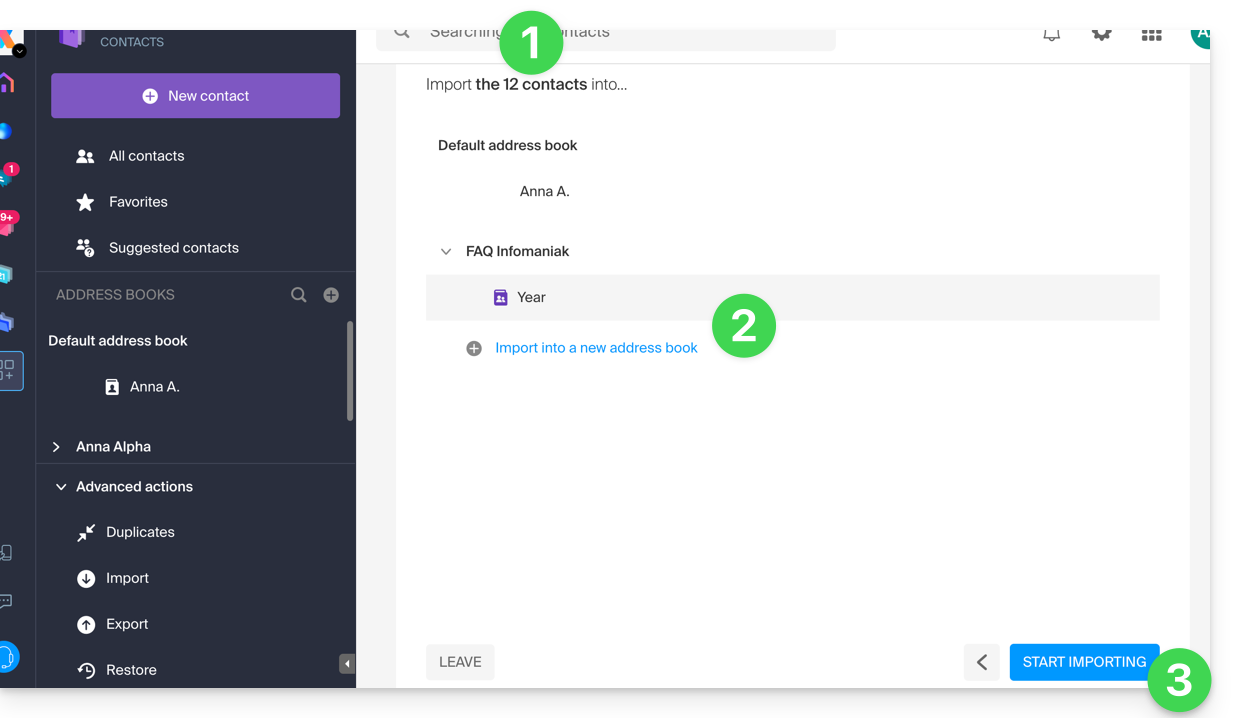
When you select your .vcf file in the import tool, here are the next steps:
- The wizard indicates the number of contacts detected in your file.
- Choose the address book (or create a new one) to store your contacts.
- Click the button to start the import:
Import from a CSV file (.csv)
The content of a CSV format contact export looks like this:
Nom,Prénom,Email,Téléphone,Organisation,Note
Dupont,Jean,jean.dupont@email.com,0601020304,Logistique SAS,Client VIP
Martin,Alice,a.martin@web.fr,,Indépendante,
Bernard,Marc,,0788990011,,Ancien collègue
Petit,Sophie,sophie.p@service.com,0140506070,Mairie de Paris,
Gérard,Lucas,lucas.gerard@brico.org,,,Besoin devis mars
Morel,Élise,,0611223344,BioShop,
Fournier,Thomas,t.fournier@tech.io,0655443322,InnoTech,Expert Python
Leroy,Julie,j.leroy@gmail.com,,,
...
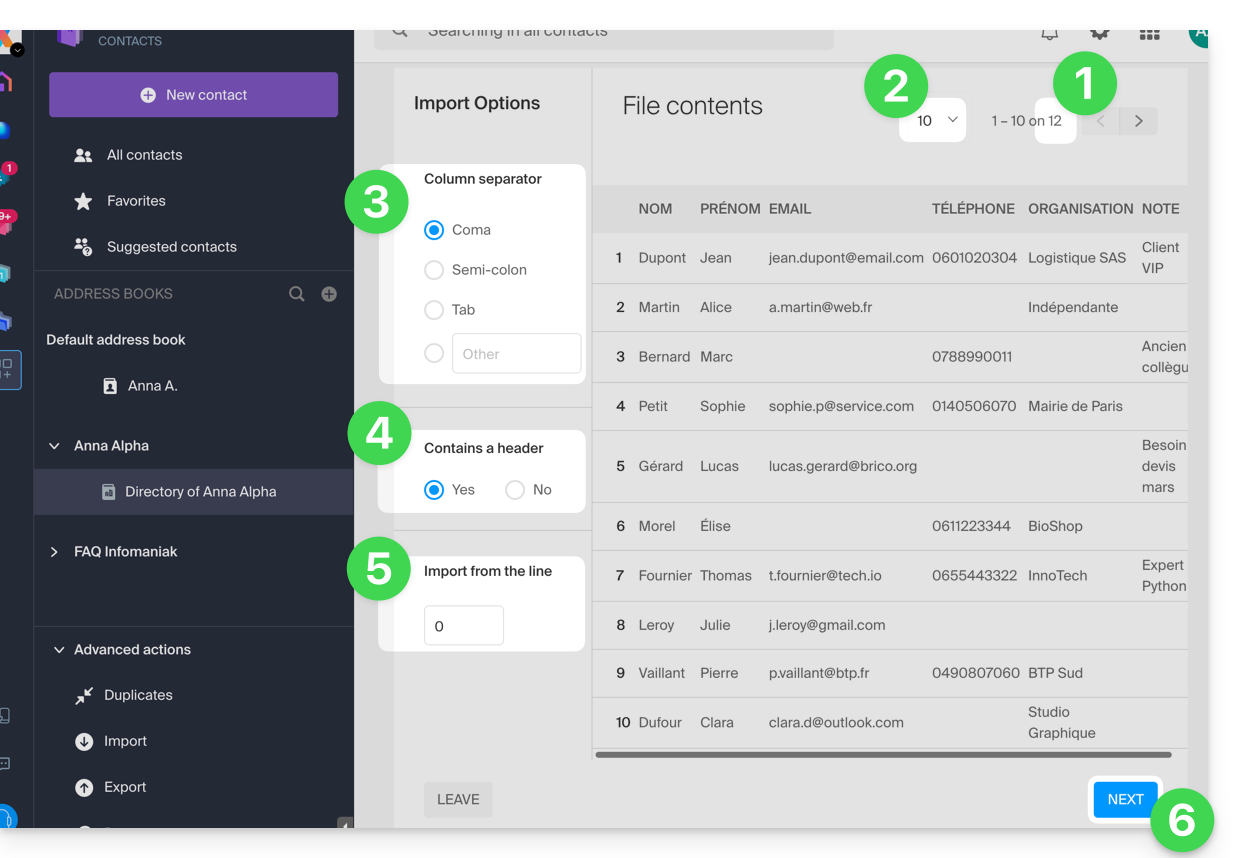
When you select your .csv file in the import tool, here are the next steps:
- The wizard indicates the number of contacts detected in your file.
- You can increase the number of contacts displayed per page, to better preview them in full if needed.
- Choose the separator used to delimit the information in your text file.
- Specify if the file contains a header row without contact information (column headers only).
- Specify if you want to import contacts starting from a specific row.
- Click the button to continue:
- Assign the detected information in the file for each contact with the available fields in your address book:
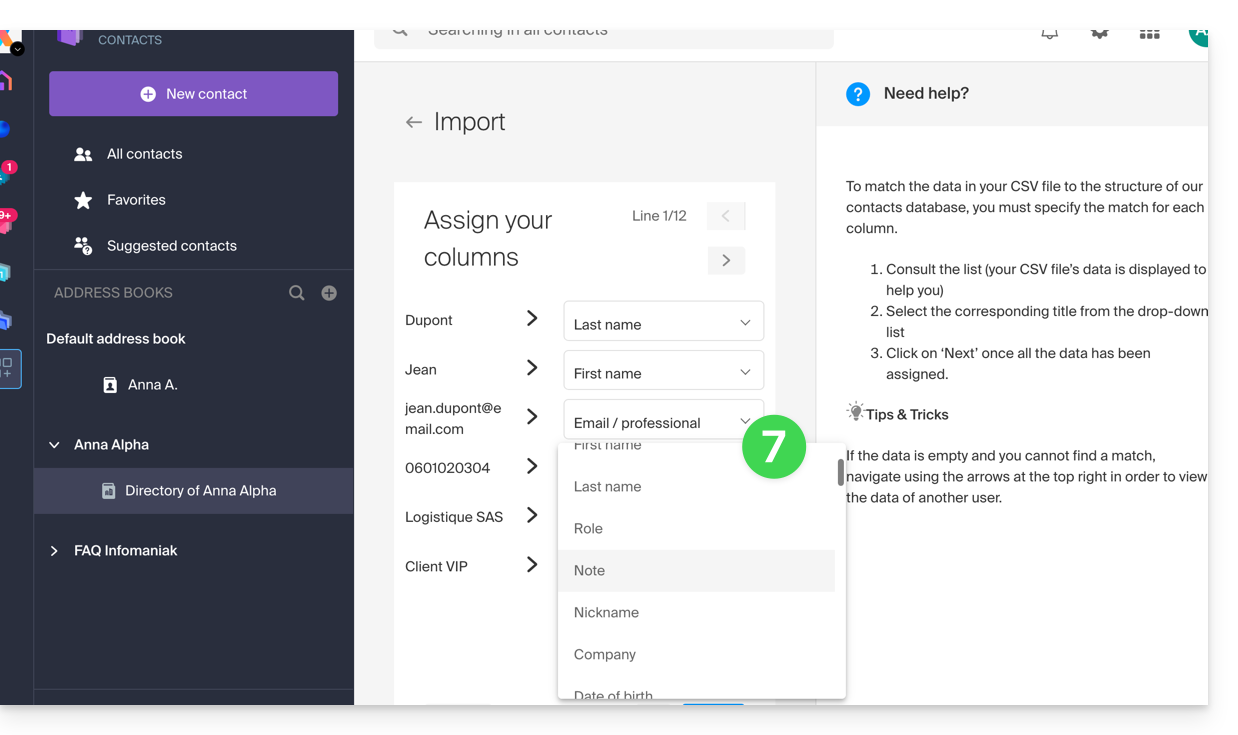
- Navigate through the contacts to import to specify other fields if necessary.
- Go back to check the impact of your changes, then click the button to continue:
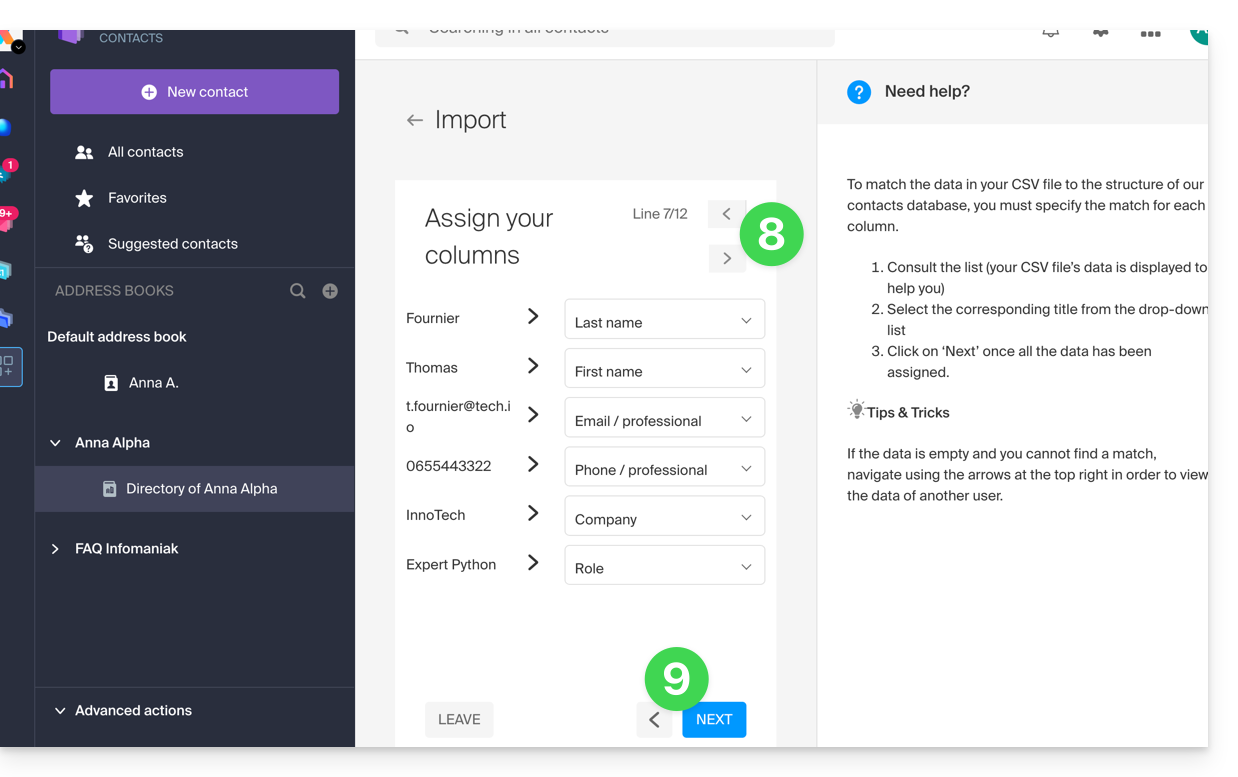
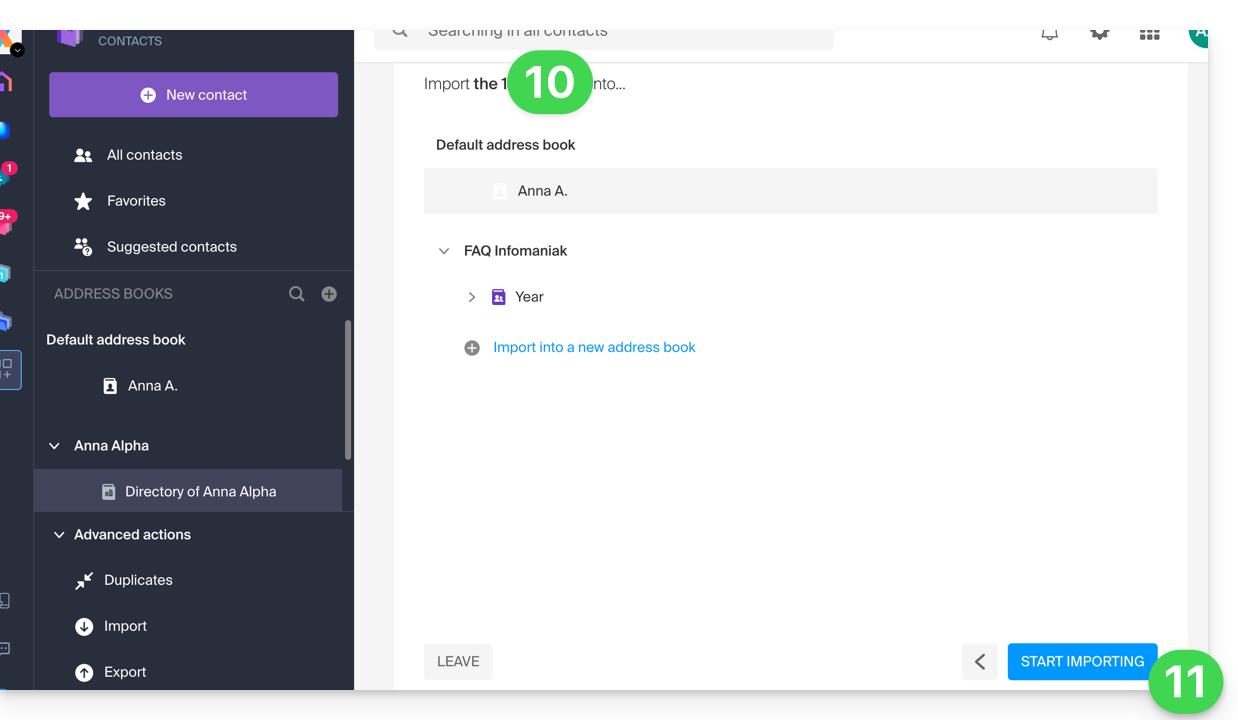
- Choose the address book (or create a new one) to store your contacts.
- Click the button to start the import:
Imported contacts
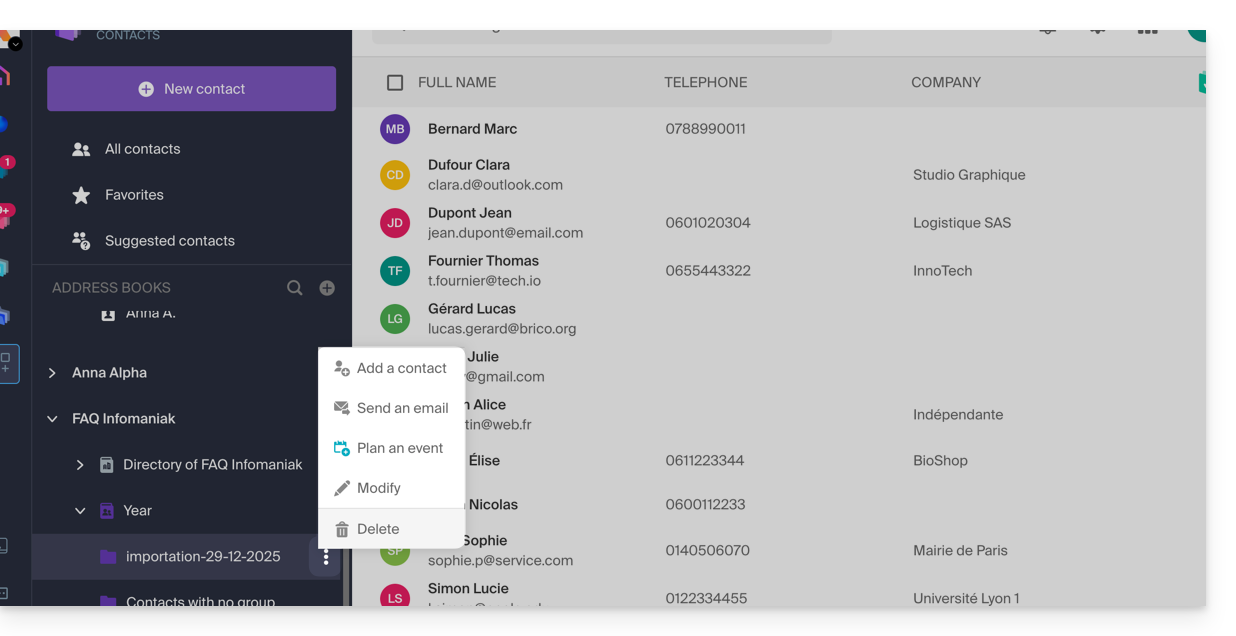
The contacts are imported into the specified location, in a group; if necessary, you can delete this folder that was created for the occasion (this does not delete the contacts if you do not activate this option when deleting the folder):
- Click on the action menu ⋮ located to the right of the name of the group created with the import date.
- Click on Delete:
In case of a problem
- Complete the contact records:
- A contact containing only the name and first name may be ignored by the system for security reasons.
- Ensure that at least one additional piece of information is present (email address or phone number).
- Check the header of your file (CSV):
- The columns must be clearly named (e.g., "Name", "First Name", "Email").
- If the titles are missing or incorrect, the system will not be able to read the data.
- Data format:
- Check that phone numbers do not contain unusual special characters and that email addresses are spelled correctly (presence of the
@and the dot).
- Check that phone numbers do not contain unusual special characters and that email addresses are spelled correctly (presence of the
- File encoding:
- For optimal results, save your CSV file in UTF-8 format; this ensures that accents and special characters display correctly.
If you need to export them first from...
...Outlook (old version)
- From your Outlook software, go to your address book.
- Select the contacts to export.
- In Actions, click on Transfer as vCard.
- Send the e-mail containing the vCard.
- Retrieve the e-mail in the Infomaniak Web Mail app (online service ksuite.infomaniak.com/mail)
- Click on Add all contacts.
... macOS (or refer to this other guide)
- From your Contacts software, go to File then select Export.
- Choose Export vCard.
- Save your vCard file on your computer.
... Thunderbird (or refer to this other guide)
- From your Thunderbird software, go to Window then select Address Book.
- In Tools select Export.
- In the save options, choose Comma Separated as the format.
- Save your CSV file.
... Gmail (or refer to this other guide)
- From your Gmail space, go to the Contacts section.
- Click on the Export button.
- Select vCard Format.
- Save your vCard file on your computer.
... Office 365 (or refer to this other guide)
- From your Outlook software, go to the Contacts section.
- Click on Manage and select Export.
- Save your CSV file on your computer.
... Yahoo Mail: refer to this other guide
... Proton Mail: refer to this other guide
... Bluewin: refer to this other guide
Link to this FAQ:
Has this FAQ been helpful?