Knowledge base
1000 FAQs, 500 tutorials and instructional videos. Here, there are only solutions!
Report a spam email from the Infomaniak Web Mail app
Update 07/14/2026
This guide explains how to report spam or declare a false positive if spam messages slip through the cracks in your Infomaniak Mail Service, or conversely, if a valid email has been incorrectly classified as spam; you can take action in just a few clicks.
Reporting spam
Prerequisites
- Make sure the spam filter is active.
Next, to automatically move an email from your inbox to the Spam folder that has escaped the anti-spam filter:
- Click here to access the Mail Infomaniak web app (online service ksuite.infomaniak.com/mail).
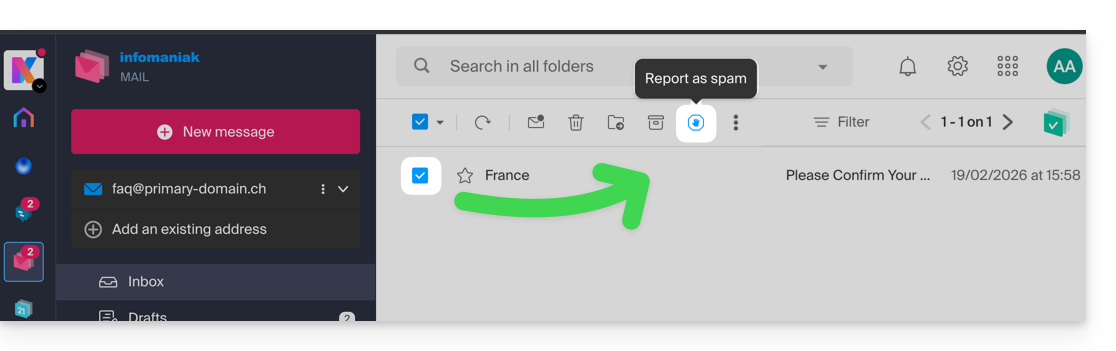
- Select the message in the inbox and click on the Spam icon in the toolbar:
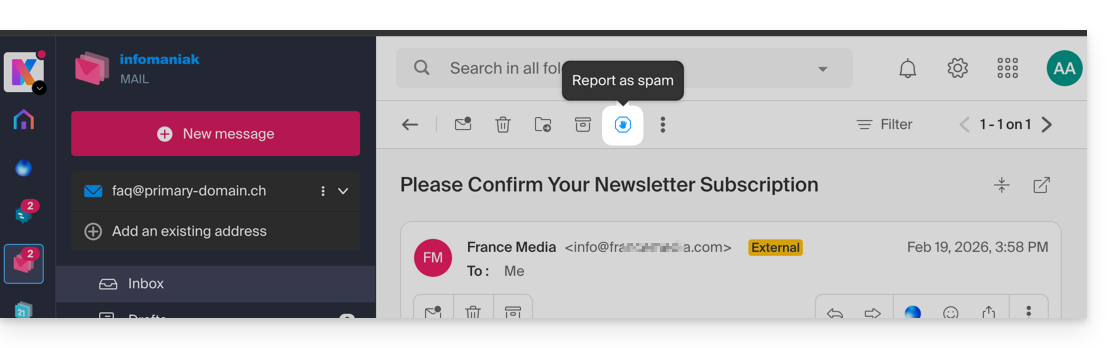
- You can also open it and report it as Spam later:
- Another option: open it and click on the action menu ⋮ on the right:
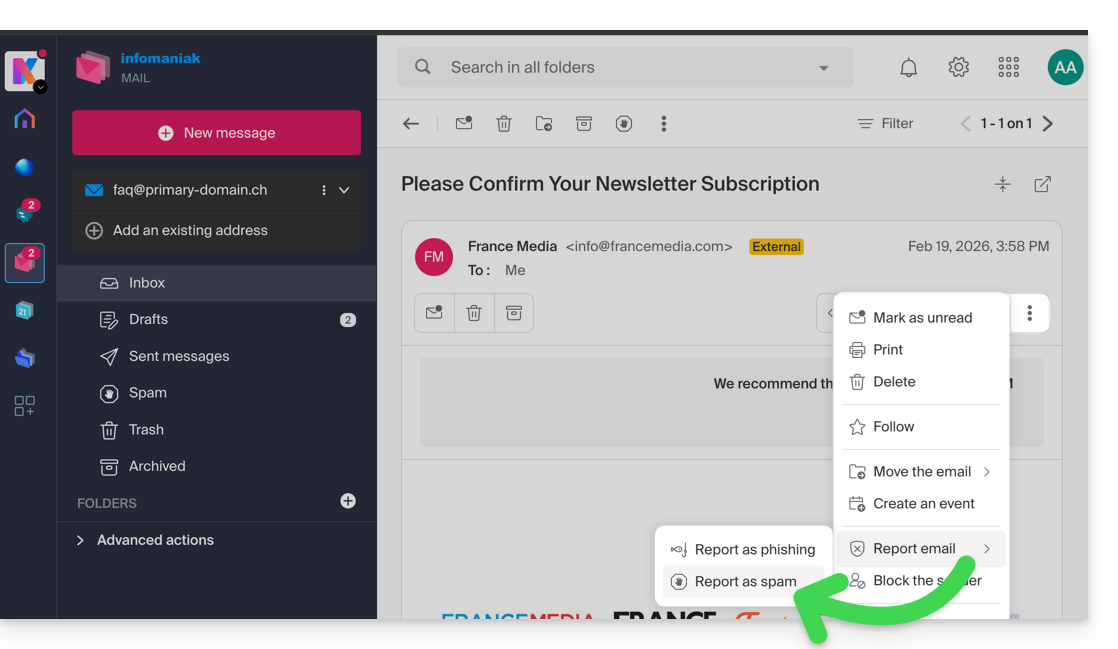
Once you have clicked on Report as spam:
- the email is moved to the Spam folder (or to the manually defined folder)
- the sender's address is added to the blocked users list
- the filter is refined for better performance over time.
Report a false positive
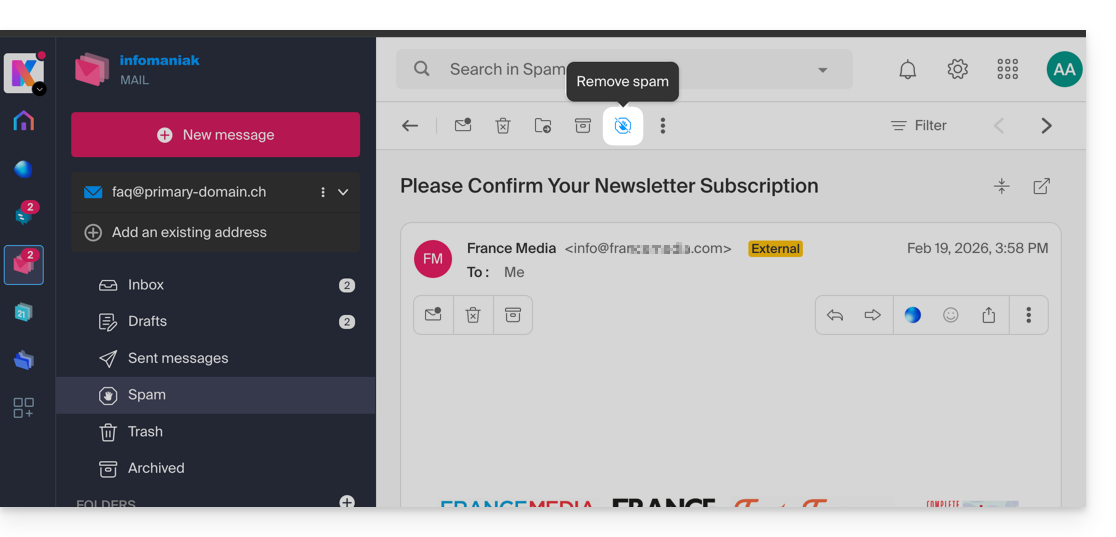
Conversely, if you take action on an email that is incorrectly identified as spam (false positive) by clicking on the "This is not spam" icon:
- The email is moved to the inbox…
- The sender's address is added to the allowed users list…
- This also affects the filter and its criteria.
Link to this FAQ: https://faq.infomaniak.com/1592
Has this FAQ been helpful?