Knowledge base
1000 FAQs, 500 tutorials and instructional videos. Here, there are only solutions!
Secure an email send with an encryption key
This guide for the Web app Mail Infomaniak (online service ksuite.infomaniak.com/mail) or the mobile app Infomaniak Mail (application for iOS/Android smartphone or tablet) explains how to activate encryption for emails sent from Infomaniak Web and mobile services.
Preamble
- When encryption is activated, emails and attachments are encrypted as soon as they are received on Infomaniak servers, via the public keys of senders and recipients.
- Each email address generates a key upon its first use, securely stored in Infomaniak datacenters.
- The keys are based on elliptic curve cryptography (ECC) and use the OpenPGP standard.
- They are themselves encrypted in AES-256-GCM with automatic decryption via Infomaniak authentication.
- In search results, only the subject of encrypted messages will be visible, while their content will remain secure during storage.
Activate email encryption…
…from the Infomaniak Web Mail app
To automatically encrypt a message sent to an email address:
- Click here to access the Web app Mail Infomaniak (online service ksuite.infomaniak.com/mail).
- Compose a new message as usual.
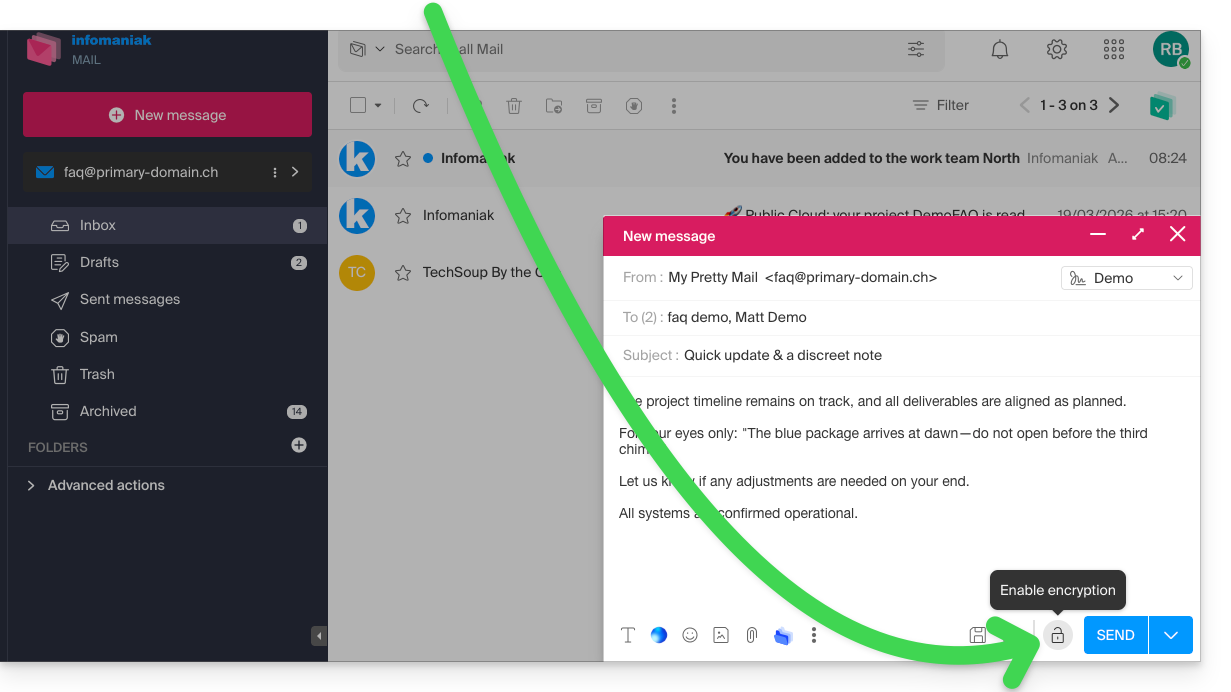
- Click on the padlock icon to the left of the Send button to activate encryption:
- Confirm the action if a confirmation window appears.
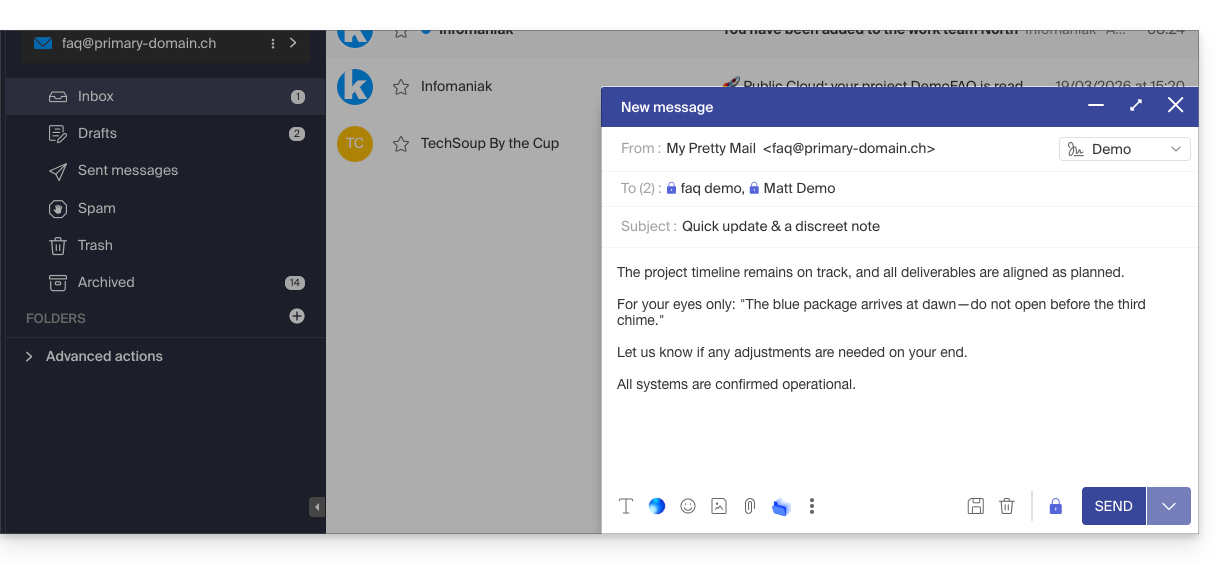
- The icon now represents a closed padlock and the color of the whole is changed:
- Press the Send button.
The action must be performed for each new send.
A. Recipient whose email is managed with Infomaniak
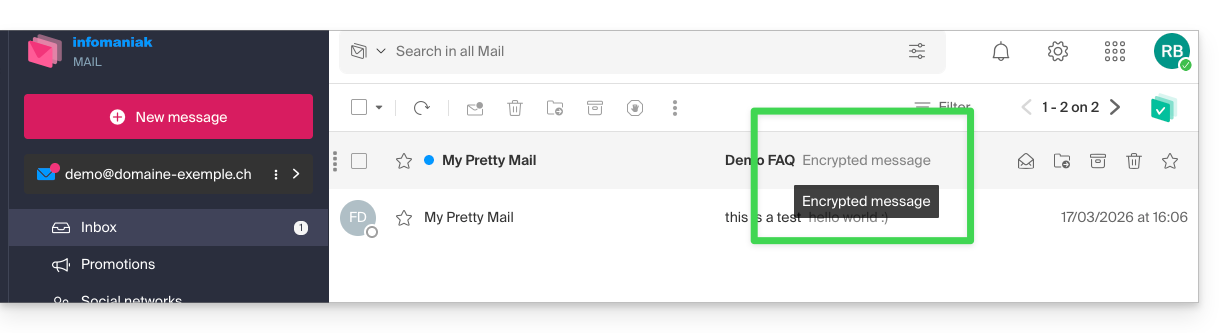
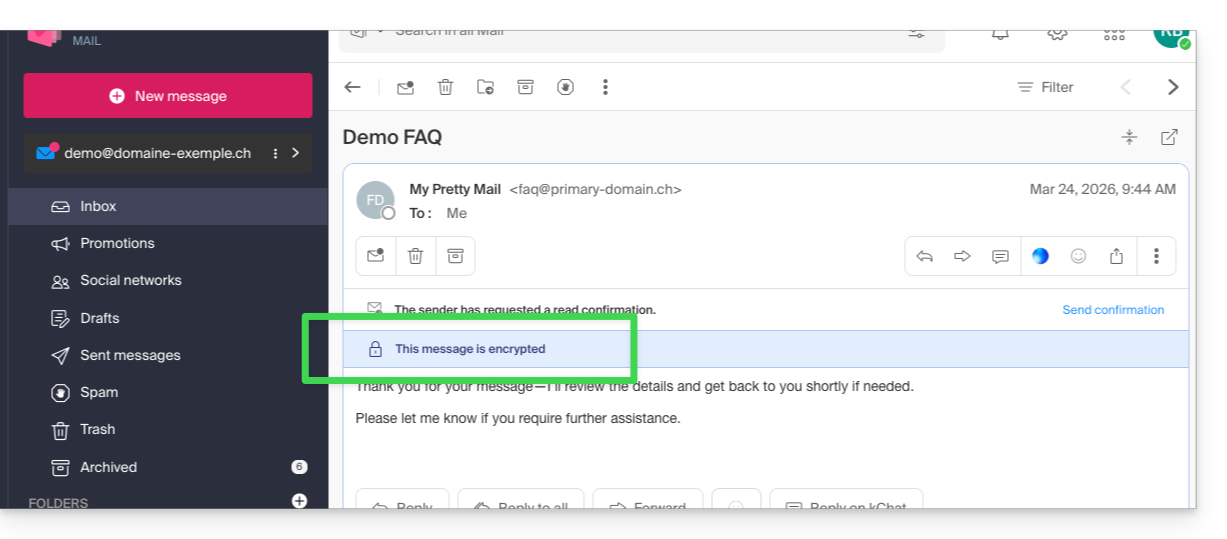
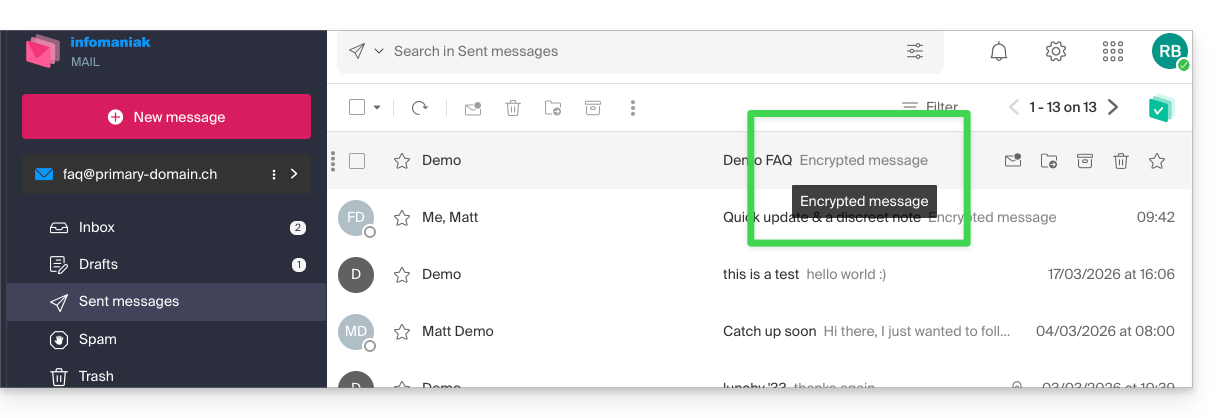
If the recipient of the encrypted email has an email address managed with Infomaniak, encryption is done in a completely transparent manner for both the sender and the recipient. A note will indicate the encryption of the message…
- …in the recipient's inbox:
- … when opening the received message:
- ... and in the sender's sent folder:
B. External recipient
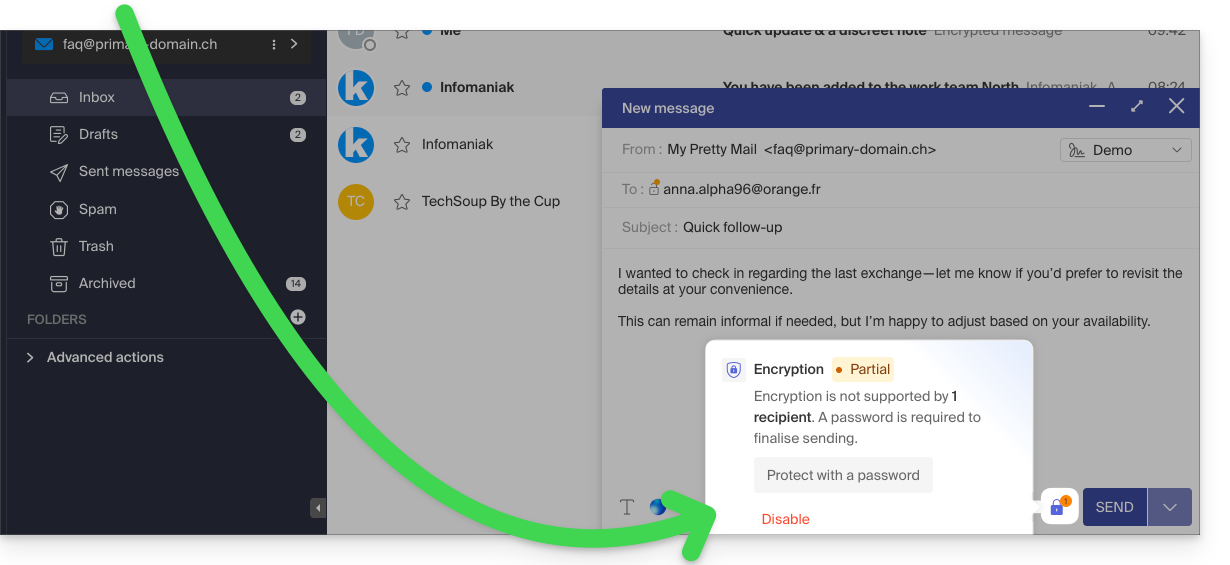
If the recipient of the encrypted email has an email address managed outside of Infomaniak services, encryption is still possible, but it requires setting a password:
- Click here to access the Infomaniak Mail app (online service ksuite.infomaniak.com/mail).
- Compose a new message as usual, but addressed to an email address outside of Infomaniak.
- Click on the lock icon to the left of the Send button to enable encryption.
- A modal opens to allow you to create a password:
- Enter a password and copy it to send it by your own means (kPaste for example) to the recipient (you can agree on a password in advance so the recipient is already informed):
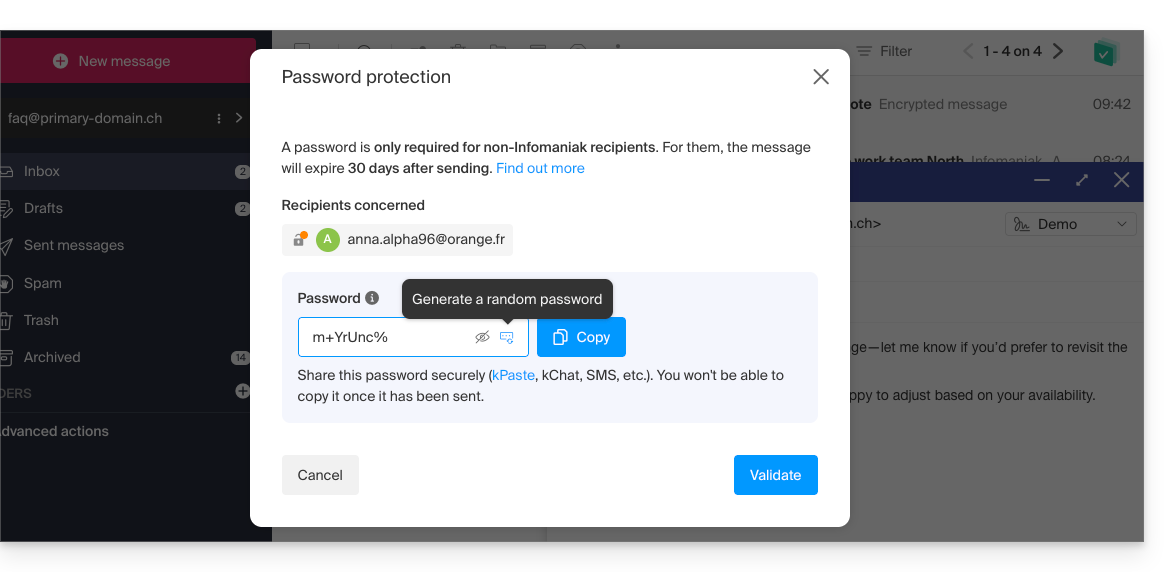
- Enter a password and copy it to send it by your own means (kPaste for example) to the recipient (you can agree on a password in advance so the recipient is already informed):
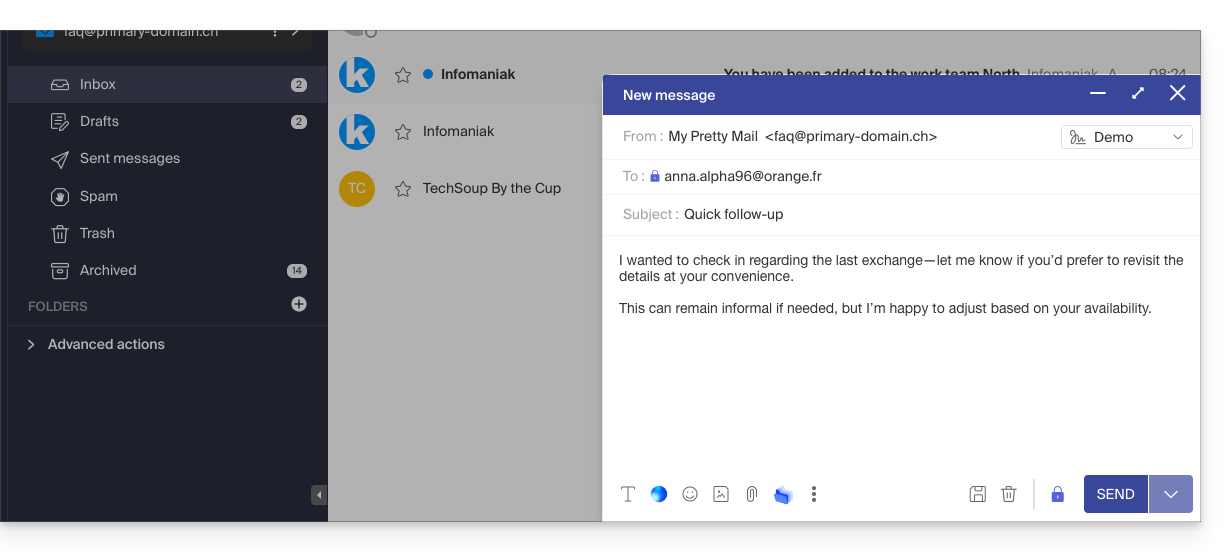
- The icon now represents a closed lock without an orange chip, and you can send the email as usual:
- Recipients will then receive a message notifying them that an encrypted email is waiting for them:
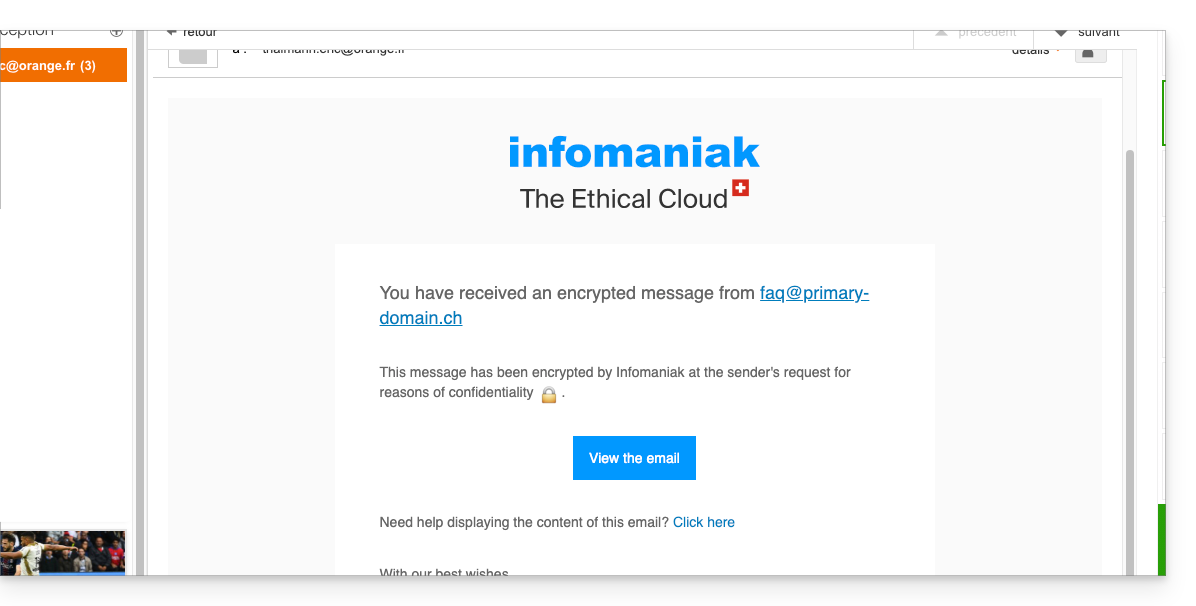
- By clicking on the provided button, they will be redirected to a secure web page where the password must be entered.
- Once the password is validated, the encrypted message can be viewed on the same page valid for 30 days.
... from the Infomaniak Mail mobile app
To automatically encrypt a message sent to an email address:
- Open the Infomaniak Mail mobile app (app for iOS/Android smartphone or tablet).
- Compose a new message as usual.
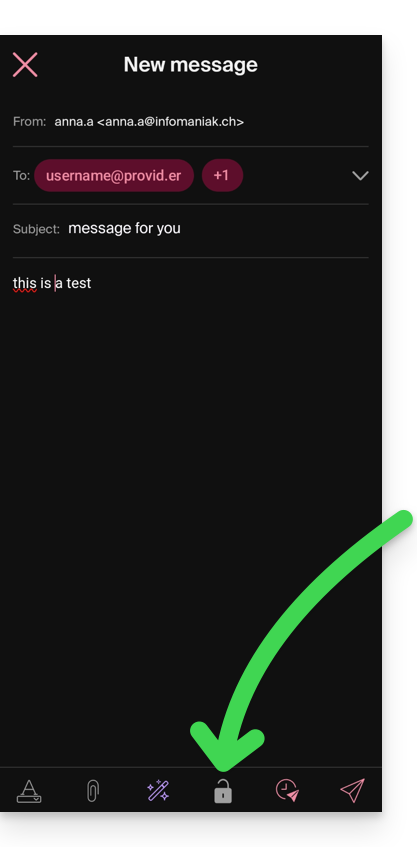
- Press the lock icon at the bottom of the composition window to enable encryption:
A. Recipient whose email is managed with Infomaniak
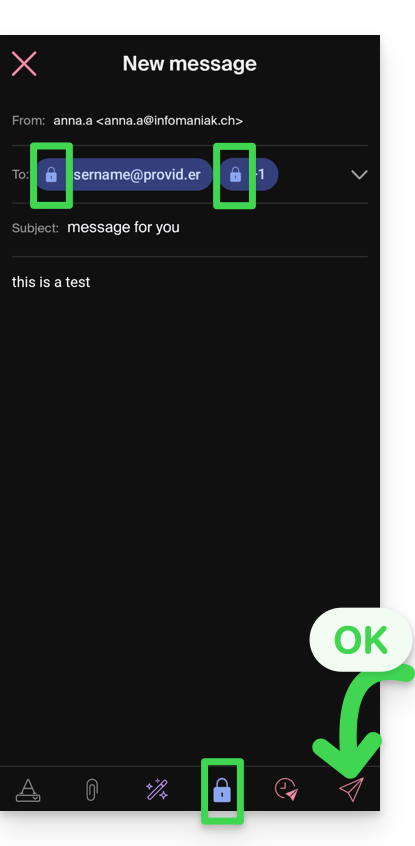
If the recipient of the encrypted email has an email address managed by Infomaniak, encryption is done completely transparently for both the sender and the recipient:
- Closed locks are displayed on the screen.
- Press the send icon:
B. External recipient
If the recipient of the encrypted email has an email address managed outside of Infomaniak services, encryption is still possible, but it requires setting a password:
- . Sending will not be possible as the send icon will remain grayed out and symbols will appear on the locks:
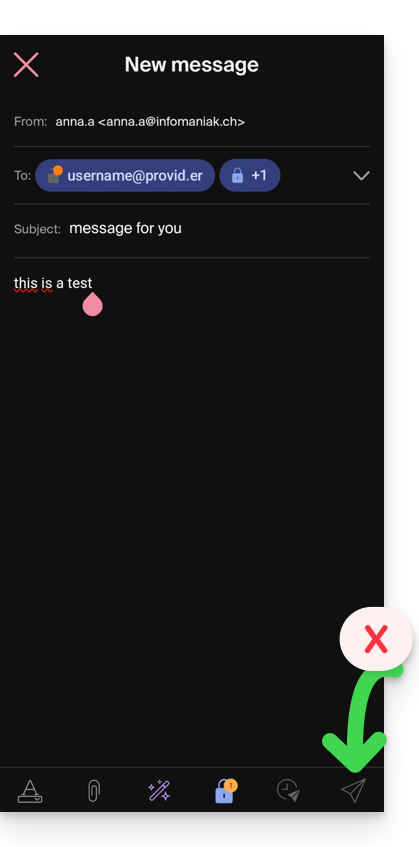
- Press the lock icon.
- A modal opens to allow you to create a password.
- Leave the suggested password or enter a new password and copy it to send it by your own means (kPaste for example) to the recipient (you can agree on a password in advance so the recipient is already informed).
- Press the cross in the top left corner if you have finished managing the password.
- Here we go, the sending can now be done in an encrypted way:
Link to this FAQ: https://faq.infomaniak.com/1582
Has this FAQ been helpful?