Knowledge base
1000 FAQs, 500 tutorials and instructional videos. Here, there are only solutions!
Reply to an email on the Web Mail Infomaniak app
Update 03/26/2026
This guide explains how to quickly react to an email on the Infomaniak Web app Mail (online service ksuite.infomaniak.com/mail).
Preamble
- Reactions are not possible if:
- you were a recipient of the message but in BCC
- you have already added 5 reactions
- if the message has more than 20 recipients and/or is of type newsletter or discussion list
- if the sender is
no-reply/catchall/postmaster - the message is encrypted or is among spam, drafts, scheduled messages or trash
- the message is the one announcing a previous reaction
- It is possible to cancel the sending of a reaction (even if you have not activated a send cancellation delay for emails).
Send a reaction in the form of an emoji
To quickly send an emoji reaction to a received email:
- Click here to access the Infomaniak Web app Mail (online service ksuite.infomaniak.com/mail).
- Open the email to which you want to react.
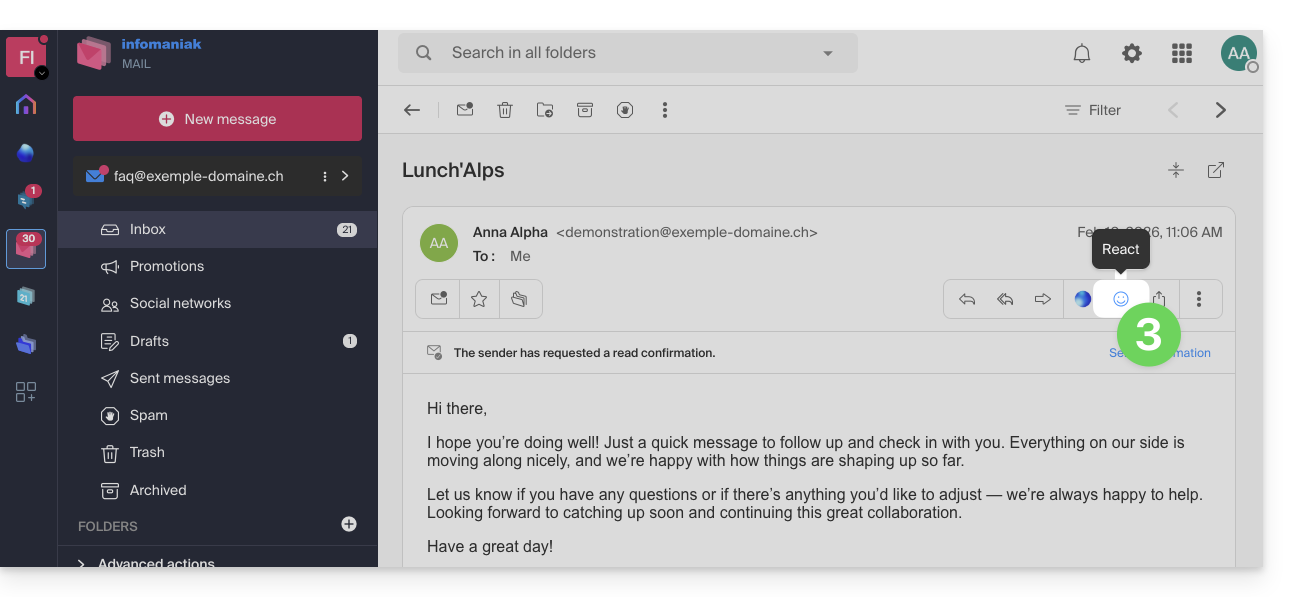
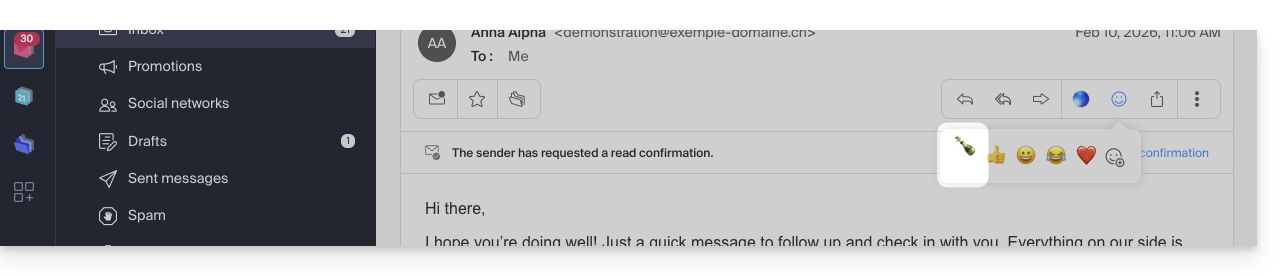
- Click on the “Smiley” emoji in the list of quick actions at the top right of the message:
- You can also access this feature via a button below the message:
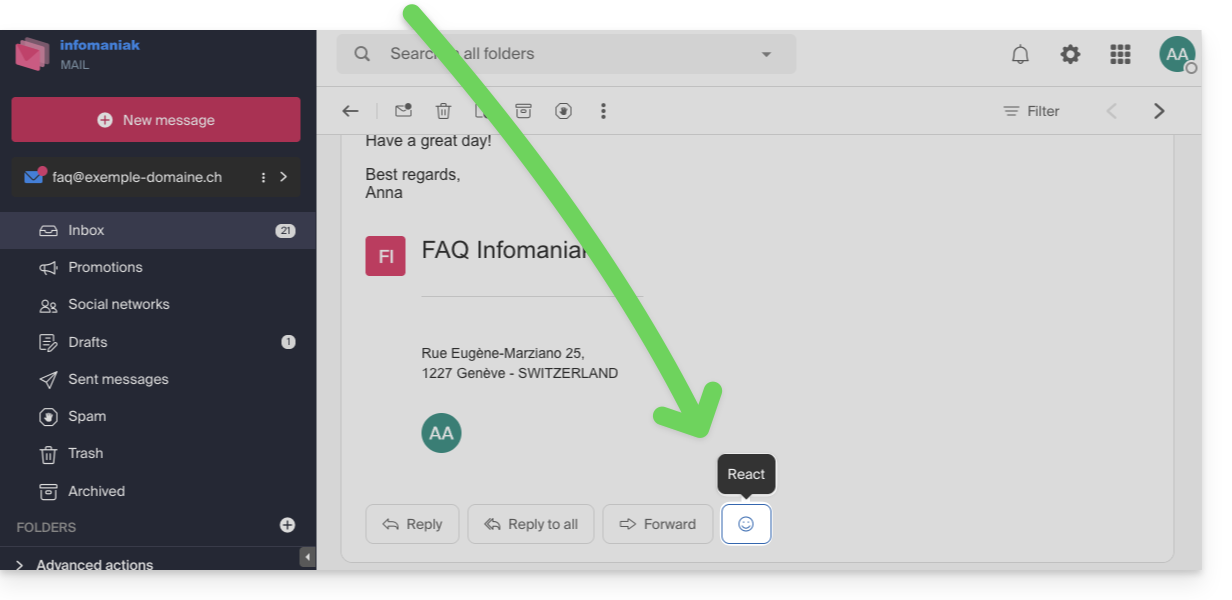
- You can also access this feature via a button below the message:
- Click on the emoji that best matches your reaction, it is added below the message and immediately sent to your correspondent.
- A cancellation is possible during sending from the notification displayed at the bottom of the screen:

- A cancellation is possible during sending from the notification displayed at the bottom of the screen:
- The emoji is displayed on the message in question.
- A trace of your reaction is also stored in the sent messages folder.
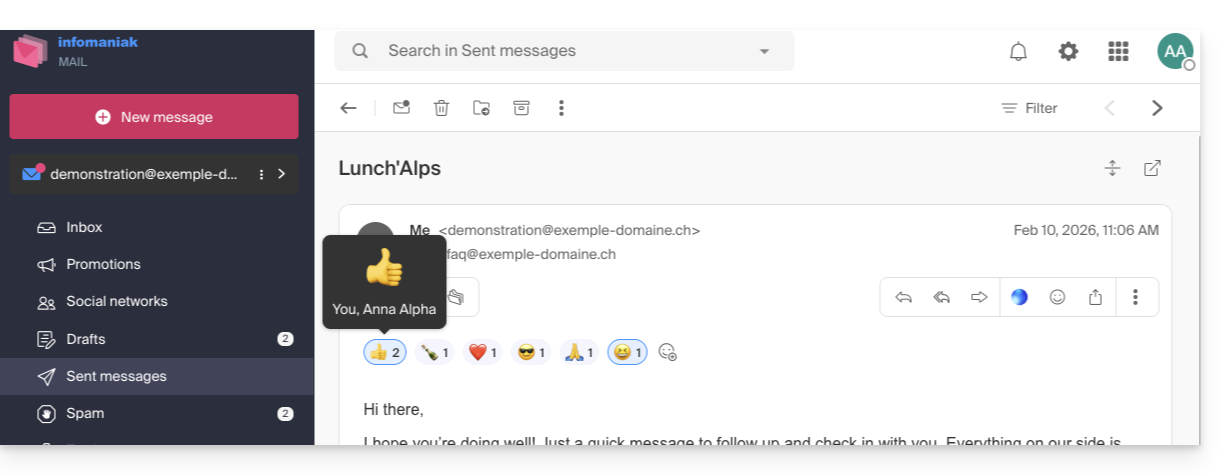
- If several people have intervened, you can hover over the emoji to see who added such or such reaction:
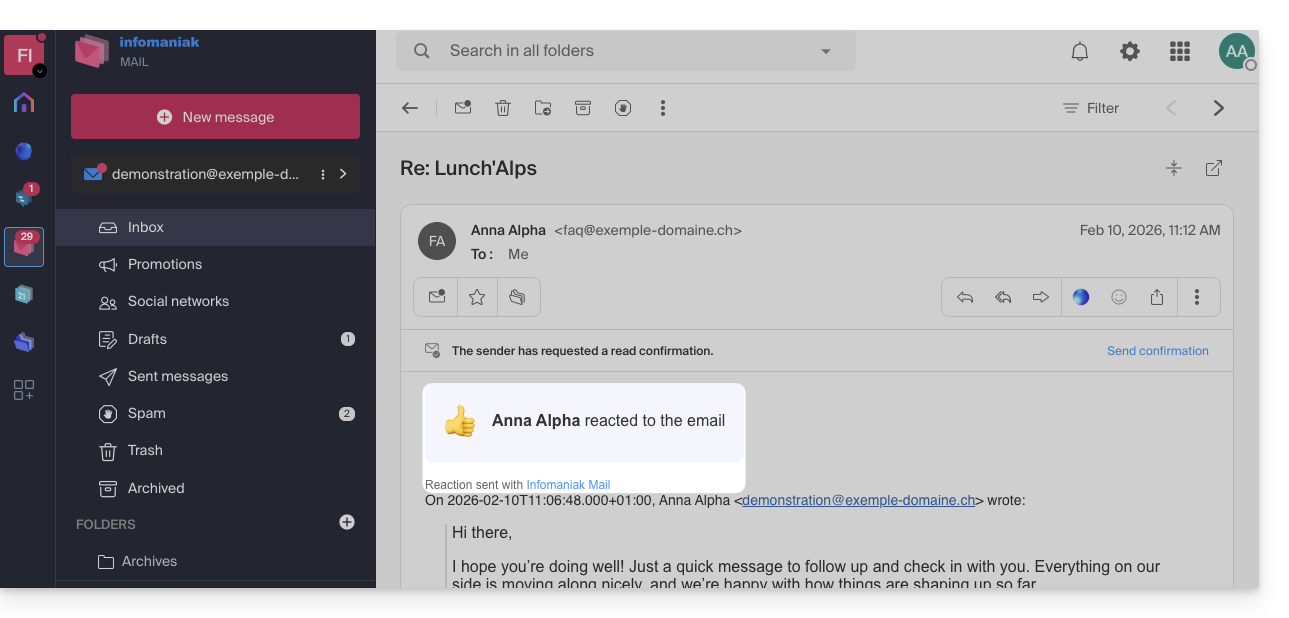
- The emoji is displayed to your correspondent who receives a notification as usual when they receive a response to their email:
- They can also respond to the reaction by email (but not by a new reaction) as usual when receiving a new message.
- The user who reacted to the email quickly finds the last emoji used in their list of reactions on the app, thus avoiding having to search for it each time:
Link to this FAQ:
Has this FAQ been helpful?