Knowledge base
1000 FAQs, 500 tutorials and instructional videos. Here, there are only solutions!
Transcribe a kMeet meeting live (automatic subtitles)
This guide explains how to use the automatic transcription feature of kMeet, Infomaniak's ethical free video conferencing solution, which allows you to display real-time subtitles during meetings, thus facilitating understanding of exchanges and meeting accessibility needs, or even translation at a later time.
✘ UNAVAILABLE with
kSuite free / kSuite Standard
my kSuite / my kSuite+ (ik.me, etik.com, ikmail.com)
Preamble
- If the moderator activates the subtitles, then all participants of the video conference will be able to activate the feature (even users without kSuite or anonymous).
Automatically transcribe participants' statements
You can display an automatic transcription of the statements made by participants in a kMeet meeting:
- Start the kMeet app (Web, desktop, or mobile).
- Create or join a meeting room.
- Authorize access to at least your microphone.
- Click on the ○○○ icon in the toolbar.
- Click on Enable subtitles.
- What is said by the participants is displayed at the bottom of your kMeet window:
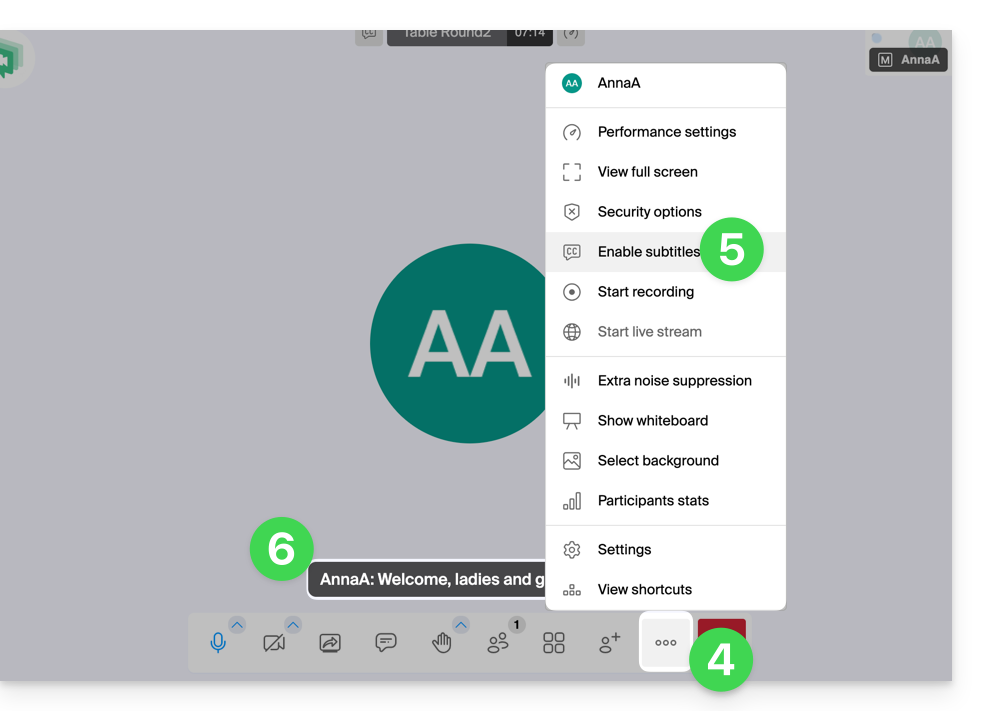
- To stop displaying the transcription on your screen, click again on the appropriate menu (see point 5 above).
If you encounter any issues, refer to this other guide.
Link to this FAQ: https://faq.infomaniak.com/1431
Has this FAQ been helpful?