Knowledge base
1000 FAQs, 500 tutorials and instructional videos. Here, there are only solutions!
Install WordPress MS (multisite) formerly WPMU
This guide explains how to set up a WordPress multisite network to manage multiple sites from a single WordPress installation by Infomaniak, with URLs such as site1.domain.xyz, site2.domain.xyz, or even domain1.com, domain2.com, etc.
WordPress multisite installation
To get started:
- Install WordPress via Infomaniak on your hosting space with a main domain name:

- This first WordPress site must be reachable and functioning correctly:

- This first WordPress site must be reachable and functioning correctly:
- Connect via FTP.
- Edit the
wp-config.phpfile of this first WordPress site. - Above the line "
/* That's all, stop editing! Happy blogging. */" (#94) copy-paste the codedefine('WP_ALLOW_MULTISITE', true);:
- Save your changes.
- Then log in to the administration of your WordPress site.
- Temporarily deactivate all WordPress plugins:

- Go to the TOOLS menu to create a Network:
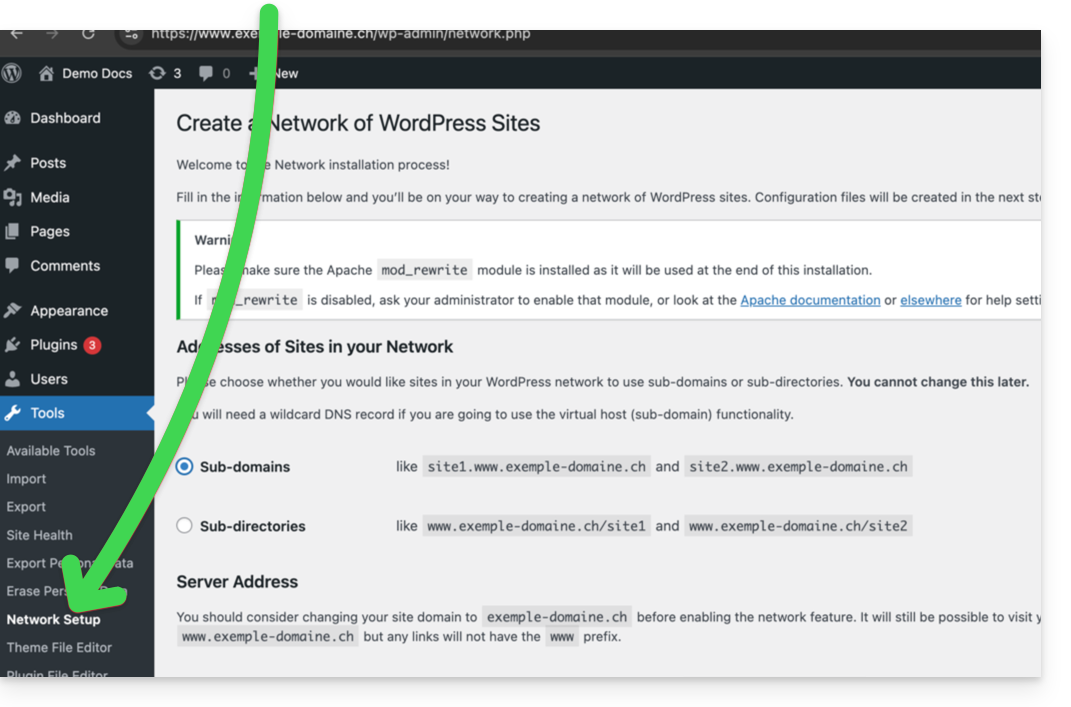
- Choose the method for creating your different WordPress sites (on subdomains)…
- Click the installation button:

- Add the instructions displayed on the screen to the
wp-config.phpand.htaccesson the server. - After reconnecting to your WordPress, you will get a new "My Sites" menu where you can add and manage your different sites in the same network:

- Reactivate your deactivated plugins.
- On the Manager, add an alias to your site in the form
*.your-domain-here (the asterisk allows you to create a wildcard alias) with DNS update so that the correctCNAMEis automatically added to the zone:
- Install or update your SSL certificates:

- When you create a new site within the network, for example by naming it
home2, it will then be accessible viahome2.domain.xyzand so on:
Link to this FAQ: https://faq.infomaniak.com/1417
Has this FAQ been helpful?