Knowledge base
1000 FAQs, 500 tutorials and instructional videos. Here, there are only solutions!
Add a user to an Organization
Update 09/28/2026
This guide explains how to add a user to an Organization within the Infomaniak Manager. This will allow you to grant the user access to certain Infomaniak products, as needed.
Introduction
- Since you opened your account with Infomaniak, you have been part of at least one Organisation (❓: help).
- If you were the only user and it wasn't an invitation, an Organisation was created in your name, and you automatically become its legal representative.
- Otherwise, you belong to the Organisation that invited you (to join its kSuite, to manage a product, etc.).
- You can define whether a user…
- … belongs to your Organisation and whether they should become:
- Legal representative
- Administrator
- Collaborator
- … is external to your Organisation (limited rights):
- External users are not taken into account in calendar and address book sharing for the entire Organisation.
- … belongs to your Organisation and whether they should become:
Invite the new user
Prerequisites
- If you cannot find the expected list of users, first switch to the desired Organization (❓: help).
- You must be an Administrator or Legal Representative within the Organization (❓: help).
- Learn about the different permissions (e.g., access rights to products) and administrative contact preferencesfor a user within an Organization (❓: help).
To add, and if necessary, create the new user for your Organization:
- Click here to access user management in the Infomaniak Manager (❓: help).
- Click on the Add User button:
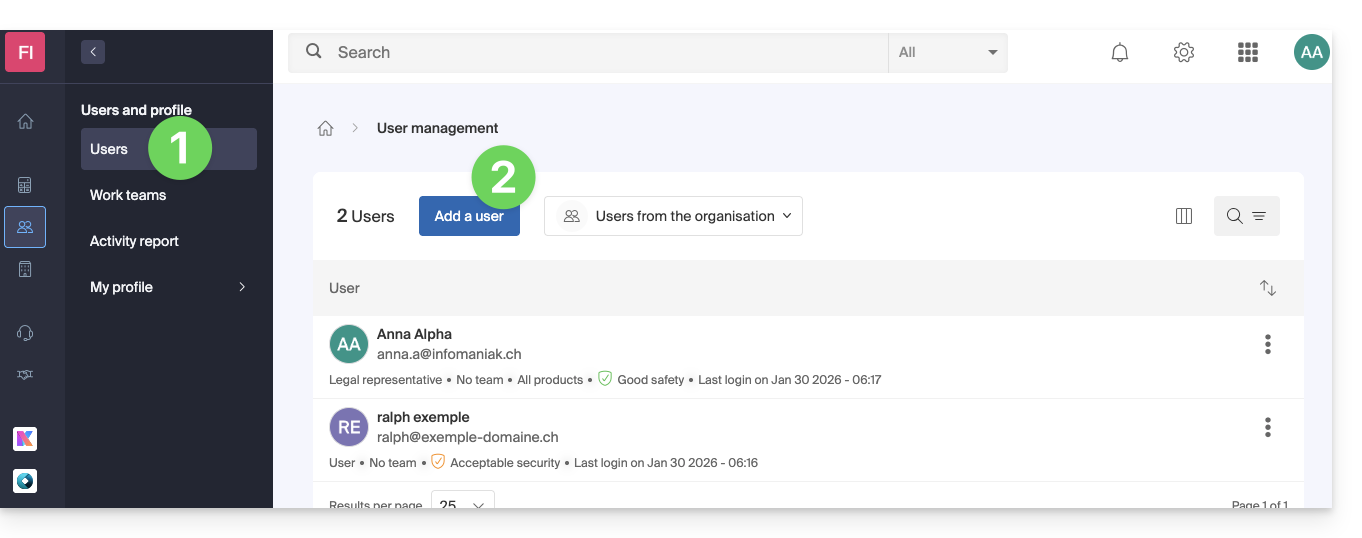
- Follow the wizard to complete the process:
- If the added user does not yet have an Infomaniak user account, they will be prompted to create one.
- If the added user already has an Infomaniak account, they will be prompted and then be able to switch from their original Organization to the new one (❓: help).
Link to this FAQ: https://faq.infomaniak.com/1404
Has this FAQ been helpful?