Knowledge base
1000 FAQs, 500 tutorials and instructional videos. Here, there are only solutions!
Manage email address users on the Infomaniak Web Mail app
This guide details the management of users linked to an Infomaniak email address on the Infomaniak Mail Web app (online service ksuite.infomaniak.com/mail).
Preamble
- In this guide, “user” refers to individual access via Infomaniak Mail apps (Web, desktop, mobile) only.
- Connections via email software/clients (IMAP/SMTP) are considered connected devices.
Manage users with access to the email address
When an email address is created within a Mail Service, you can, among other things:
- add yourself to view it on Infomaniak,
- add another user so they can view it on Infomaniak.
To manage these different accesses quickly afterwards, access your Infomaniak mailbox:
- Click here to access the Infomaniak Mail Web app (online service ksuite.infomaniak.com/mail).
- Click on the Settings icon at the top right of the interface.
- Check or select the email address in question in the dropdown menu of the left sidebar.
- Click on Shared with:
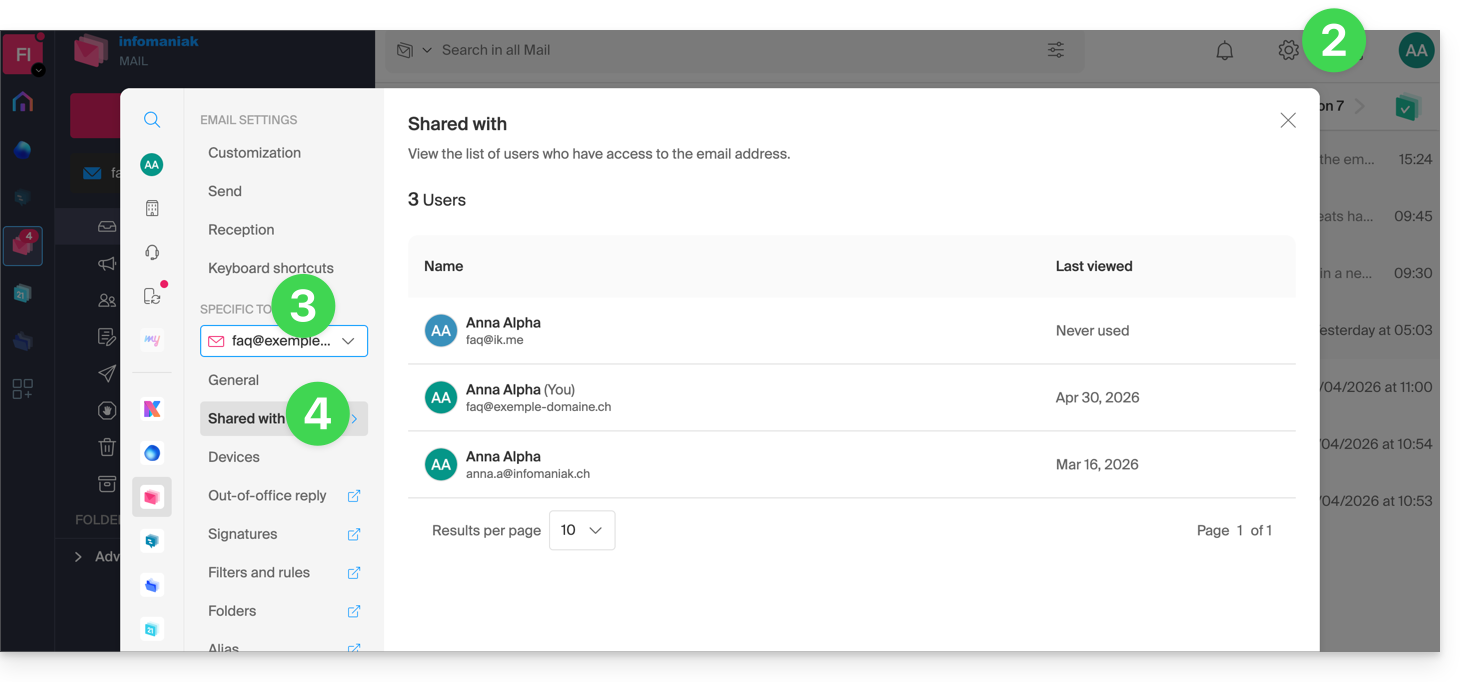
- Here the list is only informative as the email address in question is managed in another Organization - no action is possible.
In the case of an email address managed by yourself, more elements are at your disposal:
- The Manage button allows you to go directly to the management of users at the level of the Mail Service concerned.
- Click on the action menu ⋮ to the right of the user to access quick actions:
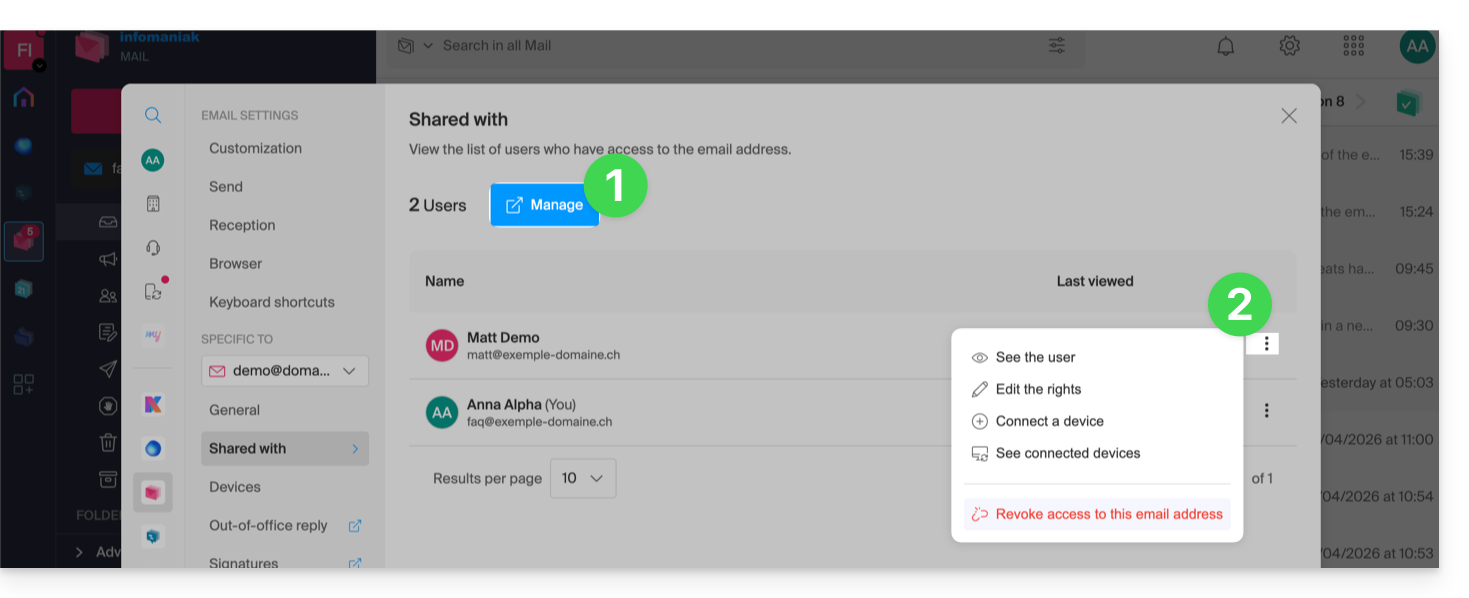
- Get details about the user.
- Edit the user's rights.
- Connect (or allow the user to connect) a device (via password creation).
- View connected devices (which therefore have a previously created password).
- Revoke the access of the user in question.
Shortcut
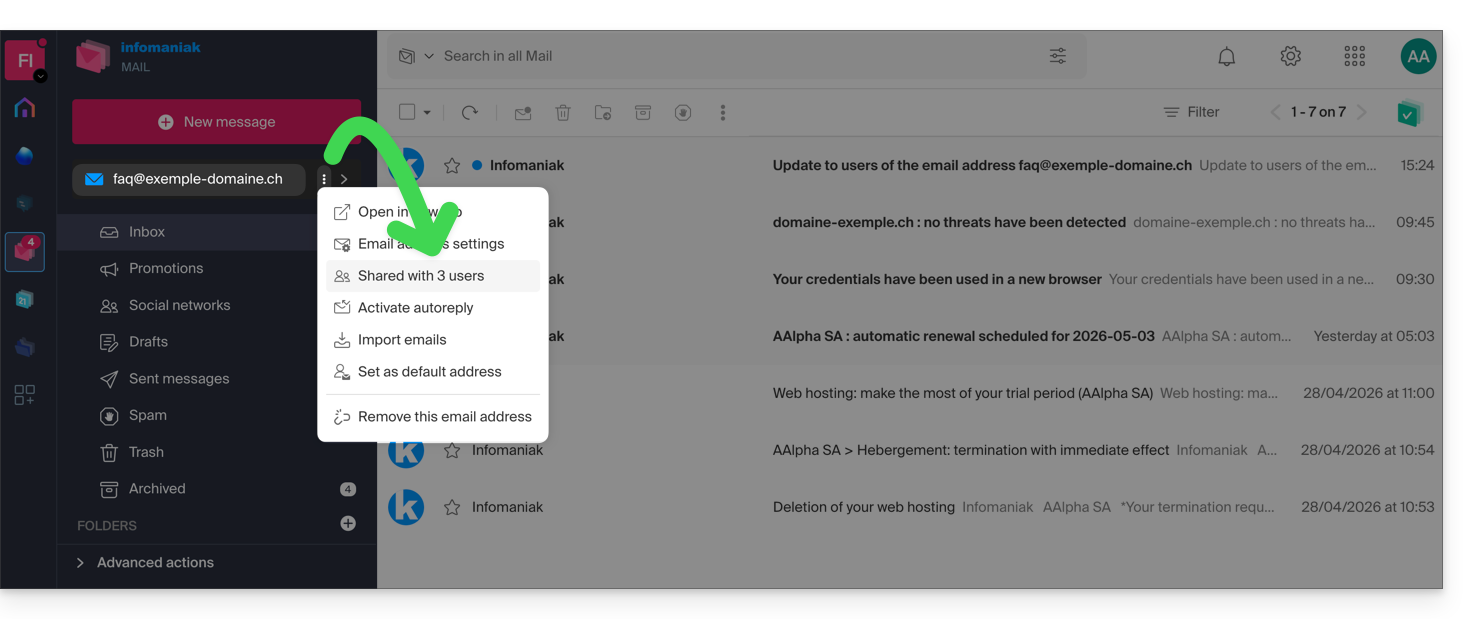
You can also access it directly from the homepage:
- Click on the action menu ⋮ to the right of your email address.
- The number of shares is displayed; if you click on the item, you will arrive on the management page described above:
Link to this FAQ: https://faq.infomaniak.com/1390
Has this FAQ been helpful?