Knowledge base
1000 FAQs, 500 tutorials and instructional videos. Here, there are only solutions!
Configure Apple Mail (iOS) using a .mobileconfig profile (email)
This guide explains how to connect the Apple Mail iOS app (iPhone, iPad, etc.) to an email address hosted by Infomaniak.
Introduction
- Your iOS device will be automatically configured using .mobileconfig configuration profiles compatible with Apple, unlike a manual configuration.
- It is possible to delete a configuration profile once it has been installed (scroll to the bottom of this page for instructions).
Install a configuration profile
Prerequisites
- Create the email address within my kSuite or a Mail Service / kSuite.
- Verify that the Mail Service is configured optimally.
Then:
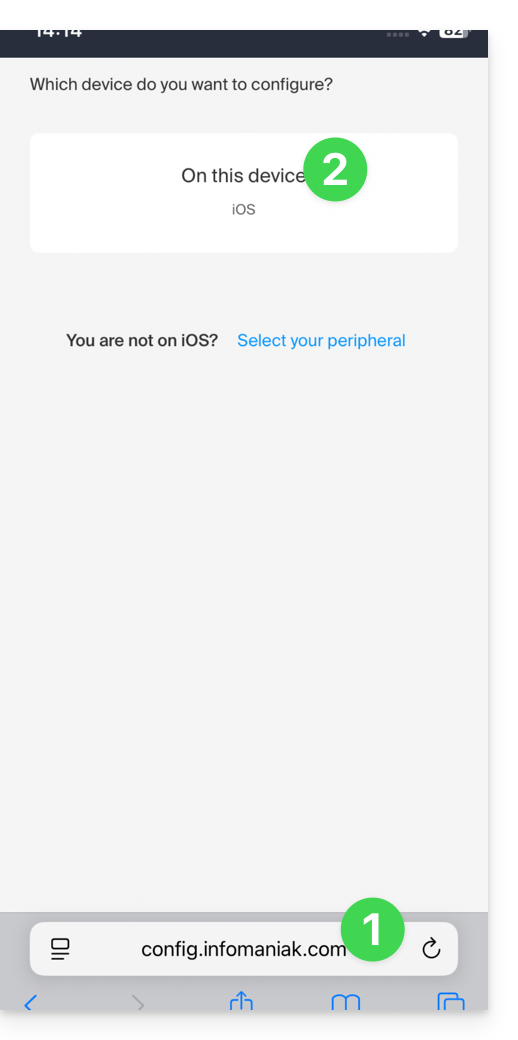
- Click here to access the Infomaniak configuration tool (online service https://config.infomaniak.com) — log in if necessary to your Infomaniak account for the Organization where your email address is managed.
- Choose to install the profile on this iOS device:
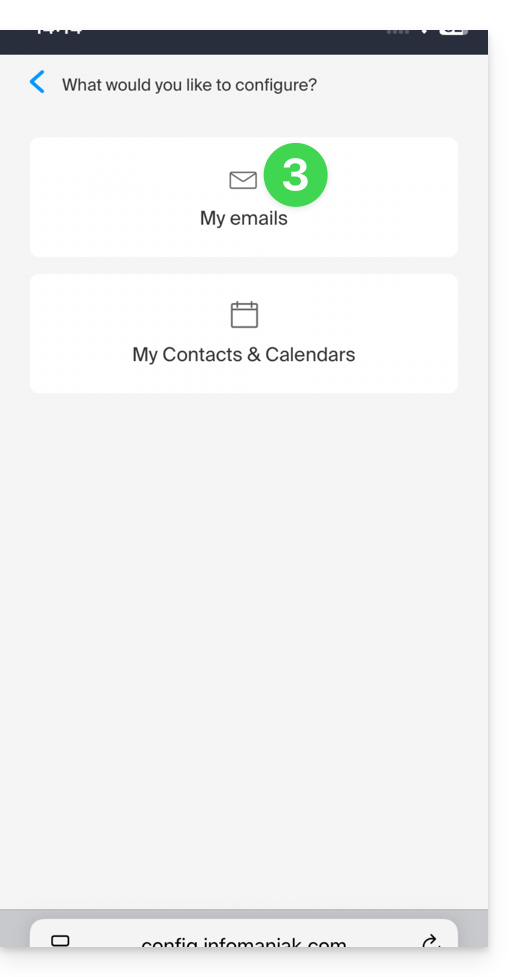
- Choose to synchronize emails:
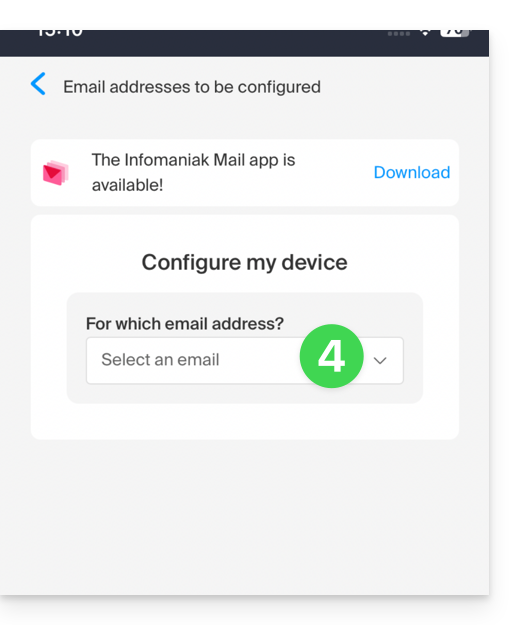
- Choose the email address (from those already linked to your current user) that should be synchronized on your device:
- Choose from the list of devices to enable synchronization on a new device (the one you are using):
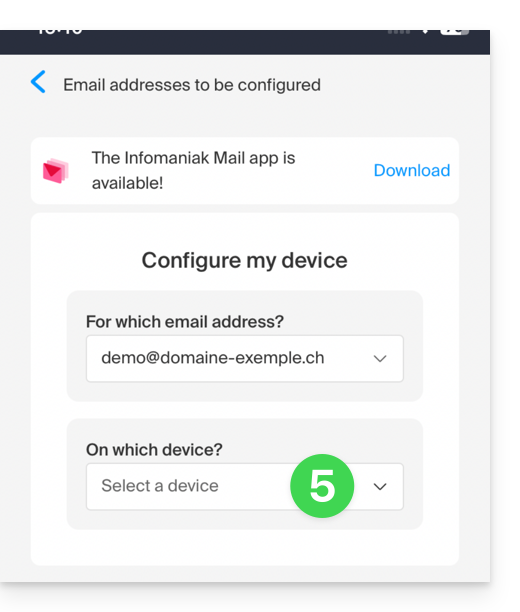
- The device name, which is purely descriptive, is adjusted accordingly, but you can modify it if necessary:
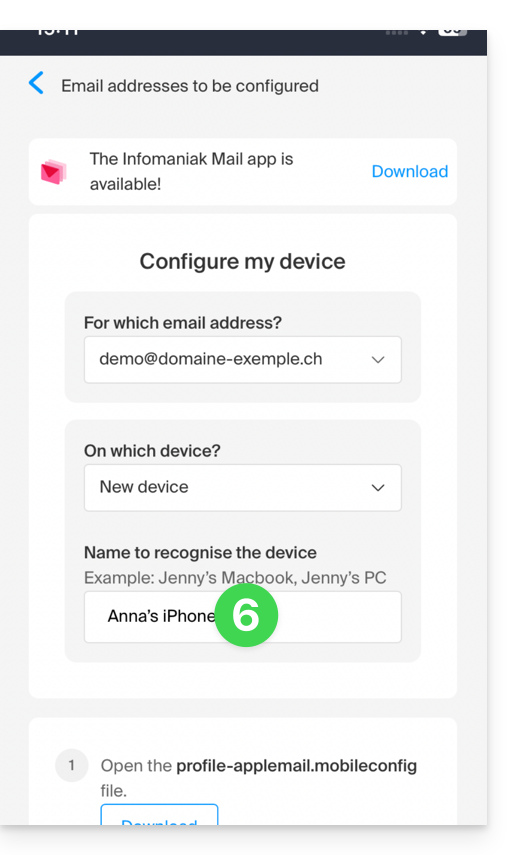
- Scroll down in the wizard and generate a password dedicated to email synchronization:
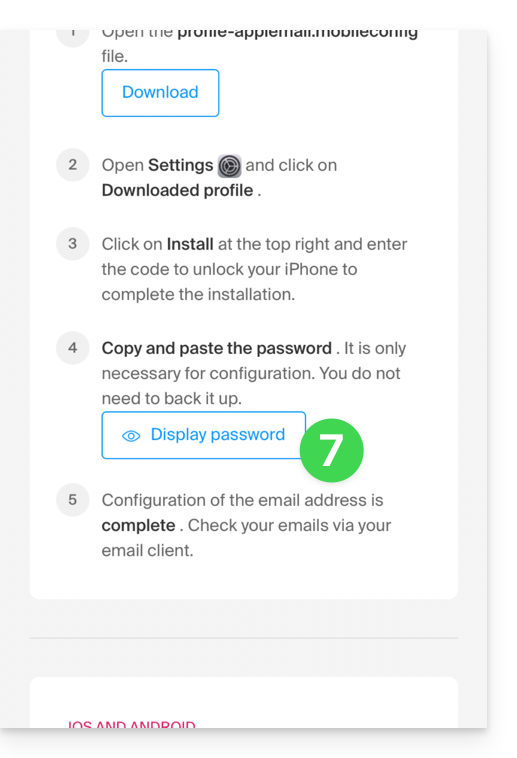
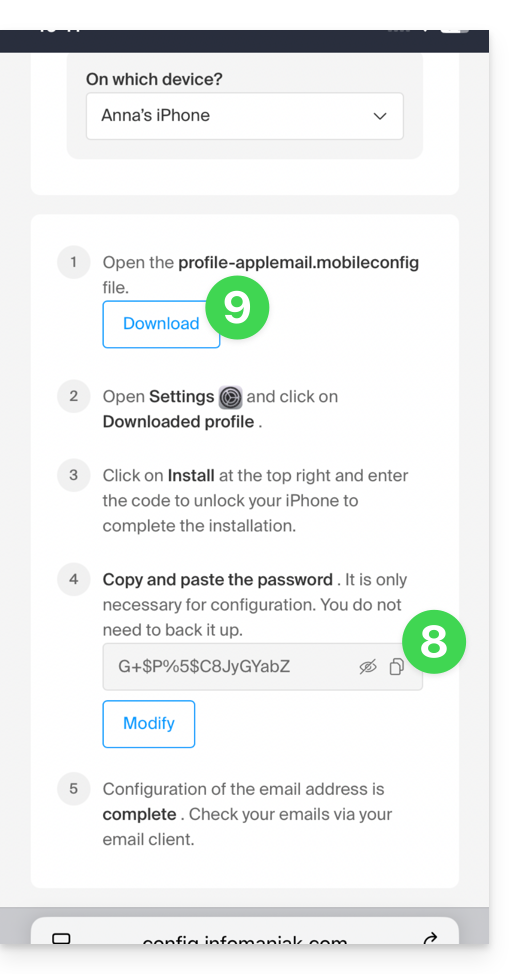
- Copy the generated password (you will be asked for it when installing the Apple profile).
- Download the Apple profile:
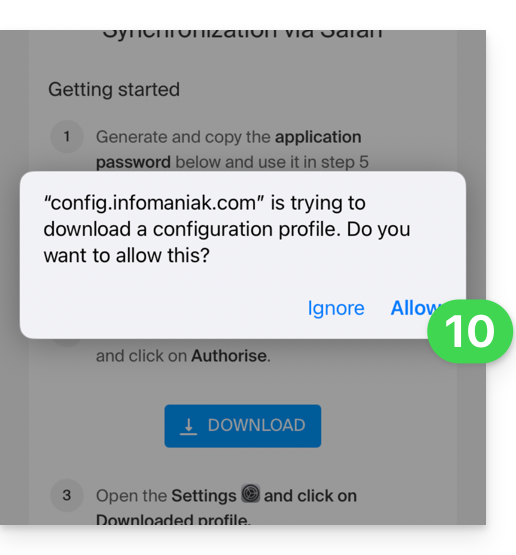
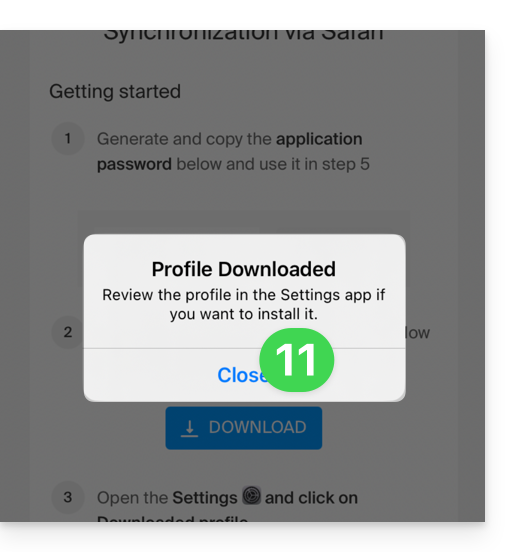
- Allow the download on the device:
- Tap to close the message:
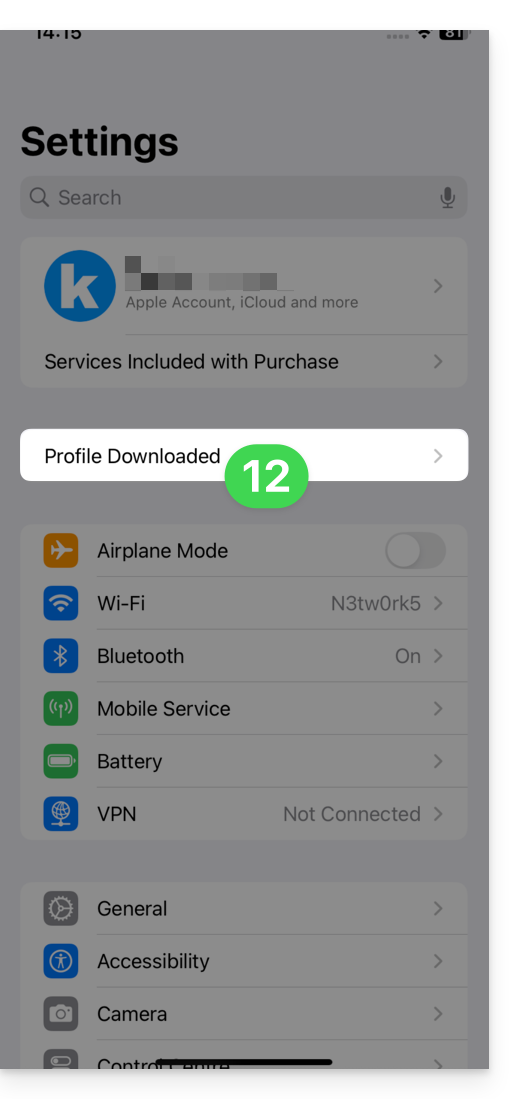
- Open the settings of your iOS device and tap on the banner at the top that informs you that a new profile has been downloaded:
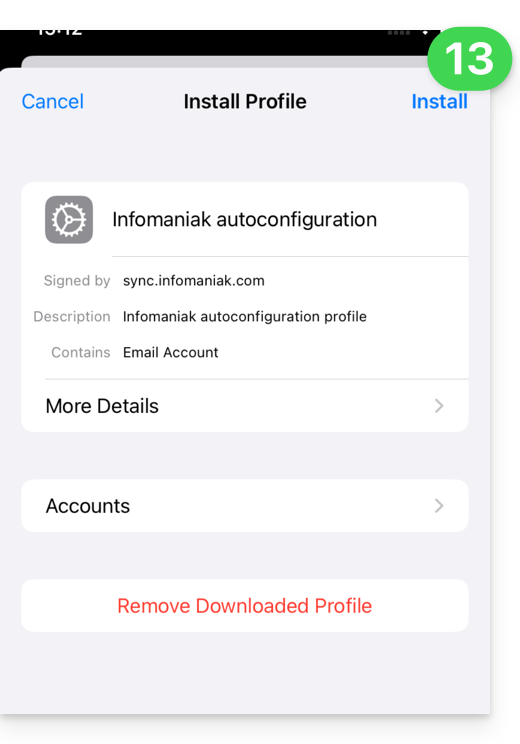
- Tap Install:
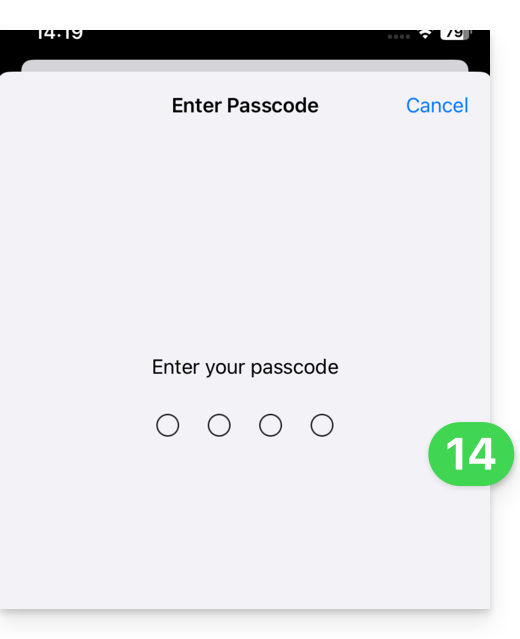
- Enter the code for your iOS device, as if you were unlocking it:
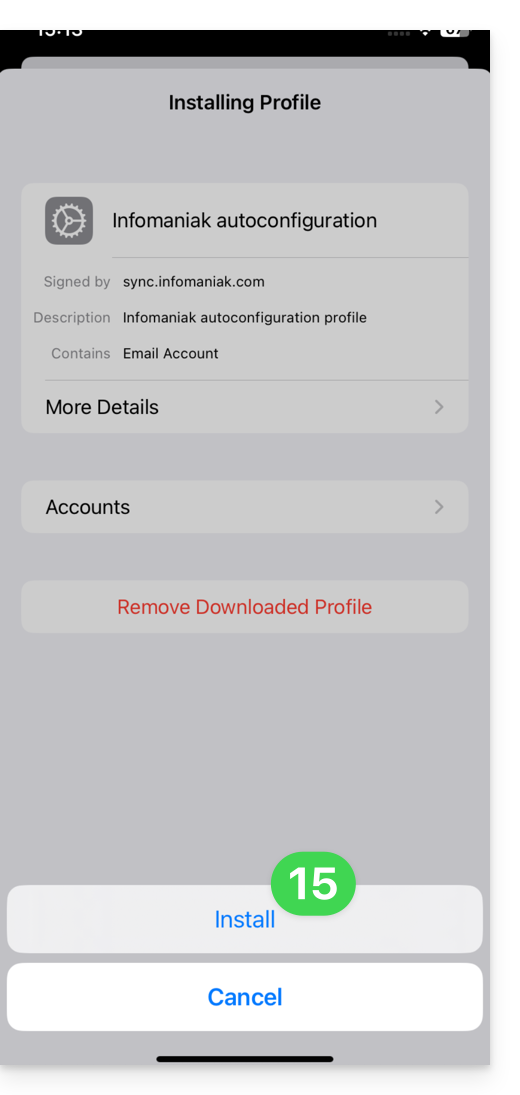
- Tap Install:
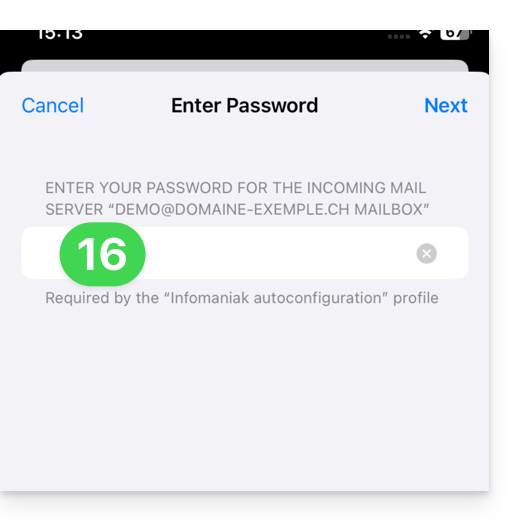
- Enter (or paste) the device password that you copied in step 8 above:
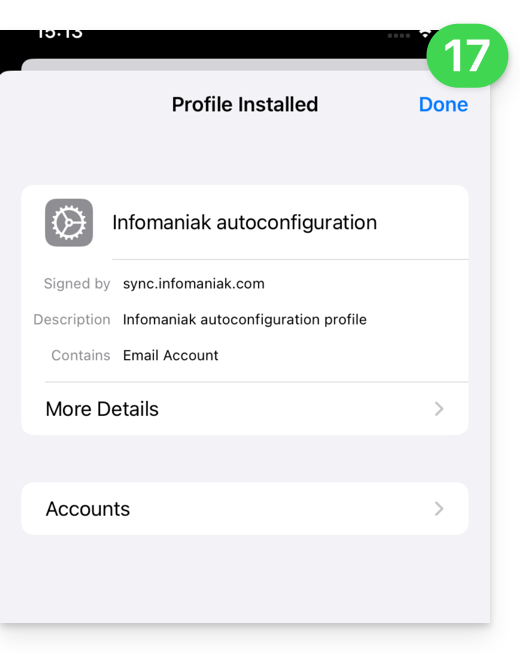
- When the message appears at the top, it's done:
If your Apple Mail iOS app was already open, you need to restart it. You will then see the information added by the synchronization: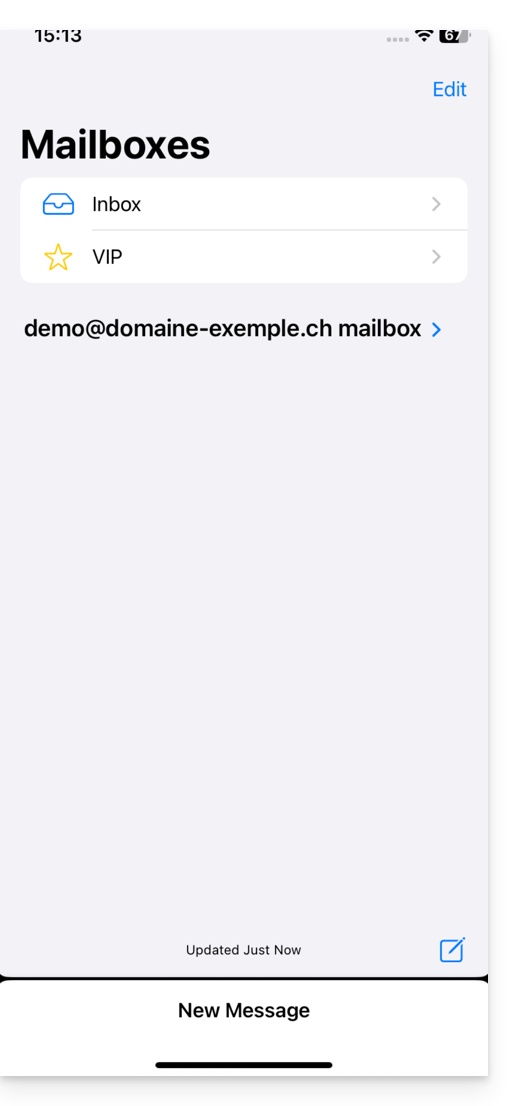
Remove an Apple profile
Refer to the official documentation, changing the version of your system at the top of the page * if necessary.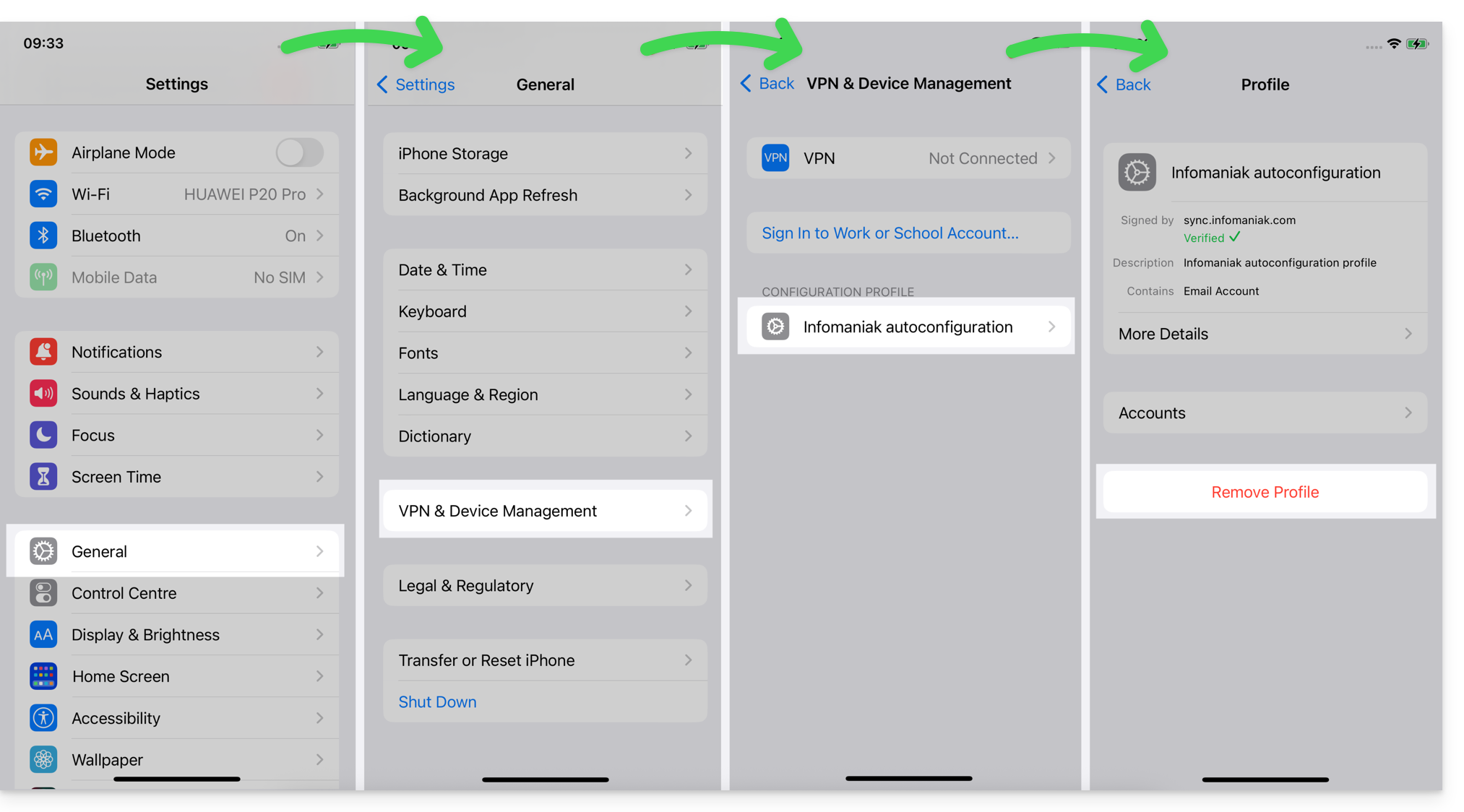
*Why is it necessary to choose the guide version that exactly matches your macOS/iOS system version? Apple introduces subtle changes with each new version of its system. For example, a path on iOS 15…
… becomes this on iOS 18…
Link to this FAQ: https://faq.infomaniak.com/1319
Has this FAQ been helpful?