Knowledge base
1000 FAQs, 500 tutorials and instructional videos. Here, there are only solutions!
Configure Apple Mail (macOS) with IMAP profile (email)
This guide explains how to connect the desktop app Apple Mail (desktop application on macOS) to an email address hosted by Infomaniak.
Preamble
- Your macOS computer will be automatically configured via configuration profiles .mobileconfig compatible with Apple, unlike a manual configuration.
- It is possible to remove a configuration profile once installed (scroll down to the bottom of this page for the explanations).
- The various services offered by Infomaniak are all compatible with the corresponding standard protocols (IMAP/SMTP for email, for example), therefore if you encounter a problem with third-party software, contact its publisher or a Partner and consult the support policy as well as article 11.9 of the Infomaniak Terms of Service.
Install a configuration profile
Prerequisites
- Create the email address within my kSuite or a Mail Service / kSuite.
- Check that the Mail Service is configured optimally.
You can download the profile from the device concerned or send it from another device (if you already have a working email address, for example):
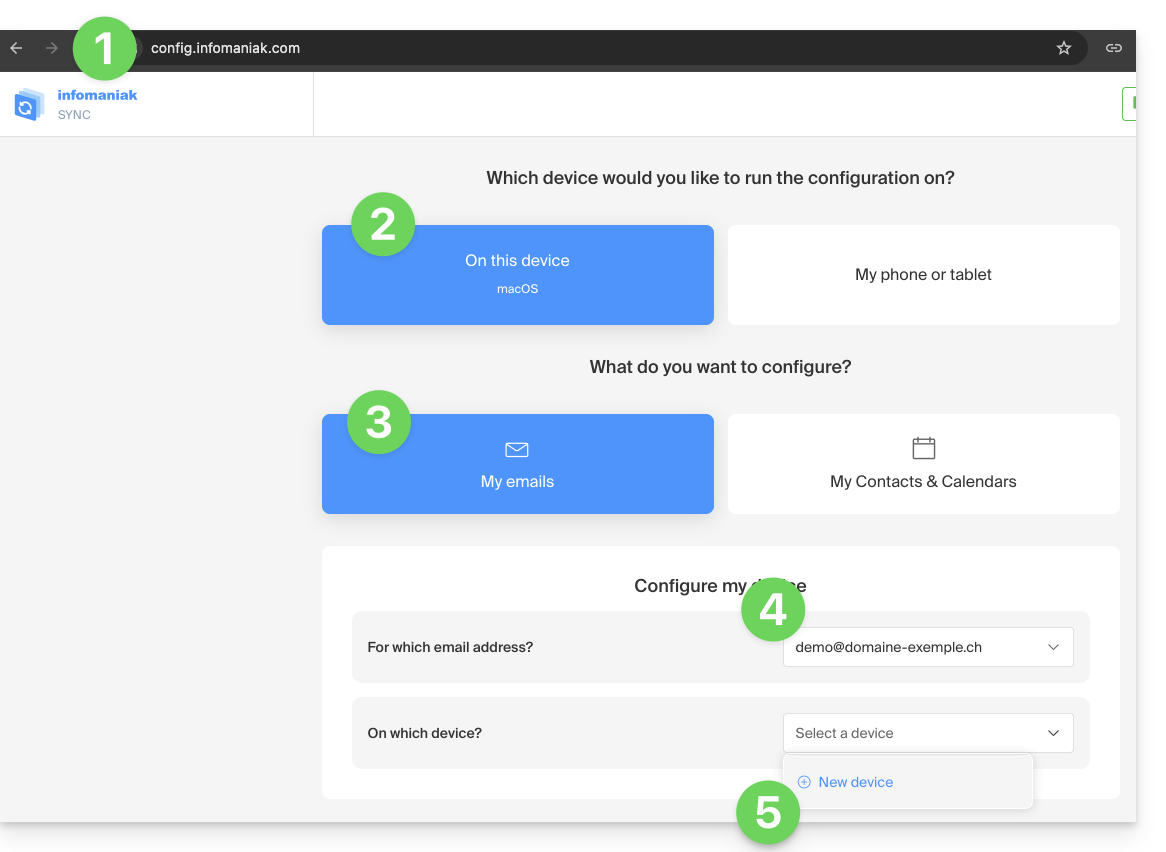
- Click here to access the Infomaniak configuration tool (online service https://config.infomaniak.com) — log in if necessary to your Infomaniak account on the Organization on which your email address is managed.
- Choose to install the profile on this device.
- Choose to synchronize emails.
- Choose the email address to configure on Apple Mail (from those you have access to).
- Create a new device:
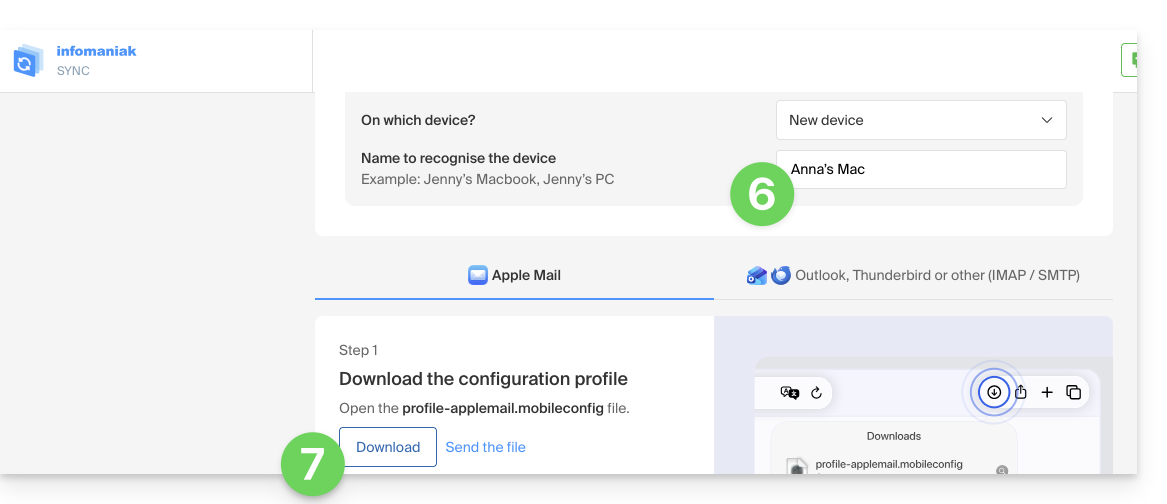
- Enter a descriptive name for the new device.
- Click the button to Download the profile (you can also send it by email using the link on the right):
- Once the file
profile-applemail.mobileconfigis on your computer, double-click to open and run it. - Click OK:

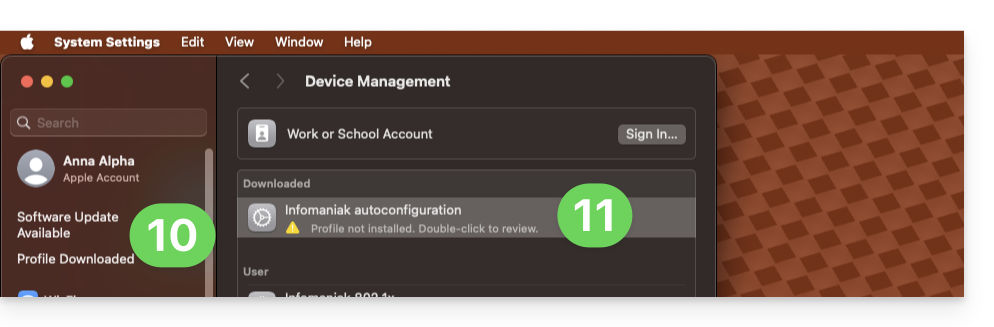
- Open the System Settings of the computer.
- Click on Downloaded Profile in the sidebar, then double-click on the new profile to apply it:
- If you have an older version of macOS or cannot find the profile, search for “profile” in the settings, or refer to the official documentation by changing the system version at the top of the page if necessary.
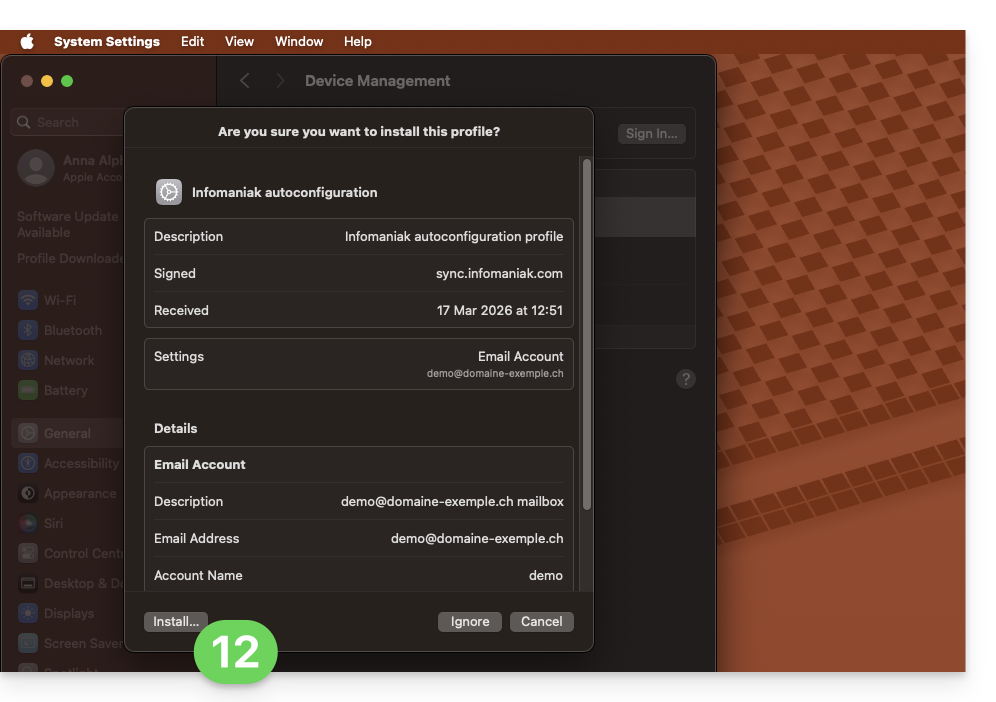
- Click on Install…:
- A password is then requested…
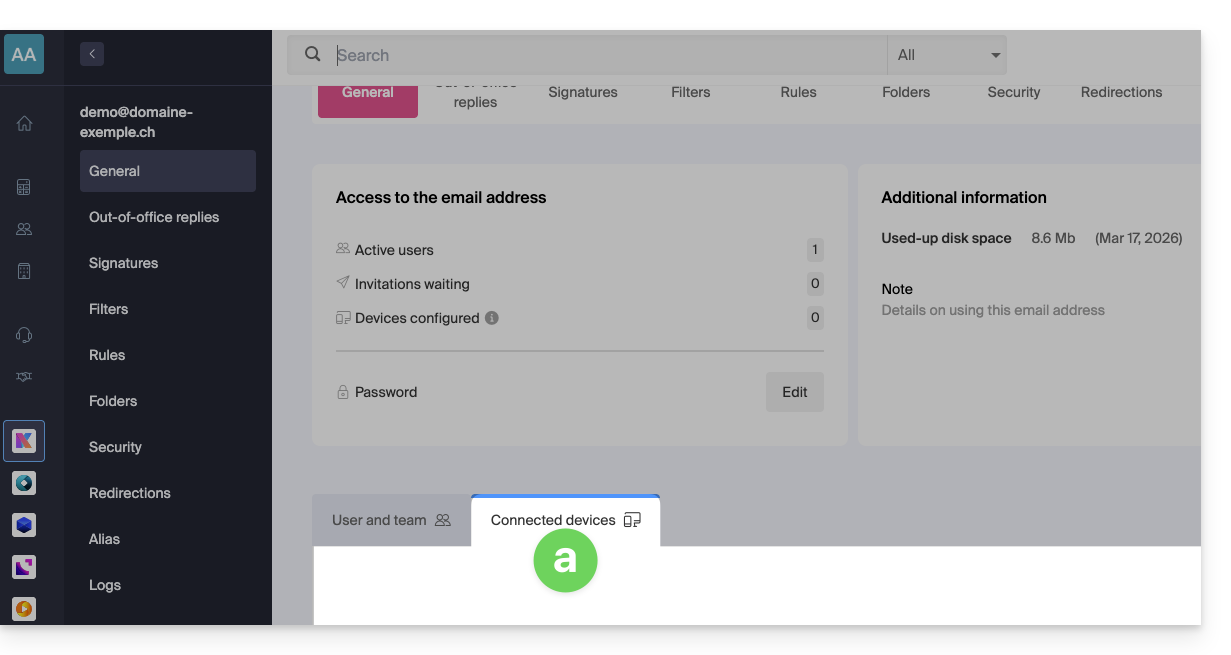
- either you know it because you have already created it in the Devices section of the Mail Service:
- or you can copy the new password found further down on the assistant page
config.infomaniak.comopened earlier: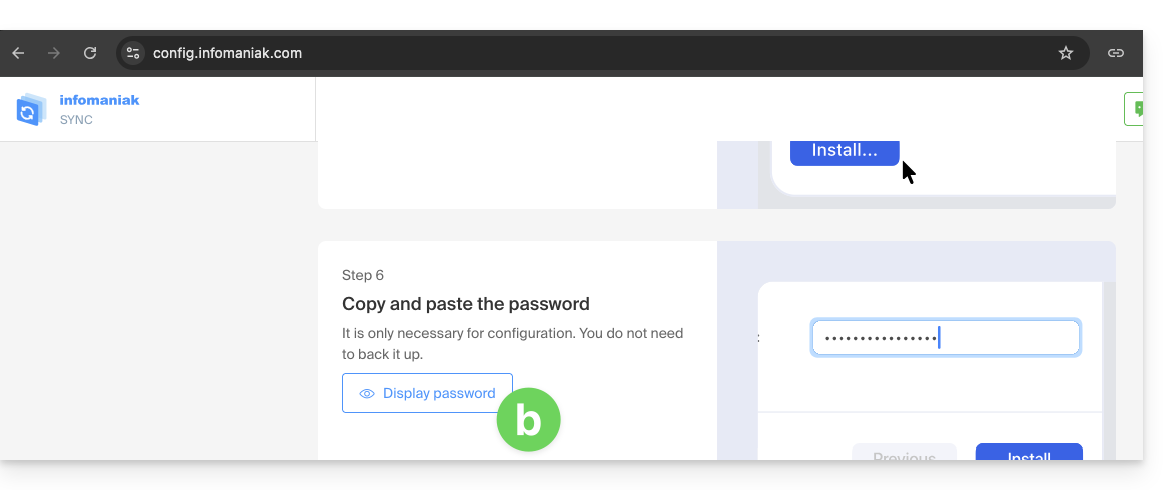
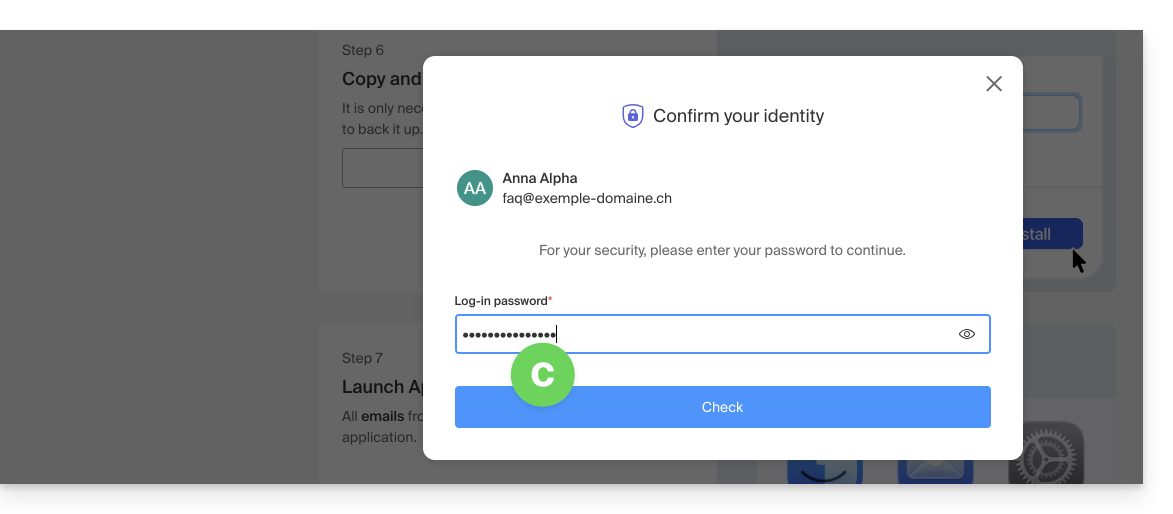
- Before the email password is displayed, your Infomaniak account password may be requested for security:
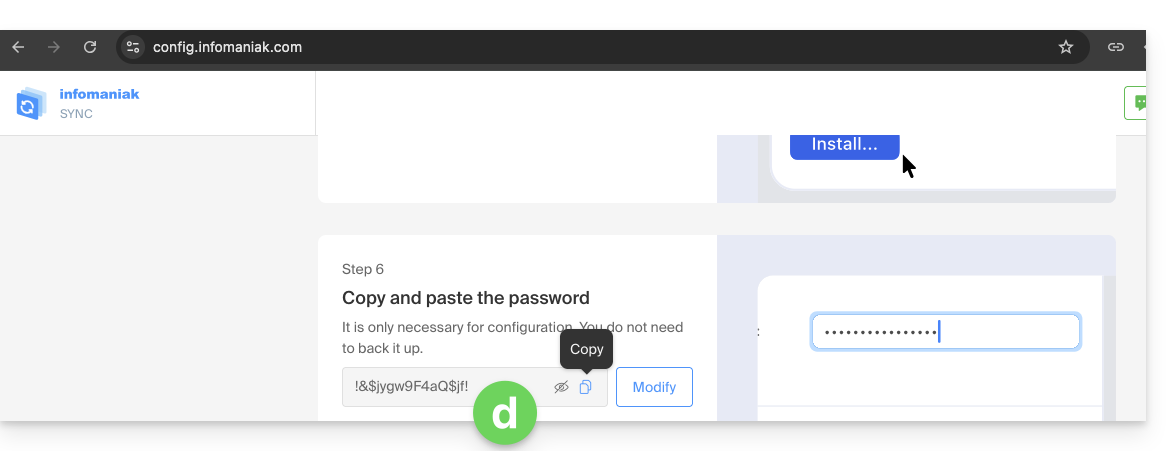
- Here it is, the randomly generated password is displayed, you just need to copy it:
- either you know it because you have already created it in the Devices section of the Mail Service:
- Paste the password into the macOS window.
- Click on Install to start the profile installation:
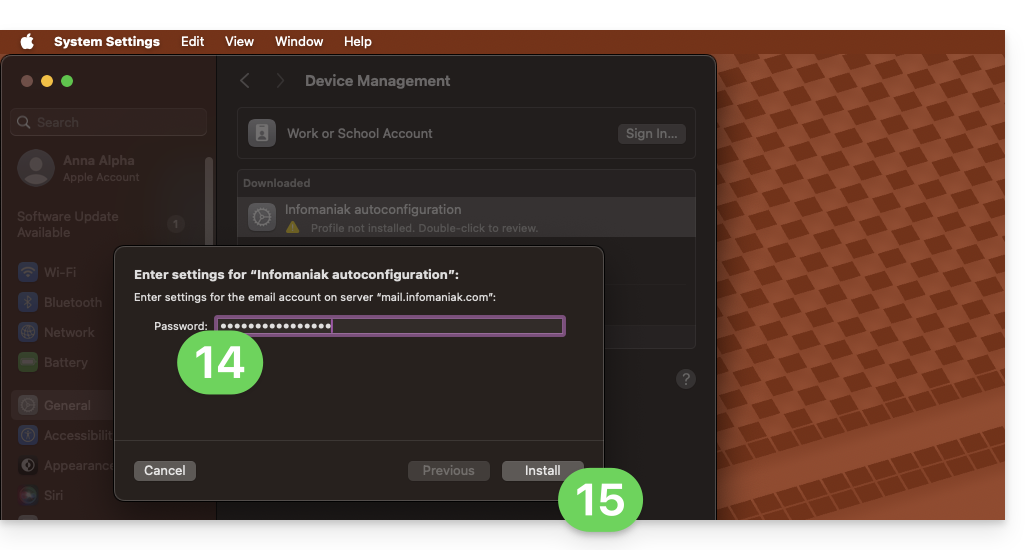
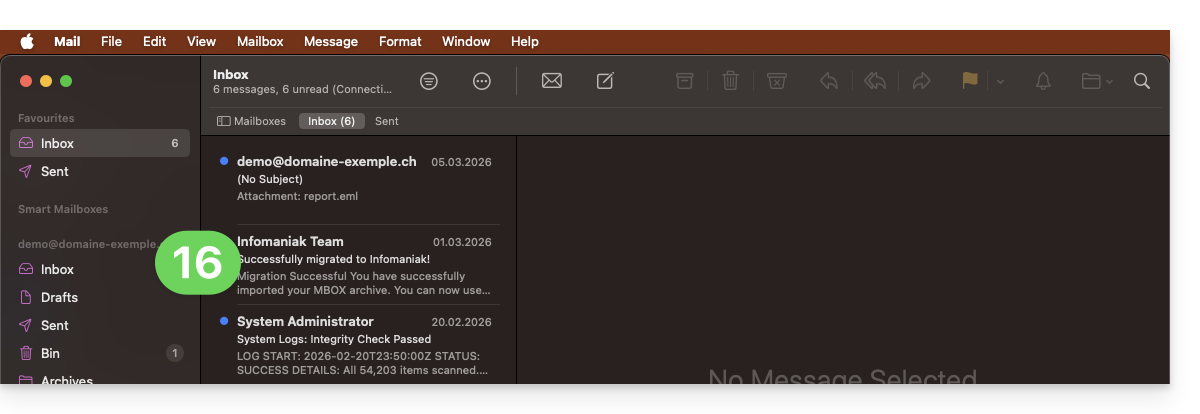
- Your email address is now configured in the Apple Mail application, which you can open and check:
Delete an IMAP account
Refer to the chapter "Stop using an account" by changing the system version at the top of the page if necessary (note: do not delete a POP-configured account without saving your messages first).
Delete an Apple profile
Refer to the official documentation by changing the system version at the top of the page* if necessary.
*Why is it necessary to choose the guide version that exactly matches your macOS / iOS system version? Apple introduces changes, sometimes subtle, with each new system version, for example a path on iOS 15…
…becomes this on iOS 18…
Link to this FAQ:
Has this FAQ been helpful?