Knowledge base
1000 FAQs, 500 tutorials and instructional videos. Here, there are only solutions!
Translate the content of an Infomaniak Web Mail email on the app
This guide details the automatic translation service integrated into the Infomaniak Web app Mail (online service ksuite.infomaniak.com/mail).
Preamble
- The Infomaniak Web app Mail (online service ksuite.infomaniak.com/mail) integrates an automatic translator for both reading and writing in French, German, English, Italian, and Spanish.
- This AI solution does not rely on a third-party service (DeepL, Google Translate, etc.) contacted via API, but it is hosted, operated, and partly trained by Infomaniak.
Translate text…
… while writing
To automatically translate a message you are writing into a foreign language:
- Click here to access the Infomaniak Web app Mail (online service ksuite.infomaniak.com/mail).
- Write a new email without sending it.
- Select the text to translate.
- Click on Translate:
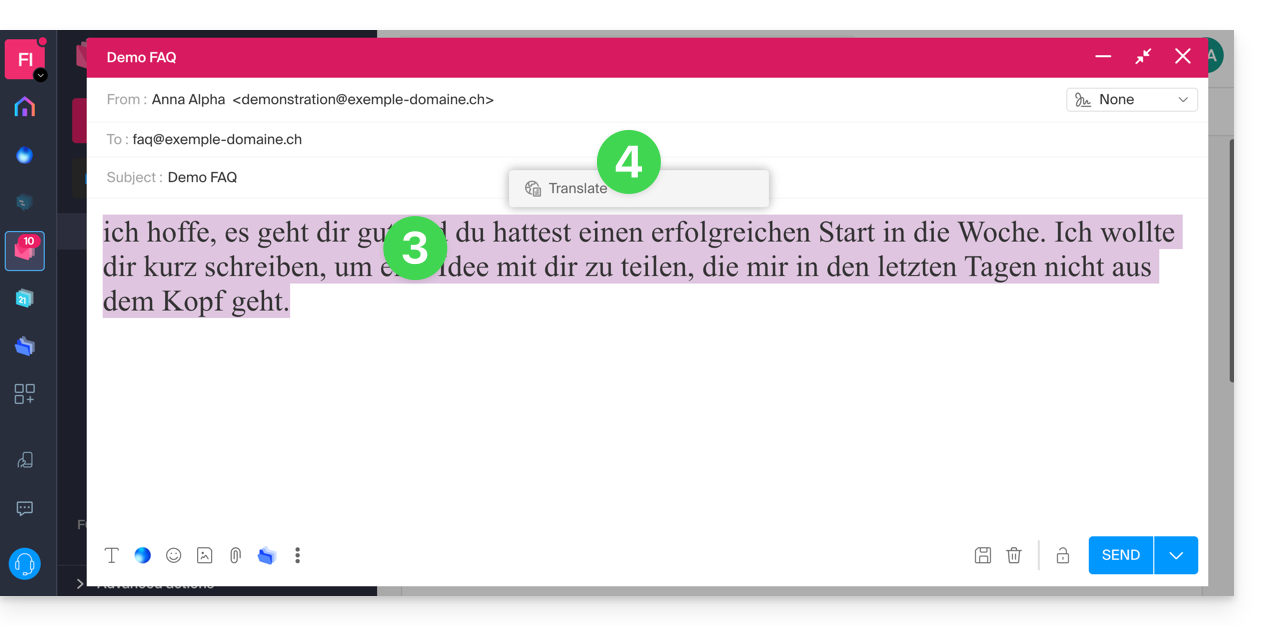
- Modify the languages if necessary.
- Click on Apply translation:
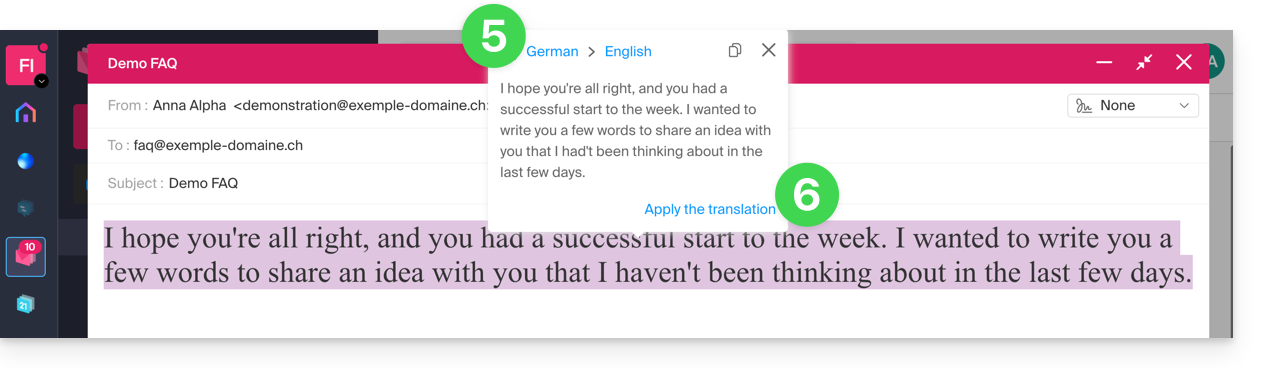
… while reading
To automatically translate a received message written in a foreign language into your language:
- Click here to access the Infomaniak Web app Mail (online service ksuite.infomaniak.com/mail).
- View the email to be translated.
- Select the text to translate.
- Click on Translate:
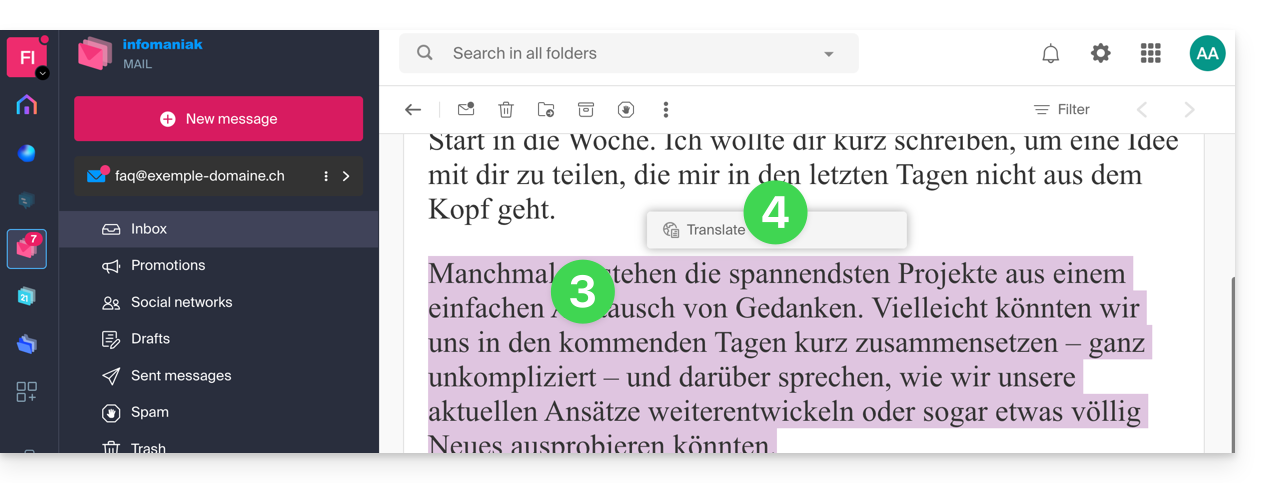
- Click on the language names to modify the languages used.
- In the same place, you can also copy the translated text to the clipboard to use it later:
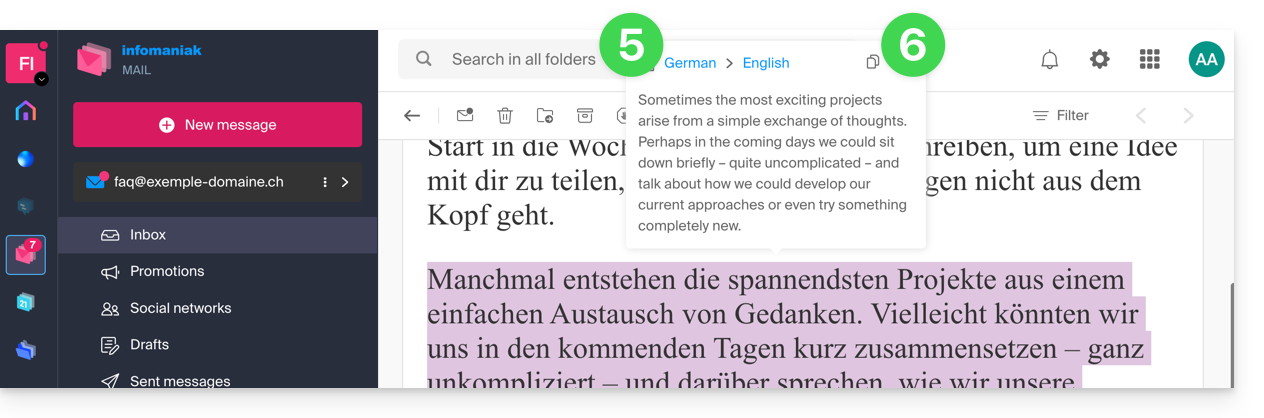
Disable the translator
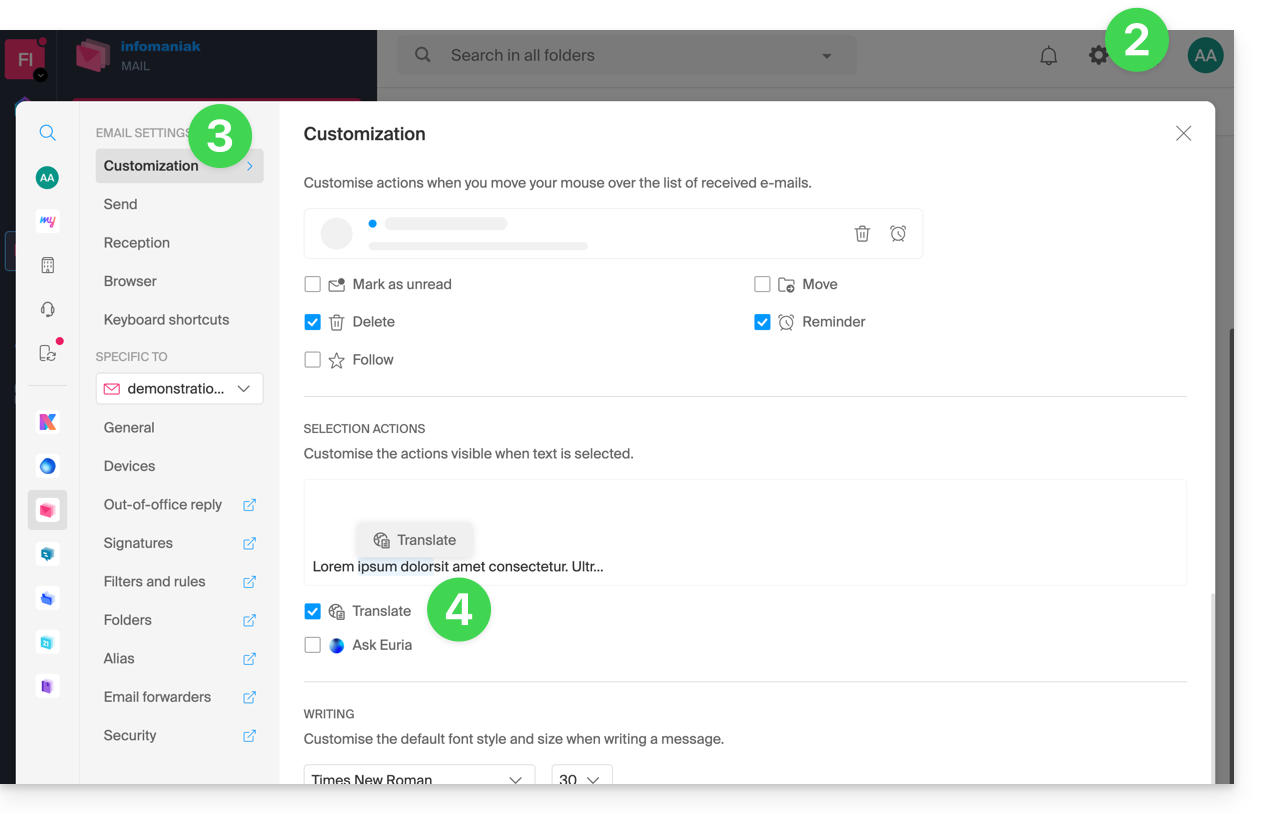
You can adjust the elements (translations / Euria) that appear when you click on your message:
- Click here to access the Infomaniak Web app Mail (online service ksuite.infomaniak.com/mail).
- Click on the Settings icon in the top right of the interface.
- Click on Customization in the left sidebar menu.
- Check or uncheck the actions you want to have on click:
Link to this FAQ: https://faq.infomaniak.com/1215
Has this FAQ been helpful?