Knowledge base
1000 FAQs, 500 tutorials and instructional videos. Here, there are only solutions!
Restore an email account (recover deleted emails)
This guide explains how to recover lost emails, especially after accidental deletion.
Preamble
- Infomaniak backs up each email address once a day (usually early in the morning).
- You can thus restore your mailbox to its exact state at the time of the backup.
- RECOVERED ITEMS:
- Emails (present at the time of the backup) that no longer exist (at the time of the restoration request) will be returned to their original location.
- Certain parameters (answering machine and redirection in particular) will be restored if they have changed in the meantime.
- NON-RECOVERED ITEMS:
- Moved emails (subfolders, trash): they still exist in your account and must be searched.
- The restoration does not include the calendar nor the address book.
- Messages absent at the time of the daily backup (see POP3 chapter); example:
- Restoration requested at 10 AM (backup at 5 AM) for an email received at 8 AM and deleted at 9:30 AM: it will not be recovered because it was not yet present at the 5 AM backup.
- UNMODIFIED ITEMS:
- Emails received, created, or stored between the backup date and the execution of the restoration remain in your mailbox.
Backup retention period
Infomaniak makes the backup of your mailbox available for a certain number of days depending on your offer.
⚠ Duration in days:
| kSuite | * | |
| Standard | 30 | |
| Business | 30 | |
| Enterprise | 30 | |
| * | ||
| my kSuite+ | 30 | |
| Mail Service | * | |
| Premium 5 min. addresses | 30 |
* By upgrading a free offer, you will be able to access backups for up to 30 days.
Refer to this other guide on the storage limits of your messages.
Restore from the Infomaniak Web Mail app
Prerequisites
- Ensure that the deletion occurred less than 30 days ago (or within the period included with your offer - see above).
- Have permission to manage backups: if you had been invited to the Infomaniak Web Mail app (online service ksuite.infomaniak.com/mail) to manage your address, it is possible that the Mail Service manager has revoked this right from their admin account.
To restore emails:
- Click here to access the Infomaniak Web Mail app (online service ksuite.infomaniak.com/mail).
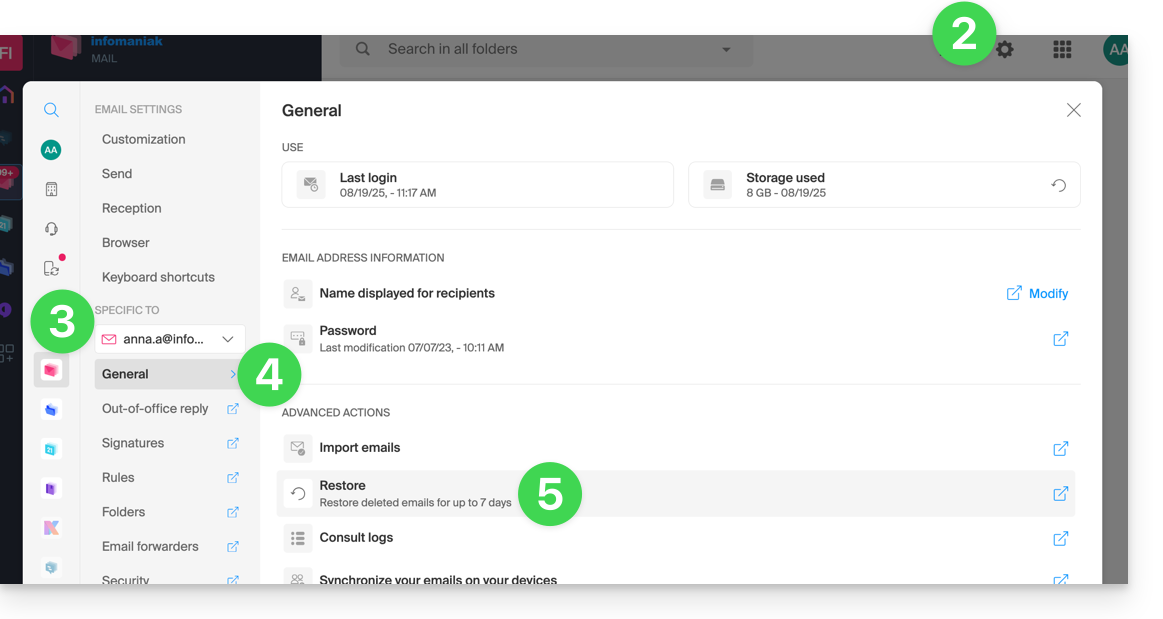
- Click on the Settings icon at the top right.
- Check or select the email address concerned in the dropdown menu of the left sidebar.
- Click on General.
- Click on Restore:
- Choose a Restore date.
- Click on Restore emails:
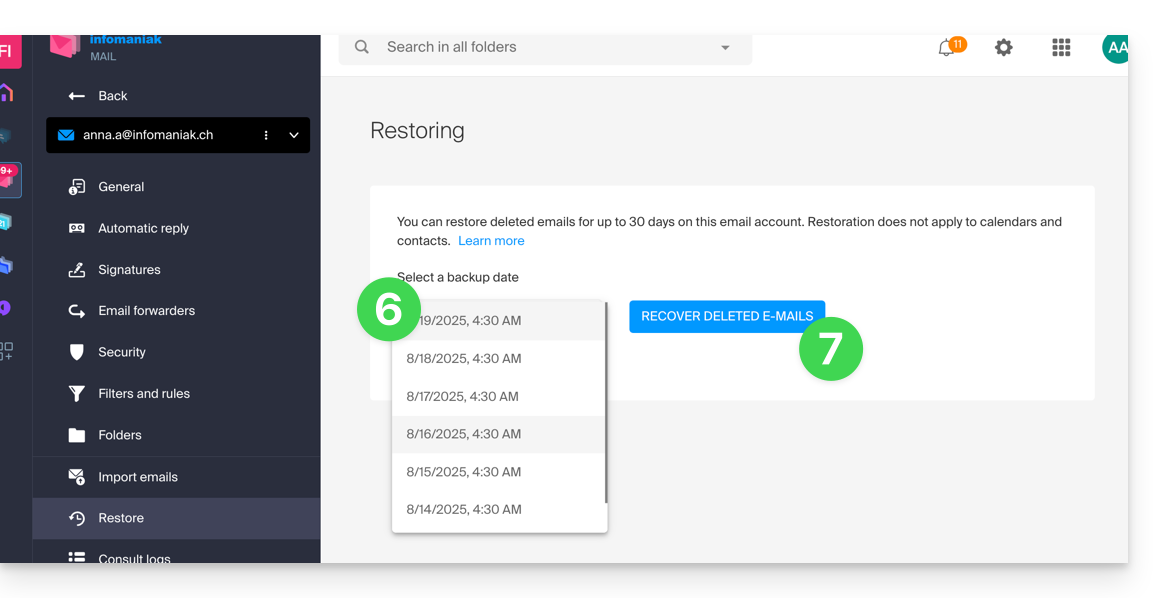
- Once the restoration is complete, an informational email is sent.
Restore from the Mail Service
Prerequisites
- Be Administrator or Legal Representative within the Organization that manages the Mail Service.
- Ensure that the deletion occurred less than 30 days ago (or within the period included with your offer - see above).
To restore emails from a Mail Service:
- Click here to access the management of your product on the Infomaniak Manager (need help?).
- Click directly on the name assigned to the product concerned.
- Click on the concerned email address in the displayed table.
- Click on the Actions on the address button at the top right.
- Click on Restore emails:
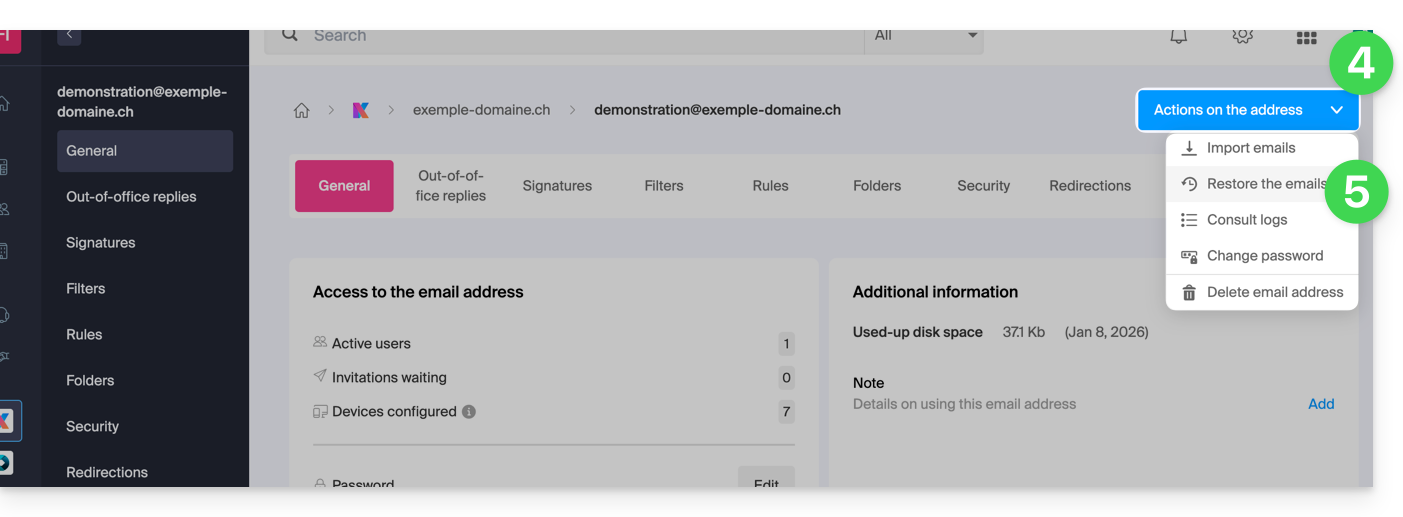
- Choose a Restore date.
- Click on Restore emails.
- Once the restoration is complete, an information email is sent to you.
Emails placed in the trash
Unless otherwise configured, an email deleted by the user is moved to a trash can, and it is only after a delay of several days or weeks that the trash can is automatically emptied (it can also be emptied by a user click). Therefore, during a restoration operation:
- Emails currently in the trash will remain as they are, regardless of the restoration date.
- Emails deleted from the trash will be restored to their original location, where they were when they were deleted (whether in the inbox folders or in the trash).
Emails placed in non-conventional folders
If you intentionally store your messages in folders with unusual names (for example, folders named Junk or Spam) take note of the important information in this other guide.
Email software/client configured in POP3
If you are used to checking your email with software/email client like Outlook and the latter is configured with the POP / POP3 protocol, it will not be possible to restore everything since the backup is done once a day, it only keeps the messages that were at the time of the backup in the Infomaniak inbox; the same applies to your other folders (Sent messages, for example) present in the POP3 application: these are not synchronized with Infomaniak and therefore are not backed up; it is therefore necessary in the future to prefer the IMAP protocol in your email software/client.
Link to this FAQ: https://faq.infomaniak.com/1203
Has this FAQ been helpful?