Knowledge base
1000 FAQs, 500 tutorials and instructional videos. Here, there are only solutions!
Manage Web Mail app notifications
This guide explains how to be notified of new emails with the Infomaniak Web app Mail (online service ksuite.infomaniak.com/mail).
Preamble
- The Infomaniak Web app Mail is compatible with web browsers (Chrome, Firefox, etc.) that offer visual alerts for incoming messages in the background.
- The mobile app Infomaniak Mail (iOS / Android) also offers to use the notification possibilities of your mobile device.
Display a notification in the browser
To activate browser notifications when a new incoming message arrives:
- Click here to access the Infomaniak Web app Mail (online service ksuite.infomaniak.com/mail).
- Click on the Settings icon at the top right.
- Click on Browser in the left sidebar menu.
- Enable the toggle switch to Show a notification when new emails are received:
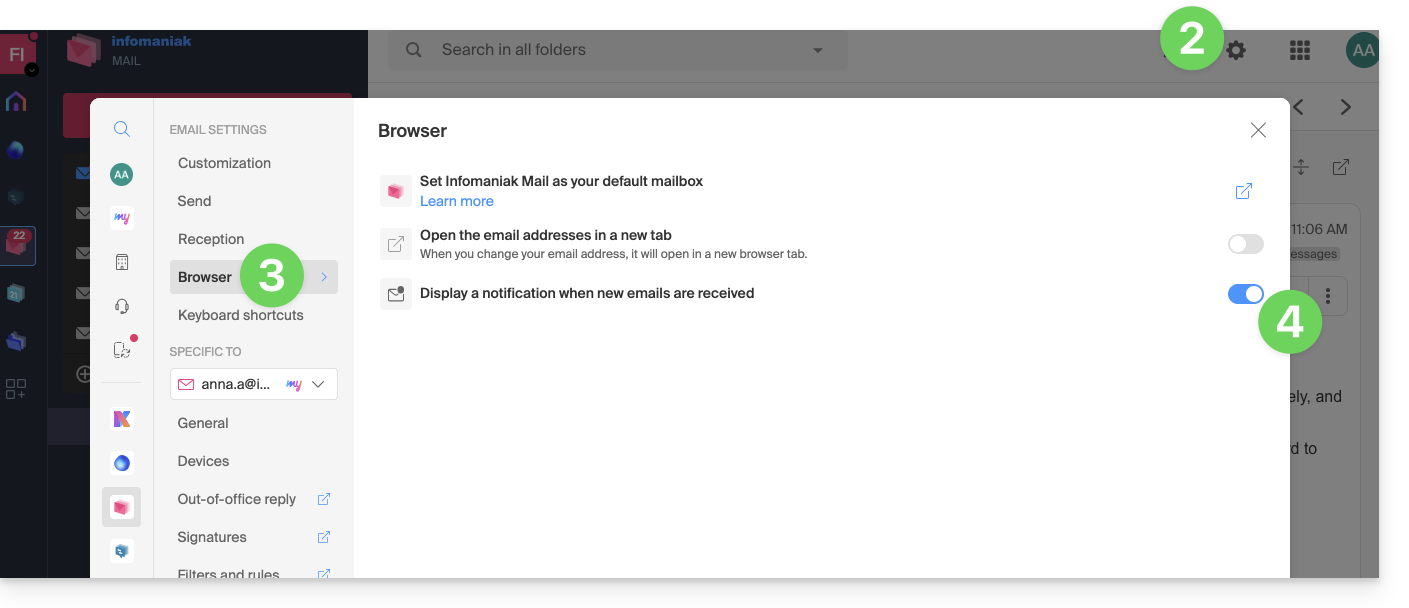
To remove this feature, deactivate the toggle button. You will also need to remove the notification permission in the browser directly (see the documentation of its editor).
Allow browser notifications…
… on Safari
- Open Safari.
- Click on Preferences and select Websites then Notifications.
- Search for the site ksuite.infomaniak.com/mail and select Allow.
For more information, refer to the Apple documentation.
… on Firefox
- Open Firefox.
- Go to the main menu in Preferences or Settings.
- Go to Privacy and Security in the left panel.
- Scroll down to the Permissions section.
- Click the Settings button to the right of Notifications.
- Search for the site ksuite.infomaniak.com/mail and select Allow.
For more information, refer to the Firefox documentation.
… on Google Chrome
- Open Google Chrome.
- Click on the More menu ⋮ in the top right corner > Settings.
- Go to Privacy and Security, then click on Site Settings.
- Click on Notifications and choose to allow notifications:
- Allow a site: next to the Allow option, click Add. Enter the URL: https://ksuite.infomaniak.com/mail, then click Add.
For more information, refer to the Google Chrome documentation.
… on Microsoft Edge
- Open Microsoft Edge.
- Click on the menu in the top right corner, then click on Settings.
- Go to the Cookies and site permissions menu.
- Click on Notifications:
- Allow a site: next to the Allow option, click Add. Enter the URL: https://ksuite.infomaniak.com/mail, then click Add.
Link to this FAQ: https://faq.infomaniak.com/1168
Has this FAQ been helpful?