Knowledge base
1000 FAQs, 500 tutorials and instructional videos. Here, there are only solutions!
Display all your addresses on the Infomaniak Web Mail app
This guide explains how to centralize the display of your different Infomaniak email addresses when you have multiple accounts and messaging offers.
Display email addresses from all Organizations
A first approach is to display the global Mail web app for all Organizations to which your Infomaniak account is linked:
- Click here to access the Infomaniak Mail web app (online service ksuite.infomaniak.com/mail).
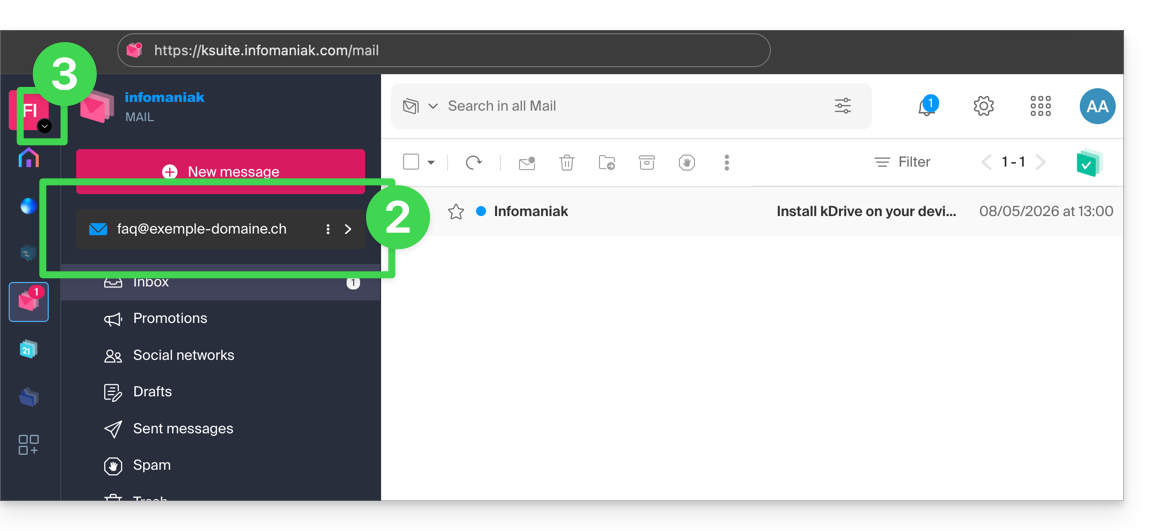
- Then click on the chevron to the right of the displayed email address.
- The other addresses of the Organization for which you have permission will be displayed.
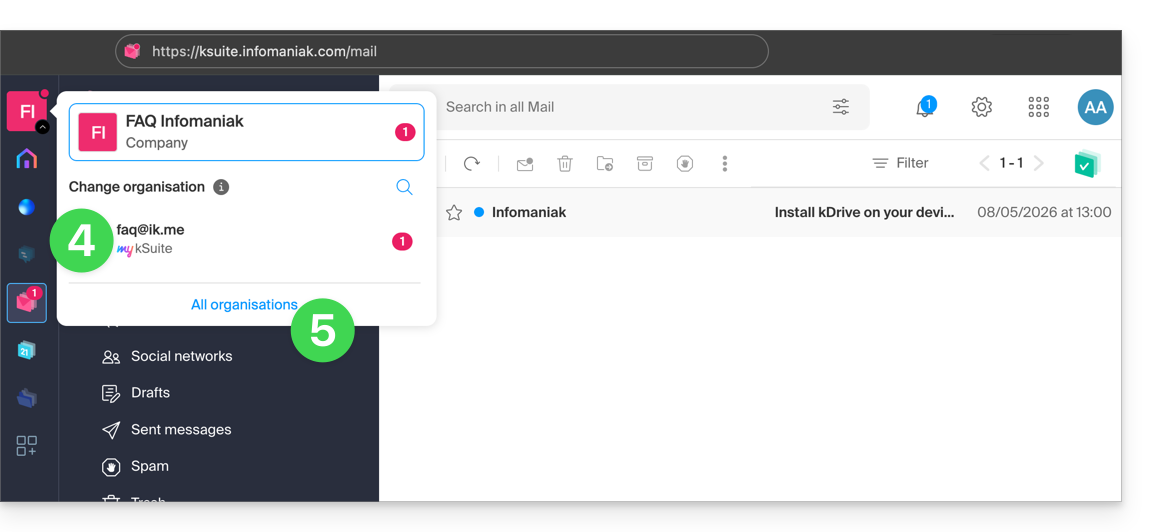
- If you have access to other addresses on other Organizations that your user accesses, click on the chevron to the right of the active Organization:
- Either you click on another Organization (my kSuite for example) to display only the other specific email address…
- Or you click on All Organizations to display all email addresses in the interface:
- The shortcut for this common display is https://ksuite.infomaniak.com/all/mail:
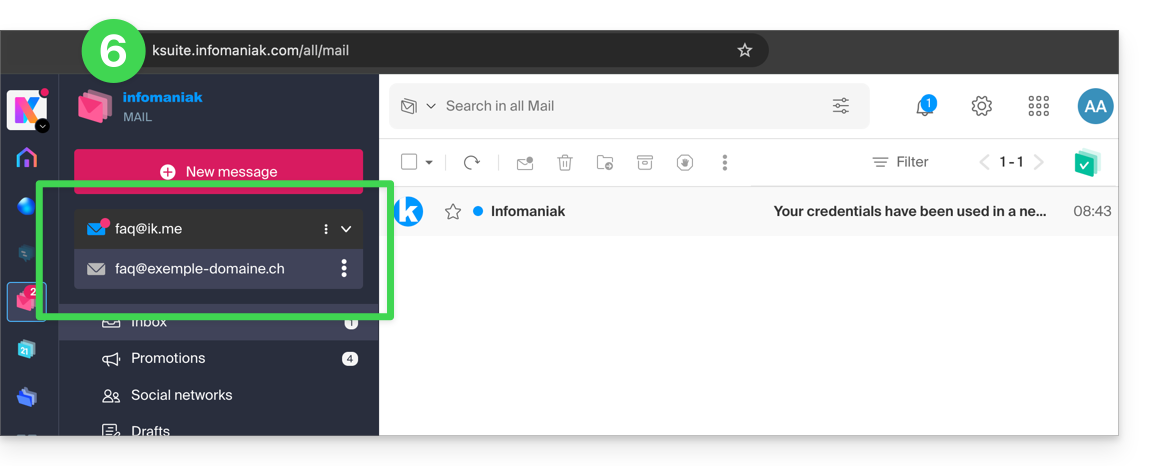
If an email address you know is not visible:
- Check at the top right that you are logged in with the correct Infomaniak account.
- Check with the address administrator that you have access to the address in question with your current Infomaniak account login.
If, on the other hand, you want to remove an address from the list, refer to this other guide.
Link to this FAQ: https://faq.infomaniak.com/108
Has this FAQ been helpful?