Base de conhecimento
1000 perguntas frequentes, 500 tutoriais e vídeos explicativos. Aqui, você encontra apenas soluções!
Este guia trata das funções ODBC do PHP.
As funções ODBC do PHP são suportadas apenas no Servidor Cloud.
Funções de Conectividade Aberta de Banco de Dados
Estas são as funções usadas para interagir com bancos de dados através da interface ODBC (Conectividade Aberta de Banco de Dados), um padrão para acessar fontes de dados de forma uniforme. Aqui estão alguns exemplos de uso das funções ODBC do PHP:
- Ler dados de um banco de dados externo e exibi-los no seu site
- Inserir ou modificar dados em um banco de dados externo
- Efetuar consultas complexas numa base de dados externa
Link para esta FAQ: https://faq.infomaniak.com/296
Esta seção de perguntas frequentes foi útil?
Este guia diz respeito ao ImageMagick, um conjunto de software poderoso para a manipulação de imagens, disponível nos Serviços de Hospedagem Web e Servidores Cloud da Infomaniak.
Instalação simplificada: Para instalar o ImageMagick ou as suas extensões, recomenda-se utilizar o Fast Installer a partir do seu painel de controlo.
ImageMagick e soluções de manipulação de imagens
Várias ferramentas estão à sua disposição para processar as suas imagens (redimensionamento, conversão, marcas d'água):
- ImageMagick (CLI): o conjunto principal, utilizável na linha de comandos (via SSH); o comando moderno é
magick, mas a sintaxe antigaconvertcontinua disponível. - Extensão PHP
imagick: esta é a solução mais comum para sites (WordPress, etc.); permite utilizar o ImageMagick diretamente nos seus scripts PHP. - Biblioteca GD: uma alternativa mais leve, frequentemente pré-instalada, ideal para manipulações simples (miniaturas, texto em imagens).
- PerlMagick: interface dedicada a scripts Perl para acessar as funcionalidades do ImageMagick.
Caminhos e comandos
Nas infraestruturas Infomaniak, o ImageMagick está instalado por padrão. Os executáveis estão localizados no seguinte diretório:
/usr/bin/Aqui estão os principais comandos disponíveis:
| Comando | Uso principal |
|---|---|
magick (ou convert) | Converter, redimensionar e transformar imagens. |
identify | Obter os metadados de um arquivo (formato, tamanho, etc.). |
mogrify | Aplicar uma modificação diretamente no arquivo original. |
composite | Sobrepor várias imagens (por exemplo, adicionar um logotipo como marca d'água). |
Para testar a presença do módulo Perl Image::Magick, pode usar o seguinte comando:
perl -e 'use Image::Magick; print "Installed\n"';Link para esta FAQ: https://faq.infomaniak.com/322
Esta seção de perguntas frequentes foi útil?
Este guia detalha o uso do Crontab (tarefas agendadas via SSH), disponível apenas em Servidor Cloud, por padrão (existe também um agendador de tarefas para qualquer tipo de hospedagem).
Pré-requisitos
- Os arquivos de script chamados pelo cron devem ser executáveis (CHMOD).
Caminho completo
As tarefas Cron não têm conhecimento do caminho absoluto. Chamar o PHP sem especificar os caminhos completos para o executável torna, portanto, impossível a execução da tarefa. É necessário especificar
/opt/phpX.X/bin/phpsubstituindo X.X pela versão desejada do PHP (/opt/php8.1/bin/php, por exemplo).
Outras operações
Por exemplo:
Listar os cron jobs do utilizador SSH em questão:
crontab -l -u UsernameEditar os cron jobs:
crontab -e -u NomeDeUtilizadorReceber notificações por e-mail sobre o resultado das suas tarefas cron (adicionar no início do ficheiro):
MAILTO=e-mail@dominio.xyz
Restaurar um backup
A Infomaniak faz o backup dos cron jobs dos últimos 7 dias (uma vez por dia). Em caso de exclusão acidental, entre em contato com o suporte da Infomaniak para solicitar a restauração, indicando a hora e a data da exclusão.
Link para esta FAQ: https://faq.infomaniak.com/350
Esta seção de perguntas frequentes foi útil?
Este guia explica como usar o cabeçalho HTTP X-Frame-Options para limitar a exibição de suas páginas em frames (<frame> e <iframe>) e contribuir para a proteção contra ataques de clickjacking (desvio de cliques).
O valor ALLOW-FROM não é mais suportado pelos navegadores modernos. Se você deseja permitir um ou mais domínios específicos, use, em vez disso, o cabeçalho Content-Security-Policy (CSP) com a diretiva frame-ancestors.
Valores do cabeçalho X-Frame-Options
O cabeçalho HTTP X-Frame-Options indica ao navegador se uma página pode ser exibida em uma tag <frame> ou <iframe>.
DENY: impede totalmente a exibição da página em um frame, inclusive a partir do seu próprio site.SAMEORIGIN: permite a exibição apenas quando a página é incorporada a partir do mesmo domínio.
Configurar o cabeçalho
Para aplicar esta proteção a todo o seu site, adicione a seguinte diretiva no ficheiro .htaccess:
Header set X-Frame-Options "SAMEORIGIN"Você também pode enviar este cabeçalho a partir de um script PHP:
Permitir um domínio específico com Content-Security-Policy
Autoriser un domaine spécifique avec Content-Security-Policy
Para permitir que um domínio externo incorpore seu conteúdo em um iframe, use o cabeçalho Content-Security-Policy com a diretiva frame-ancestors.
Exemplo:
Header set Content-Security-Policy "frame-ancestors 'self' https://domain.xyz"Esta regra permite que o seu próprio site ('self') e https://domain.xyz incorporem as suas páginas numa iframe.
Link para esta FAQ: https://faq.infomaniak.com/360
Esta seção de perguntas frequentes foi útil?
Este guia trata do módulo Apache mod_auth_mysql, que permite a autenticação de utilizadores e a autorização de acesso através de uma base de dados MySQL.
Com uma hospedagem partilhada
O módulo mod_auth_mysql não está disponível com os serviços de hospedagem compartilhada; considere utilizar um Servidor Cloud ou usar scripts PHP e sessões.
Link para esta FAQ: https://faq.infomaniak.com/363
Esta seção de perguntas frequentes foi útil?
Este guia detalha a gestão das conexões de entrada e saída entre os seus diferentes ambientes de alojamento, especificamente para o acesso remoto às bases de dados.
Conexão às bases de dados entre alojamentos
1. A partir de uma Hospedagem Web (Compartilhada)
Se você possui uma Hospedagem Web (exceto a antiga oferta "v1 - 60 GB"), pode estabelecer uma conexão com bancos de dados localizados em:
- outra solução de Hospedagem Web (compartilhada),
- uma solução de hospedagem do tipo Servidor Cloud.
Essa flexibilidade permite compartilhar um banco de dados entre vários sites, estabelecer conexões remotas ou configurar acessos cruzados entre seus serviços.
2. A partir de um Servidor Cloud
Com um Servidor Cloud, é possível conectar-se aos bancos de dados hospedados em outro Servidor Clouddo seu ambiente:
- Certifique-se de que a porta
3306(protocoloTCP) está aberta para entrada no seu firewall. - Se restringir o acesso a determinados endereços, verifique as regras para os protocolos
IPv4eIPv6.
Nota importante: as conexões de saída de um Servidor Cloud para as bases de dados de uma hospedagem compartilhada não são permitidas.
3. A partir de um provedor externo
Se desejar aceder às suas bases de dados MySQL a partir de um servidor ou ferramenta localizada fora da infraestrutura Infomaniak (provedor terceirizado, aplicação local, etc.), consulte este outro guia.
Link para esta FAQ: https://faq.infomaniak.com/374
Esta seção de perguntas frequentes foi útil?
Este guia foi criado para ajudá-lo a otimizar e reduzir o tamanho de seus bancos de dados na Infomaniak.
Introdução
- O número e o tamanho dos bancos de dados são ilimitados.
- No entanto, é crucial otimizar suas tabelas (por meio de índices) para evitar sobrecarregar o servidor e garantir uma exibição rápida do seu site, especialmente quando o volume de dados aumenta.
Otimizar as consultas
Os índices são essenciais para o desempenho: eles funcionam como o índice de um livro, permitindo que o MySQL/MariaDB encontre uma informação sem ler todas as páginas. Sem índices, o servidor deve realizar uma "varredura completa" da tabela, o que consome muitos recursos.
Um índice é particularmente eficaz nas colunas usadas para filtrar os resultados (cláusula WHERE), para realizar junções entre tabelas (JOIN) ou para ordenar os dados (ORDER BY).
Analisar com EXPLAIN
Antes de adicionar um índice, é preciso identificar a consulta lenta. O comando EXPLAIN (disponível também por meio da interface do phpMyAdmin) permite simular a consulta.
Observe a coluna "rows" (número de linhas analisadas) e a coluna "key" (chave utilizada). Se "rows" for alto e "key" estiver vazio (NULL), é altamente recomendável criar um índice.
Adicionar índices
Para adicionar um índice, você pode usar a guia "Estrutura" do phpMyAdmin ou o seguinte comando SQL:
ALTER TABLE nom_de_table ADD INDEX nom_index (colonne_cible);Observação: indexe apenas as colunas necessárias. Muitos índices podem retardar a adição ou modificação de dados (INSERT/UPDATE).
Saiba mais / Referências
Documentação MySQL 8.0: Otimização e Índices
Documentação MySQL 8.0: Entendendo o EXPLAIN
Link para esta FAQ: https://faq.infomaniak.com/377
Esta seção de perguntas frequentes foi útil?
Este guia explica como ativar ou desativar a função PHP set_time_limit de um Serviço de Hospedagem Web.
Introdução
set_time_limité uma função PHP que define o tempo limite de execução de um script, em segundos; se este limite for atingido, o script é interrompido e retorna um erro fatal.set_time_limitnão pode ser usado para definir valores que excedam o limite do tempo de execução dos scripts (max_execution_time) definido no Manager.
Ativar ou desativar a função PHP set_time_limit
Para acessar a gestão do site:
- Clique aqui para acessar a gestão do seu site no Manager Infomaniak (precisa de ajuda?).
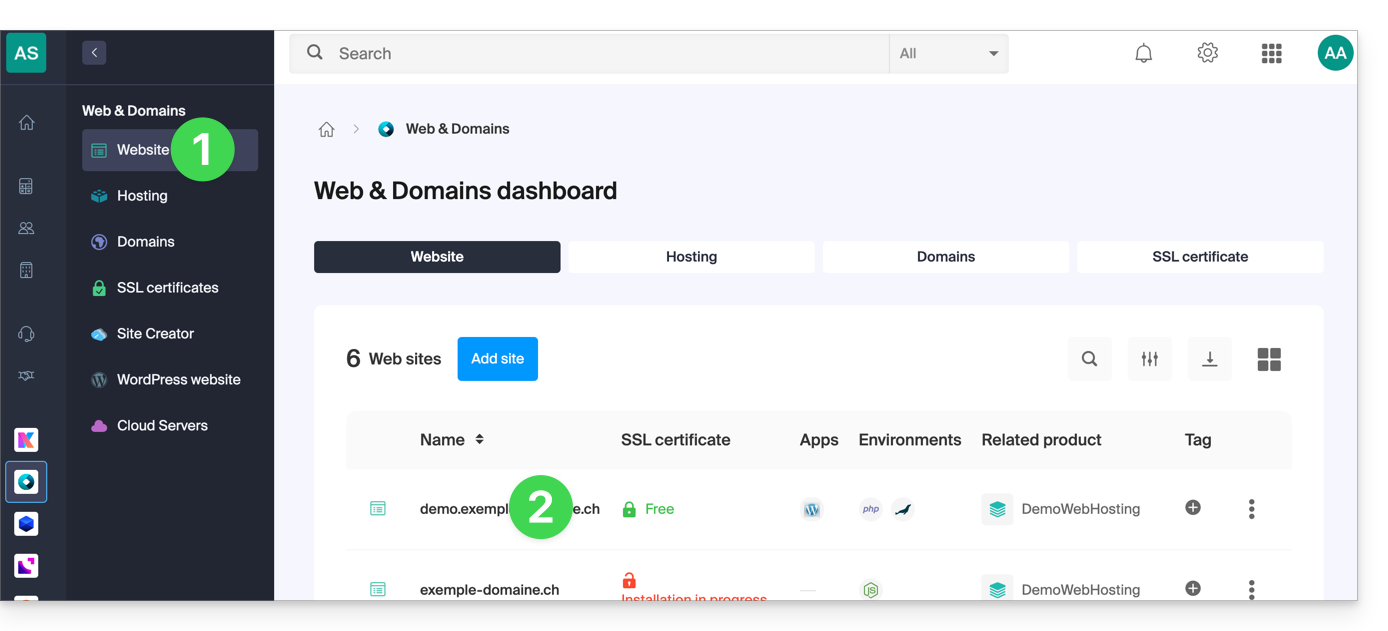
- Clique diretamente no nome atribuído ao site em questão:
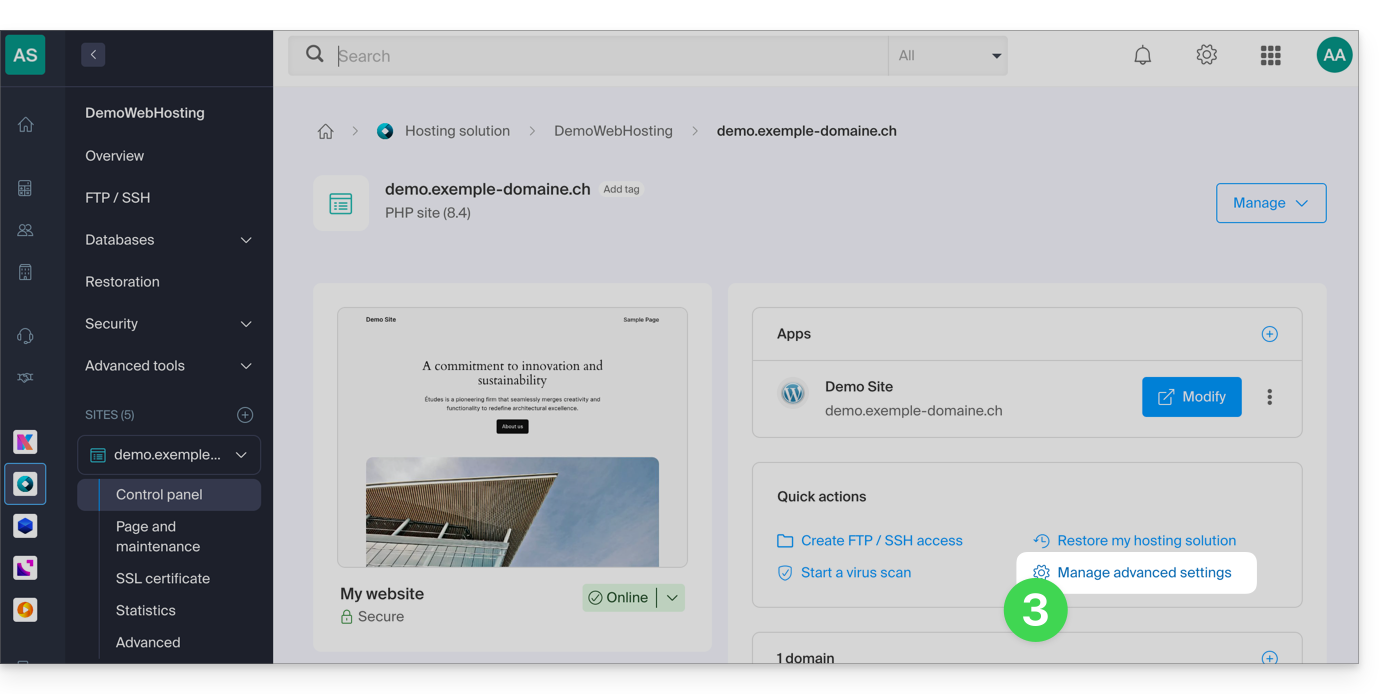
- Clique em Gerenciar as configurações avançadas:
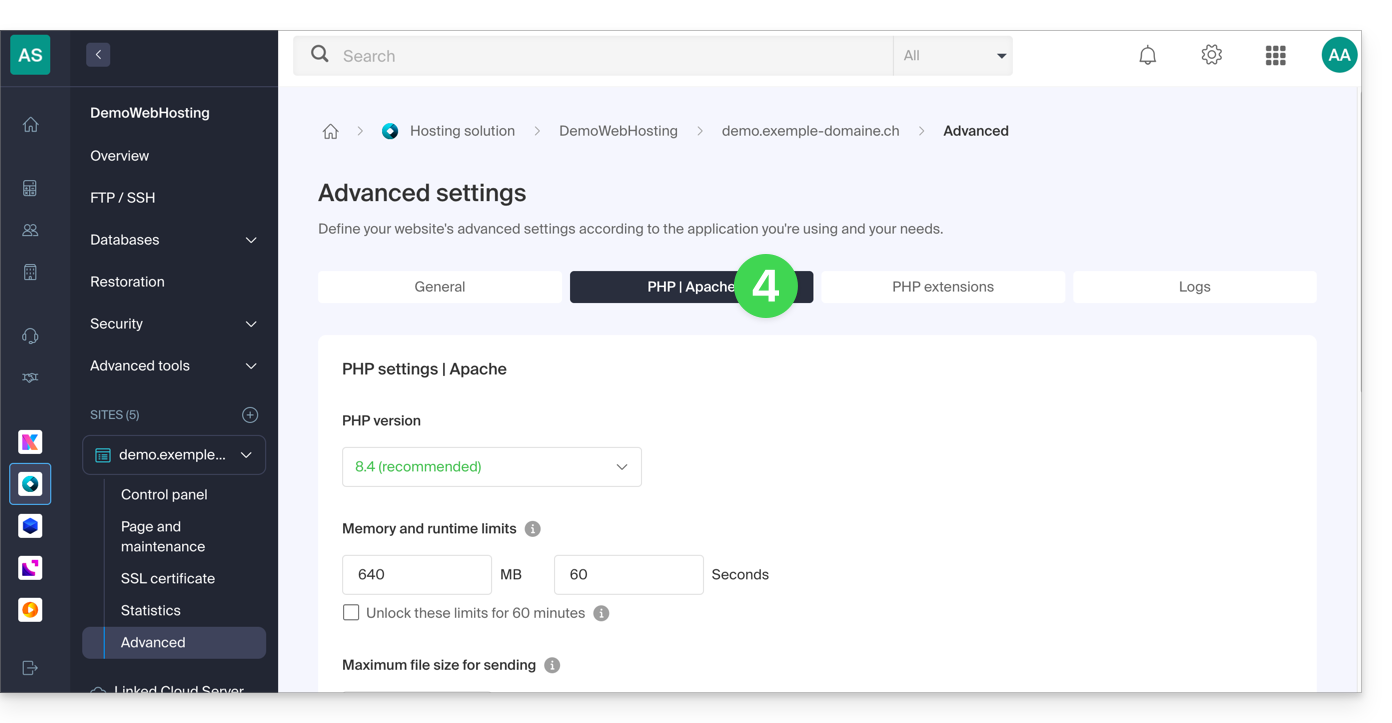
- Clique na aba PHP / Apache:
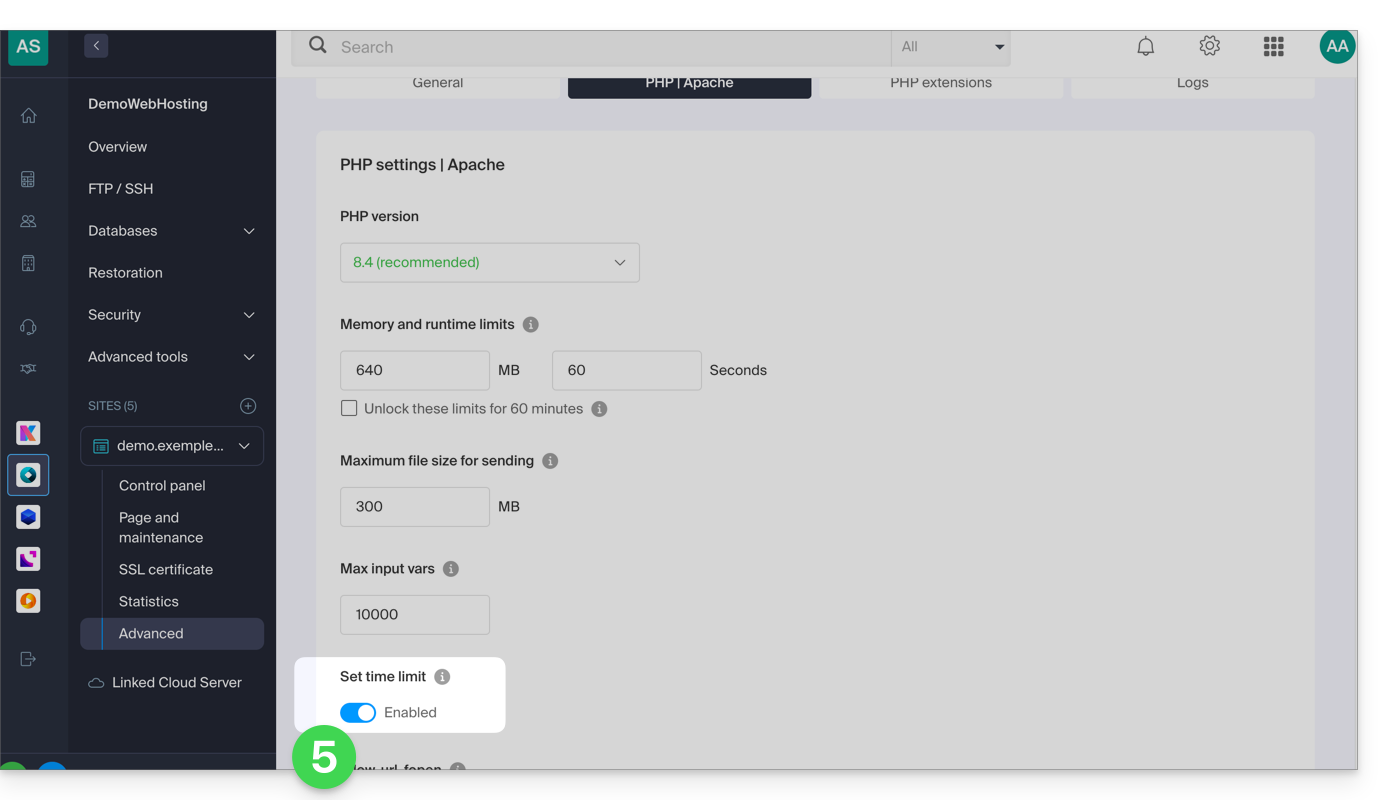
- Clique no botão de alternância (toggle switch) Ativado/Desativado conforme desejado:
- Clique no botão Guardar na parte inferior da página para confirmar as alterações.
Link para esta FAQ: https://faq.infomaniak.com/383
Esta seção de perguntas frequentes foi útil?
Este guia ajuda você a baixar todos os dados relacionados ao seu site hospedado pela Infomaniak.
Introdução
- São realizadas cópias de segurança automáticas diariamente nos servidores da Infomaniak.
- Ainda assim, pode descarregar uma versão íntegra e pessoal do seu site para o guardar em segurança na sua instalação local, numa pen USB, num arquivo
.zipno kDrive, etc. - Para fazer o download de um site criado com o WordPress, consulte este outro guia específico para 2 extensões que permitem fazer uma cópia de segurança local dos dados.
- Com exceção do Site Creator, os dados de um site hospedado pela Infomaniak estão acessíveis e visíveis no servidor através de uma conexão FTP (o que significa que, para fazer uma cópia de segurança dos dados, basta fazer o download do conteúdo da pasta principal no servidor).
- Restará apenas adicionar um backup do banco de dados do site (onde estão armazenadas informações que não estão presentes nos arquivos acessíveis por FTP).
Localização do site
Ao navegar na estrutura de pastas do servidor, nem sempre será fácil identificar o local onde encontrar as informações do site que lhe interessa.
Comece por anotar o local exato do site que pretende baixar, acessando manager.infomaniak.com no painel do site, dentro da sua hospedagem web: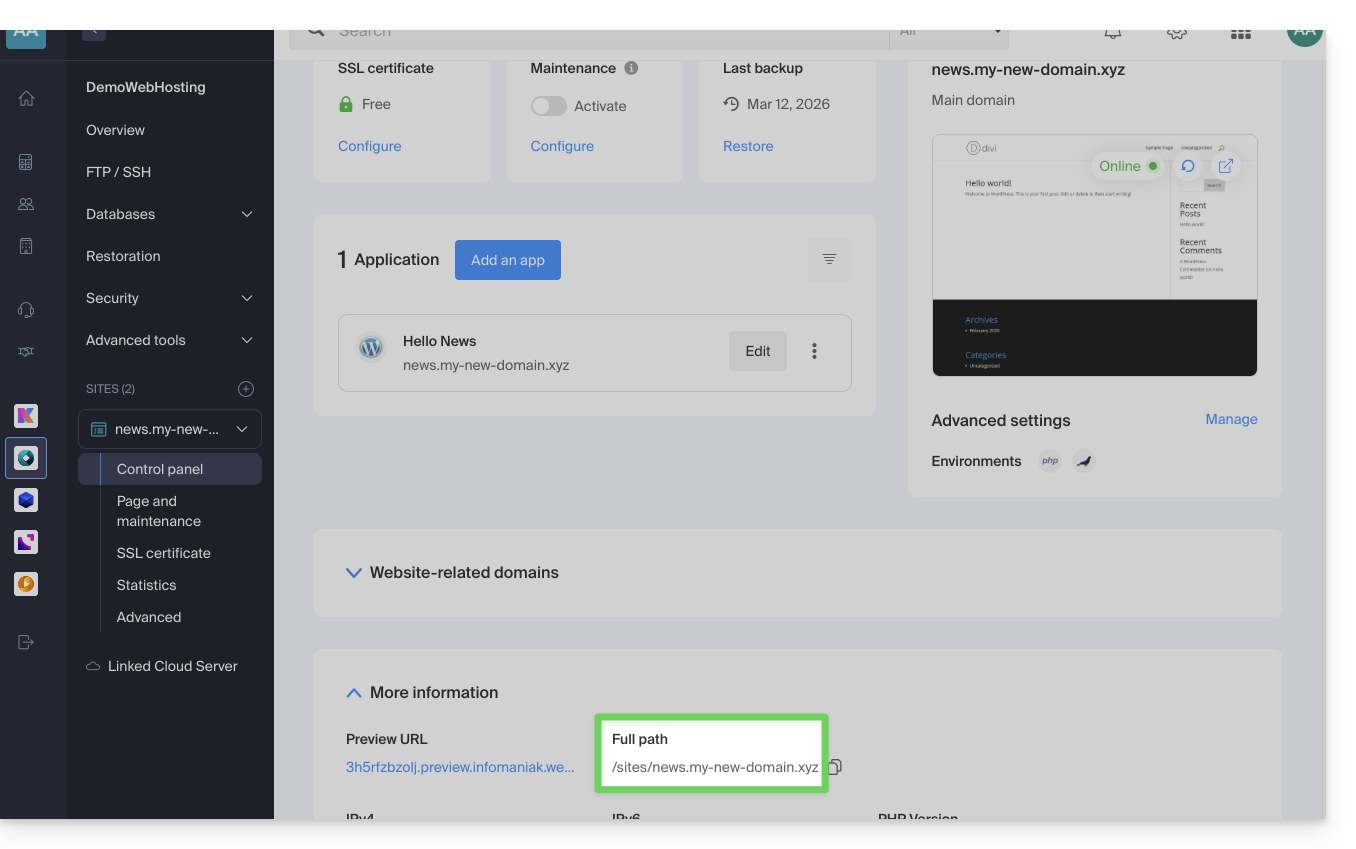
A indicação destacada acima é o local do site de exemplo. Veja o seu!
Conexão ao servidor
Para acessar o servidor, utilize um programa/cliente FTP ou o FTP Web no painel de controle, que pode ser adequado na maioria dos casos: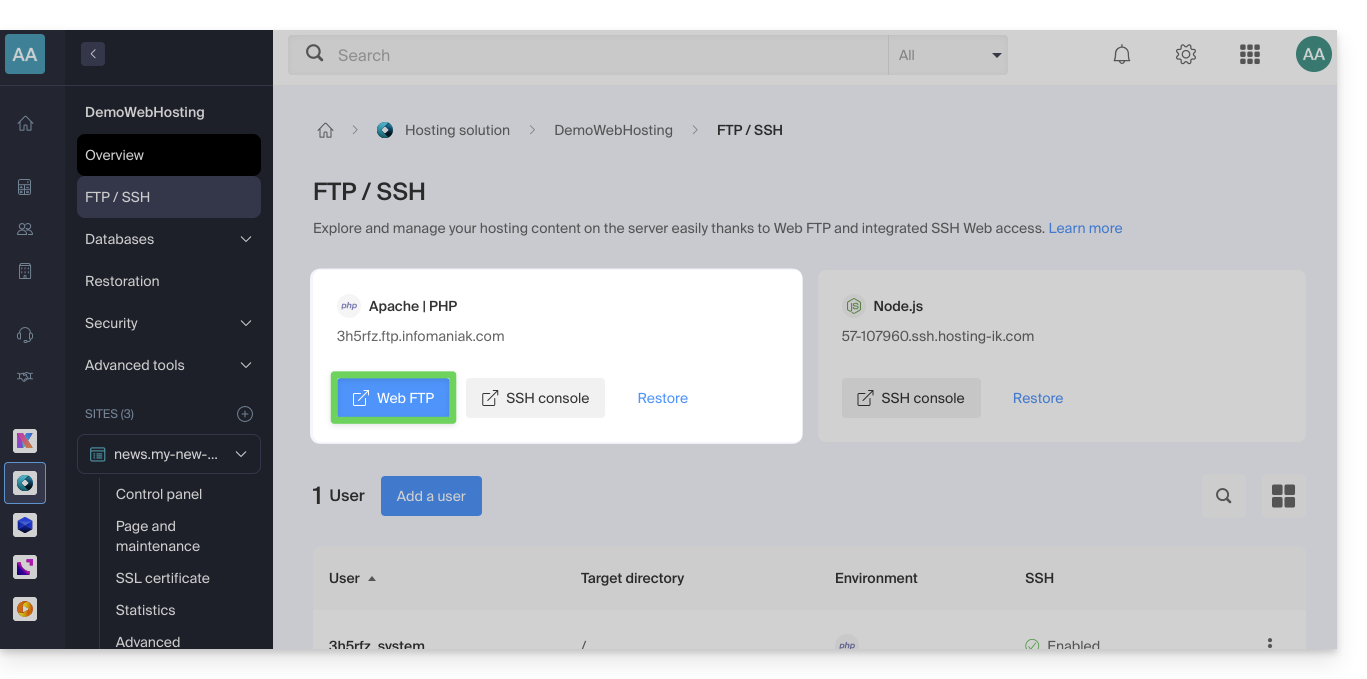
Download do site
Ao acessar o Web FTP, vá para o local indicado no primeiro capítulo acima e clique no ícone de download à direita da pasta correspondente ao seu site: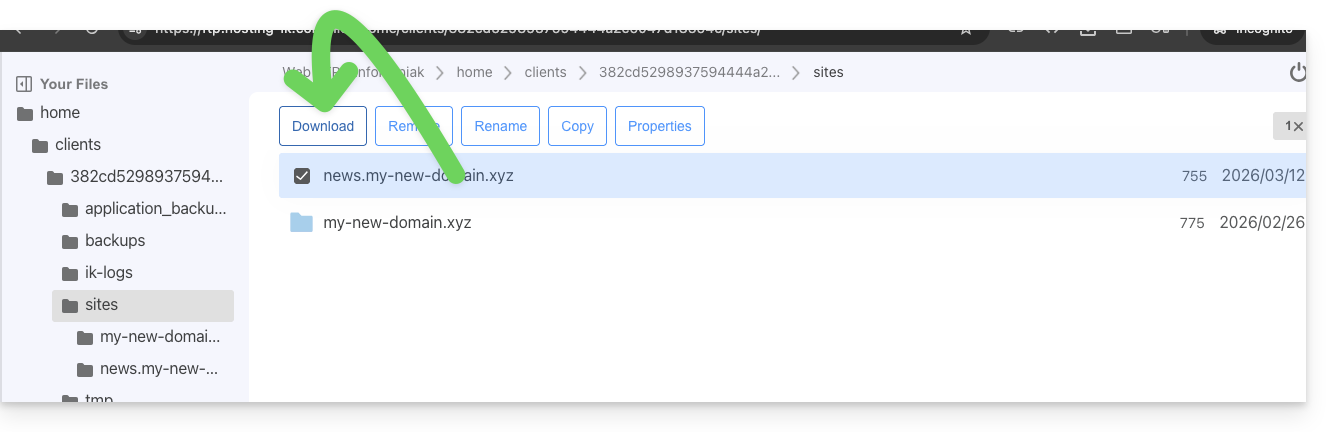
O download é iniciado e você recebe um arquivo .zip com todos os arquivos que compõem seu site (com exceção dos arquivos que começam com um ".", como .htaccess).
Download do banco de dados
Na maioria dos casos, o seu site utiliza uma base de dados para funcionar. Portanto, também é necessário fazer o download desta.
Para tal:
- Clique em Bases de dados no menu lateral esquerdo.
- Clique no menu de ações ⋮ localizado à direita do nome da sua base de dados (se não tiver certeza de qual escolher, repita a operação para cada uma delas).
- Clique em Descarregar:
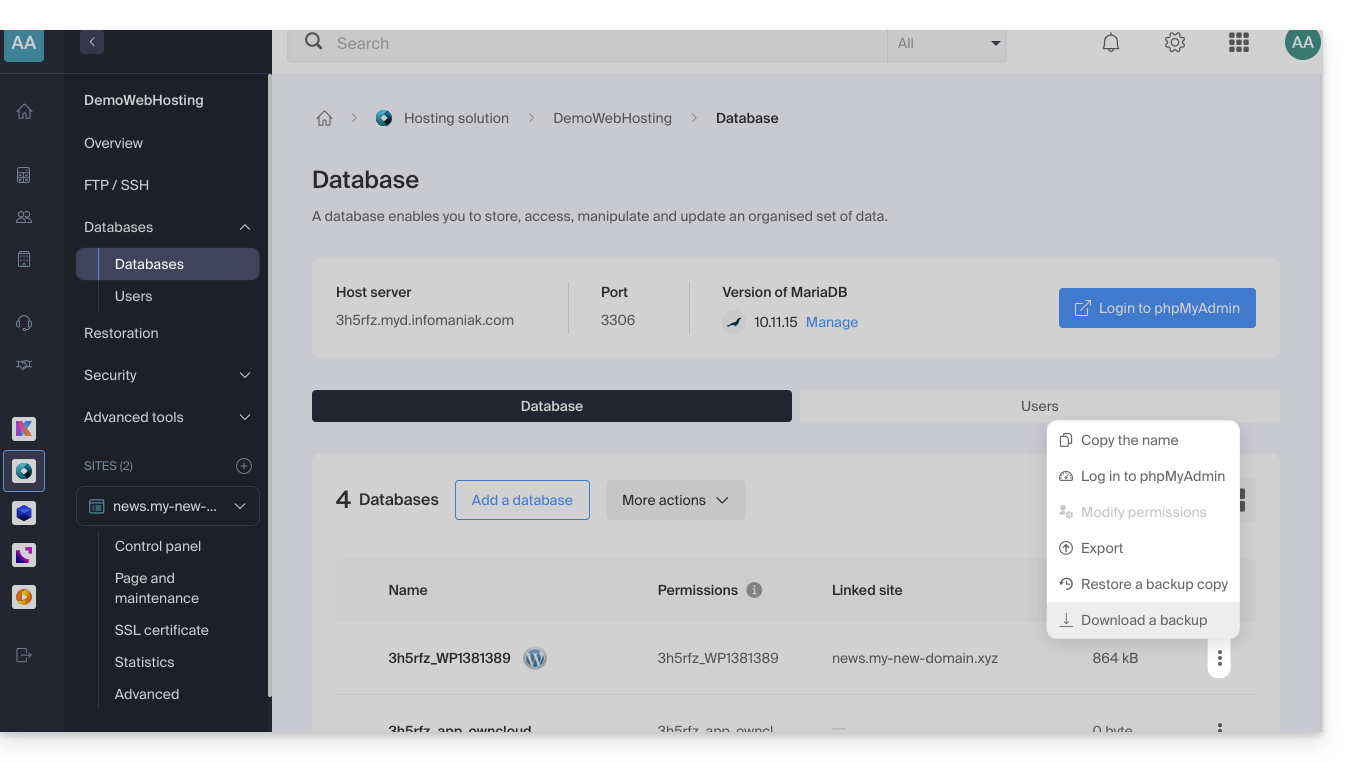
Na etapa seguinte, deverá confirmar o download (ou a exportação) do ficheiro correto e mais recente para obter um ficheiro .sql.gz que corresponda a todas as tabelas da sua base de dados, o qual deverá guardar com cuidado.
O link para download será enviado por e-mail.
Link para esta FAQ: https://faq.infomaniak.com/384
Esta seção de perguntas frequentes foi útil?
Para evitar o erro “Criar uma base de dados: sem privilégios”, é imprescindível utilizar o Painel de Controle Infomaniak e não o phpMyAdmin para adicionar uma nova base de dados.
Link para esta FAQ: https://faq.infomaniak.com/395
Esta seção de perguntas frequentes foi útil?
Git e GitHub estão disponíveis na Infomaniak com todas as ofertas de hospedagem em…
e, claro, na oferta Jelastic Cloud, que permite uma integração profunda do controle de versão.
Link para esta FAQ: https://faq.infomaniak.com/402
Esta seção de perguntas frequentes foi útil?
Este guia oferece dicas que podem ajudá-lo a otimizar o posicionamento do seu site nos motores de busca, como o Google.
Introdução
- A Infomaniak é um dos provedores de hospedagem mais eficientes do mercado francófono, o que contribui para o bom posicionamento dos seus sites nos resultados de pesquisa.
- Por outro lado, a Infomaniak não intervirá no conteúdo ou no desenvolvimento dos sites hospedados.
Otimização para motores de busca (SEO)
A otimização para motores de busca (Search Engine Optimization) é a otimização de um site para garantir que ele seja exibido nos motores de busca com base em determinadas palavras-chave inseridas pelos utilizadores. Os esforços que você investir no SEO terão um impacto a longo prazo.
Algumas dicas técnicas para otimizar o seu posicionamento nos motores de busca:
- Instale um certificado SSL no seu site.
- Ative a compressão gzip para acelerar o carregamento do seu site.
- Comprima as imagens do seu site com um software (FileOptimizer, Imageoptim) ou um serviço online como Imagify.
Para saber mais, consulte o guia da Infomaniak sobre otimização para motores de busca (SEO).
O Google também atualizou seu guia "Como começar com a otimização para motores de busca (SEO)" em 2024, com novas "boas práticas" fundamentais para otimizar a visibilidade no motor de busca.
O marketing em motores de busca (SEM)
O marketing em motores de busca (Search Engine Marketing) consiste em comprar anúncios pagos em espaços publicitários com o objetivo de posicionar rapidamente o seu site em palavras-chave específicas. O objetivo é fazer a melhor oferta nas palavras-chave com uma boa segmentação para aumentar as chances de ser exibido ao melhor custo. Os esforços que você investe no SEM deixarão de ter um impacto direto assim que você interromper suas campanhas publicitárias.
Link para esta FAQ: https://faq.infomaniak.com/408
Esta seção de perguntas frequentes foi útil?
Este guia aborda as funcionalidades de gestão de bases de dados disponíveis com os serviços de hospedagem da Infomaniak.
Descubra também a solução de bases de dados gerenciadas (DBaaS) de alta disponibilidade hospedada na Suíça, que permite implantar facilmente clusters de alto desempenho e seguros (MySQL, MariaDB, PostgreSQL) sem ter que gerenciar a infraestrutura subjacente.
MySQL, SQLite, MariaDB, PostgreSQL…
No que diz respeito ao Sistema de Gestão de Base de Dados, os serviços de alojamento suportam…
- … bases de dados MySQL através de acesso PHP MySQL ou através de Perl DBI+DBD::mysql
- Pode usar MySQL como sistema de gestão de bases de dados (SGBD) nos servidores Infomaniak.
- Pode aceder a ele através de PHP, utilizando as funções de base de dados MySQL integradas no PHP, ou através de Perl, utilizando os módulos DBI e DBD::mysql.
- … MySQLi, a interface nativa de acesso ao MySQL (PHP5)
- MySQLi é uma extensão do PHP que permite o acesso a um banco de dados MySQL.
- É uma versão aprimorada e mais recente da antiga extensão MySQL do PHP, oferecendo funcionalidades e desempenho aprimorados.
- … SQLite 3.x
- O SQLite é um motor de base de dados SQL leve, independente e sem servidor.
- Os servidores Infomaniak suportam a versão 3.x do SQLite, o que significa que pode usar o SQLite para armazenar dados nestes servidores.
- … MariaDB
- O MariaDB é um fork do MySQL e é frequentemente usado como alternativa ao MySQL.
- Portanto, pode usar o MariaDB como sistema de gestão de base de dados nos servidores Infomaniak.
- … o módulo PGSQL
- PGSQL é um módulo PHP que permite conectar-se a um banco de dados PostgreSQL.
- Esta funcionalidade específica permite conectar-se a um banco de dados PostgreSQL REMOTO através do PHP; isso requer a abertura da porta apropriada para o endereço IP específico do banco de dados PostgreSQL no painel de controle da Infomaniak.
Dba, dbm, db2 e sqlite não são suportados, assim como o SQL Server (trata-se de um servidor de banco de dados que requer uma arquitetura Microsoft).
Link para esta FAQ: https://faq.infomaniak.com/418
Esta seção de perguntas frequentes foi útil?
A gravação nos diretórios /etc e /lib está desativada por motivos de segurança.
Link para esta FAQ: https://faq.infomaniak.com/430
Esta seção de perguntas frequentes foi útil?
Este guia detalha os protocolos de transferência de arquivos aceitos nos serviços de Hospedagem Web e Servidor Cloud da Infomaniak ao conectar-se aos servidores ProFTPD.
Introdução
- Com uma hospedagem Starter (página web básica), apenas uma conexão FTP na porta 21 (sem SSL/TLS) é possível.
- Ao criar um site através de uma hospedagem Apache / PHP, o acesso aos arquivos é possível através de diferentes protocolos (FTP, SFTP, SSH).
- Com um site Node.js, apenas SSH / SFTP são possíveis para acessar o seu ambiente.
FTP (File Transfer Protocol)
As conexões FTP nos modos “ativo” e “passivo” são suportadas (alterne entre os dois para tentar resolver um possível problema).
A Infomaniak abre as portas passivas do seu lado [PassivePorts 42000 44000], mas apenas para as conexões ao seu servidor FTP. O modo FTP passivo implica o uso de portas remotas definidas pelo servidor remoto, bem como de portas locais que podem variar dependendo do software/cliente FTP utilizado.
O modo passivo é útil principalmente quando o software/cliente FTP está atrás de um firewall ou roteador NAT que bloqueia as conexões FTP ativas. No entanto, na infraestrutura da Infomaniak, as conexões FTP ativas são permitidas, o que significa que o uso do modo passivo geralmente não é necessário.
No que diz respeito ao PHP, não é possível, por padrão, gerenciar essa configuração de forma centralizada. Portanto, não é viável para a Infomaniak abrir todas as portas para suportar todas as configurações remotas, pois isso não seria prático nem seguro.
De modo geral, a infraestrutura não oferece suporte total às conexões FTP de saída no modo passivo. Para uma experiência de transferência de arquivos mais eficiente, recomenda-se o uso do modo FTP ativo ou a exploração de tecnologias mais modernas, como o SFTP (veja abaixo).
SFTP (Protocolo de Transferência de Arquivos SSH)
Criar conexões SFTP garante uma elevada segurança nas transferências de ficheiros. Certifique-se de que ativou o SSH no seu software/cliente SFTP e utilize a porta 22 para a conexão: sftp://*****.
FTPES (FTP seguro com TLS/SSL)
Utilize o FTPES para transferências de arquivos seguras com a porta 21 e a criptografia SSL/TLS. Com o software Filezilla, por exemplo, selecione "Conexão FTP explícita via TLS" para configurar seu software/cliente FTPES: ftpes://*****.
FTPaccess
O acesso à configuração do FTP está disponível.
O que não é suportado
Utilizador Público/Anónimo
Não é permitido efetuar login como utilizador público ou anónimo. É necessário ter uma conta de utilizador válida para aceder à sua área de alojamento.
FTPs (FTP seguro em uma porta personalizada)
O protocolo FTPs não é suportado, o que significa que a porta 2121 não está aberta para este tipo de conexão.
Link para esta FAQ: https://faq.infomaniak.com/446
Esta seção de perguntas frequentes foi útil?
Este guia explica como obter informações sobre a presença de um sistema de cache em um site usando o comando curl.
Introdução
- No mundo da programação e da administração de sistemas, é frequentemente necessário determinar se um site utiliza um sistema de cache para melhorar o seu desempenho.
- Sistemas de cache como o Fastly são comumente utilizados para armazenar temporariamente dados, de forma a disponibilizá-los mais rapidamente aos utilizadores.
- Seguindo estas etapas, você poderá determinar se um site utiliza um sistema de cache para melhorar seu desempenho e entender o funcionamento e a otimização dos sites.
Utilização do comando curl
curl é uma ferramenta de linha de comando que permite transferir dados usando URLs.
A opção -svo /dev/null é usada para realizar uma solicitação silenciosa (-s), exibir informações detalhadas sobre a solicitação (-v) e redirecionar os dados de saída para /dev/null para descartá-los (/dev/null é um dispositivo especial em sistemas Unix/Linux que funciona como uma lixeira). -H "Fastly-Debug: true" é um cabeçalho HTTP adicionado à solicitação para solicitar informações de depuração específicas do Fastly.
Executar o comando
Execute o seguinte comando a partir de uma aplicação do tipo Terminal (interface de linha de comando, CLI / Command Line Interface) no seu dispositivo:
curl -svo /dev/null [url] -H “Fastly-Debug: true”e substitua [url] pelo endereço do site que deseja verificar.
Se o site utilizar o Fastly ou outro sistema de cache semelhante, verá informações de depuração específicas na saída do comando. Os detalhes fornecidos podem incluir informações sobre as requisições e respostas HTTP, bem como informações sobre o cache e o desempenho.
Link para esta FAQ: https://faq.infomaniak.com/453
Esta seção de perguntas frequentes foi útil?
Este guia explica como configurar as reescritas de URL no seu alojamento. O módulo Apache "mod_rewrite" está ativado por defeito em toda a infraestrutura Infomaniak.
Gestão através do ficheiro .htaccess
Por motivos de segurança e estabilidade, a Infomaniak não permite a modificação direta da configuração do servidor (VirtualHost).
Qualquer personalização deve ser feita obrigatoriamente através de um ficheiro .htaccess colocado na raiz do seu site.
Num ficheiro .htaccess, as expressões regulares das suas regras de reescrita não devem começar por uma barra (/).
Sintaxe correta
Exemplo: é preciso usar RewriteRule ^contact$ contact.php (em vez de RewriteRule ^/contact$ contact.php)...
Recomenda-se adicionar a diretiva RewriteBase / logo após a ativação do motor (RewriteEngine On) para garantir a compatibilidade dos seus caminhos relativos.
Link para esta FAQ: https://faq.infomaniak.com/456
Esta seção de perguntas frequentes foi útil?
Este guia explica quais são os protocolos e portas que podem ser utilizados com os serviços de e-mail da Infomaniak (nomeadamente o Serviço de E-mail).
Portas e parâmetros recomendados para a configuração do cliente
Quando solicitado durante a configuração de um software/cliente de e-mail (Outlook, Thunderbird, dispositivo móvel, etc.), utilize as configurações abaixo.
Configurações comuns a todas as contas
- Nome do servidor:
mail.infomaniak.com - Autenticação: obrigatória (nome de utilizador = endereço de e-mail completo)
| Protocolo / Uso | Porta | Mecanismo de segurança |
|---|---|---|
| IMAPs – tráfego de entrada (recomendado) | 993 | SSL / TLS (implícito) |
| SMTP – tráfego de saída (opção 1: padrão IETF) | 587 | STARTTLS (explícito) |
| SMTP – tráfego de saída (opção 2: criptografia implícita) | 465 | SSL / TLS (implícito) |
Nota técnica: a porta 587 com STARTTLS é a prática padrão da IETF para o envio seguro de e-mails. A porta 465 é uma alternativa segura que utiliza criptografia implícita.
Se você preencher outros parâmetros ou desativar a criptografia, podem ocorrer erros de envio de e-mail.
Outras portas suportadas (não criptografadas ou para compatibilidade com versões anteriores)
Portas alternativas:
- Porta
143: porta padrão para a receção IMAP (não criptografada, utilize a993). - Porta
110: porta padrão para a receção POP3 (não criptografada, utilize a995). - Porta
995: porta segura para a receção POP3s (opção segura POP3). - Porta
25: porta padrão para a transferência de servidor para servidor (pode suportar STARTTLS para envio, mas a porta587continua sendo o padrão para clientes).
Compatibilidade de autenticação e criptografia:
- A autenticação STARTTLS é suportada nas portas não criptografadas (
143,110,25) para ativar a criptografia TLS. - A autenticação SMTP é suportada através dos métodos LOGIN ou PLAIN.
Utilização da API e segurança das transferências
A API Infomaniak não oferece nenhuma conexão direta com a caixa de correio, pois o IMAP e o SMTP já funcionam como interfaces ("API"). Para interagir com a caixa de correio por meio de programação, utilize uma biblioteca dedicada (por exemplo, em Python: email.examples e imaplib).
Exemplo para exibir e-mails a partir de PHP:imap_open("{mail.infomaniak.com:993/imap/ssl}", $email, $password);
O mecanismo MTA-STS não está implementado nem verificado; a Infomaniak utiliza, em vez disso, DANE (DNS-based Authentication of Named Entities) para garantir uma conexão criptografada entre servidores quando as seguintes condições são cumpridas:
- O cliente envia um e-mail para um domínio que configurou o DANE.
- O cliente recebe um e-mail de um servidor SMTP que utiliza o DANE.
Em todos os outros casos (na ausência de DANE), a conexão criptografada permanece opcional.
Link para esta FAQ: https://faq.infomaniak.com/468
Esta seção de perguntas frequentes foi útil?
Este guia detalha o uso do script FormMail nas diferentes ofertas de hospedagem da Infomaniak.
Preâmbulo
- FormMailé um script CGI gratuito que captura e processa o conteúdo de um formulário para enviá-lo aos utilizadores especificados.
- Suportado em Hospedagem compartilhada e Servidor Cloud.
Utilizar o FormMail
Pode instalar o FormMail livremente num serviço de alojamento para enviar formulários do seu site para os destinatários que escolher:
- Descarregue a versão modificada (compatível) do script original do FormMail de Matt Wright.
- Coloque o ficheiro Perl
FormMail.plnuma subpasta chamadacgi-bin. - Conceda a permissão de execução para o utilizador:
chmod u+x FormMail.pl
- Edite o ficheiro
FormMail.plpara indicar os destinatários.
O arquivo EXAMPLE contém um exemplo de formulário que você poderá adaptar de acordo com suas necessidades.
Link para esta FAQ: https://faq.infomaniak.com/470
Esta seção de perguntas frequentes foi útil?
Este guia detalha as restrições relativas ao número de conexões simultâneas permitidas nos bancos de dados MySQL dos serviços de hospedagem web.
Limites de conexões MySQL simultâneas
Para preservar a estabilidade, a segurança e a capacidade de resposta do servidor para todos os utilizadores, o sistema aplica limites ao número de conexões simultâneas.
Para cada utilizador de base de dados na Infomaniak, o limite máximo é de 38 conexões MySQL simultâneas.
Esta cota impede a sobrecarga dos recursos partilhados. Se este limite for excedido, o acesso será temporariamente bloqueado e poderão surgir erros como O utilizador já tem mais de 'max_user_connections' conexões ativas ou Número excessivo de conexões.
Na prática, este limite é raramente atingido. Se necessário, é perfeitamente possível distribuir a carga criando utilizadores MySQL distintos para os diferentes scripts ou serviços do seu site.
Sem limite de conexões por hora
A Infomaniak não impõe restrições ao volume de requisições por hora.Os parâmetros como MAX_QUERIES_PER_HOUR ou MAX_CONNECTIONS_PER_HOUR não estão ativados.
Ao contrário de algumas ofertas da concorrência, não encontrará erros de exceder os limites de recursos do tipo Erro SQL: 1226 relacionados com o volume de atividade por hora.
Saiba mais
Link para esta FAQ: https://faq.infomaniak.com/471
Esta seção de perguntas frequentes foi útil?